


7 Methods to Fix iPhone Black Line on Screen
Seeing black lines on your iPhone screen can be alarming, especially if they appear suddenly or worsen over time. These lines may be vertical, horizontal, thick, thin, or flickering, and they can signal anything from a minor iOS glitch to serious screen damage.
The good news? Black lines don't always mean your iPhone screen is broken. In this guide, you'll learn what causes black line on iPhone screen and how to fix it effectively.

- Why Do Black Lines Appear on an iPhone Screen?
- How to Fix Black Lines on iPhone Screen (7 Methods)
- Method 1. Perform a Force Restart
- Method 2. Clean the Screen and Check for Water Damage
- Method 3. Fix Loose Connections
- Method 4. Fix Black Lines Without Data Loss HOT
- Method 5. Factory Reset Your iPhone (Data Loss)
- Method 6. Restore Your iPhone via DFU Mode (Data Loss)
- Method 7. Repair Hardware of Your iPhone
- FAQ Related to Black Lines on iPhone Screen
- The Bottom Line
Why Do Black Lines Appear on an iPhone Screen?
Identifying the exact cause is critical, because software issues are often fixable without replacing the screen, while hardware damage usually is not. Black lines usually appear when the iPhone's display system fails to render pixels correctly. This can happen due to the following reasons:
- iOS software bugs
- Display driver or GPU glitches
- Physical damage to the screen or internal connectors (like a drop)
What Do the Lines on Your Screen Mean?
Not all lines are created equal. The color and orientation of the lines can reveal whether the culprit is your software or your hardware. You can take a screenshot of your screen and view it on another device (or send it to a friend).
- If the lines appear in the screenshot: The issue is Software (GPU or iOS glitch). You can likely fix this for free.
- If the lines DO NOT appear in the screenshot: The issue is Hardware (Screen panel or connection).
| Symptom | Likely Cause | Fix Priority |
|---|---|---|
| Vertical Neon/White Lines | Damaged OLED/LCD panel or loose ribbon cable. | Check Connection/Hardware Repair |
| Horizontal Black/Grey Lines | Software conflict, overheating, or driver failure. | Force Restart/TunesKit/Reset |
| Flickering Lines | Loose internal connection or severe iOS bug. | Fix Loose Connection/System Repair |
| Touch Unresponsive | Digitizer damage (Physical). | Hardware Repair |
How to Fix Black Lines on iPhone Screen (Step-by-Step)
In this part, I'll show you 7 effective methods to fix your iPhone black line on screen problem, no matter what the reason is.
Method 1. Perform a Force Restart
This is the "turn it off and on again" method on steroids. A standard restart sometimes isn't enough to clear cached display drivers. A Force Restart cuts power to the logic board and forces the iOS to reload the graphics drivers from scratch.
- For iPhone 8, X ~ 15, 16, 17: Quickly press and release Volume Up. Quickly press and release Volume Down. Then, hold the Side Button (Power) until you see the Apple logo.
- For iPhone 7 and 7 Plus: Press and hold both the Volume Down and the Side Button simultaneously. Keep holding until the Apple logo appears.
- For iPhone 6s and Earlier: Press and hold both the Home Button and the Side/Top Button until the Apple logo appears.

Method 2. Clean the Screen and Check for Water Damage
Sometimes, the issue is environmental. Debris, oil, or water can interfere with the digitizer, causing ghost touches or visual artifacts. Now follow the simple steps below to clean the screen and check whether it's water damaged.
- Step 1. Remove your case and screen protector. Tight cases can sometimes pinch the edges of the display, causing pressure lines on your phone.
- Step 2. Clean the screen thoroughly with a microfiber cloth to remove conductive oils.
- Step 3. Check the LDI (Liquid Contact Indicator). Eject your SIM tray and shine a light inside. If you see a red indicator, your phone has water damage, which often corrodes the display connectors.

Method 3. Fix Loose Connections
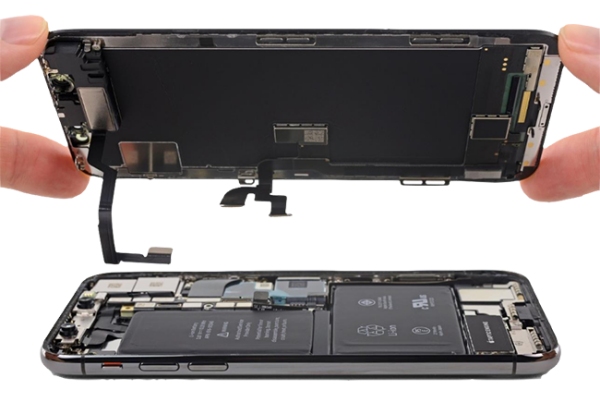
If you recently dropped your phone, you might not have broken the screen, but simply knocked the internal connector loose. Inside your iPhone, the display connects to the logic board via a tiny ribbon cable.
 Warning: Proceed with caution. Do not press so hard that you crack the glass.
- Step 1. Locate the connection area. On most modern iPhones, the logic board display connectors are located to the right of the rear camera module.
- Step 2. Place your thumb over this area on the front screen.
- Step 3. Apply firm, gentle pressure while pinching the front and back of the phone together.
- Step 4. If you see the lines flicker or disappear momentarily, you have a loose connection. A repair shop can reseat this cable for a fraction of the cost of a new screen.
Method 4. Fix Black Lines Without Data Loss
If a force restart failed but your screen isn't physically cracked, the issue likely lies deep within the iOS firmware. Corrupted system files can cause the display drivers to misfire, resulting in permanent lines or flickering.
Factory resetting your phone will fix this, but you will lose all your photos and data. This is where TunesKit iOS System Recovery shines. It's a professional repair tool designed to replace the damaged iOS firmware without erasing your personal data. The success rate is up to 99.8%, and you can easily fix it by yourself.
 Why Use TunesKit?
- No Data Loss: It uses Standard Repair mode to fix the system while keeping your photos, chats, and apps intact.
- High Compatibility: It works on the latest iOS 26 and covers almost all iPhone models.
- Fixes 150+ Issues: Beyond black lines, it fixes white screens, boot loops, and frozen screens.
- Step 1. Download and launch TunesKit iOS System Recovery on your computer. Connect your iPhone via USB.
- Step 2. Choose iOS System Repair and select Standard Repair. This mode protects your data.
- Step 3. Download the firmware package prompted by the software. Once downloaded, click Repair. TunesKit will automatically replace the corrupted display drivers and fix the black lines.

Method 5. Factory Reset Your iPhone (Erase All Data)
If you do not want to use a third-party tool and don't mind losing your data, you can try a full factory reset. This returns the phone to its "out of the box" state.
- Step 1. Go to Settings > General > Transfer or Reset iPhone.
- Step 2. Select Erase All Content and Settings.
- Step 3. Follow the onscreen instructions and finish the whole process to erase your iPhone.

Method 6. Restore Your iPhone via DFU Mode (Erase All Data)
If a standard Factory Reset failed to remove the lines from your screen, your last hope before paying for hardware repair is a DFU (Device Firmware Update) Restore. Unlike a standard recovery, DFU Mode bypasses the bootloader entirely. It allows your computer to wipe the phone's code completely and rewrite the firmware. Thus, it will erase everything on your iPhone.
Step 1. Connect your iPhone to the PC. Launch iTunes on your Windows computer or Finder on macOS Catalina and later.
Step 2. Follow the step-by-step instructions to put your iPhone into DFU mode.
-
For iPhone 8, X ~ 15, 16, 17 (and SE 2nd/3rd Gen):
1. Quickly press and release Volume Up. Quickly press and release Volume Down.
2. Press and HOLD the Side Button (Power) for 10 seconds. The screen will turn black.
3. While still holding the Side Button, press and HOLD Volume Down for 5 seconds.
4. Release the Side Button but KEEP HOLDING Volume Down for another 10 seconds. -
For iPhone 7 and 7 Plus:
1. Press and HOLD both the Side Button (Power) and Volume Down button at the same time for 8 seconds.
2. Release the Side Button but KEEP HOLDING Volume Down for another 5-10 seconds. -
For iPhone 6s, SE (1st Gen), and Earlier:
1. Press and HOLD both the Side/Top Button (Power) and Home Button at the same time for 8 seconds.
2. Release the Power Button but KEEP HOLDING the Home Button for another 5-10 seconds.
Step 3. Once your screen is black and your computer has detected the device, it will show a message: "iTunes has detected an iPhone in recovery mode". If you see the Apple logo or the "Connect to Computer" icon, you held a button too long. You can start over until it's successful.
Step 4. Click Restore in iTunes or Finder. Your computer will download the latest iOS version and install it. This process can take 15–30 minutes. Do not disconnect the cable.


Method 7. Repair Hardware of Your iPhone
If you have tried the methods above, especially the DFU restore or TunesKit repair, and the lines remain, your LCD or OLED panel is physically damaged. You have three main options:
- Official Apple Support: If you have AppleCare+, a screen replacement is usually very cheap (often around $29). Without warranty, it can cost between $279 and $379 for newer models.
- Third-Party Repair Shops: These are often faster and cheaper ($100 - $200). However, ensure they use high-quality OLED panels, or you might lose features like "True Tone".
- DIY Replacement: For the tech-savvy, kits from sites like iFixit allow you to replace the screen yourself for about $50-$150. Be warned: this voids your water resistance and is difficult to do correctly.

FAQ Related to Black Lines on iPhone Screen
-
Will the black lines on my iPhone screen spread?
If the cause is physical damage (like a crack in the LCD or pixel bleed), yes, the black spots or lines will likely grow over time as the liquid crystal leaks or oxidation spreads.
-
Can a virus cause lines on my iPhone?
It is highly unlikely. iOS is a walled garden and very resistant to traditional viruses. Visual glitches are almost always due to the operating system (iOS) bugs or physical hardware damage.
-
How much does it cost to fix black lines on iPhone 11?
If it is a software issue, it is free to fix using the methods above. If the screen is broken, expect to pay around $279 at Apple (out of warranty) or roughly $150-$200 at a local repair shop.
The Bottom Line
Seeing black lines on your iPhone screen is stressful, but it doesn't always mean your phone is dead. Start with a Force Restart and the connection fixing method to rule out simple glitches. If those fail, use TunesKit iOS System Recovery to repair the internal software without wiping your life's memories.
Only once you have ruled out software should you pay for a screen replacement. Good luck getting your clear display back!


