How to Fix iOS 27.2 Age Verification Selfie Not Working
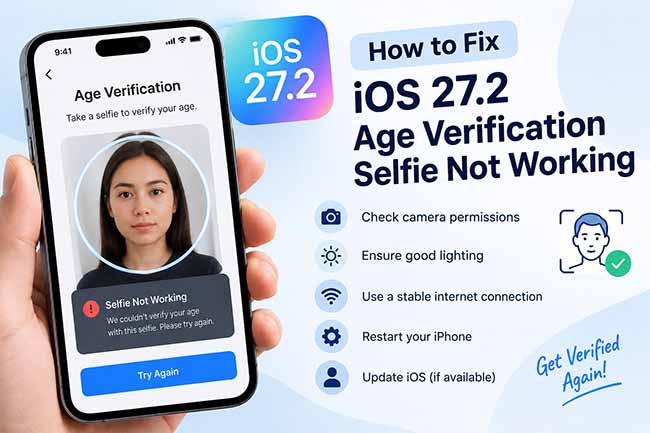
Are you experiencing the iOS 27.2 Age Verification Selfie not working issue on your iPhone? This frustrating problem can prevent you from completing age verification due to camera errors, failed selfie scans, or unexpected verification glitches.
Fortunately, there are several simple ways to troubleshoot this issue. In this guide, we'll explore the possible causes and share effective solutions to help you fix age verification selfie problems on iOS 27.2 quickly and easily.
- Why Is iOS 27.2 Age Verification Selfie Not Working?
-
How to Fix iOS 27.2 Age Verification Selfie Not Working
- Method 1. Check Your Internet Connection
- Method 2. Improve Lighting and Adjust Your Face Position
- Method 3. Restart Your iPhone
- Method 4. Check Your iPhone's Front Camera
- Method 5. Update Your iPhone to the Latest iOS Version
- Method 6. Repair iOS System Issues with TunesKit iOS System Recovery HOT
- Method 7. Check Age Verification Availability in Your Region
- Method 8. Try an Alternative Age Verification Method
- Method 9. Contact Apple Support
- FAQs About iOS 27.2 Age Verification Selfie Not Working
- Final Thoughts
Why Is iOS 27.2 Age Verification Selfie Not Working?
Apple introduced selfie-based age verification in iOS 27.2, allowing users in supported regions to confirm they're adults without submitting identification documents. However, the verification process may fail for several reasons:
- 01 Poor lighting: Dim or uneven lighting can make facial scanning difficult.
- 02 Incorrect face positioning: Moving too quickly or failing to follow the scanning instructions may interrupt verification.
- 03 Unstable internet connection: Network problems can prevent the verification process from completing.
- 04 Camera problems: Camera malfunctions may interfere with selfie capture.
- 05 Regional restrictions: Selfie-based verification isn't available in every country or region.
How to Fix iOS 27.2 Age Verification Selfie Not Working
If your iPhone keeps rejecting your selfie, gets stuck during facial scanning, or displays an error message, there are several solutions worth trying. Let’s see how to do it.
Method 1. Check Your Internet Connection
A stable internet connection is important for Apple's selfie-based age verification because the process uses both on-device processing and Private Cloud Compute. If your Wi-Fi signal is weak or your cellular connection keeps disconnecting, the verification process may fail even when the selfie is captured correctly.
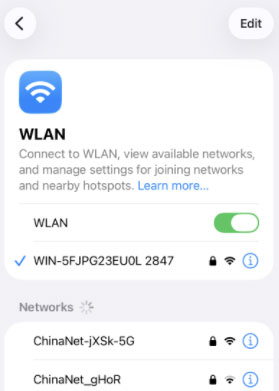
- Step 1. Open Settings > WLAN on your iPhone.
- Step 2. Check whether your device is connected to a stable Wi-Fi network.
- Step 3. If the connection is unstable, switch to another Wi-Fi network or cellular data.
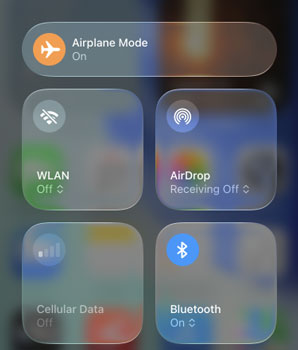
Step 4. Turn Airplane Mode on for a few seconds, then turn it off.
Step 5. Return to the age verification screen and try taking another selfie.
Method 2. Improve Lighting and Adjust Your Face Position
The iOS 27.2 selfie verification feature uses facial age-estimation technology to determine whether a user is an adult. For the system to work properly, your face must be clearly visible from multiple angles.
Poor lighting, shadows, and incorrect positioning can make it difficult for the system to analyze facial features accurately. Wearing sunglasses, a mask, or a hat may also interfere with the scan.
- Step 1. Move to a location with bright, even lighting.
- Step 2. Remove sunglasses, hats, masks, or other items covering your face.
- Step 3. Hold your iPhone directly in front of your face.
- Step 4. Make sure your entire face is visible inside the scanning frame.
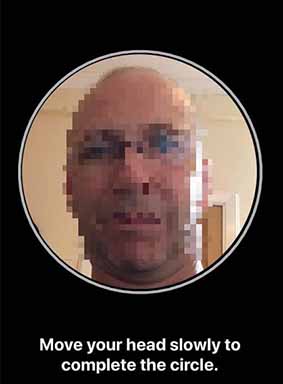
- Step 5. Slowly move your head right, left, up, and down as instructed.
- Step 6. Wait for the system to finish analyzing your selfie.
Method 3. Restart Your iPhone
Temporary system glitches can sometimes interfere with camera operations and verification processes. If the age verification screen freezes, fails to respond, or closes unexpectedly, restarting your iPhone may help restore normal functionality.
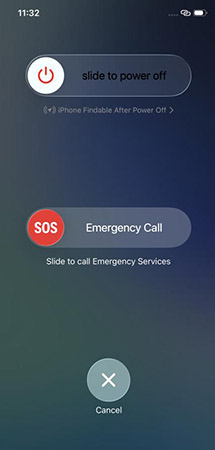
- Step 1. Press and hold the Side button and either Volume button until the power-off slider appears.
- Step 2. Drag the slider to turn off your iPhone.
- Step 3. After the device shuts down, press and hold the Side button until the Apple logo appears.
- Step 4. Unlock your iPhone and return to the age verification screen, and try completing the selfie verification again.
Method 4. Check Your iPhone's Front Camera
If your iPhone's front camera is malfunctioning, the age verification system may struggle to capture the facial images needed for age estimation. Problems such as blurry images, a black camera screen, or camera freezes can interfere with the verification process.
Before assuming the issue is related to iOS 27.2, test whether your front camera works correctly in the Camera app. This helps you determine whether you're dealing with a camera problem or an issue specific to age verification.
- Step 1. Open the Camera app on your iPhone.
- Step 2. Switch to the front-facing camera.
- Step 3. Take a selfie and check whether the image appears clear.
- Step 4. Clean the front camera lens with a soft microfiber cloth.
- Step 5. Close the Camera app and return to age verification, and try scanning your face again.

If the front camera consistently displays a black screen or fails to capture images, camera troubleshooting may be necessary.
Method 5. Update Your iPhone to the Latest iOS Version
Software bugs can occasionally affect newly introduced iOS features, including camera-based verification tools. If your iPhone is running an outdated build or experiencing an issue related to a recent update, installing a newer available version may help improve system stability.
- Step 1. Open Settings app on your iPhone.
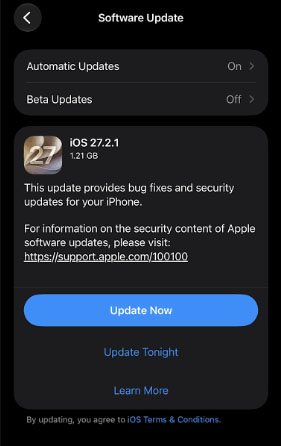
- Step 2. Navigate to General > Software Update. Wait while your device checks for available updates.
- Step 3. If a newer iOS version is available, tap the Update Now button.
- Step 4. Complete the update and restart your iPhone if necessary. Try the age verification process again.
 Note
Before updating, make sure your iPhone has sufficient battery power and available storage.
Method 6. Repair iOS System Issues with TunesKit iOS System Recovery
If the iOS 27.2 Age Verification Selfie not working issue persists after basic troubleshooting, the problem may be associated with a deeper iOS software malfunction. For example, if your iPhone also experiences frozen screens, randomly restarts, camera crashes, or other system errors, ordinary fixes may not be enough.
In this situation, you can consider TunesKit iOS System Recovery, a dedicated iOS repair tool designed to address various software-related problems, including system freezes, boot loops, and update failures. It is designed to repair common iOS system problems without erasing existing device data. This can be useful when age verification difficulties occur alongside broader system instability.
Key Features of TunesKit iOS System Recovery
Fix iOS system glitches that cause age verification selfie issues with TunesKit iOS System Recovery—fast and without data loss using Standard Repair.
 600,000+ Downloads
Here's how to fix iOS 27.2 Age Verification Selfie not working using TunesKit iOS System Recovery.
Step 1. Connect iPhone to PC
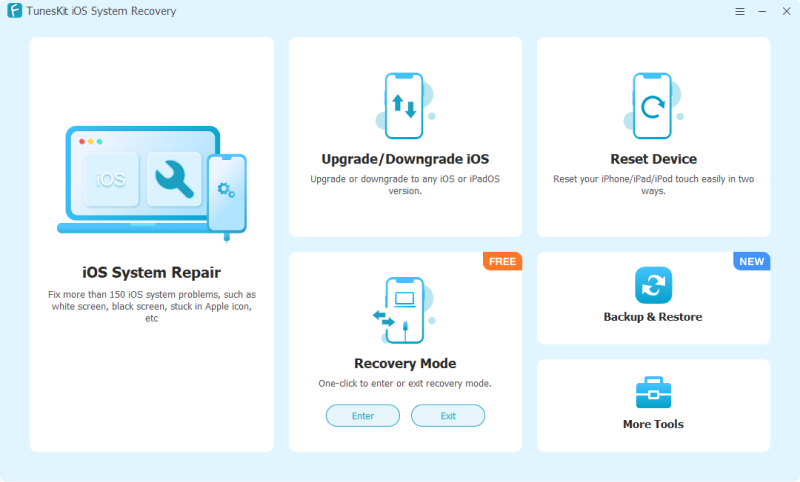
Download and install TunesKit iOS System Recovery on your Windows PC or Mac. Launch the program and connect your iPhone to the computer using a compatible USB cable. On the main interface, select iOS System Repair and click Start.
Step 2. Choose Standard Repair
Choose Standard Repair to attempt repairing the system while preserving your existing data. Follow the onscreen instructions to place your iPhone into the required recovery mode if prompted.

Step 3. Download Firmware Package
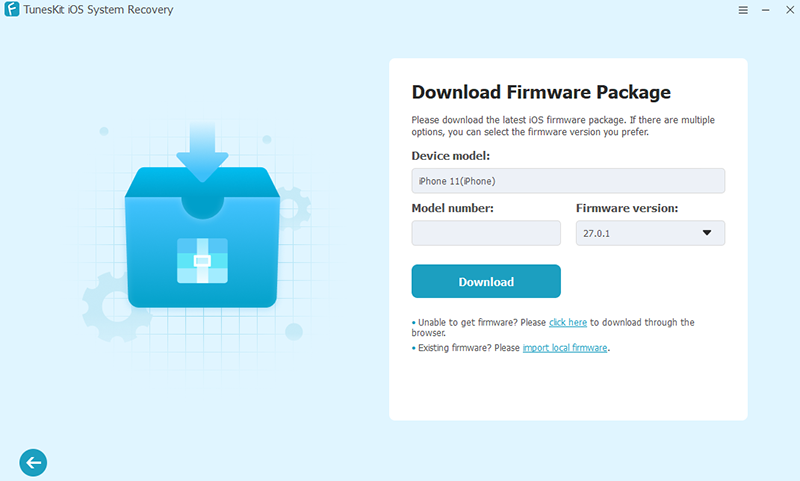
Confirm your device information and click the Download button to download the appropriate iOS firmware package.
Step 4. Start to Repair
Once the firmware is ready, click the Start Standard Repair to begin the system repair process. Keep your iPhone connected until the repair is complete. Restart your device if necessary and try the age verification process again.

Method 7. Check Age Verification Availability in Your Region
Not every iPhone user has access to selfie-based age verification. Apple makes this feature available only in certain states, countries, and regions where age confirmation may be required for Apple Account actions or age-restricted content.
If the selfie verification option is missing or unavailable, your location may not support the feature. Before trying additional fixes, check whether your region supports selfie-based age confirmation.
- Step 1. Make sure your iPhone is running iOS 27.2 or later.
- Step 2. Visit Apple's official support website.
- Step 3. Review the regional availability requirements for age confirmation.
- Step 4. Check the verification options offered on your device.
- Step 5. If selfie verification is unavailable, choose another officially supported method.
Method 8. Try an Alternative Age Verification Method
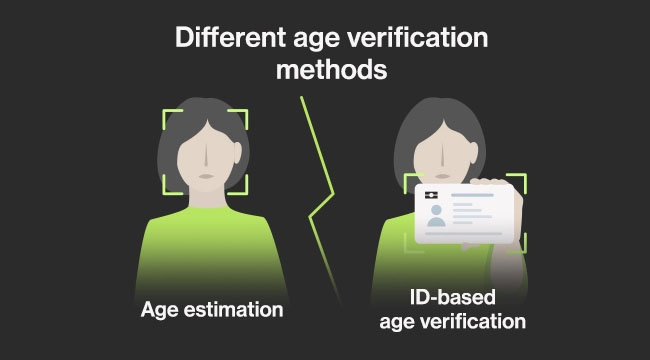
If your selfie continues to fail despite having a working camera and stable internet connection, you may be able to complete age confirmation using another method.
Apple supports alternative verification methods in applicable regions, including credit cards and government-issued identification. These options can be helpful when facial age estimation cannot confidently establish that you're an adult.
- Step 1. Return to the age verification screen on your iPhone.
- Step 2. Look for an option to verify your age using another method.
- Step 3. Select a supported option, such as a credit card or government-issued ID.
- Step 4. Follow Apple's on-screen instructions.
- Step 5. Complete the verification process and check your confirmation status.
Method 9. Contact Apple Support
If none of the previous methods resolves the problem, the issue may be related to your Apple Account, regional requirements, or a software problem that needs further investigation.
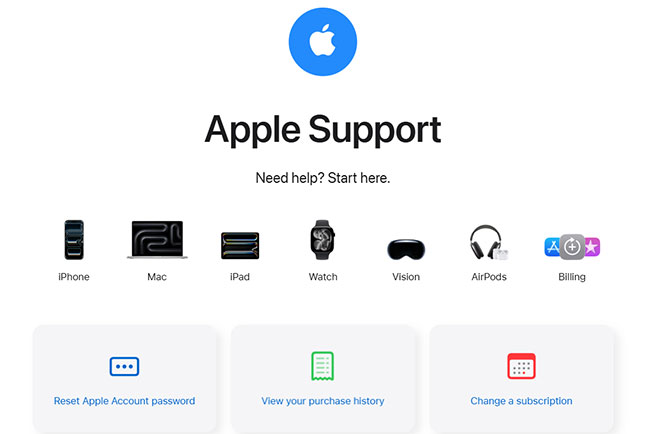
Apple Support can help you understand the available age verification options and troubleshoot errors that cannot be resolved through standard methods. Contacting Apple is particularly useful if the selfie verification screen repeatedly crashes, your account remains unverified, or the feature behaves unexpectedly despite meeting the requirements.
- Step 1. Visit support.apple.com.
- Step 2. Choose the relevant Apple Account or iPhone support category.
- Step 3. Describe the age verification issue you're experiencing.
- Step 4. Provide your iPhone model, iOS version, and any error messages.
- Step 5. Follow the troubleshooting instructions provided by Apple Support.
FAQs About iOS 27.2 Age Verification Selfie Not Working
Here are some frequently asked questions about iOS 27.2 age verification selfie issues to help you better understand the process and resolve common problems.
-
Does iOS 27.2 Age Verification Store My Selfie?
How your selfie is processed and retained depends on the verification service being used. Before submitting a selfie, review the privacy information provided during verification. Avoid uploading facial images to unofficial websites or third-party services claiming to offer age verification.
-
Can I Verify My Age on iOS 27.2 Without Taking a Selfie?
Yes, depending on your region and the verification options available, you may be able to confirm your age using a credit card or government-issued ID instead of a selfie. Check the age verification screen for alternative methods and follow Apple's official instructions.
-
Why Does My iPhone Keep Rejecting My Age Verification Selfie?
Your iPhone may reject an age verification selfie because of poor lighting, unclear facial images, an unstable internet connection, or temporary software glitches. Make sure your face is clearly visible, remove accessories that cover your face, and follow the onscreen instructions carefully. If the issue persists, restart your iPhone and try again.
Final Thoughts
The iOS 27.2 Age Verification Selfie not working issue can often be resolved by checking your internet connection, improving lighting, or restarting your iPhone. If the problem stems from deeper system glitches, TunesKit iOS System Recovery is a reliable option to consider. Its Standard Repair mode helps fix various iOS software issues without data loss, making it a convenient solution for restoring your iPhone's performance and stability.