iPad Is Disabled, Connect to iTunes? What to Do [2026]
If your iPad says "Disabled, Connect to iTunes," the main official solution is to put it into Recovery Mode and restore it with a computer.
- Have a computer? Use Finder on Mac, Apple Devices on Windows, or iTunes on an older supported setup.
- No computer? Find My may work if it was enabled beforehand.
- Important: Restore and erase methods delete the current device data.
If your iPad says "iPad is Disabled, Connect to iTunes," repeated incorrect passcode attempts have moved the device beyond normal passcode entry. This is an older iPad lockout message, but it does not mean the iPad is permanently locked.
Today, you do not necessarily need iTunes. Current Macs use Finder, while Windows PCs mainly use Apple Devices.
If your iPad shows a different disabled message or a countdown, see our complete guide on how to unlock a disabled iPad. If your screen displays 'iPad Unavailable' instead of this classic black-and-white prompt, see our complete guide on how to fix iPad Unavailable.

- Why Does My iPad Say "Disabled, Connect to iTunes"?
- What Does "Connect to iTunes" Mean Today?
- How to Fix iPad Is Disabled, Connect to iTunes
- What If the Computer Doesn't Recognize the iPad?
- Can You Fix "iPad Is Disabled, Connect to iTunes" Without Losing Data?
- FAQs About iPad Is Disabled, Connect to iTunes
- Conclusion
Why Does My iPad Say "Disabled, Connect to iTunes"?
The message appears after too many incorrect passcode attempts on an older iPad lockout interface. Apple restricts passcode entry to prevent repeated guessing.
In this legacy "Connect to iTunes" state, waiting alone will not restore normal passcode entry. You need an available reset or recovery method instead.
What Does "Connect to iTunes" Mean Today?
The wording is outdated for many current computers. You usually do not need the iTunes app itself.
| Computer | Tool to Use |
|---|---|
| Mac | Finder |
| Windows PC | Apple Devices |
| Older supported setup | iTunes |
On macOS Mojave or earlier, or some Windows PCs without Apple Devices, iTunes may still be used. Apple's current computer-reset process uses Recovery Mode, followed by the Restore option in Finder or Apple Devices.
How to Fix iPad Is Disabled, Connect to iTunes
If you no longer know the passcode, these three recovery options can help reset or remove the screen lock.
Method 1. Restore the Disabled iPad in Recovery Mode
Recovery Mode is Apple's main computer-based solution for a disabled iPad when normal passcode entry is unavailable. You do not need to have previously synced the iPad with that computer.
Step 1. Turn off the iPad
Disconnect the iPad if necessary, then turn it off completely.
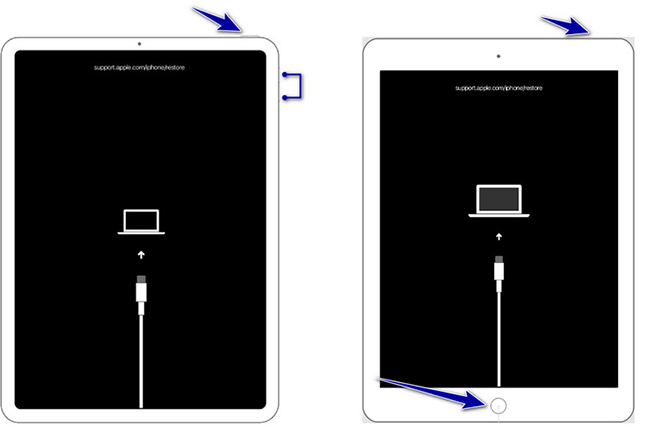
Step 2. Put the iPad into Recovery Mode
Connect the iPad to your computer and use the buttons for your model:
- iPad without a Home button: Quickly press and release the volume button closest to the Top button, then the other volume button. Press and hold the Top button until the Recovery Mode screen appears.
- iPad with a Home button: Press and hold the Home and Top/Side buttons until the Recovery Mode screen appears.
Do not release the button when the Apple logo appears. Keep holding until you see the computer-and-cable Recovery Mode screen.
Step 3. Open Finder or Apple Devices
Open Finder on Mac or Apple Devices on Windows, then select the connected iPad.
Step 4. Choose Restore
When you see the option to Restore or Update, choose Restore. The computer will download iPadOS and reinstall it.
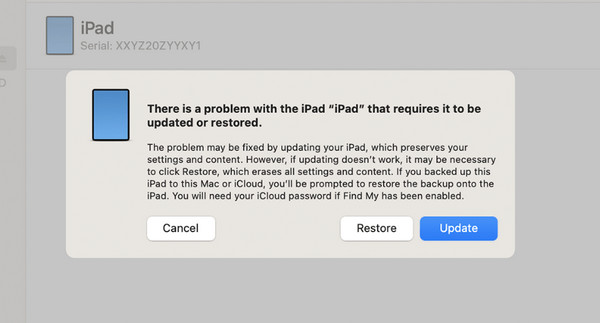
This removes the forgotten passcode, but it also deletes the current data and settings on the iPad. Afterward, you can restore an existing iCloud or computer backup if one is available.
Method 2. Erase the Disabled iPad with Find My
If Find My was enabled before the iPad became disabled, you can erase it remotely without connecting it to a computer.
- Step 1. Go to iCloud.com/find and sign in with the Apple Account linked to the disabled iPad.
- Step 2. Select the iPad from the device list.
- Step 3. Choose Erase iPad.
- Step 4. Follow the onscreen instructions to confirm the erase.

If the iPad is offline, the erase request remains pending and starts the next time the device connects to the internet. Remote erase deletes the current device data. Activation Lock remains enabled, so the linked Apple Account and password may still be required to reactivate the iPad.
 For detailed steps, see how to unlock a disabled iPad using Find My.
Method 3. Use TunesKit iPhone Unlocker
If you prefer a guided desktop workflow, TunesKit iPhone Unlocker can help remove supported screen locks from a disabled iPad without entering the forgotten passcode.
- Step 1. Connect the disabled iPad to your Windows PC or Mac and select Unlock iOS Screen.
- Step 2. Follow the onscreen instructions to prepare the iPad and download the matching firmware package.
- Step 3. Click Unlock to start removing the screen passcode.

This process erases the current device data. Removing the screen passcode also does not automatically remove Activation Lock, so the linked Apple Account may still be required during setup.
What If the Computer Doesn't Recognize the iPad?
If Finder, Apple Devices, or iTunes does not detect the disabled iPad, first make sure it has actually entered Recovery Mode. Simply connecting a disabled iPad with a USB cable may not make it available for restore.
Try reconnecting the device, using another cable or USB port, and entering Recovery Mode again. If the iPad still cannot be detected, see our dedicated guide to fixing a disabled iPad that won't connect to the computer.
Can You Fix "iPad Is Disabled, Connect to iTunes" Without Losing Data?
Usually not if the iPad has already reached the "Connect to iTunes" state and you no longer know the passcode. Restoring with Recovery Mode, erasing with Find My, and screen-lock removal tools all erase the current device data.
An existing iCloud or computer backup can help you restore previously saved data afterward, but that does not make the unlocking process itself lossless.
If preserving your files is your main concern, see our full guide on unlocking a disabled iPad without losing data.
FAQs About iPad Is Disabled, Connect to iTunes
-
Is "iPad is Disabled, Connect to iTunes" permanent?
No. The screen means normal passcode entry is no longer available through that lockout interface, but the iPad can still be erased and restored through an available recovery method.
-
What if Find My is turned off?
Use Recovery Mode with Finder on Mac or Apple Devices on Windows. Find My is only required for remote erase, not for a computer-based Recovery Mode restore.
-
Does restoring the disabled iPad remove Activation Lock?
No. Restoring removes the screen passcode and current data, but Activation Lock can remain if Find My was enabled. The linked Apple Account may still be required during setup.
-
Can Apple help if I don't have a computer?
Yes. If Find My is unavailable and you cannot access or borrow a computer, Apple recommends visiting an Apple Store or Apple Authorized Service Provider for help with the reset process.
Conclusion
If your iPad says "iPad is Disabled, Connect to iTunes," you do not necessarily need iTunes anymore. Use Recovery Mode with Finder or Apple Devices for the official computer-based recovery method, or use Find My if remote erase was enabled beforehand.
Most recovery methods erase the current device data, so restore an existing backup afterward if one is available. If your iPad shows another disabled state, a countdown, or a different lockout message, see our complete disabled iPad guide to choose the right recovery path.