


iPad Is Disabled: What It Means and How to Fix It [2026]
Seeing "iPad is Disabled" means passcode entry has been restricted after repeated incorrect attempts. Depending on the software version and lockout stage, your iPad may show a waiting timer or the message "Connect to iTunes."
On newer iPadOS versions, similar passcode lockouts are more commonly shown as "iPad Unavailable" or "Security Lockout." The available recovery options can differ, so this guide focuses mainly on the traditional iPad is Disabled screen and helps you choose the right solution for your situation.
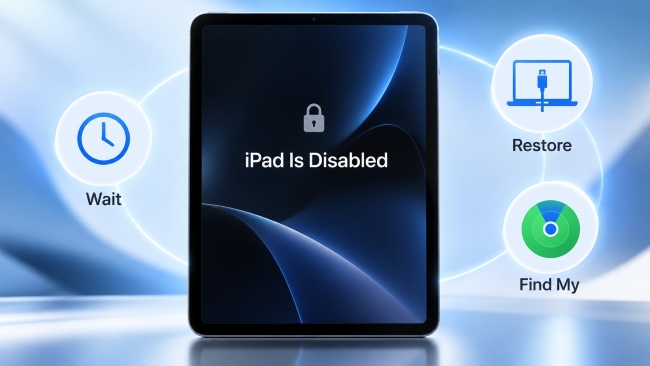
Quick Answer: What to Do If Your iPad Is Disabled?
- See a timer and know the correct passcode? Wait for the countdown to finish, then enter the passcode carefully.
- See "Connect to iTunes"? Restore the iPad in Recovery Mode using Finder on Mac or Apple Devices on Windows.
- Forgot the passcode completely? You will usually need to erase or restore the iPad.
- See "iPad Unavailable" or "Security Lockout" instead? Your iPad uses Apple's newer lockout workflow and may offer additional recovery options.
If your screen specifically says iPad Unavailable, see our complete guide on how to fix iPad Unavailable.
What Does "iPad Is Disabled" Mean?
An iPad becomes disabled after repeated invalid passcode attempts. Apple restricts further passcode entry to prevent someone from repeatedly guessing the code.
The exact wording depends on the software version and lockout stage. Older iPad interfaces commonly show "iPad is Disabled," while newer recovery screens may show "iPad Unavailable" or "Security Lockout."
Why Is My iPad Disabled?
The main reason is too many incorrect passcode attempts.
This may happen if you forgot the passcode and kept trying different combinations, someone else attempted to unlock the iPad, or a child repeatedly entered the wrong code.
As more invalid attempts are made, the waiting period becomes longer. At a later lockout stage, normal passcode entry may no longer be available and the iPad will need to be erased or restored.
Which Disabled iPad Situation Are You In?
Before resetting anything, check the exact message or problem shown on your iPad.
| Your Situation | What to Do | Detailed Guide |
|---|---|---|
| iPad says Try Again in 5 Minutes | Wait if you know the correct passcode | iPad Disabled Try Again in 5 Minutes |
| iPad says Try Again in 1 Hour | Stop guessing and wait if you know the passcode | iPad Disabled Try Again in 1 Hour |
| iPad says Connect to iTunes | Restore it in Recovery Mode | iPad Is Disabled Connect to iTunes |
| Computer cannot detect the disabled iPad | Troubleshoot Recovery Mode and the connection | iPad Is Disabled and Won't Connect to iTunes |
| You do not want to use iTunes | Check alternative recovery methods | Unlock Disabled iPad Without iTunes |
| Find My was enabled beforehand | Remote erase may be available | Unlock Disabled iPad Using Find My |
| You want to preserve your data | Check no-data-loss options first | Unlock Disabled iPad Without Losing Data |
Can You Unlock a Disabled iPad Without Losing Data?
Yes, but only in limited situations.
If the iPad still shows a timer and you know the correct passcode, wait until another attempt becomes available. Entering the correct passcode normally unlocks the device without erasing its data.
On newer iPadOS versions, an eligible Previous Passcode may also let you regain access without erasing the iPad.
If you have completely forgotten the passcode and no no-data-loss option is available, restoring or erasing the iPad will normally delete the current device data.
Having an iCloud or computer backup does not make the unlocking process lossless. The iPad is still erased, but you can restore previously backed-up data afterward.
What About Previous Passcode?
On newer iPads showing iPad Unavailable or Security Lockout, iPadOS 17 or later may let you use your Previous Passcode for up to 72 hours after changing it. This feature belongs to Apple's newer lockout workflow rather than the traditional iPad is Disabled interface. See our iPad Unavailable guide for details.
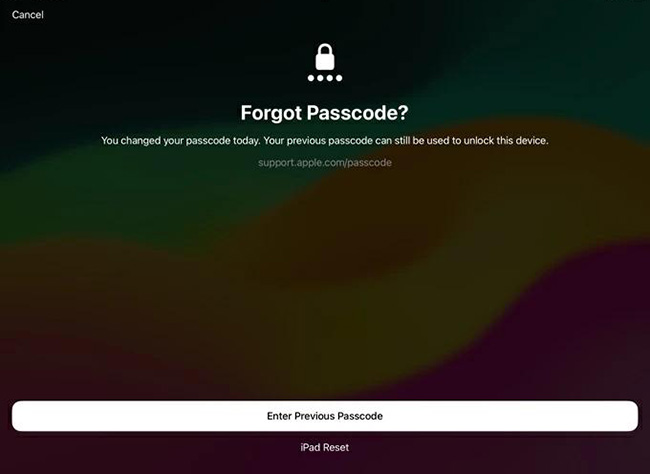
 For more information about preserving your files, see how to unlock a disabled iPad without losing data.
How to Unlock a Disabled iPad If You Forgot the Passcode
If the passcode is completely forgotten, the main recovery options for a traditional disabled iPad are Recovery Mode, Find My, and a supported desktop screen-unlock tool.
Using a newer iPadOS version? If the screen says iPad Unavailable or Security Lockout, newer options such as Previous Passcode, Forgot Passcode?, or Erase iPad may also be available.
Method 1. Restore the Disabled iPad in Recovery Mode
Recovery Mode is the main official recovery method if you have forgotten the passcode or see "iPad is Disabled, Connect to iTunes." On a Mac, use Finder. On Windows, use the Apple Devices app. Older supported computer setups may still use iTunes.
- Step 1. Turn off the disabled iPad.
- Step 2. Connect the iPad to your computer and use the correct button sequence for your model to enter Recovery Mode.
- Step 3. Open Finder on Mac or Apple Devices on Windows and select the iPad.
- Step 4. Choose Restore when prompted and wait for iPadOS to reinstall.
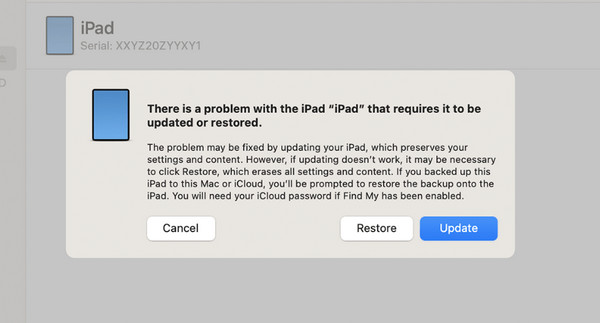
Restoring removes the forgotten screen passcode, but it also erases the current data and settings on the device.
If your screen specifically says Connect to iTunes, see our detailed guide to fixing iPad Is Disabled Connect to iTunes.
If the computer cannot detect your iPad even in Recovery Mode, see what to do when a disabled iPad won't connect to the computer.
Method 2. Erase the Disabled iPad with Find My
If Find My was enabled before the iPad became disabled, you may be able to erase the device remotely without connecting it to your computer.
- Step 1. Go to iCloud.com/find from another phone, tablet, or computer.
- Step 2. Sign in with the Apple Account linked to the disabled iPad.
- Step 3. Select the iPad from the device list.
- Step 4. Choose Erase and follow the onscreen instructions.
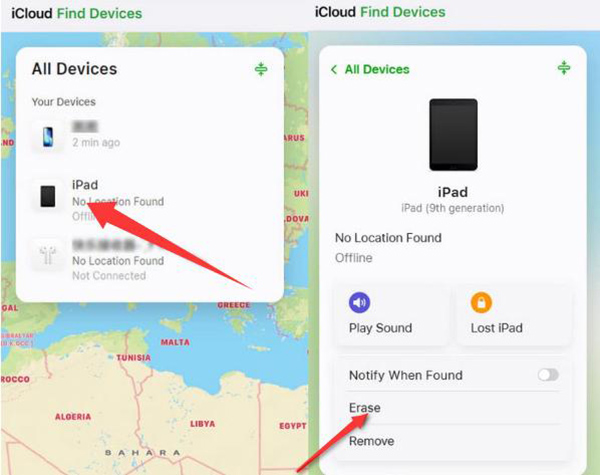
If the iPad is offline, the erase request will begin after the device reconnects to the internet. After the erase, you can set up the iPad again and restore an existing backup if one is available.
For complete steps, see how to unlock a disabled iPad using Find My.
Method 3. Use TunesKit iPhone Unlocker
If you prefer a guided desktop workflow, TunesKit iPhone Unlocker can help remove supported screen locks from a disabled iPad in an easy way. This method erases the current device data as well as the screen passcode.
- Step 1. Connect the disabled iPad and choose Unlock iOS Screen.
- Step 2. Follow the onscreen instructions and download the matching firmware.
- Step 3. Click Unlock to remove the screen passcode.

What Does "iPad Is Disabled, Connect to iTunes" Mean?
"iPad is Disabled, Connect to iTunes" is an older lockout message. On current computers, use Finder on Mac or Apple Devices on Windows to restore the iPad in Recovery Mode; older supported setups may still use iTunes.
For detailed steps, see how to fix iPad Is Disabled Connect to iTunes.
Will Resetting a Disabled iPad Remove Activation Lock?
No. Screen passcode removal and Activation Lock removal are separate processes.
If Find My was enabled before the iPad was erased, Activation Lock may appear during setup. You will normally need the Apple Account previously linked to the device to continue.
This is especially important for a second-hand iPad. Erasing or restoring it does not automatically remove the previous owner's Activation Lock.
iPad Is Disabled vs iPad Unavailable vs Security Lockout
These messages describe related passcode lockout situations, but they are associated with different generations of Apple's lockout interface.
| Message | Typical Context | Main Next Step |
|---|---|---|
| iPad is Disabled | Older passcode lockout wording | Wait or use Recovery Mode |
| iPad Unavailable | Newer passcode lockout wording | Wait or check current recovery options |
| Security Lockout | Newer lockout/recovery state | Check available reset options |
A traditional iPad is Disabled screen may require Recovery Mode or Find My once the passcode is forgotten. Newer iPadOS versions can sometimes offer options such as Previous Passcode, Forgot Passcode?, or Erase iPad directly on the device.
If your screen says iPad Unavailable, follow our complete iPad Unavailable guide.
FAQs About a Disabled iPad
-
Why is my iPad disabled even though I know the passcode?
Earlier incorrect attempts may already have triggered a security delay. Knowing the correct passcode does not cancel an active timer. Wait until another attempt becomes available, then enter the correct passcode carefully.
-
Can I unlock a disabled iPad with another iPhone?
Not directly. Another iPhone cannot enter the disabled iPad's passcode for you. However, if Find My was enabled beforehand, you can use the Find My app on another Apple device to remotely erase the disabled iPad.
-
What if my disabled iPad has no timer?
If there is no countdown and normal passcode entry is no longer available, waiting may not restore access. You will generally need to use Find My or Recovery Mode to reset the device.
If the screen says iPad Unavailable or Security Lockout instead, check whether a newer on-device recovery option is available.
-
Can I fix a disabled iPad without a computer if Find My is off?
Usually not for a traditional iPad is Disabled screen. If Find My is unavailable, you will generally need a Mac or Windows PC for Recovery Mode. Newer iPad Unavailable or Security Lockout screens may offer additional on-device recovery options.
-
How long does an iPad stay disabled?
It depends on the software version and lockout stage. Older iPad is Disabled screens commonly show delays from a few minutes to 1 hour, while current iPadOS security delays can extend to 3 or 8 hours. If normal passcode entry is no longer available, you may need to reset or restore the iPad.
-
How do I reset a disabled iPad without an Apple ID?
You can restore the iPad with Finder on Mac or Apple Devices on Windows without entering the Apple Account password during the restore. However, if Activation Lock is enabled, the linked Apple Account may still be required during setup.
Conclusion
If your iPad is Disabled and you know the correct passcode, wait for the timer before trying again. If the passcode is forgotten or the screen says Connect to iTunes, use Recovery Mode, Find My, or another supported recovery method like TunesKit iPhone Unlocker. Choose the option that fits your lockout state and remember that most reset methods erase the current device data.



