


How to Unlock a Disabled iPad Without iTunes [2026]
If your iPad is disabled and you cannot or do not want to use iTunes, you still have several recovery options. Current Macs use Finder, Windows PCs use Apple Devices, and some recovery methods work without a computer at all.
The best method depends on your iPadOS version, whether you still know a valid passcode, whether Find My was enabled, and whether you can access a computer. If you are unsure which lockout state your iPad is in, see our complete guide on how to unlock a disabled iPad.
- Quick Answer
- What Can You Use Instead of iTunes for a Disabled iPad?
- Before You Reset: Try Previous Passcode on iPadOS 17+
- Method 1. Restore via Finder or Apple Devices
- Method 2. Erase the Disabled iPad Wirelessly via Find My
- Method 3. Unlock the Disabled iPad with TunesKit iPhone Unlocker HOT
- What About Apple's On-Screen Reset Option?
- FAQs About Unlocking a Disabled iPad Without iTunes
- Conclusion
Quick Answer
You do not need iTunes to unlock or reset every disabled iPad. Here are the main alternatives:
| Method | Computer Needed? | Key Requirement | Data Erased? |
|---|---|---|---|
| Previous Passcode | No | iPadOS 17+, within 72 hours | No |
| Finder / Apple Devices | Yes | Recovery Mode, USB connection | Yes |
| Find My | No | Find My enabled beforehand | Yes |
| TunesKit iPhone Unlocker | Yes | USB connection | Yes |
| On-Screen Reset | No | Internet, Find My, Apple Account password | Yes |
If your iPad still shows a countdown and you know the correct current passcode, wait for the timer to end and enter it carefully. You do not need to reset the iPad or use iTunes.
 Tip:
Tip:If you recently changed your passcode, try Previous Passcode before resetting the iPad because it can preserve your current data.
What Can You Use Instead of iTunes for a Disabled iPad?
On a current Mac, you can restore a disabled iPad with Finder. On Windows, Apple provides the Apple Devices app. Depending on your lockout state, Previous Passcode, Find My, Apple's on-screen reset, or TunesKit iPhone Unlocker may also work.
Keep in mind that without iTunes does not always mean without a computer. Finder, Apple Devices, and TunesKit iPhone Unlocker still require a Mac or Windows PC.
Before You Reset: Try Previous Passcode on iPadOS 17+
If you recently changed your iPad passcode and then forgot the new one, check Previous Passcode feature before erasing anything. On iPadOS 17 or later, it lets you use your previous passcode for up to 72 hours after changing it. This method does not require a computer and does not reset the iPad.
- Step 1. When the iPad Unavailable screen appears, tap Forgot Passcode?
- Step 2. Tap Enter Previous Passcode.
- Step 3. Enter the old passcode.
- Step 4. Follow the onscreen instructions to create a new passcode.
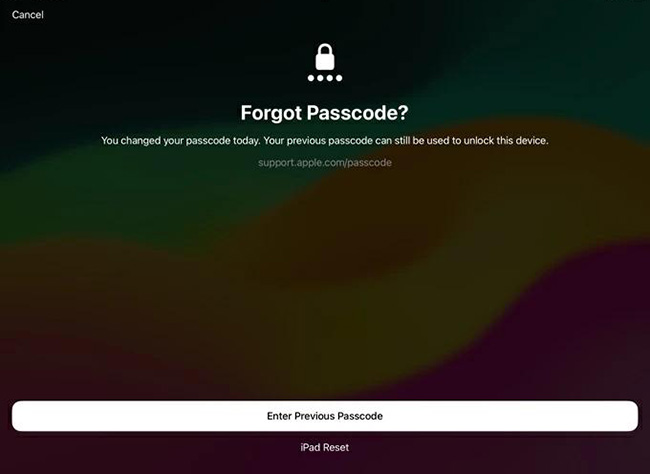
The previous passcode must still be within the 72-hour window and must not have been manually expired. For Forgot Passcode? to appear, the iPad must also be online, signed in to an Apple Account, and have Find My enabled.
 Note
Note
Previous Passcode belongs to the newer iPad Unavailable recovery flow and may not appear on an older "iPad is Disabled" screen. For more details, see our iPad Unavailable guide.
Method 1. Restore via Finder or Apple Devices
If Previous Passcode is unavailable but you have a computer, Apple's official non-iTunes desktop path is to put the iPad into Recovery Mode and restore it with Finder on Mac or Apple Devices on Windows. This deletes the iPad's current data and settings, including the forgotten screen passcode. You do not need to have previously synced the disabled iPad with that computer to use Recovery Mode.
Restore a Disabled iPad with Finder on Mac
Step 1. Turn off the disabled iPad.
Step 2. Connect the iPad to your Mac with a compatible USB cable.
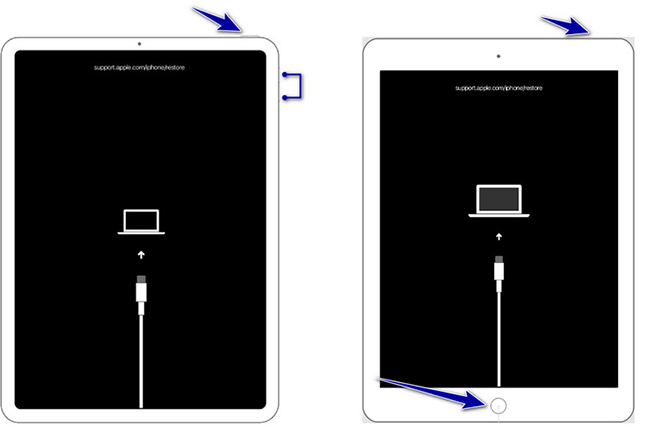
Step 3. Put the iPad into Recovery Mode.
- For an iPad without a Home button, quickly press and release the volume button closest to the top button, then the other volume button, and hold the top button until the Recovery Mode screen appears.
- For an iPad with a Home button, hold the Home and Top/Side buttons until the Recovery Mode screen appears.
Step 4. Open Finder and select the iPad.
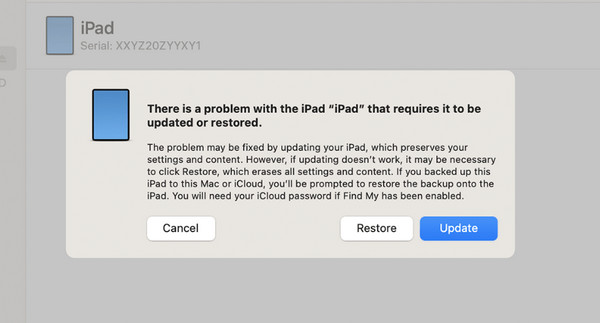
Step 5. When prompted to Restore or Update, choose Restore. Wait for Finder to download the software and reinstall iPadOS.
Restore a Disabled iPad with Apple Devices on Windows
- Step 1. Install and open the Apple Devices app on your Windows PC.
- Step 2. Turn off the iPad and connect it to the computer.
- Step 3. Put the iPad into Recovery Mode.
- Step 4. Select the iPad in Apple Devices.
- Step 5. Choose Restore and wait for the process to finish.
 If your screen specifically says "iPad is Disabled, Connect to iTunes," see our guide on what to do when iPad says Disabled, Connect to iTunes.
Method 2. Erase the Disabled iPad Wirelessly via Find My
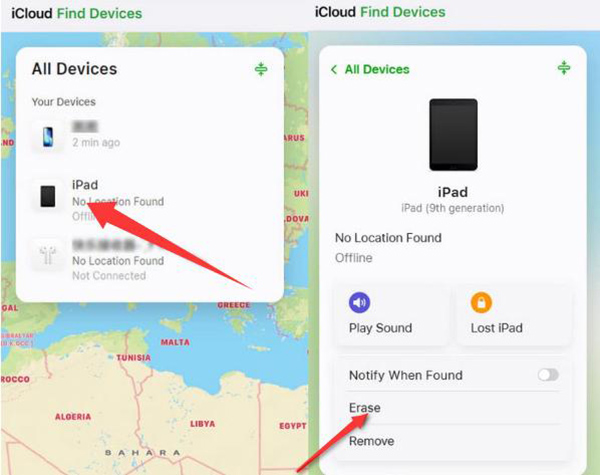
If Find My was enabled before the iPad became disabled, you can remotely erase the device without using iTunes or connecting it to a computer. This method erases the current data and screen passcode. If the iPad is offline, you can still submit the request. The erase will remain pending and begin the next time it connects to Wi-Fi or a cellular network.
- Step 1. On another phone, tablet, or computer, open a browser and go to iCloud.com/find.
- Step 2. Sign in with the Apple Account linked to the disabled iPad.
- Step 3. Select the disabled iPad from your devices.
- Step 4. Choose the option to Erase the iPad.
- Step 5. Follow the onscreen instructions to confirm the erase request.
After the remote erase, Activation Lock remains enabled, so you will need the linked Apple Account password to reactivate the iPad.
For a more detailed walkthrough, see how to unlock a disabled iPad using Find My.
Method 3. Unlock the Disabled iPad with TunesKit iPhone Unlocker
If you prefer a guided desktop workflow, TunesKit iPhone Unlocker can remove supported iPad screen locks without installing or using iTunes. It can be useful when you have forgotten the screen passcode or prefer not to use Apple's desktop recovery workflow.
How to Unlock a Disabled iPad with TunesKit
- Step 1. Launch TunesKit iPhone Unlocker on your Mac or Windows PC. Connect the disabled iPad with a USB cable, then choose Unlock iOS Screen.
- Step 2. Follow the onscreen instructions. If the device is not detected normally, TunesKit will guide you to put it into Recovery Mode or DFU Mode.
- Step 3. Check the detected device information and download the matching firmware package.
- Step 4. After the firmware is ready, click Unlock to begin removing the screen lock.

Using Unlock iOS Screen erases the current data on the iPad, so check for an existing backup before proceeding if your data is important. This mode removes the screen passcode but does not automatically remove Activation Lock. If Activation Lock appears during setup, the Apple Account linked to the iPad may still be required.
What About Apple's On-Screen Reset Option?
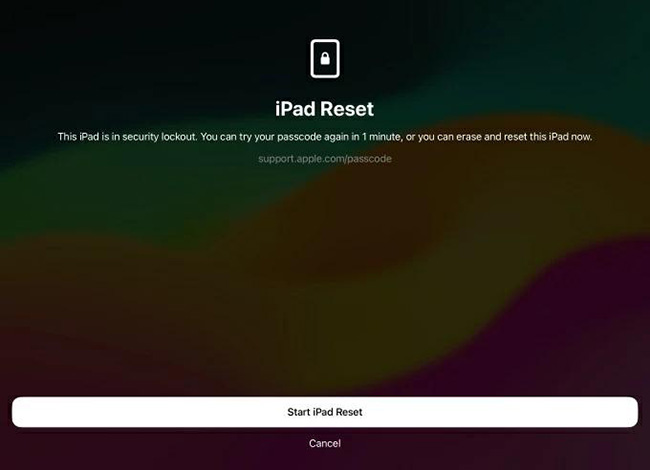
If your disabled iPad runs iPadOS 15.2 or later and shows Apple's newer lockout interface, you may also be able to reset it directly from the Lock Screen without a computer. This option may not appear on older "iPad is Disabled" screens.
The button you see depends on the iPadOS version.
On iPadOS 17 or Later
When the iPad reaches the iPad Unavailable screen and the required conditions are met:
- Step 1. Tap Forgot Passcode?
- Step 2. Tap Start iPad Reset.
- Step 3. Enter your Apple Account password.
- Step 4. Tap Erase iPad to delete the current data and settings.
On iPadOS 15.2–16
Instead of Forgot Passcode?, the lock screen can show an Erase iPad option.

For either workflow, the iPad must have Find My enabled beforehand, be connected to Wi-Fi or cellular service, and be signed in to an Apple Account. The Apple Account password is required to complete the reset.
This is different from Previous Passcode. Previous Passcode can preserve your current data when eligible, while the on-screen reset process erases the device.
FAQs About Unlocking a Disabled iPad Without iTunes
-
Will unlocking a disabled iPad without iTunes erase my data?
It depends on the method. Previous Passcode can keep your data, while most reset or restore methods erase the iPad. If you have a backup, you can restore it afterward. See how to unlock a disabled iPad without losing data for details.
-
Can I unlock a disabled iPad with just my iPhone?
Yes, if Find My was enabled beforehand, you can use another iPhone to send a remote erase request. This removes the passcode by erasing the iPad; it is not a no-data-loss unlock.
-
Why does my iPad still ask for an Apple Account after restore?
Because Activation Lock can remain after the iPad is erased or restored. If it appears during setup, you’ll need the Apple Account previously linked to the device.
-
Do I need iTunes to restore a disabled iPad on Windows?
No. On current Windows PCs, use the Apple Devices app instead of iTunes. It can restore a disabled iPad through Recovery Mode.
Conclusion
You do not need iTunes to recover a disabled iPad. Try Previous Passcode first if you recently changed the passcode and want to avoid erasing the device. Otherwise, use the available Apple recovery option or a compatible desktop tool like TunesKit iPhone Unlocker, and check whether the method will erase your data before proceeding.
For other lockout messages and recovery situations, see our complete disabled iPad guide.



