


[9 Effective Tips] How to Fix iPhone Keypad Not Working During Call

Is your iPhone keypad not working during call? You aren't alone. Many users are currently facing the frustrating issue of being unable to enter extension numbers or prompts while on the phone. This glitch can happen on both iPhone and iPad, but the good news is that it’s usually a fixable software hiccup. Today, we're sharing a series of proven methods to get your dial pad working again instantly. Let's dive into these essential troubleshooting skills.

- Why Is My iPhone Keypad Not Working During a Call?
- 9 Methods to Fix Dial Pad Not Working During Call on iPhone
- Way 1. Force Reboot Your iPhone
- Way 2. Toggle Audio and Mute Functions
- Way 3. Disconnect External Audio Devices
- Way 4. Adjust Internal Phone Settings
- Way 5. Refresh Network Configurations
- Way 6. Fix iPhone Keypad Not Working During Call Without Data Loss - TunesKit iOS System Recovery HOT
- Way 7. Update the iOS Firmware
- Way 8. Factory Reset for Persistent Software Bugs
- Way 9. Seek Professional Hardware Repair
- FAQs About Keypad Not Working on iPhone During Call
- Summary
Why Is My iPhone Keypad Not Working During a Call?
If your iPhone keypad isn't working during a call, there could be several possible causes. Here are the most common ones.
- 01 Proximity Sensor Issues: If the dial pad becomes unresponsive during a call, the proximity sensor may not be functioning properly. Try cleaning the area around the sensor or restarting your iPhone.
- 02 Call Settings Interference: Certain call settings—such as Call Forwarding, Call Waiting, or Silence Unknown Callers—may interfere with keypad functionality. Review and adjust these settings if necessary.
- 03 Software Glitches: Temporary software bugs can affect the dial pad. Restarting your iPhone or updating to the latest iOS version may resolve the issue.
- 04 Hardware or Network Problems: If the issue persists, it could be related to hardware defects or network connectivity problems. In this case, further diagnosis or professional support may be required.
9 Methods to Fix Dial Pad Not Working During Call on iPhone
Now that you understand the possible causes behind this issue, it's time to explore the solutions. Fortunately, there are several practical methods you can try to fix the iPhone dial pad not working during a call. Below, we've outlined 9 effective ways to help you troubleshoot the problem and get your keypad working normally again.
Way 1. Force Reboot Your iPhone
It is a simple way but always works. Try to force reboot your iPhone to fix the iPhone dial pad not working during call. Please use the corresponding way to force reboot your iPhone.
- iPhone 6s or earlier: Hold and press the Power button and the Home button simultaneously. When the Apple logo appears, release both buttons.
- iPhone 7/7 Plus: Hold both the Volume Down button and the Power button simultaneously. When the Apple logo appears, release the both buttons.
- iPhone 8 or later: Hold and quickly release the Volume Up button, hold and quickly release the Volume Down button, then press and hold the Power button until the Apple logo appears.

Way 2. Toggle Audio and Mute Functions
The iPhone's proximity sensor sometimes fails to detect that the phone is away from your ear, keeping the screen in a "dead" state. Manually toggling the audio controls can "wake up" the touch interface and force the keypad to become active again.
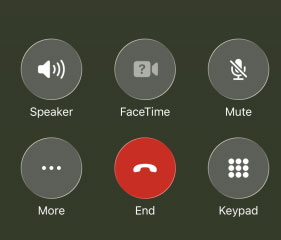
- Step 1. While on the call, tap the Mute button twice to turn it on and off.
- Step 2. Tap the Keypad button to see if the dial pad appears.
- Step 3. If it remains unresponsive, please try turning on the Speaker to see if the change in audio routing triggers the screen to react.
Way 3. Disconnect External Audio Devices
System errors can occur when the iPhone is confused about where to route audio, especially when connected to Bluetooth headsets or CarPlay. Switching the audio back to the handset's internal hardware often resolves the unresponsiveness of the on-screen buttons.
- Step 1. Tap the Audio icon on your call screen.
- Step 2. Select iPhone from the list of available devices to route sound through the earpiece.
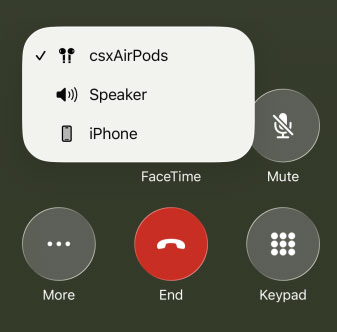
- Step 3. Once the external device is bypassed, try tapping the keypad prompts again.
Way 4. Adjust Internal Phone Settings
Certain background features within the Phone settings, such as "Dial Assist" or "Call Waiting," can occasionally cause the app to hang. Refreshing these settings ensures that the software governing your calls is operating under its stable configuration.
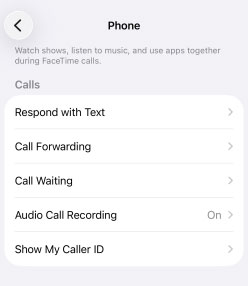
- Step 1. Open the Settings app and scroll down to select Apps > Phone.
- Step 2. Review your active settings and toggle options like Show My Caller ID or Call Waiting off and back on.
- Step 3. Exit to the home screen and place a test call to check the keypad's responsiveness.
Way 5. Refresh Network Configurations
A stalled network handshake can lead to lag within the Phone app. If your carrier settings or Wi-Fi configurations are outdated or corrupted, the dial pad may fail to register inputs. Resetting the network clears these communication glitches.
- Step 1. Go to Settings > General > Transfer or Reset iPhone.
- Step 2. Tap on Reset and select Reset Network Settings.
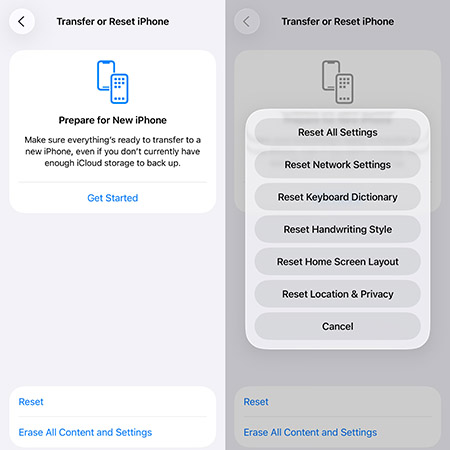
- Step 3. Enter your device passcode and confirm the action.
- Step 4. Wait for the device to reboot, then reconnect to your network and try the keypad again.
Way 6. Fix iPhone Keypad Not Working During Call Without Data Loss - TunesKit iOS System Recovery
It is essential to have an effective tool to help you fix your iPhone keypad not working during call. Here, we recommend TunesKit iOS System Recovery for you. It is a professional iOS system recovery, which contains no redundant features and is ideal for solving iOS issues, such as slow iPad charging, iPhone yellow screen, iPhone Gboard not working, etc.
Moreover, with the concise interface, although you don't have much technical expertise, you can still use TunesKit iOS System Recovery to fix the problem of the keypad not working on iPhone during call in several steps.
Instantly Fix iPhone Keypad Issues During Calls
Repair iOS system glitches quickly without data loss and restore your keypad to normal in minutes.
 600,000+ Downloads
Let's see how to fix the dial pad not working during call on your iPhone.
Step 1 Connect your iPhone to computer
Connect your iPhone to your computer with a USB cable. Launch TunesKit iOS System Recovery and it will detect your iOS device automatically. Select the iOS System Repair option on the main screen, and on the next page, click the Start button.

Step 2 Select a mode
TunesKit iOS System Recovery offers you 2 modes to fix your iPhone dial pad not working during call. One is Standard Repair. Standard Repair can fix common iOS system issues and cause no data loss. If Standard Repair doesn't work, please try Deep Repair. But it should be noted that this Mode will erase all of your data. Back up your data can protect your personal information from losing.

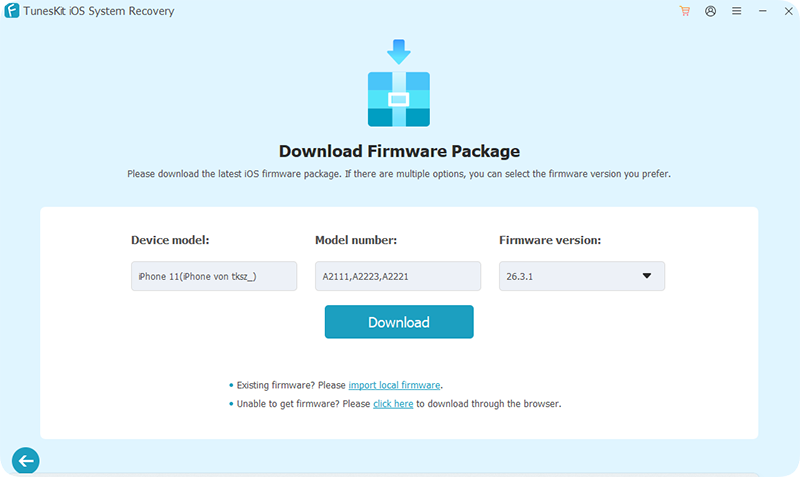
Step 3 Download firmware package
Select the firmware version from the drop-down menu, click the Download button to download the firmware package, and then the fixing process will be started.
Step 4 Fix your iPhone keypad not working during call
When the downloading process is finished, click the Start Standard Repair button, TunesKit iOS System Recovery will start to fix the problem of keypad not working during call on your iPhone. This issue will be fixed in several minutes.

Way 7. Update the iOS Firmware
Apple frequently releases patches for UI-related bugs. If you are running an older version of iOS, the keypad glitch might be a known issue that has been resolved in a newer update. Updating is vital for maintaining both security and functionality.
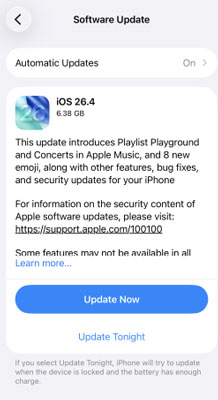
- Step 1. Navigate to Settings > General > Software Update to check for over-the-air updates.
- Step 2. If an update is available, tap Update Now button.
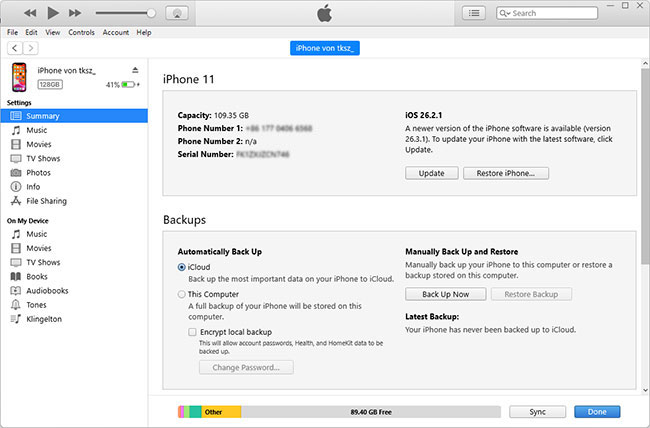
- Step 3. Alternatively, connect your phone to a computer, launch iTunes (or Finder on Mac), and click Update to perform a clean installation of the latest system software.
Way 8. Factory Reset for Persistent Software Bugs
If the problem persists across all calls, there may be a deep-seated corruption in the system files. A factory reset returns the iPhone to its original out-of-the-box state, eliminating any software-based conflicts at the cost of your personal data.
- Step 1. Perform a full backup of your iPhone to iCloud or your computer.
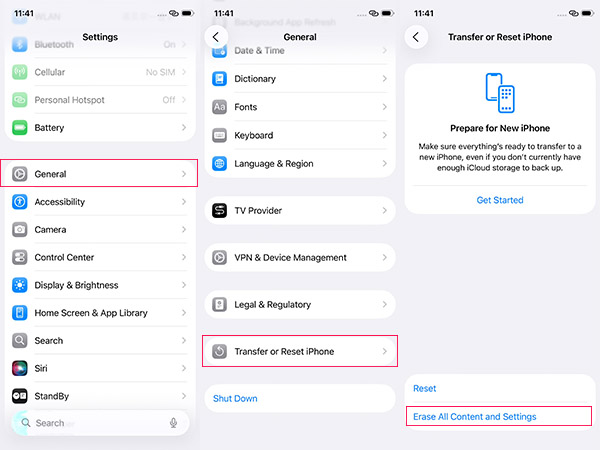
- Step 2. Go to Settings > General > Transfer or Reset iPhone.
- Step 3. Tap Erase All Content and Settings and follow the prompts to wipe the device.
Way 9. Seek Professional Hardware Repair
When software troubleshooting fails, the issue likely lies with the digitizer (the touch-sensitive layer of your screen) or an internal hardware component. This is common if your phone has recently suffered an impact or liquid exposure.
- Step 1. Ensure your data is backed up before handing the device to a technician.
- Step 2. Contact Apple Support or visit an authorized service provider to schedule a diagnostic test.
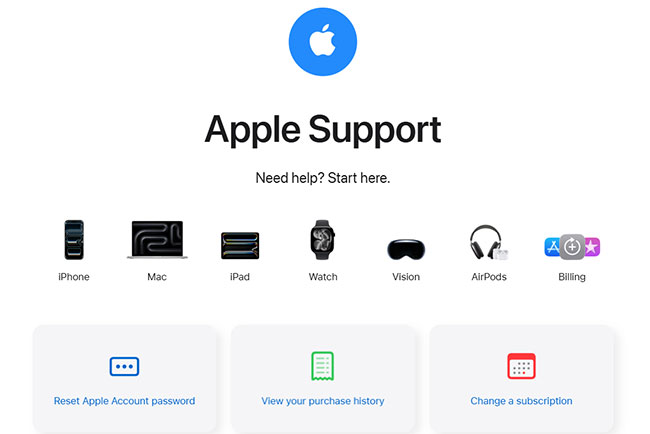
- Step 3. Provide the technician with your troubleshooting history to help them pinpoint the hardware failure quickly.
FAQs About Keypad Not Working on iPhone During Call
-
Why I can't press number during call on my iPhone?
To fix the keypad not working on your iPhone during a call, you can refer to the simple methods above, or resort to TunesKit iOS System Recovery to solve the problem.
-
Why does my iPhone screen goes black during call?
Various reasons can cause the iPhone screen goes black during call, such as a dead sensor, software breakdown, etc. The problem can usually be solved by restarting the iPhone and updating its system.
-
Can I use Siri to enter numbers during a call?
Unfortunately, Siri cannot currently input numbers into a dial pad menu (DTMF tones) while a call is active. You must use the physical touch interface to navigate automated menus.
Summary
It is unavoidable that our phones will meet some issues during daily use. And they can usually be dealt with by rebooting the app or iPhone. In case problems persist, such as the iPhone keypad not working during calls, iPhone notifications not working, or zoom not working on iPad, etc., TunesKit iOS System Recovery can fix them all. What’s more, TunesKit iOS System Recovery supports both Win and Mac, and you can enjoy the best service at a low price.


