


Viber Not Working on iPhone: Problems & Solutions
With millions of users worldwide, Viber is a fast-growing app that offers free calls, photo sharing, video messages, and more using just your phone number. Despite its simplicity, some users find that Viber does not work on their iPhone even after installing it. If you are experiencing Viber not working on iPhone, the issue may be related to network errors, app glitches, or iOS settings that prevent the app from functioning properly.

- Part 1. Why Is Viber Not Working on My iPhone
- Part 2. Fix Viber Not Working Properly in 8 Ways
- 1. Fix Viber Doesn't Ring on iPhone
- 2. Fix Viber Messages not Sending or Receiving
- 3. A Professional Way to Fix Viber Problems Without Data Loss HOT
- 4. Fix Viber Disconnecting Abruptly
- 5. Fix Viber Can't Find Contacts
- 6. Fix Viber Is Always Online
- 7. Fix iPhone Refuses to Connect the Camera on Viber
- 8. Fix Viber Keeps Crashing
- Part 3. FAQs About Viber Not Working on iPhone
- Part 4. The Bottom Line
Part 1. Why Is Viber Not Working on My iPhone
While using the Viber app on iPhone, users may encounter various problems like app crashing, can't send messages, can receive notifications, etc. Before fixing these knotty problems, finding out the reasons behind them is important. You can check the list below.
- 01 Outdated software version - If you are now using an outdated iOS version, you may face these app crashing problems frequently. You can try to update your iOS version to get better compatibility.
- 02 Poor network connection - Try using Viber under a stable network connection. A poor network may lead you to a bad situation.
- 03 Software issue - If there is anything wrong with your iOS system, you will need to repair the iOS system by taking the assistance of a professional iOS fixing program.
Part 2. Fix Viber Not Working Properly in 8 Ways
If you're facing issues with Viber not working on iPhone, don't worry—most problems are easy to resolve. From connectivity glitches to app settings or software conflicts, there are several solutions you can try. Below, we've outlined 8 effective ways to fix Viber and get it running smoothly again on your iPhone.
1. Fix Viber Doesn't Ring on iPhone
Effective communication should end up with some feedback. This explains why Viber sound not working can be an impending thing to wind up a proper communication. When Viber doesn't ring on iPhone, there is no way you will know that some message has arrived or whether a friend is trying to reach you.
- Step 1. Solve this by opening the "Settings" app on your iPhone.
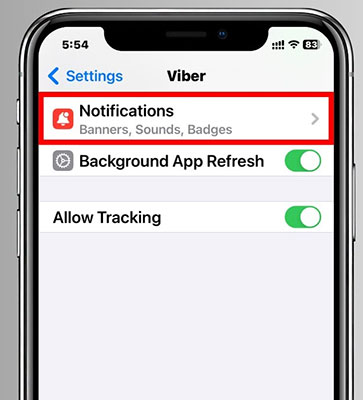
- Step 2. From the Settings menu, look for Viber and tap on "Notifications".
- Step 3. Next, go to the "Alert Style" and enable it. Do this by setting it to "Alerts" or "Banner". This should allow notifications that will let you hear every sound from your Viber app.

2. Fix Viber Messages not Sending or Receiving
When you cannot send or receive your messages then this is an indication that your Viber app functionality is deteriorating. You need to do a few fixing from your settings page.
- Step 1. Solve this by going to the "Settings" page of your Viber app.
- Step 2. Then go to the "Privacy" settings and click on "Disable" the "Collect analytics" button.
- Step 3. Next, check your "Messages" setting to ensure it is enabled.
If this solution does not solve the Viber not receiving messages or Viber message not delivered problem, then you can refresh your iPhone by a simple restart.

 Tips
Tips
Your important Viber messages are lost after fixed Viber messages not showing problem? TunesKit iPhone Data Recovery for Windows can help you get them back instantly. This tool has a high success rate, supporting over 20 data types including deleted Viber messages on iPhone, contacts, photos, videos, reminders, photos and many more.
3. A Professional Way to Fix Viber Problems Without Data Loss
If Viber still cannot normally work after using the above methods, I would like to recommend an iOS fixing tool - TunesKit iOS System Recovery - to you. It is a multifunctional and one-stop program that can fix more than 150+ iOS issues, such as Viber not sending messages, pink line on iPhone screen, iPhone stuck on black screen, and WhatsApp not opening on iPhone. In addition, TunesKit iOS System Recovery will protect your iPhone content from losing while repairing your iPhone.
Key Features of TunesKit iOS System Recovery
Fix more than 150 iOS issuses including iPhone stuck in boot loop, iPhone green screen, iPhone stuck on white Apple, etc., without causing any data loss.
 600,000+ Downloads
Let's see how to fix Viber not working on iPhone using TunesKit iOS System Recovery.
Step 1Connect the iPhone with PC
Connect your iPhone to a computer using a USB cable and launch TunesKit iOS System Recovery first. Then it will start to detect your iPhone. Click the iOS System Repair on the main screen, and click the Start button to continue.

Step 2Choose a mode to fix
Then, select a mode to fix Viber not working on iPhone. There are two modes for you to choose from, and the Standard Repair is powerful enough to fix it. This mode can fix your iPhone system glitches without data loss.

Step 3Download firmware package
Please make sure the information provided matches your iPhone before proceeding. If nothing wrong, click the Download button to begin downloading the firmware package.

Step 4Fix Viber not working on iPhone
When the download process is finished, click the Repair button, TunesKit iOS System Recovery will start to fix your iPhone. Wait for several minutes then the Viber on your iPhone will work properly.

4. Fix Viber Disconnecting Abruptly
Unnecessary disruptions can be very annoying, especially when you are in the middle of an important conversation. First, make sure the problem is not caused by your internet connection. Check your Wi-Fi and confirm that it is properly connected and working. If your internet is working fine but the Viber app keeps disconnecting, follow the steps below to fix the service.
- Step 1. Open Settings and scroll down to select Apps → Viber.
- Step 2. Enable Background App Refresh.

- Step 3. Turn on Mobile Data.
- Step 4. Go to Settings → Battery and make sure Low Power Mode is turned OFF.

5. Fix Viber Can't Find Contacts
There are those times when you check out for contacts but wonder where probably they might have disappeared to. Well, Viber app usually syncs with your phone's contacts and that is the reason why you can access any number that is on your contacts list via Viber. However, this may not be the case especially when Viber not working on iPhone problem is at hand. This then indicates that the sync functionality is facing some disruptions. Don't worry though, just follow these steps to fix it.
- Step 1. Open the "Settings" on the app then click on "General" and then on "Sync contacts" to make them viable.
- Step 2. Click on "Mail" and then scroll and tap on "Contacts".
- Step 3. Select on "Import SIM Contacts" to make them visible on your Viber app.

6. Fix Viber Is Always Online
You should understand that as long as your Viber app is running in the background, it will always portray that it is online. By this, you are able to receive calls, messages and other data from friends as long as both of you are connected via Viber. In this a scenario, you need to change your online status.
- Step 1. From your phone's home screen, open your "Viber" app.
- Step 2. Tap on "More" menu and scroll to "Privacy".
- Step 3. Then disable your status by tapping on "Share Online Status". By this, your phone will show that you are offline. Once you need to go online, simply change your status by enabling it once more.

7. Fix iPhone Refuses to Connect the Camera on Viber
What is the beauty of a Smartphone anyway? I guess it is the capability to do more than our traditional phones, such as video calling. Though sometimes, the problem escalates from Viber free call not working, to iPhone camera not being able to connect to the camera on Viber. Follow these steps for a quick fix.
- Step 1. Open the "Settings" on the app and tap on the "Privacy" menu.
- Step 2. Next, click on the "Camera" menu to see the available social media apps currently installed on your phone.
- Step 3. Locate "Viber" app and then toggle on it to enable the functionality. You should then be able to video call any contacts without experiencing further hitches.

8. Fix Viber Keeps Crashing
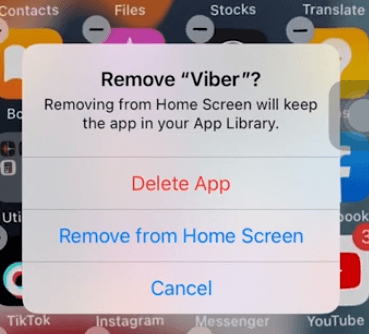
If the Viber app keeps crashing on your iPhone, the installation may be corrupted or incompatible with your current iOS version. Reinstalling the app ensures a clean setup and often resolves persistent crashes.
- Step 1. Press and hold the Viber app icon on your Home Screen.
- Step 2. Tap Remove App, then select Delete App to uninstall it.
- Step 3. Restart your iPhone to clear temporary system data.
- Step 4. Open the App Store, search for Viber, and download the latest version.
- Step 5. Open the app and sign in to restore your account.
Part 3. FAQs About Viber Not Working on iPhone
-
1. Why am I not getting alerts for calls or messages?
If you are not receiving alerts for calls or messages on Viber, the most likely cause is that notifications are disabled in your iPhone system settings. To fix this, open Settings, tap Notifications, then select Viber from the list of apps and turn on Allow Notifications. Make sure the alert options such as Lock Screen, Notification Center, and Banners are also enabled so you can receive alerts in all situations. Once these settings are turned on, Viber should be able to deliver call and message notifications normally.
-
2. Why does Viber keep crashing immediately after I open it?
Immediate crashing often points to corrupted cached data or a storage conflict. Unlike Android, the iPhone does not have a simple "Clear Cache" button for individual apps. To clear the temporary files without losing your chat history, you should use the "Offload" feature. Go to Settings → General → iPhone Storage, select Viber from the list, and tap Offload app option.

-
3. Why does Viber say "No Service" or "Disconnected" when my internet is working?
Viber requires a strictly stable connection. If you are on a weak public WiFi or a fluctuating 4G/5G signal, Viber might disconnect even if a web browser still loads pages. This can also happen if your Background App Refresh settings are restricted, preventing Viber from maintaining a heartbeat connection with the server.
Part 4. The Bottom Line
Viber offers a wide range of features when set up correctly. In addition to free calls and messages, you can enjoy group chats, public chats, and even games. To get the most out of the app, it's important to know how to navigate it and handle issues like Viber not working on iPhone. The solutions above can help restore your app to normal functionality. Additionally, if you encounter other iOS problems, TunesKit iOS System Recovery can be a useful tool to fix them quickly.


