


Full Solutions to Fix iPhone Error 21

Have you ever encountered the error message "The iPhone could not be restored. An unknown error occurred (21)" while trying to restore your device? If you've tried multiple times but the problem keeps coming back, don't worry — you're not alone. In this guide, we'll walk you through the most effective solutions to fix iPhone error 21.

What Is iPhone Error 21?
iPhone Error 21 is a common restore error that usually occurs when you try to restore or update your iPhone through iTunes or Finder. It typically appears with the message: "The iPhone could not be restored. An unknown error occurred (21)."
This error is often related to hardware issues, especially problems with the device's battery or connection components. In some cases, it can also be triggered by software conflicts, outdated system files, or interruptions during the restore process.
Because Error 21 is frequently linked to hardware, it can be more difficult to fix than standard software errors. However, depending on the cause, there are still several effective solutions you can try before considering professional repair.

Why Does iPhone Error 21 Occur When Restoring an iPhone?
Now you might be wondering why iPhone or iTunes error 21 appears when you restore your iPhone? That's what we are going to discuss next. Followings are some possible reasons to explain the iPhone error 21 or iTunes error 21.
- 01 Hardware Issues: This is one of the most frequent reasons behind Error 21. Problems with the battery or internal components can interrupt the restore process, causing the error to appear.
- 02 Faulty USB Connection: A damaged USB cable or unstable USB port may disrupt the connection between your iPhone and computer, leading to restore failure.
- 03 Outdated or Corrupted iTunes/Finder: Using an outdated version of iTunes or Finder can result in compatibility issues. Corrupted software files may also prevent the restore from completing successfully.
- 04 Antivirus or Security Software Interference: Security programs on your computer might block communication between your device and Apple servers, which can trigger Error 21.
- 05 Corrupted Firmware Files: If the iOS firmware file is damaged or incomplete, the restore process may fail and display this error.
Most Efficient Way to Fix iPhone Error 21 Without Data Loss[Free]
Now that we have find out some reasons that cause iTunes error 21, how can we get the problem solved while keeping our data? Professional iOS system repair software like TunesKit iOS System Recovery is able to do the trick. This tool supports diverse kinds of iOS issues including iPhone recovery mode , white Apple logo, and black screen issues, iTunes error 54 etc.
Moreover, it supports diverse devices like iPhone, iPad, iPod touch, and all iOS versions, including the latest iOS 26. Finally, it has a simple interface which is easily understood and operated by customers.
Use TunesKit iOS System Recovery to repair iTunes-related issues for free and quickly resolve iPhone Error 21 without data loss.
 600,000+ Downloads
Related steps to fix the problem of iPhone error 21 are as follows.
Step 1 Connect iPhone
Firstly, you have to click and open TunesKit iOS System Recovery on your PC. Then make your iPhone connected and detected. And select the iTunes Repair feature on the main screen.

Step 2 Start to Repair iTunes
Click on Repair button to begin fixing iTunes errors. This feature is completely free and can resolve issues that may trigger iPhone Error 21 during restore.

Step 3 Wait for the Process to Complete
Keep your device connected and wait for the repair process to finish. Once done, restart iTunes and try restoring your iPhone one more time.

 Tip
Tip
The free iTunes Repair feature is especially useful if Error 21 is caused by corrupted iTunes components or communication issues between your device and the system.
Other Common Solutions to Solve Error 21 Problem
If you want to solve iPhone error 21 problem without using the third-party tools, the you could get some value from other common fixes.
Fix 1. Update iTunes to the Latest Version
Outdated iTunes version sometimes may give rise to iTunes/iPhone error 21, because it is not compatible with the latest version of iOS device. Now it's time to update it. To start updating:
- Step 1. You just first open iTunes app, and then click Check for Update in Help menu.
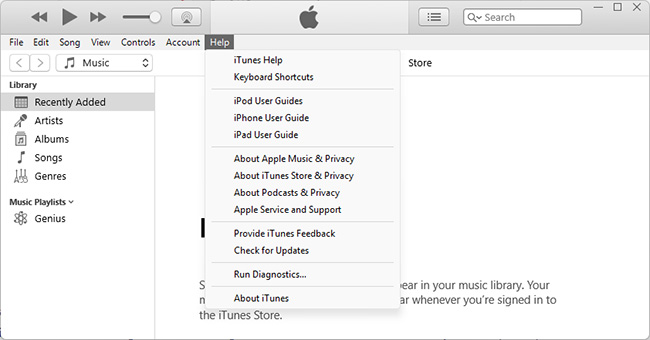
- Step 2. Lastly follow the guide and you will finish the update process.
Fix 2. Temporarily Adjust or Disable Anti-Virus Software
While essential for security, overly strict anti-virus software or firewalls can sometimes block iTunes from communicating with Apple's servers, directly triggering iPhone Error 21. Before entirely disabling your protection, try adjusting your settings to allow iTunes through your network. If the block continues, you may need to pause the software temporarily to complete the system restore.
Here is how to safely manage your security settings:
- Step 1. Open your anti-virus program or your computer's built-in firewall settings (like Windows Defender).

- Step 2. Navigate to the application permissions menu and manually add iTunes to the list of allowed or trusted programs.
- Step 3. If the error still occurs, temporarily turn off your real-time security protection, restart iTunes, and try the repair again.
Be sure to immediately reactivate your anti-virus software once your iPhone repair is complete.
Fix 3. Perform a DFU Restore via iTunes
If standard fixes fail, putting your iPhone into Device Firmware Update (DFU) mode is the deepest type of system restore available. This process completely bypasses the iOS bootloader, allowing iTunes to overwrite the core software and install a fresh system. Please note that a DFU restore will permanently erase all data on your device, so you should only proceed if you have a recent backup.
Because entering DFU mode requires precise timing, the screen of your iPhone must remain completely black throughout the entire process. If the Apple logo appears at any point, you have held the buttons too long and will need to start over.
- Step 1. Connect your iPhone to your computer using an USB cable and open iTunes (or Finder on newer macOS versions).
- Step 2. Perform the specific button sequence for your exact iPhone model to trigger DFU mode:
- For iPhone 8 and later series: Quickly press and release Volume Up, then quickly press and release Volume Down. Press and hold the Side button until the screen goes black. Immediately press and hold both the Side and Volume Down buttons together for exactly 5 seconds. Release the Side button, but keep holding Volume Down for another 10 seconds.
- For iPhone 7 and 7 Plus: Press and hold the Side and Volume Down buttons simultaneously for exactly 8 seconds. Release the Side button, but continue holding the Volume Down button for another 10 seconds.
- For iPhone 6s and older: Press and hold the Power and Home buttons simultaneously for exactly 8 seconds. Release the Power button, but continue holding the Home button for another 10 seconds.

- Step 3. Check your computer screen. iTunes or Finder will display a pop-up message stating it has detected an iPhone in recovery mode, while your iPhone screen remains completely dark.
- Step 4. Click "OK" on the computer prompt and select "Restore iPhone" to begin factory resetting your device.

Fix 4 Check the Sensor Cable
If above relatively simple methods don't work, then you could try this difficult way to fix iPhone error 21. It might be the fix you want. But generally this way is not recommended because if uncarefully, the iPhone will get broken.
Here's how to check your sensor cable.
- Step 1. Open up your iOS device.
- Step 2. Take away the screw that keeps the battery.
- Step 3. Disconnect a device cable and connect it again.

4.5 Examine Host Files
In some cases, your host file is blocking iTunes to communicate Apple's update server. So to make sure it is not stopped from contacting. This can be done by following steps.
For Mac users
- Step 1. Open your Applications folder, navigate to Utilities, and launch the Terminal app.
- Step 2. Type the command sudo nano /private/etc/hosts and press Return, then enter your administrator password.
- Step 3. Use your arrow keys to navigate the text file and look for any line containing the web address gs.apple.com.
- Step 4. If you find that specific entry, delete the entire line, then press Control + O to save the file and Control + X to exit the editor.

For Windows PC Users:
- Step 1. Open your Start menu, search for Notepad, right-click the application, and select "Run as administrator".
- Step 2. Click File > Open, and navigate to the directory: C:\Windows\System32\drivers\etc\.
- Step 3. Change the file type dropdown from "Text Documents" to "All Files", then open the hosts file.
- Step 4. Locate and delete any line containing gs.apple.com, save the document, and restart iTunes to try the repair again.

Final Words
To sum up, we hope above listed methods can help you to get iPhone or iTunes error 21 solved. But some of these solutions will lead to data loss and sound risky and difficult to operate such as check files and security programs. So you are suggested to use the effective iOS system repair tools like TunesKit iOS System Recovery to fix the problem for free. Or if you have other alternatives we missed, welcome to connect us and share your ideas.


