


Time Allowances Not Working on iPhone [iOS 27]? 10 Fixes
If Time Allowances is not working on your iPhone after updating to iOS 27, the problem may not be the allowance itself. Apple's redesigned Screen Time system now connects Time Allowances with Screen Time Schedule, Family Sharing, cross-device syncing, and new parental-control settings. As a result, an outdated family device, an Always Allowed app, or an incorrect schedule can make a limit appear broken.
This guide explains the most common reasons why Time Allowances is not working on iPhone and shows you how to fix missing limits, apps that continue working after time runs out, syncing problems, and incorrect usage data.
 Further Reading:
- Why Is Time Allowances Not Working on iPhone?
- What Does "Time Allowances Not Working" Look Like on iOS 27?
-
How to Fix Time Allowances Not Working on iPhone
- Fix 1. Update All Devices Used with Screen Time
- Fix 2. Make Sure App & Website Activity Is Enabled
- Fix 3. Check and Reconfigure Time Allowances
- Fix 4. Check Screen Time Schedule
- Fix 5. Remove the App from Always Allowed
- Fix 6. Check Share Across Devices
- Fix 7. Check Family Sharing and the Child's Apple Account
- Fix 8. Delete and Recreate the Problematic Time Allowance
- Fix 9. Restart the iPhone and Update iOS 27
- Fix 10. Repair Possible iOS Problems with TunesKit iOS System Recovery HOT
- Time Allowances vs. App Limits: What's Different in iOS 27?
- Conclusion
Why Is Time Allowances Not Working on iPhone?
Time Allowances may fail to work properly when:
- One or more devices involved in Family Sharing are still running an older operating system.
- App & Website Activity is disabled.
- The Time Allowance was assigned to the wrong category or configured incorrectly.
- A Screen Time Schedule conflicts with the allowance.
- The affected app is listed under Always Allowed.
- Share Across Devices is turned off or syncing incorrectly.
- The parent and child Apple Accounts are not configured correctly in Family Sharing.
- Screen Time usage data is malfunctioning after an iOS update.
If you recently upgraded to iOS 27, start by checking whether all devices connected to your Screen Time setup have been updated. This is especially important for families using parental controls.
What Does "Time Allowances Not Working" Look Like on iOS 27?
Before changing settings, identify which problem you are actually experiencing. Different symptoms can have different causes and solutions.
Time Allowances Is Missing
You may update your iPhone to iOS 27 but still see the older Screen Time interface instead of the new Time Allowances controls. This can happen when other devices in the Family Sharing setup have not been updated or when the new parental-control setup has not been completed.
Apps Still Work After the Time Allowance Ends
If a game, social media app, or entertainment app remains usable after its allowance expires, check whether the app is excluded from restrictions or controlled by another Screen Time setting.
Time Allowance Usage Is Incorrect
Some users may notice that Screen Time records much more or much less usage than expected. If the usage counter is wrong, Time Allowances may also trigger at the wrong time.
Time Allowances Does Not Sync Across Devices
A limit configured on one Apple device may not appear on another if Share Across Devices is disabled or if the devices are signed in with different Apple Accounts.
Ask For More Time Does Not Work
For child accounts, the additional-time request may fail to reach the parent if Family Sharing or parent/guardian permissions are not configured correctly.
How to Fix Time Allowances Not Working on iPhone
Try the following fixes in order. The first several methods focus on configuration problems, which are more common than serious iOS system errors.
Fix 1. Update All Devices Used with Screen Time
With iOS 27, Apple's redesigned Screen Time experience works across the latest operating-system generation. If your family uses several Apple devices, updating only the affected iPhone may not be enough.
A parent's iPhone may already run iOS 27 while a child's iPad, Mac, or another family device still uses an older OS. In that situation, the new Screen Time features may not migrate or synchronize as expected.
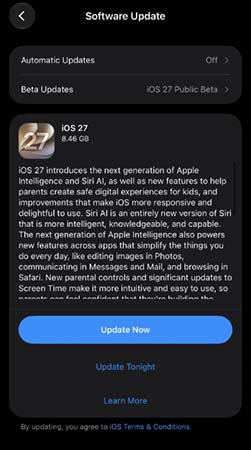
- Step 1. On the affected iPhone, open Settings > General > Software Update.
- Step 2. Install the latest available iOS 27 update.
- Step 3. Check the other devices used by the child, parent, or Family Sharing group.
- Step 4. Update compatible iPads, Macs, Apple Watches, and other relevant devices to the corresponding latest OS version.
- Step 5. Restart the devices after the updates are complete, then open Settings > Screen Time again.
If an older device cannot be updated, you may need to continue using the previous Screen Time setup or manage the restrictions directly on the child's device.
Fix 2. Make Sure App & Website Activity Is Enabled
Time Allowances depends on Screen Time being able to track app and website activity. If this tracking is turned off, usage may not be recorded correctly.
- Step 1. Open Settings on your iPhone.
- Step 2. Tap Screen Time.
- Step 3. Make sure App & Website Activity is turned on.
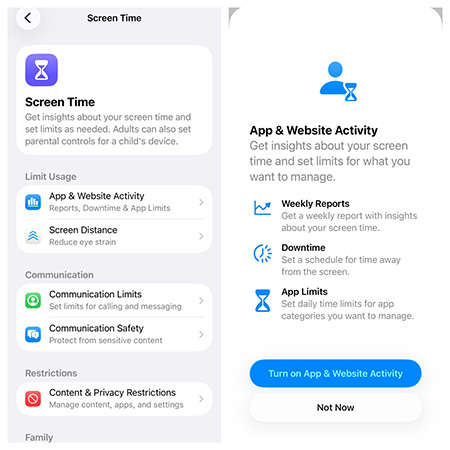
- Step 4. Return to Time Allowances and check whether app usage is now being counted.
If Screen Time was recently disabled, give it some time to begin collecting fresh usage data before checking the allowance.
Fix 3. Check and Reconfigure Time Allowances
If an allowance exists but does not behave as expected, verify how it is configured.
Time Allowances in iOS 27 can apply to app categories such as Games, Entertainment, or Social Media. If several apps share the same allowance, time spent in one app may reduce the remaining time available for another.
- Step 1. Go to Settings > Screen Time.
- Step 2. Open Time Allowances.
- Step 3. Select the category or allowance that is causing the problem.
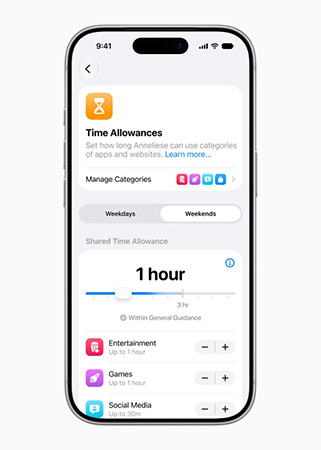
- Step 4. Check the daily duration.
- Step 5. Confirm that the affected app belongs to the category you expect.
- Step 6. Adjust the allowance if necessary and test it again.
This is particularly important if you expect an individual app to receive its own separate time limit but it is actually sharing time with other apps in the same category.
Fix 4. Check Screen Time Schedule
In iOS 27, Time Allowances determines how much time can be used, while Screen Time Schedule determines when certain apps or categories can be used. If the two settings do not match, the results can seem inconsistent.
For example, you may set a one-hour allowance for Games, but a Screen Time Schedule may restrict Games during school hours. In another setup, an incorrectly configured schedule may make apps available at unexpected times.
- Step 1. Open Settings > Screen Time.
- Step 2. Open Screen Time Schedule.
- Step 3. Review each configured time window.
- Step 4. Check which apps or categories are allowed during each schedule.
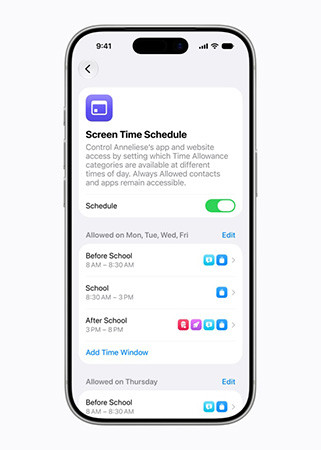
- Step 5. If you use Match Screen Time Schedule, verify that the Time Allowance is linked to the correct schedule.
- Step 6. Temporarily simplify the schedule if necessary, then test the allowance again.
If Time Allowances works after you simplify the schedule, the problem was likely a conflict between the allowance and the schedule rather than a Screen Time bug.
Fix 5. Remove the App from Always Allowed
Apps placed under Always Allowed can remain accessible even when other Screen Time restrictions are active. That can make it appear as though Time Allowances is not blocking the app.
- Step 1. Go to Settings > Screen Time.
- Step 2. Open Always Allowed.
- Step 3. Look for the app that is ignoring the Time Allowance.
- Step 4. Remove it from the Always Allowed list.
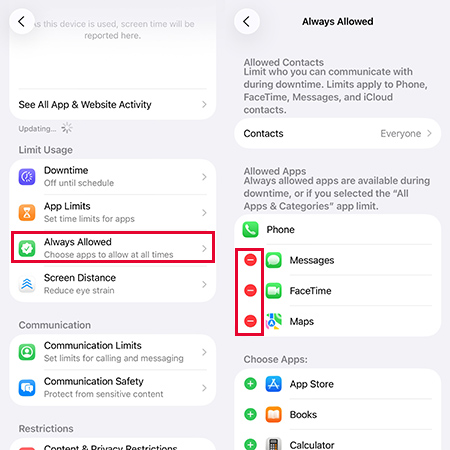
- Step 5. Return to Time Allowances and test the app after its limit expires.
This is one of the first settings to check when only one or two specific apps ignore the limit.
Fix 6. Check Share Across Devices
If you use the same Apple Account on several Apple devices, Screen Time can combine settings and activity through Share Across Devices.
When enabled, usage on an iPad or Mac may also count toward your Time Allowance. When disabled, each device maintains its own Screen Time settings.
- Step 1. Open Settings > Screen Time.
- Step 2. Locate Share Across Devices.
- Step 3. Turn it on if you want Time Allowances and Screen Time data to sync across your Apple devices.
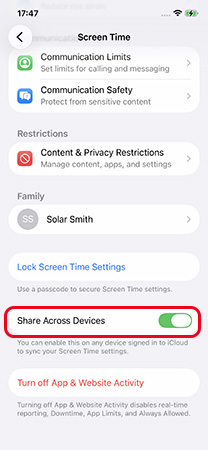
- Step 4. If it is already enabled and syncing appears incorrect, turn it off, restart the iPhone, and enable it again.
You should also make sure the devices are signed in with the Apple Account you expect. Otherwise, their Screen Time data may remain separate.
Fix 7. Check Family Sharing and the Child's Apple Account
If Time Allowances is being used for a child, Family Sharing setup is critical.
The child should normally use their own Apple Account, and that account should be included in the Family Sharing group. The parent or guardian responsible for Screen Time should also have the correct permissions.
- Step 1. On the parent's iPhone, open Settings.
- Step 2. Tap the Apple Account name at the top.
- Step 3. Open Family.
- Step 4. Confirm that the child's Apple Account appears in the family group.

- Step 5. Make sure the child is signed in to that same account on their device.
- Step 6. Open the child's Screen Time settings from Family and verify that Time Allowances is available.
- Step 7. Confirm that the adult managing Screen Time is set as a parent or guardian where required.
Avoid having a child share another family member's Apple Account. Shared accounts can make usage tracking and Screen Time management confusing.
Forgot the Screen Time Passcode? Try TunesKit iPhone Unlocker
If you can't change or reset Time Allowances because you forgot the Screen Time passcode, try Apple's passcode recovery first. If that doesn't work, TunesKit iPhone Unlocker can remove the Screen Time passcode on a device you own or are authorized to manage, allowing you to access Screen Time settings again.
- Step 1. Connect the iPhone to your computer and open TunesKit iPhone Unlocker.
- Step 2. Choose Unlock Screen Time Passcode.
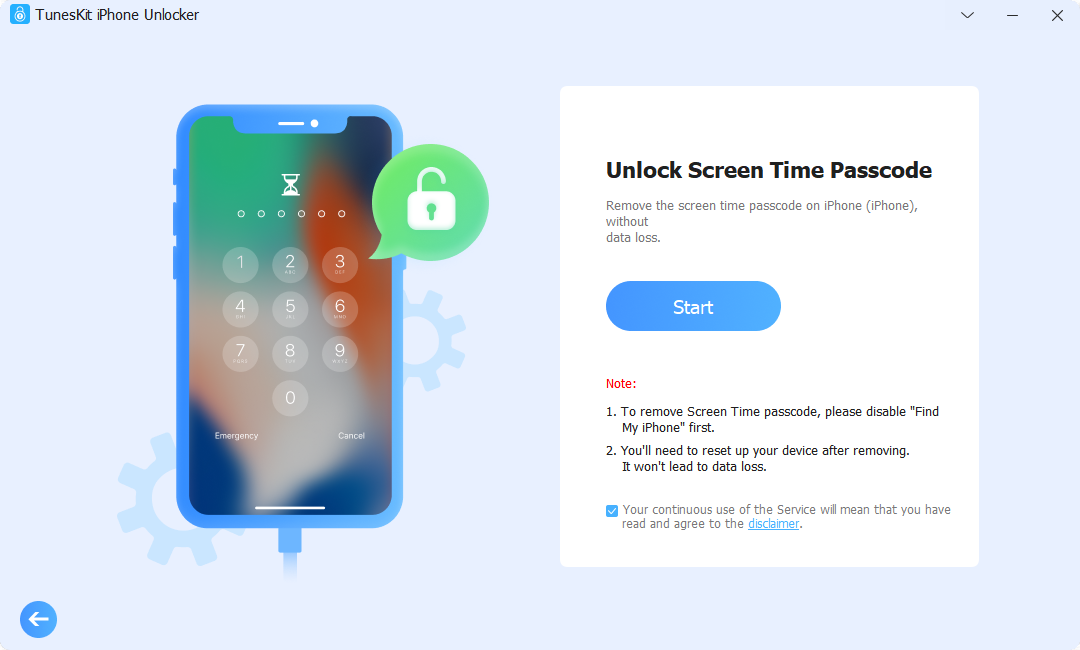
- Step 3. Follow the onscreen instructions to remove the passcode.
- Step 4. Return to Settings > Screen Time and reconfigure Time Allowances.
Fix 8. Delete and Recreate the Problematic Time Allowance
A particular allowance may occasionally stop updating properly after changing categories, schedules, or device settings.
Deleting and recreating it can refresh the configuration.
- Step 1. Open Settings > Screen Time > Time Allowances.
- Step 2. Select the problematic allowance.
- Step 3. Remove or delete that allowance.
- Step 4. Restart the iPhone.
- Step 5. Return to Time Allowances.
- Step 6. Create a new allowance for the appropriate category.
- Step 7. Use a short test duration to confirm that the restriction activates correctly.
If the new allowance works, the original configuration was likely corrupted or no longer synchronized correctly.
Fix 9. Restart the iPhone and Update iOS 27
If the configuration looks correct, the problem may be a temporary Screen Time software glitch.
Start with a normal restart.
- Step 1. Press and hold the Side button and either Volume button.
- Step 2. Drag the power slider.
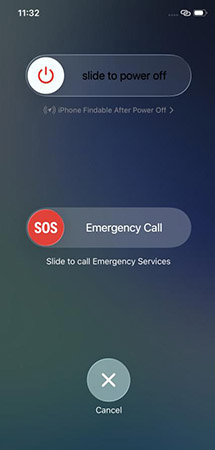
- Step 3. Wait for the iPhone to shut down.
- Step 4. Press and hold the Side button again until the Apple logo appears.
Then check for updates:
- Step 1. Open Settings > General > Software Update.
- Step 2. Install the latest iOS 27 version available for your iPhone.
Apple frequently addresses software problems through incremental iOS updates, so this step is especially worthwhile if Time Allowances stopped working immediately after a major system update.
Fix 10. Repair Possible iOS Problems with TunesKit iOS System Recovery
If Time Allowances remains broken after you have verified the Screen Time configuration, Family Sharing, schedules, and software updates, the underlying issue may involve iOS itself.
In this situation, a system-repair tool such as TunesKit iOS System Recovery can be considered before performing a full factory restore. Its Standard Repair mode is designed to reinstall or repair iOS system components without intentionally erasing user data.
- Step 1. Install and open TunesKit iOS System Recovery on your computer.
- Step 2. Connect the affected iPhone with a USB cable.
- Step 3. Choose the iOS System Repair option.
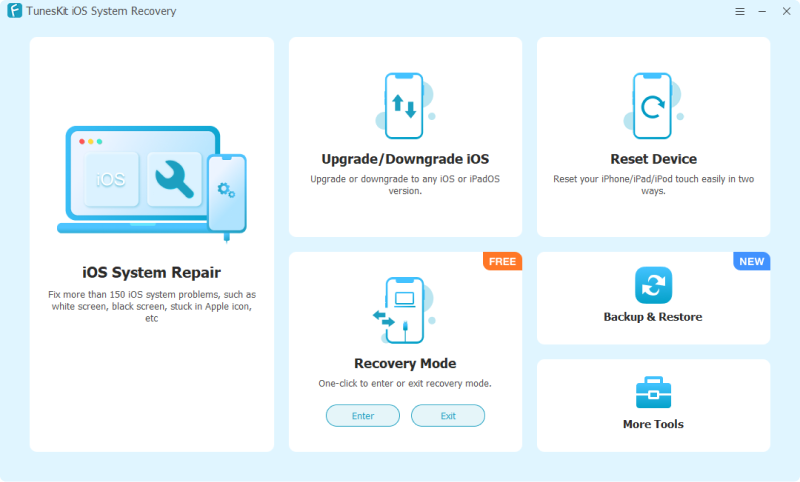
- Step 4. Select Standard Repair if available for the issue.
- Step 5. Download the matching firmware package.
- Step 6. Start the repair and keep the iPhone connected until the process is complete.
Time Allowances vs. App Limits: What's Different in iOS 27?
| Screen Time Feature | Earlier Screen Time Experience | iOS 27 Experience |
|---|---|---|
| Usage limits | App Limits | Time Allowances |
| Time-based restrictions | Downtime | Redesigned Screen Time Schedule |
| App access exceptions | Always Allowed | Always Allowed |
| Cross-device usage | Share Across Devices | Integrated with redesigned Screen Time |
| Family controls | Previous Family Screen Time UI | Redesigned parental-control experience |
| Extra time | Ask For More Time | Works with Time Allowances |
The most important difference is that Time Allowances is designed to work together with categories, schedules, and the broader iOS 27 Screen Time system. As a result, troubleshooting only the time value itself may not solve the problem.
Conclusion
When Time Allowances is not working on iPhone in iOS 27, start with the Screen Time configuration rather than immediately resetting the device. Check whether all relevant devices are updated, confirm App & Website Activity is enabled, review Screen Time Schedule and Always Allowed, and verify Share Across Devices and Family Sharing.
If the settings are correct but Time Allowances still fails, recreate the allowance, restart the iPhone, install the latest iOS update. If the Time Allowances cannot be turned off via Settings, try to use TunesKit iPhone Unlocker to remove Screen Time from iPhone without data loss.



