


iOS 27 Screen Time: How Time Allowances, Schedules & Ask to Browse Work
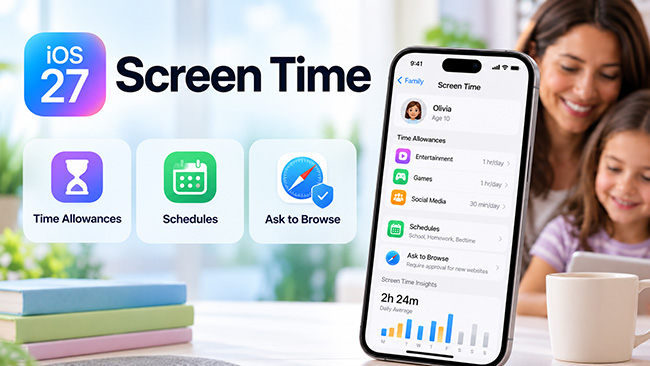
Apple is giving parents more flexible ways to manage how children use their devices with the new iOS 27 Screen Time features. Instead of relying mainly on App Limits and Downtime, parents can now use Time Allowances to control how long children spend in certain app categories, Schedules to decide when apps are available, and Ask to Browse to approve new websites their children want to visit.
In simple terms, Time Allowances control how long, Schedules control when, and Ask to Browse helps control which new websites a child can access. Here's a closer look at how these iOS 27 parental controls work and how parents can use them together to restrict children's iPhone using.
 Note
Note
At the time of writing, iOS 27 is still in Apple's pre-release cycle. Apple has confirmed the features discussed below, but some menu names and setup steps may change before or after the final public release.
- What's New in iOS 27 Screen Time?
- iOS 27 Time Allowances: Set Daily Limits for Games, Social Media & Entertainment
- iOS 27 Screen Time Schedules: Control When Apps Are Available
- iOS 27 Ask to Browse: Approve Websites Your Child Wants to Visit
- How Time Allowances, Schedules & Ask to Browse Work Together
- iOS 27 Screen Time Not Working? Try These Fixes
- FAQs About iOS 27 Screen Time
- Conclusion
What's New in iOS 27 Screen Time?
Screen Time already lets parents monitor device usage, set App Limits, schedule Downtime, restrict inappropriate content, and control communication. With iOS 27, Apple is expanding these tools to make parental controls more flexible throughout the day. The major Screen Time changes include:
- Time Allowances: Set daily time boundaries for categories such as Entertainment, Games, and Social Media.
- Schedules: Choose which apps and websites on iPhone or iPad a child can access at different times of the day or on different days of the week.
- Ask to Browse: Require a child to request permission before accessing a new website in Safari.
- Redesigned Screen Time controls: See a child's average device usage and most-used apps more easily.
- Quick access adjustments: Temporarily pause device use, allow additional access, or adjust schedules when needed.
Apple says Time Allowance recommendations are informed by guidance from clinical and child-development experts and tailored to a child's age. Parents can still change those recommendations based on their own family's needs.
These features don't simply replace the Screen Time tools parents already use. Instead, they add more ways to combine time limits, schedules, app access, and website permissions.
iOS 27 Time Allowances: Set Daily Limits for Games, Social Media & Entertainment
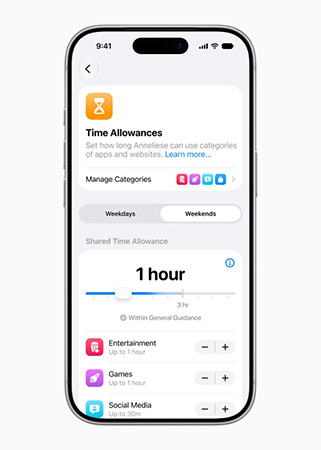
With iOS 27 Time Allowances, parents can set daily screen time for key categories like Games, Social Media, and Entertainment. This gives families a simpler way to manage overall app usage while still allowing children to choose how they spend their available time.
What Are Time Allowances in iOS 27?
Time Allowances are a new Screen Time feature that lets parents set boundaries for the total time a child spends in specific types of apps and websites each day.
Apple currently identifies three main categories parents can manage entertainment, games, and social media. For example, you could give your child a daily gaming allowance while setting a different allowance for social media.
Rather than requiring parents to decide a suitable limit from scratch, iOS 27 can provide an age-based suggested allowance as a starting point. Parents remain in control and can adjust it according to their child's routine.
Which Apps Count Toward a Time Allowance?
Apps are automatically placed into Time Allowance categories.
Apple explains that Entertainment and Games classifications can be based on information developers provide through App Store Connect. Social Media classification takes into account whether an app includes social-media capabilities, such as interaction with user-generated content through a social feed.
This also means an app's Time Allowance category may not always match the category you normally see while browsing the App Store.
For parents, the important point is simple: iOS handles the categorization so you can set broader rules without manually adding every individual game or social app.
Time Allowances vs App Limits: What's the Difference?
Time Allowances may sound similar to the existing App Limits feature, but they serve somewhat different purposes.
| Feature | Time Allowances | App Limits |
|---|---|---|
| Main purpose | Manage broader daily time boundaries | Limit particular apps or app categories |
| Focus | Entertainment, Games, Social Media | Individual apps and supported categories |
| Suggested limits | Can include age-informed recommendations | Set manually by the parent |
| Best for | Creating an overall daily screen-time routine | Controlling a specific app or type of app |
If your goal is to manage your child's overall gaming or social-media time, Time Allowances provide a more direct starting point. If one particular app is causing a problem, App Limits can still be useful.
The two controls can therefore serve different roles rather than requiring parents to choose only one.
What Happens When a Child Needs More Screen Time?
Apple already allows children to request additional Screen Time when they reach certain limits, such as an App Limit or Downtime restriction. Parents can respond from their own iPhone, including approving additional access for 15 minutes, one hour, or the rest of the day when those options apply.
This is different from setting a normal Time Allowance.
Think of it this way:
Time Allowance = the regular daily boundary.
Ask for More Time = an exception when additional time is needed.
iOS 27 Screen Time Schedules: Control When Apps Are Available
Time Allowances answer the question "How long?" The new Screen Time Schedules feature addresses another common parental concern: "When?"
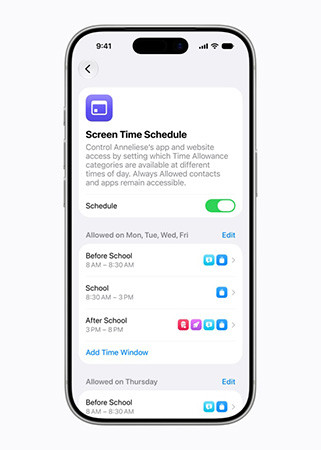
Apple says parents can use Schedules to determine which apps children can access at different times of the day and across different days of the week. This makes Screen Time more adaptable to a child's actual routine.
How Screen Time Schedules Work in iOS 27
Suppose your child needs Messages, educational apps, and school websites during school hours but doesn't need games or social media. You could create a schedule that keeps appropriate apps available during that period. Once the scheduled period ends, another set of rules can apply.
Potential schedules include:
- School hours
- Homework time
- Dinner
- Bedtime
- Weekdays
- Weekends
Schedules vs Downtime: What's the Difference?
Downtime already provides a way to schedule periods when most apps are restricted. The new Schedules feature gives parents another way to define access according to different parts of a child's day.
A simple way to understand the controls is:
| Screen Time tool | What it controls |
|---|---|
| Time Allowances | How long certain categories can be used |
| Schedules | Which apps or categories are available at particular times |
| Downtime | A scheduled period when most apps are restricted |
| App Limits | How long particular apps or categories can be used |
For instance, Downtime still makes sense for a broad nighttime restriction. A School schedule can be more useful when you want selected apps to remain available while distracting categories are restricted.
iOS 27 Ask to Browse: Approve Websites Your Child Wants to Visit
With iOS 27 Ask to Browse, parents can review new websites before their child opens them in Safari. Instead of blocking web access completely, the feature adds a simple approval step, giving children more browsing flexibility while keeping parents involved.
What Is Ask to Browse in iOS 27?
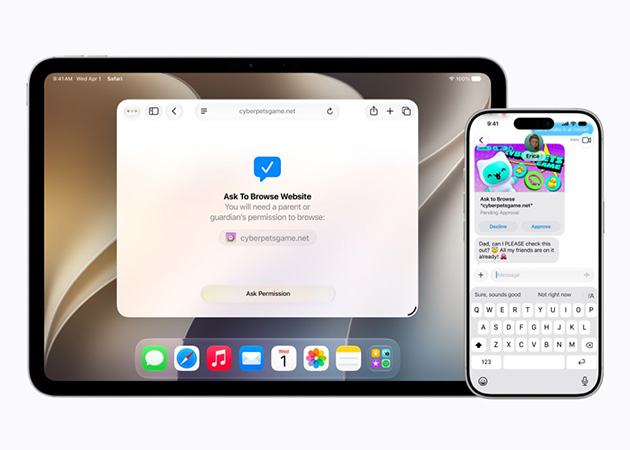
Ask to Browse is a new parental-control feature that requires a child to ask a parent or guardian for permission before accessing a new website in Safari.
Apple confirms that Ask to Browse works across iPhone, iPad, and Mac in Safari. This gives parents a middle ground between broadly allowing web browsing and limiting a child to a fixed list of approved websites.
For example, your child may come across a new educational website while doing homework. Instead of being completely blocked from using it, the child can request access for the parent to review.
How Ask to Browse Works
The basic process is straightforward:
- The child attempts to open a new website in Safari.
- Safari indicates that parent or guardian permission is required.
- The child sends a request.
- The parent receives the request and reviews it.
- The parent decides whether to approve the website.
Apple's iOS 27 preview shows parental requests integrated with its existing family approval experience. Because the software is still evolving, the exact buttons and approval options shown in the final release may differ.
Ask to Browse vs Web Content Restrictions
Ask to Browse doesn't make Apple's existing Web Content controls unnecessary. Instead, it adds another level of parental involvement. Apple's existing Screen Time controls include web-content options that can restrict adult websites or limit browsing to approved sites.
Here's the basic difference:
| Feature | Purpose |
|---|---|
| Ask to Browse | Lets a child request parental permission for a new website |
| Limit Adult Websites | Automatically restricts many adult sites while allowing broader browsing |
| Only Approved Websites | Restricts browsing to websites approved for the child |
Ask to Browse can therefore be useful for parents who want children to explore useful websites while still requiring approval for unfamiliar destinations.
Does Ask to Browse Work in Chrome or Other Browsers?
Apple's current documentation specifically states that Ask to Browse works in Safari across iPhone, iPad, and Mac.
Apple has not clearly documented equivalent Ask to Browse behavior for every third-party browser. Until broader support is officially confirmed, it is safer to treat Safari as the supported browser for this feature rather than assume the same approval workflow applies to Chrome, Firefox, or other browsers.
How Time Allowances, Schedules & Ask to Browse Work Together
The biggest benefit of the iOS 27 Screen Time update becomes clearer when the three features are combined.
Consider a typical school day.
- During school hours: A Screen Time Schedule can make educational, productivity, and communication apps available while restricting games and social media.
- After school: The schedule changes and games or social apps become available. Time Allowances can still determine how much total time the child can spend using them.
- During homework: If the child finds an unfamiliar website in Safari, Ask to Browse can let them request access instead of abandoning the site completely.
This approach is more flexible than applying the same restriction throughout the entire day.
iOS 27 Screen Time Not Working? Try These Fixes
New parental-control features depend on Apple Accounts, device syncing, Family Sharing, and notifications, so an occasional problem may occur.
1. Update Both the Parent's and Child's Devices
Make sure devices in the Family Sharing group are running compatible and current software. Apple recommends updating family devices so Screen Time settings can sync correctly.
If you are testing iOS 27 before its public release, also remember that beta software can contain bugs or incomplete features.
2. Check Family Sharing
Go to your Family settings and confirm that:
- The child appears in the family group.
- The correct Apple Account is being used.
- Your account has parent or guardian permissions.
If the child isn't linked correctly, remote Screen Time changes or requests may not reach the parent.

3. Check Screen Time Settings
Open the child's Screen Time page and verify that the expected allowance, schedule, App Limit, or web restriction is actually enabled. When several Screen Time controls overlap, also check whether another setting, such as Downtime or an App Limit, is responsible for the restriction you are seeing.
4. Check Messages and iMessage
Apple uses Messages for several types of parental-control requests. If requests don't arrive, Apple recommends checking:
- The parent's Apple Account email address is enabled for iMessage.
- Messages notifications are turned on.
- iCloud contacts are syncing.
- iMessage is working normally.
- Devices have current software.

5. Remove a Forgotten Screen Time Passcode with TunesKit iPhone Unlocker
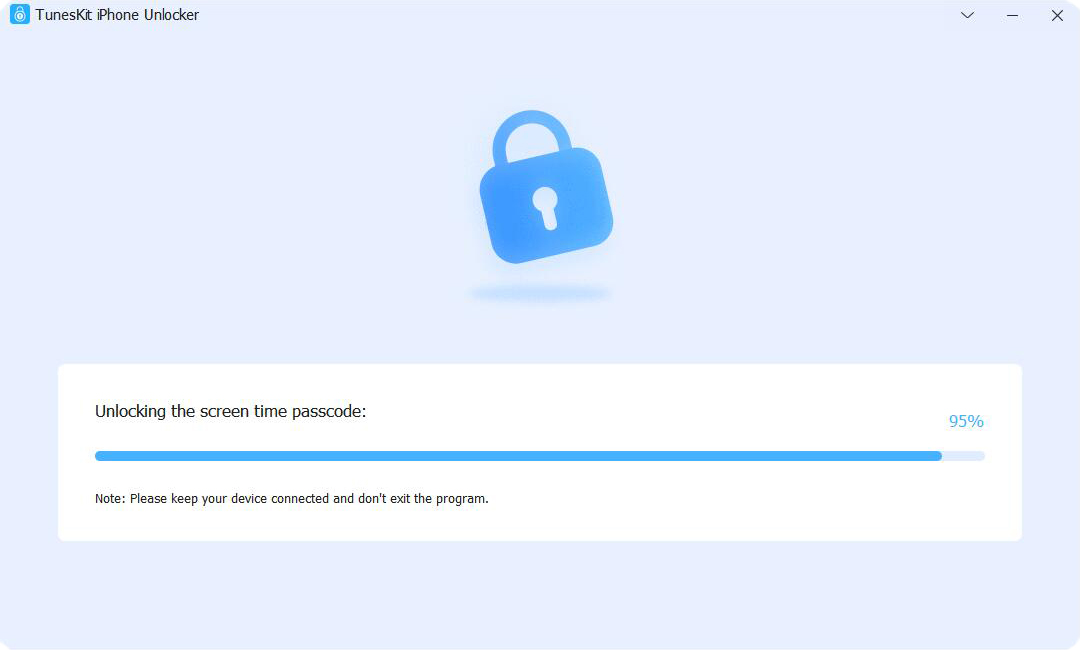
If you are the device owner or an authorized parent or guardian and have forgotten the Screen Time passcode, try Apple's built-in passcode recovery option first. If the Apple Account recovery method is unavailable or does not work, TunesKit iPhone Unlocker can be used as an alternative to remove the forgotten Screen Time passcode.
The program includes a dedicated Unlock Screen Time Passcode mode for iPhone and iPad. According to TunesKit's current specifications, its main unlocking features support iOS 7 through iOS 27, and its Screen Time mode is designed to remove the passcode without erasing existing device data.
Key Features of TunesKit iPhone Unlocker
Quickly remove Screen Time passcode without data loss. It also removes Face ID, Apple Account, and MDM locks, and works with most iOS devices.
 600,000+ Downloads
- Step 1. Connect the iPhone or iPad to a Windows PC or Mac and launch TunesKit iPhone Unlocker. Choose Unlock Screen Time Passcode.
- Step 2. Follow the on-screen instructions to begin removing the Screen Time passcode. TunesKit requires Find My to be turned off for this process.
- Step 3. After removal, follow the device's setup prompts and configure Screen Time again with a new passcode and the appropriate parental-control settings.
This option is specifically useful for recovering access to your own or an authorized child's Screen Time settings. It does not create or manage iOS 27 Time Allowances, Schedules, or Ask to Browse; those features should still be configured through Apple's Screen Time and Family settings.
6. Restart the Devices
If Screen Time information is temporarily failing to refresh, restart both devices and check the settings again. A restart won't correct an incorrectly configured parental-control rule, but it can resolve temporary syncing or interface problems.
FAQs About iOS 27 Screen Time
-
Do I Need Family Sharing to Manage My Child's Screen Time?
Screen Time can be configured directly on a child's device, but Family Sharing allows an organizer or designated parent/guardian to manage a child's Screen Time remotely from their own supported Apple device.
-
Can Parents Set Different Screen Time Rules for Weekdays and Weekends?
Yes. Apple says iOS 27 Schedules can manage app availability at different times of the day and across the week, making it possible to create different routines for school days and weekends.
Conclusion
iOS 27 makes Screen Time more flexible for families. Time Allowances help parents manage how long children use Games, Social Media, and Entertainment, while Schedules control when apps are available. Ask to Browse adds parental approval for new websites in Safari.
Together with existing tools like App Limits, Downtime, and Family Sharing, these features give parents more practical ways to manage screen time around school, homework, entertainment, and family routines.



