


iOS 27 Ask to Browse Not Working on iPhone? Try These Fixes
If iOS 27 Ask to Browse is not working on your iPhone, the problem is often connected to Screen Time, Family Sharing, website filtering, or request delivery rather than the browser itself. Because several settings work together, checking them in the right order can save time.
Ask to Browse is part of Apple's updated parental controls in iOS 27. When enabled, a child can request access to a blocked website, and the parent or guardian can review the request before allowing or denying access.
 Further Reading: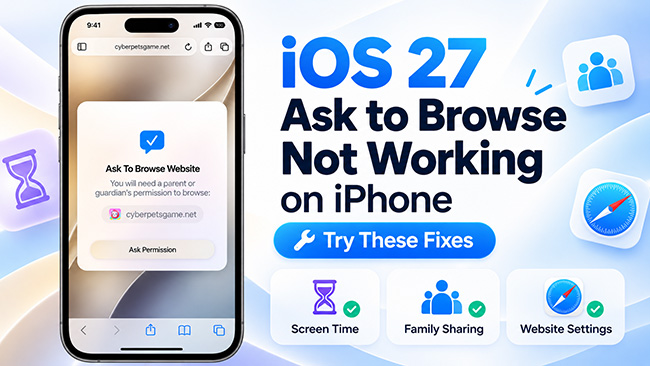
- Quick Check Before You Start
-
How to Fix iOS 27 Ask to Browse Not Working on iPhone
- Fix 1: Update All Family Devices
- Fix 2: Update the Family's Parental Controls
- Fix 3: Turn On Approved Websites Only
- Fix 4: Check the Child Account and Family Sharing
- Fix 5: Add the Parent to the Child's Contacts
- Fix 6: Check Messages on the Parent's iPhone
- Fix 7: Check the Allowed Websites List
- Fix 8: Test the Website in Safari
- Fix 9: Check Website Filtering if Every Site Is Blocked
- Fix 10: Use TunesKit iPhone Unlocker If You Forgot the Screen Time Passcode HOT
- Fix 11: Restart Both iPhones
- How Ask to Browse Works in iOS 27
- Ask to Browse vs. Limit Adult Websites
- FAQs About Ask to Browse on iO27
- Final Thoughts
Quick Check Before You Start
Before working through individual fixes, it helps to confirm that the basic Ask to Browse requirements are already in place. A missing account setting, outdated family device, or incorrect website-filtering mode can prevent the feature from appearing or working as expected.
Make sure:
- The child has their own Child Account.
- The child is included in the correct Family Sharing group.
- The family's parental controls have been updated for iOS 27.
- The parent or guardian is saved in the child's contacts.
- Website filtering is set to Approved Websites Only if you want the child to request access to new websites.
How to Fix iOS 27 Ask to Browse Not Working on iPhone
If Ask to Browse is missing, requests are not arriving, or websites remain blocked after approval, work through the following fixes in order. Starting with account and Screen Time settings is usually more useful than jumping immediately to resets or other disruptive troubleshooting methods.
Fix 1: Update All Family Devices
Ask to Browse relies on the updated version of Apple's parental controls. If some family devices are still using older system software, the new controls may not appear correctly.
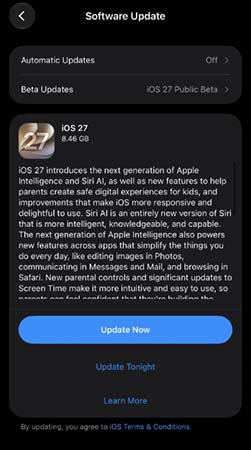
- Step 1. Open Settings > General > Software Update on the parent and child's iPhones.
- Step 2. Install the latest available iOS 27 update.
- Step 3. Check other devices used by your Family Sharing group and update them where possible.
- Step 4. Return to Settings > Family and check whether the new Apps & Websites controls now appear.
Fix 2: Update the Family's Parental Controls
Installing iOS 27 does not always mean the family has fully switched to the redesigned Screen Time experience, so it is worth checking whether the parental-control setup itself still needs to be updated.
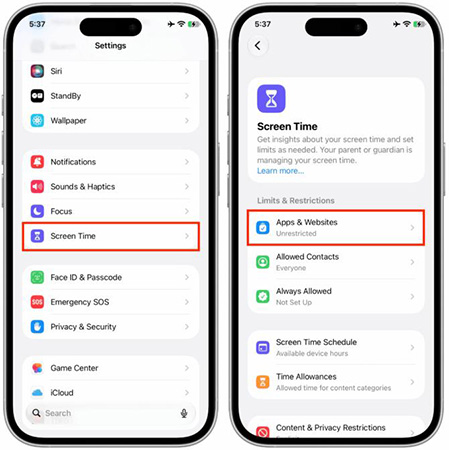
- Step 1. Open Settings > Family on the parent or organizer's iPhone.
- Step 2. Select the child's account.

- Step 3. Follow any prompt to update or upgrade the family's parental controls.
- Step 4. check whether the new Apps & Websites option is available.
Fix 3: Turn On Approved Websites Only
If the child reaches a blocked page but does not see Ask Permission, the website-filtering mode may not be configured for Ask to Browse. The feature depends on the correct filtering option being selected.
- Step 1. Go to Settings > Family > [Child's Name].
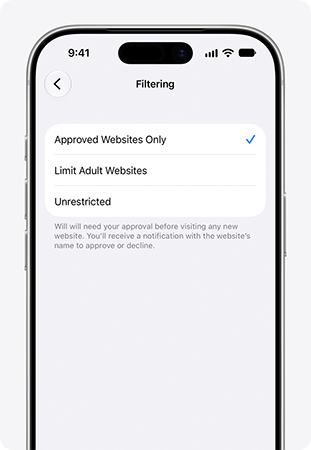
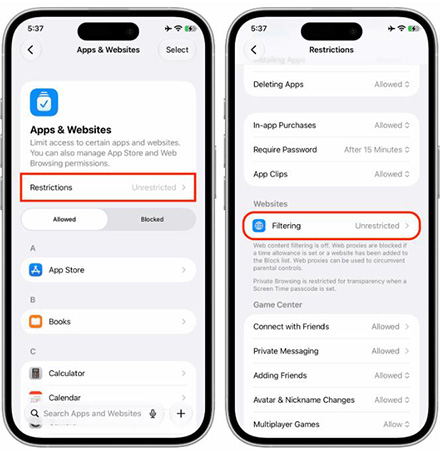
- Step 2. Open Apps & Websites > Restrictions > Websites > Filtering.
- Step 3. Select Approved Websites Only.
- Step 4. Open an unapproved website on the child's iPhone and check whether Ask Permission appears.
Fix 4: Check the Child Account and Family Sharing
Ask to Browse is designed to work through a child's own Apple Account inside Family Sharing. If the child is using the wrong account or is not properly included in the family group, requests may not work correctly.
- Step 1. Open Settings > Family.
- Step 2. Make sure the child's Apple Account appears in the family.

- Step 3. Confirm that the child is using their own account rather than sharing a parent's Apple Account.
- Step 4. Restart the child's iPhone and test Ask to Browse again.
Fix 5: Add the Parent to the Child's Contacts
If the child can tap Ask Permission but the parent never receives the request, check the contact relationship between the two devices. Apple requires the relevant parent or guardian to be available in the child's contacts.
- Step 1. Open the Contacts app on the child's iPhone.
- Step 2. Find the parent or guardian who should receive Ask to Browse requests.
- Step 3. Add them if they are missing.

- Step 4. Return to the blocked website and send a new Ask Permission request.
Fix 6: Check Messages on the Parent's iPhone
Ask to Browse requests can be reviewed through Messages, so the approval prompt may not appear where some users expect it. Checking the correct conversation can quickly confirm whether the request was actually delivered.
- Step 1. Open Messages on the parent's iPhone.
- Step 2. Look for the child's website-access request.
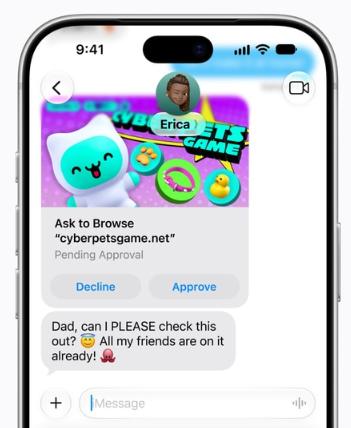
- Step 3. Open the request and review the website.
- Step 4. Choose whether to approve or decline access.
If the request is more than 24 hours old, have the child send a new one.
Fix 7: Check the Allowed Websites List
If a site is still blocked after approval, verify that the permission was actually saved. An approved request should normally result in the website appearing in the child's Allowed list.
- Step 1. Go to Settings > Family > [Child's Name] > Apps & Websites.
- Step 2. Find the Allowed section.
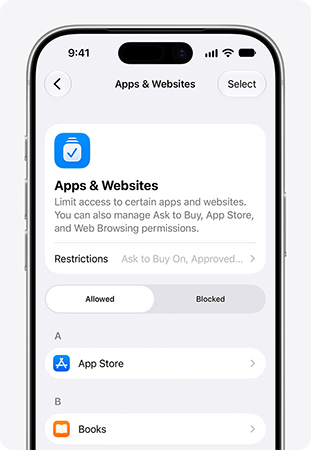
- Step 3. Check whether the approved website appears there.
- Step 4. If it is listed, close and reopen the browser and try the site again.
Fix 8: Test the Website in Safari
Ask to Browse supports Safari and other supported browser apps, but troubleshooting in Safari provides a useful baseline. If the feature works there, the issue may be related to the third-party browser rather than Screen Time.
- Step 1. Copy the website address that is causing the problem.
- Step 2. Open Safari on the child's iPhone.
- Step 3. Visit the same website.
- Step 4. Check whether Ask Permission works correctly in Safari.
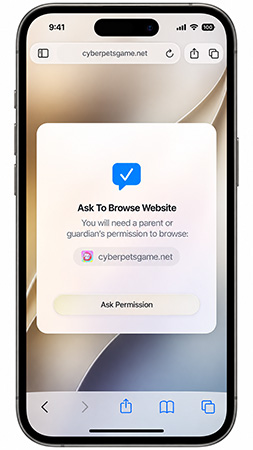
If it works in Safari but not in another browser, the issue may be related to that browser.
Fix 9: Check Website Filtering if Every Site Is Blocked
When nearly every website shows Website Not Allowed, it may be normal behavior caused by a restrictive filtering mode rather than a browser failure. Checking this setting can help determine whether the blocking is intentional.
- Step 1. Go to Settings > Family > [Child's Name].
- Step 2. Open Apps & Websites > Restrictions > Websites > Filtering.
- Step 3. Check whether Approved Websites Only is selected.
- Step 4. Keep it selected for site-by-site approval, or choose Limit Adult Websites if broader browsing access is more appropriate for you.
Fix 10: Use TunesKit iPhone Unlocker If You Forgot the Screen Time Passcode
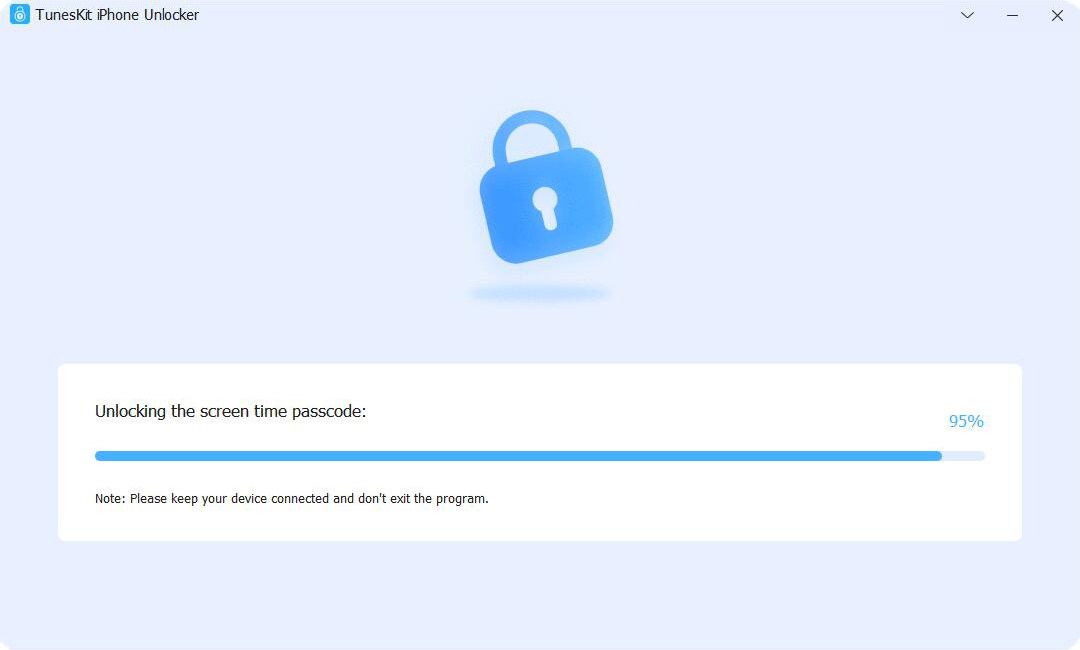
TunesKit iPhone Unlocker does not directly repair Ask to Browse. However, it can be relevant if the real problem is that you forgot the Screen Time passcode and therefore cannot change website restrictions or other parental-control settings.
Its Unlock Screen Time Passcode mode is designed to remove Screen Time restrictions without requiring the existing Screen Time code. TunesKit states that this mode can remove the Screen Time passcode without erasing existing device data, although you may need to disable Find My iPhone and complete device setup afterward.
Key Features of TunesKit iPhone Unlocker
Quickly remove Screen Time passcode without data loss. It also removes Face ID, Apple Account, and MDM locks, and works with most iOS devices.
 600,000+ Downloads
- Step 1. Install and open TunesKit iPhone Unlocker on a Mac or Windows computer.
- Step 2. Connect the authorized iPhone to the computer with a USB cable.
- Step 3. Select Unlock Screen Time Passcode.
- Step 4. Follow the onscreen instructions to remove the Screen Time passcode, then configure Screen Time and Ask to Browse again.
Fix 11: Restart Both iPhones
If all settings appear correct, restarting both devices can refresh Screen Time and Family Sharing communication after recent configuration changes. This is a simple final step before moving on to more advanced support options.
- Step 1. Restart the child's iPhone.
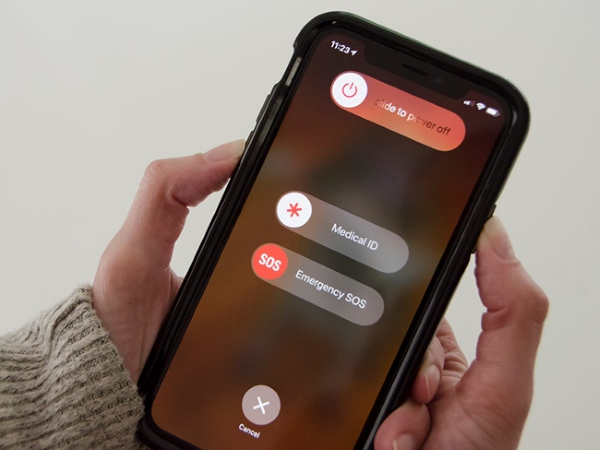
- For iPhone without Home button, press and hold the Side button and either Volume button until the power-off slider appears. Drag slide to power off to the right, then wait about 30 seconds for the iPhone to turn on your iPhone by pressing the Side button.
- For iPhone with Home button, press and hold the Side or Top button until the power-off slider appears. Drag the slider to power off the iPhone. Wait for about 30 seconds and then turn it on by pressing the Side or Top button.
- Step 2. Restart the parent's iPhone.
- Step 3. Wait for both devices to reconnect to the internet.
- Step 4. Test Ask to Browse again with an unapproved website.
How Ask to Browse Works in iOS 27
Understanding the normal Ask to Browse workflow makes troubleshooting much easier. If you know what should happen at each stage, you can quickly identify whether the failure is happening on the child's iPhone, during request delivery, or after parental approval.
- 1. The child opens an unapproved website.
- 2. The website is blocked.
- 3. The child taps Ask Permission.
- 4. The request is sent to a parent or guardian.
- 5. The parent approves or declines the website.
- 6. Approved websites are added to the child's allowed list.
Ask to Browse vs. Limit Adult Websites
These website-filtering options can look similar because they are managed within the same Screen Time area, but they produce very different browsing experiences. Choosing the right mode is important if you specifically want children to request permission before accessing new websites.
| Setting | What It Does |
|---|---|
| Approved Websites Only | Allows approved websites and lets children request access to new sites |
| Limit Adult Websites | Allows broader browsing while filtering detected adult content |
| Unrestricted | Removes the same website filtering restrictions |
If your child can browse websites without asking for permission, check whether Limit Adult Websites is selected instead of Approved Websites Only.
FAQs About Ask to Browse on iO27
-
Why Can't I Find Ask to Browse in iOS 27?
Make sure the family's devices and parental controls have been updated to the iOS 27 generation. Then check Settings > Family > Child's Name > Apps & Websites > Restrictions > Websites > Filtering.
-
Why Is Ask Permission Not Showing?
The most common reason is that Approved Websites Only is not selected. Also check that the child has their own Child Account and that the family's parental controls have been updated.
-
How Long Does an Ask to Browse Request Last?
If the parent does not respond within 24 hours, the child needs to send a new request.
Final Thoughts
When iOS 27 Ask to Browse is not working on iPhone, the best approach is to troubleshoot the feature systematically rather than changing unrelated settings. Most problems can be narrowed down by checking Screen Time, Family Sharing, filtering mode, and request delivery first.
If the problem is specifically caused by a forgotten Screen Time passcode, an authorized-device utility such as TunesKit iPhone Unlocker can be an alternative for removing that restriction before setting Screen Time up again.



