


2026 Screen Time Not Updating on iPhone? Fix It!
Screen Time should show how long you use apps and websites, how often you pick up your iPhone, and which apps send the most notifications. However, the report may sometimes remain blank, display old data, show inaccurate totals, or fail to sync with another device.
The right solution depends on where the problem occurs: your own iPhone may not be recording activity, you may be viewing the wrong device, or a child's usage may not be syncing through Family Sharing. This guide helps you identify the cause and fix Screen Time not updating without unnecessarily resetting your iPhone.
- Quick Answer: How to Fix Screen Time Not Updating
- What Does “Screen Time Not Updating” Mean?
- Why Is Screen Time Not Updating on iPhone?
-
How to Fix Screen Time Not Updating on iPhone
- Fix 1. Turn On App & Website Activity
- Fix 2. Select the Correct Device in the Screen Time Report
- Fix 3. Check Share Across Devices
- Fix 4. Refresh the Screen Time Report
- Fix 5. Restart the iPhone
- Fix 6. Update iOS
- Fix 7. Check the Apple Account
- Fix 8. Set the Date and Time Automatically
- Fix 9. Check VPN and Device Management Profiles
- How to Fix a Child's Screen Time Not Updating
- FAQs About Screen Time Not Updating
- Conclusion
Quick Answer: How to Fix Screen Time Not Updating
When Screen Time is not updating on your iPhone, start with these checks:
- 1. Go to Settings > Screen Time > App & Website Activity and make sure activity tracking is turned on.
- 2. Open See All App & Website Activity and select the correct iPhone under Devices.
- 3. Turn on Share Across Devices only when you want to combine usage from devices signed in to the same Apple Account.
- 4. Restart the affected iPhone and install the latest available iOS update.
- 5. If a child's Screen Time is not updating, check the child's local report, Family Sharing membership, Apple Account, and internet connection on both devices.
- 6. Turning App & Website Activity off and on can reset Screen Time, but use it only after the safer methods because it also disables activity reports, Downtime, App Limits, and Always Allowed.
What Does “Screen Time Not Updating” Mean?
Users describe several different problems as Screen Time not updating:
- The report says there is no activity;
- Today's usage remains at zero;
- The report still shows yesterday's information;
- The Screen Time page keeps loading;
- Usage totals seem much higher or lower than expected;
- One Apple device shows different data from another;
- A parent cannot see a child's recent activity;
- The Screen Time widget is stale, but the report in Settings is current;
- App Limits are not blocking apps even though the report updates.
These symptoms do not always have the same cause. Use the table below to find the best starting point.
| Symptom | Likely cause | Start with |
|---|---|---|
| No activity appears on your iPhone | App & Website Activity may be off | Fix 1 |
| Usage belongs to another device | The wrong device or All Devices is selected | Fix 2 |
| Reports differ across your devices | Share Across Devices or Apple Account issue | Fix 3 |
| Child sees activity, but parent does not | Family Sharing synchronization issue | Child Screen Time section |
| Neither parent nor child sees activity | Screen Time is not collecting data on the child's device | Fix 1 on the child's profile |
| Reports update, but apps are not blocked | App Limit or Downtime enforcement issue | Separate limits section |
Why Is Screen Time Not Updating on iPhone?
Screen Time may stop showing current information because:
- App & Website Activity is disabled;
- The report is displaying another device;
- Share Across Devices is configured incorrectly;
- Different personal devices use different Apple Accounts;
- A temporary Settings or iOS process is unresponsive;
- The iPhone needs a software update;
- The date or time zone is incorrect;
- A VPN, configuration profile, or device-management service controls relevant settings;
- A child is not correctly connected to the Family Sharing group;
- The parent is checking the wrong child account;
- Family Sharing changes have not synchronized yet.
A local report problem and a Family Sharing problem should be diagnosed separately. For example, if the report is current on the child's iPhone but outdated on the parent's iPhone, the child's device is probably recording activity correctly. The failure is more likely related to account or family synchronization.
How to Fix Screen Time Not Updating on iPhone
Try the following solutions in order. The first methods correct common reporting and display problems without removing your Screen Time schedules or restrictions.
Fix 1. Turn On App & Website Activity
App & Website Activity is the main setting that allows Screen Time to collect and display usage information. When it is disabled, you will not receive the normal activity summary for app use, website activity, device pickups, notifications, and daliy and weekly usage.
How to Check App & Website Activity
- Step 1. Open the Settings app. Tap Screen Time.
- Step 2. Tap App & Website Activity.
- Step 3. If the feature is off, tap Turn On App & Website Activity.
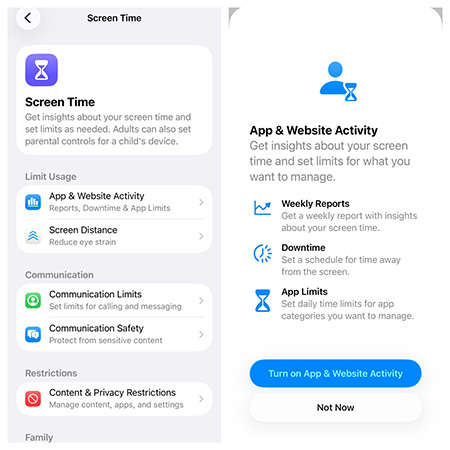
- Step 4. Use your iPhone normally for a short period, then return to Screen Time and check the report.
For a child managed through Family Sharing:
- Step 1. Open Settings > Screen Time on the parent's iPhone.
- Step 2. Select the child under Family.
- Step 3. Check whether App & Website Activity is enabled for that child. If not, go to Screen Time > App & Website Ability to Turn On App & Website Ability.
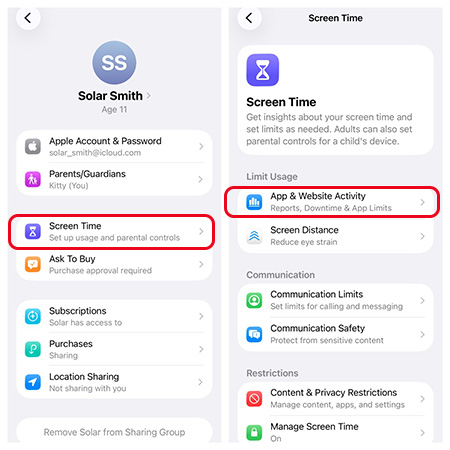
- Step 4. Apple uses this feature to provide the child's device-usage summary as well.
Fix 2. Select the Correct Device in the Screen Time Report
Screen Time may be updating correctly while displaying information from the wrong device. This commonly happens when you use the same Apple Account on an iPhone, iPad, and Mac. The combined All Devices report may include activity that did not occur on your iPhone.
How to Select a Device
- Step 1. Go to Settings > Screen Time.
- Step 2. Tap See All App & Website Activity.
- Step 3. Tap Devices near the top of the report.
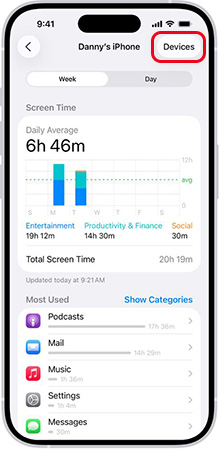
- Step 4. Select your current iPhone instead of All Devices.
- Step 5. Compare the iPhone-only report with the combined report.
Screen Time can show individual or combined usage when the feature is used across devices.
Fix 3. Check Share Across Devices
Share Across Devices combines Screen Time settings and reports across supported Apple devices signed in to the same Apple Account. Use it when you want one report that includes your personal iPhone, iPad, and Mac.
Apple states that Screen Time settings, schedules, limits, and usage data can sync across devices using the same Apple Account when Share Across Devices is enabled.
How to Turn On Share Across Devices
- Step 1. Open Settings > Screen Time.
- Step 2. Scroll down. Turn on Share Across Devices.
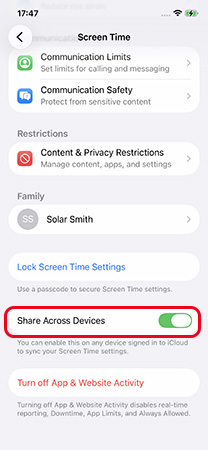
- Step 3. Repeat the check on your other personal Apple devices.
- Step 4. Confirm that those devices use the same Apple Account.
You can turn off Share Across Devices when you want each device to keep a separate report. For example, if All Devices includes unexpected Mac or iPad activity, disable the option temporarily and review the iPhone-only report.
Fix 4. Refresh the Screen Time Report
Screen Time may not immediately display new activity after you first enable it, change accounts, restart a device, or reconnect Family Sharing.
- Step 1. Generate some new activity before deciding that the report is still frozen.
- Step 2. Close the Settings app. Use a few apps and websites for several minutes.
- Step 3. Lock and unlock the iPhone.
- Step 4. Open Settings > Screen Time again. Tap See All App & Website Activity.
- Step 5. Switch between the daily and weekly views.
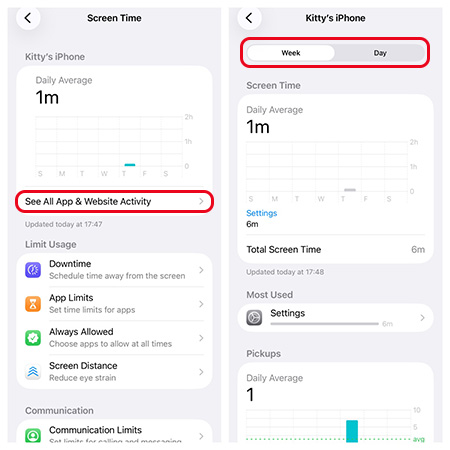
- Step 6. Confirm that the correct device is selected.
When checking a child's usage remotely, keep both the parent's and child's devices connected to the internet while the information synchronizes.
Avoid repeatedly turning Screen Time off and on while waiting. Doing so can interrupt the collection of new data.
Fix 5. Restart the iPhone
A restart can refresh the Settings app and temporary iOS processes without deleting data or changing Screen Time.
Restart an iPhone With Face ID
- Step 1. Press and hold either Volume button and the Side button.
- Step 2. Drag the power-off slider. Wait about 30 seconds.
- Step 3. Press and hold the Side button until the Apple logo appears.

Restart an iPhone With a Home Button
- Step 1. Press and hold the Side or Top button.
- Step 2. Drag the power-off slider. Wait about 30 seconds.
- Step 3. Turn the iPhone back on.

Apple provides a standard restart as the normal way to refresh an iPhone that is still responsive. After restarting, use the iPhone for a few minutes and check the Screen Time report again. If the problem affects a child's report, restart both the parent's and child's devices.
Fix 6. Update iOS
A software update may include bug fixes and compatibility improvements for Settings, Apple Accounts, Family Sharing, and parental controls. Before updating, back up the iPhone through iCloud or a computer.
- Step 1. Connect the iPhone to power and Wi-Fi.
- Step 2. Open Settings. Go to General > Software Update.
- Step 3. Install the latest compatible update.
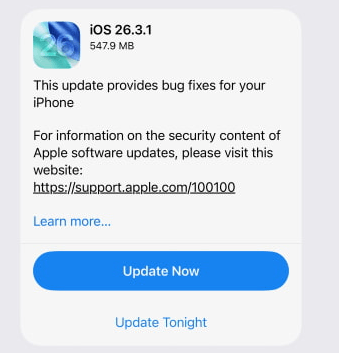
 View Also: iPhone Software Update Failed? Fix It!
Apple states that a standard iOS update keeps the device's data and settings.
For a Family Sharing problem, update:
- The parent's iPhone or iPad;
- The child's iPhone or iPad;
- Other devices contributing to the Screen Time report.
Apple specifically recommends updating devices in a Family Sharing group so Screen Time settings and parental controls work and synchronize correctly.
Do not claim that a particular iOS update definitely caused the problem unless Apple has confirmed it. User reports after an update can indicate a possible software issue, but they do not prove a system-wide bug.
Fix 7. Check the Apple Account
An Apple Account mismatch can make Screen Time reports appear incomplete or prevent cross-device activity.
For Your Own Devices
Confirm that your iPhone, iPad, and Mac use the same Apple Account when Share Across Devices is enabled.
- Step 1. Open Settings.
- Step 2. Tap your name.
- Step 3. Check the Apple Account email address.
- Step 4. Repeat the check on the other personal devices.
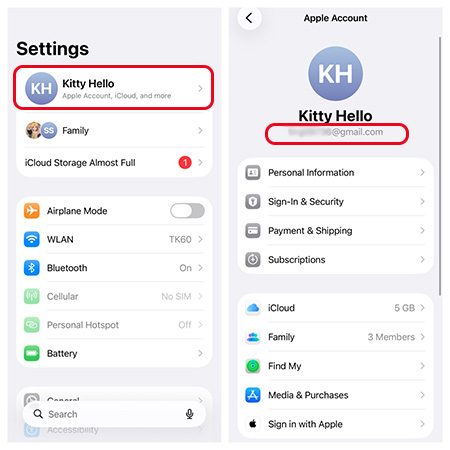
For a Child's Device
The parent and child should use separate Apple Accounts. The child's account must belong to the parent's Family Sharing group. Do not sign the child into the parent's Apple Account. Sharing one account can combine personal data, purchases, messages, and Screen Time information. If you recently changed accounts, allow time for the updated family and Screen Time information to synchronize.
Avoid signing out of the Apple Account as an early troubleshooting step. Signing out can affect iCloud Photos, Messages, contacts, Find My, and other synced services.
Fix 8. Set the Date and Time Automatically
Screen Time organizes activity into daily and weekly reports. An incorrect date, time, or time zone can make usage appear under the wrong day or create confusing totals. This is especially relevant when you previously changed the date manually.
How to Restore Automatic Date and Time
- Step 1. Open Settings. Go to General > Date & Time.
- Step 2. Turn on Set Automatically or Set Time Automatically, depending on the displayed wording.
- Step 3. Confirm that the correct time zone appears.

- Step 4. Restart the iPhone and review Screen Time again.
Fix 9. Check VPN and Device Management Profiles
A school, employer, VPN, DNS filter, or third-party parental-control service may install a configuration profile that manages device settings. To review installed profiles:
- Step 1. Open Settings.
- Step 2. Go to General > VPN & Device Management.
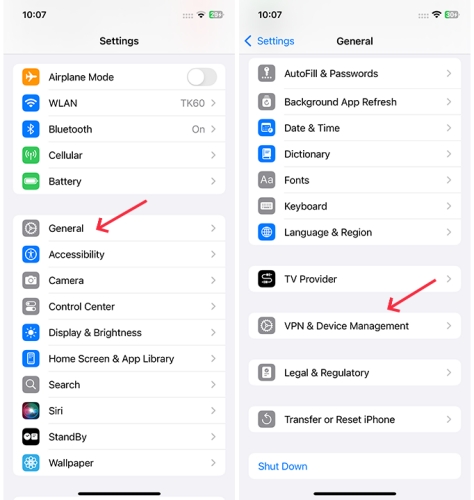
- Step 3. Check whether a configuration or management profile is listed.
Apple confirms that installed profiles appear in this section and may control device functionality and settings. Contact the organization or administrator when the iPhone is managed.
What to Do If You Cannot Contact the Organization?
If the iPhone belongs to you or you are authorized to manage it, but you cannot remove the MDM restrictions by contacting the organization, TunesKit iPhone Unlocker provides a computer-based Remove MDM mode.
According to the current TunesKit product information, this feature is designed to remove an MDM profile or restriction without requiring the administrator username and password and without erasing the existing user data.
Key Features of TunesKit iPhone Unlocker
Remove MDM from iPhone or iPad without data loss. Remove Screen Time from iPhone or iPad without passcode. High success rate.
 600,000+ Downloads
- Step 1. Install and launch TunesKit iPhone Unlocker on a Windows PC or Mac.
- Step 2. Connect the managed iPhone or iPad to the computer with a compatible USB cable.
- Step 3. After the program detects the device, select Remove MDM.
- Step 4. Click Start and keep the device connected while the MDM restrictions are removed.

- Step 5. Restart the device after the process finishes.
- Step 6. Return to Settings > Screen Time and check if Screen Time is updating.
How to Fix a Child's Screen Time Not Updating
When a child's Screen Time does not update on the parent's iPhone, first determine whether the child's device is recording activity locally.
Fix 1. Check Screen Time on the Child's Device
On the Child's iPhone:
- Step 1. Open Settings > Screen Time.
- Step 2. Open the activity report.
- Step 3. Check whether recent app and website activity appears.
The result helps narrow down the problem:
- The child can see current activity: Screen Time is recording locally, so the problem is probably Family Sharing or synchronization.
- The child also sees no activity: Check App & Website Activity and the child's device settings first.
Fix 2. Confirm the Child Is in Family Sharing
On the Family Organizer's iPhone:
- Step 1. Open Settings. Tap Family.
- Step 2. Confirm that the child appears in the family-member list.
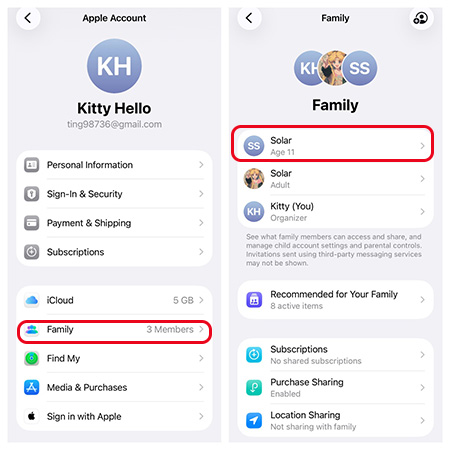
If the child is missing, add the correct Apple Account to the family. Apple's current path for adding a member is Settings > Family > add member icon.
Do not create a second account simply because the existing child account is not displayed. First determine whether it belongs to another family group or whether an invitation is still pending.
Fix 3. Select the Correct Child Under Screen Time
On the Parent's iPhone:
- Step 1. Open Settings > Screen Time. Scroll to Family.
- Step 2. Select the correct child.
- Step 3. Check App & Website Activity.
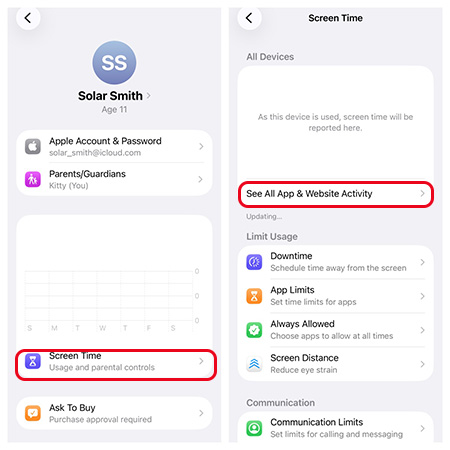
Apple currently directs parents to select the child under Family before configuring or reviewing the child's Screen Time. If several children belong to the group, make sure you are not viewing another child's report.
Fix 4. Check the Parent or Guardian Role
The family organizer can manage a child's Screen Time. Another eligible adult may need to be assigned the Parent/Guardian role before they can manage parental controls.
On the Organizer's Device:
- Step 1. Open Settings > Family.
- Step 2. Select the adult family member.
- Step 3. Check the family role.
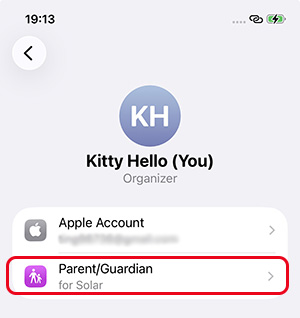
An adult listed only as a regular member may not have the same parental-control permissions as the organizer or a parent or guardian.
Fix 5. Check Both Internet Connections
Local activity can be recorded on the child's iPhone without immediately appearing on the parent's device. Remote reporting requires the information to synchronize. Check that:
- The parent's device is online;
- The child's device is online;
- Airplane Mode is off;
- Both devices can access Apple services;
- The child has not remained offline for an extended period.
After reconnecting, keep both devices online and check the report again later.
FAQs About Screen Time Not Updating
-
Why is my child's Screen Time stuck loading?
The parent may be unable to retrieve the child's current report through Family Sharing. Check whether the report is current on the child's device, then verify Family Sharing membership, Apple Accounts, internet connections, and software updates on both devices.
-
Does Share Across Devices require the same Apple Account?
For one person's own iPhone, iPad, and Mac, yes. Those personal devices should use the same Apple Account to synchronize Screen Time data. A parent and child should use separate Apple Accounts linked through Family Sharing.
-
Will turning App & Website Activity off delete my Screen Time limits?
Turning it off disables reporting, Downtime, App Limits, and Always Allowed. Record important settings before resetting it. Apple does not clearly document whether every historical report remains available after reactivation on every iOS version.
Conclusion
If Screen Time is not updating, first check App & Website Activity, the selected device, Share Across Devices, Apple Accounts, and Family Sharing settings. Restarting and updating all affected devices can also resolve temporary sync problems. If an unwanted MDM profile is restricting Screen Time settings, remove it through Settings or use TunesKit iPhone Unlocker on an authorized device.



