


How to Bypass Screen Time on iPhone Without Passcode
Screen Time is a useful feature that helps users manage device usage, app limits, and content restrictions. However, forgetting your Screen Time passcode can become frustrating because you may be unable to change restrictions, disable App Limits, or access certain settings.
If you forgot your Screen Time passcode on iPhone or iPad, don't worry. There are several ways to regain control of your device. In this guide, we will show you how to bypass Screen Time on iPhone without a passcode, including official methods and a simpler solution using TunesKit iPhone Unlocker. These methods work with newer iOS versions, including iOS 26, iOS 18, and iOS 17.

Quick Answer: Can You Bypass Screen Time Without a Passcode?
Yes, you can bypass or remove Screen Time restrictions without knowing the current Screen Time passcode, but the available method depends on your situation. Here is a quick overview:
| Method | Requires Screen Time Passcode | Data Loss | Difficulty |
|---|---|---|---|
| Reset Screen Time Passcode with Apple Account | No | No | Easy |
| Use TunesKit iPhone Unlocker | No | No (Screen Time mode) | Easy |
| Restore iPhone with Finder/iTunes | No | Yes | Medium |
| Erase iPhone via iCloud | No | Yes | Medium |
If you still remember the Apple Account linked to Screen Time, the official reset option is usually the easiest method. However, if you no longer have access to the account or want a simpler solution, a dedicated unlocking tool can help remove Screen Time restrictions.
What Is Screen Time Passcode and Why Is It Locked?
Screen Time passcode is a separate password designed to prevent unauthorized changes to usage restrictions. Unlike your iPhone lock screen passcode, the Screen Time passcode controls settings such as:
- App Limits
- Downtime schedules
- Content & Privacy Restrictions
- Communication Limits
- App installation restrictions
- Purchase restrictions
Parents often use Screen Time to control children's device usage, while organizations may use similar restrictions to manage device behavior. The problem occurs when:
- You forgot your Screen Time passcode
- A family member set the restriction password
- You bought a used iPhone with restrictions enabled
- You cannot turn off Screen Time settings
In these situations, simply changing the iPhone password will not remove Screen Time restrictions.
Why Can't I Turn Off Screen Time Without a Passcode?
Many users ask: "Why can't I disable Screen Time on my iPhone?" The reason is simple: Apple designed Screen Time restrictions to prevent unauthorized changes. Without verification, anyone could easily remove parental controls or usage limits. Therefore, Apple requires users to verify ownership before removing Screen Time settings. Common reasons you cannot turn off Screen Time include:
- 1. You Forgot the Screen Time Passcode: The most common situation is entering the wrong Screen Time password multiple times and becoming locked out.
- 2. You Are Using Family Sharing: If Screen Time was configured through Family Sharing, the organizer's Apple Account may control the restrictions.
- 3. Your Device Has Management Restrictions: School or company devices may have additional restrictions through MDM (Mobile Device Management).
- 4. Your iOS Version Changed: Apple has updated Screen Time security features across different iOS versions, including iOS 17, iOS 18, and newer versions.
How to Bypass Screen Time on iPhone without a Passcode
If you forgot your Screen Time passcode, you may feel unable to change restrictions or access certain settings on your iPhone. Fortunately, there are several ways to bypass Screen Time without a passcode. The following methods will help you regain control of your device.
Method 1. Reset Screen Time Passcode Using Apple Account
The first method recommended by Apple is resetting your Screen Time passcode using the Apple Account associated with the device. This method is the safest option because it is an official recovery method and does not erase your data.
- Step 1. Go to the Home page of your iPhone and select the Settings feature.
- Step 2. Click on the Screen Time option.
- Step 3. Hit on the Change Screen Time Passcode feature. Tap it again to confirm that.
- Step 4. Click on the Forgot Passcode? Option and enter your Apple Account passcode to reset the Screen Time passcode.
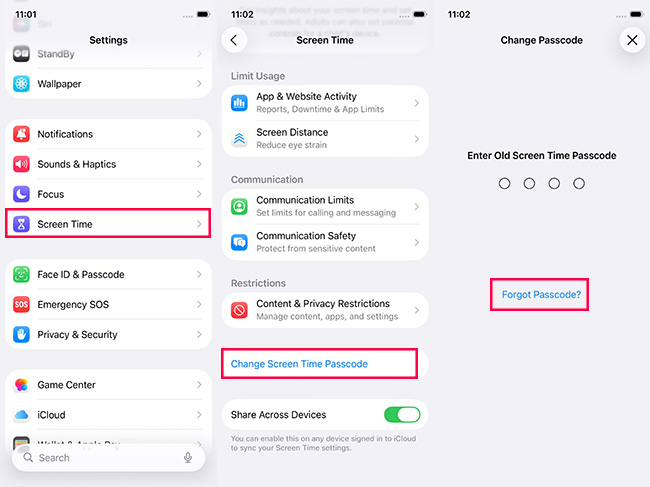
- Step 5. After resetting the Screen Time passcode on your iPhone, click on the Turn Off Screen Time Passcode option to bypass Screen Time on iOS 26/18/17.
Limitations of This Method
Although this is the recommended Apple solution, it may not work in every situation. For example:
- You forgot the Apple Account password
- The device belongs to someone else
- Family Sharing controls the restrictions
- The recovery option is unavailable
In these cases, you may need another solution.
Method 2. Remove Screen Time Passcode with TunesKit iPhone Unlocker (No Data Loss)
If you cannot reset your Screen Time passcode through Apple Account recovery, using a professional unlocking tool can be a more convenient solution.
TunesKit iPhone Unlocker is designed to help users remove forgotten Screen Time passcodes and regain control of iPhone or iPad restrictions without erasing any data. Unlike traditional recovery methods that require knowing the original password, TunesKit iPhone Unlocker can remove Screen Time restrictions directly through a guided process.
This method can be useful when:
- You forgot your Screen Time passcode
- The "Forgot Passcode?" option does not work
- You cannot access the Apple Account linked to Screen Time
- You want a simpler way to remove restrictions
Key Features of TunesKit iPhone Unlocker
Bypass Screen Time on iPhone/iPad without passcode. Unlock screen lock, Apple Account, MDM, and Activation Lock with a few clicks.
 600,000+ Downloads
Step 1. Connect iPhone to Computer
Install TunesKit iPhone Unlocker on your Windows PC or Mac, then open the program. Connect your iPhone or iPad to the computer using a USB cable. Make sure the device is detected successfully before continuing. Select "Unlock Screen Time Passcode". The software will automatically prepare the required unlocking process.

Step 2. Start Removing Screen Time Restrictions
Click the Start button and wait for the process to complete. Once finished, Screen Time restrictions will be removed, allowing you to set up Screen Time again or disable it completely.

Method 3. Remove Screen Time by Restoring iPhone with Finder or iTunes
Another possible solution is restoring your iPhone using Finder on Mac or iTunes on Windows. This method removes all settings, including Screen Time restrictions, because it completely erases the device and reinstalls iOS. However, it comes with a major drawback: all existing data on the iPhone will be deleted unless you have a backup.
If your iPhone have synced with iTunes before:
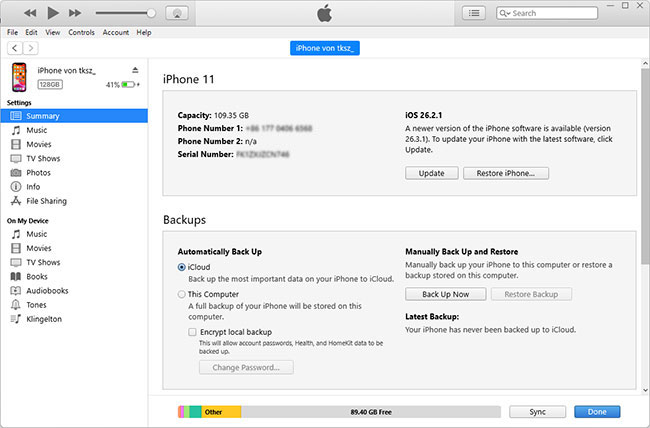
- Step 1. Launch iTunes on computer and connect your iPhone to the computer. When your iPhone is detected, you will see a little device icon on the top toolbar.
- Step 2. Click on the Summary option.
- Step 3. Click on the Restore iPhone option to restore your iPhone.
If your iPhone haven't synced with iTunes before:
- Step 1. Ensure you have a Mac or a PC with the latest version of iTunes installed. You will also need a compatible USB cable to connect your iPhone to the computer.
- Step 2. Power off your iPhone and then put your iPhone into Recovery Mode.
- iPhone 8 or later: With your iPhone off, press the Volume Up button and release it. Then, press the Volume Down button and release it. Hold the Side button until you see the recovery mode screen (a screen showing a computer and a cable).
- iPhone 7 and iPhone 7 Plus: With your iPhone off, press and hold the Volume Down button and the Side button until the recovery mode screen appears.
- iPhone SE (1st generation), iPhone 6s and earlier: With your iPhone off, press and hold the Home button and Side button until you see the recovery mode screen.

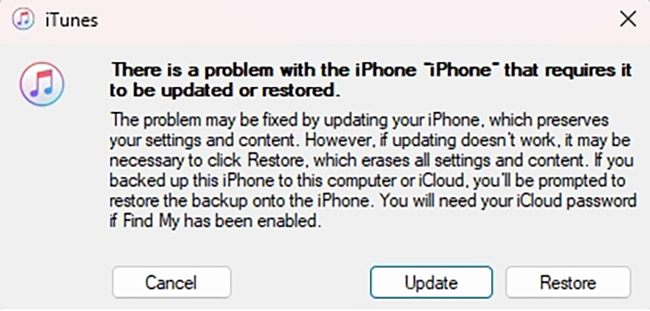
- Step 3. Once your iPhone is in recovery mode, iTunes will detect it and a pop-up window will appear. You will be given the option to Restore or Update. Choose Restore.
 Pros:
Pros:- Official Apple-supported solution
- Removes all settings and restrictions
- Does not require Screen Time password
 Cons:
Cons:- Deletes all data
- Requires a computer
- Takes longer than dedicated Screen Time removal tools
- May trigger Activation Lock if Apple Account credentials are unavailable
Method 4. Erase iPhone Through iCloud to Remove Screen Time Restrictions
If Find My iPhone is enabled, you can also erase your device remotely through iCloud. This method removes all data and settings, including Screen Time restrictions. It may be useful when:
- You cannot access the device
- You forgot multiple passwords
- You want to completely reset the iPhone
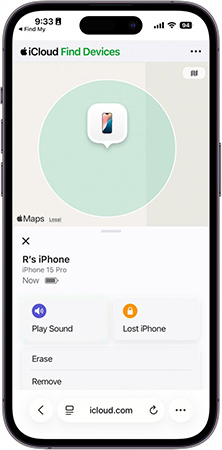
- Step 1. Go to the iCloud.com website. Log into the same Apple Account as the iPhone that you need to turn off the Screen Time feature.
- Step 2. Select the All Devices option and select the iPhone you want to bypass Screen Time feature.
- Step 3. Click on the Erase option to bypass Screen Time on iOS 26/18/17 without using passcode and computer.
FAQs About Bypassing Screen Time on iPhone
-
Does factory reset remove Screen Time passcode?
Yes. A factory reset removes Screen Time settings because it erases the entire device. However, this method also deletes photos, messages, apps, personal settings, and stored data. You should create a backup before resetting your iPhone.
-
Does Screen Time reset after updating iOS?
No. Updating iOS normally does not remove Screen Time settings or the Screen Time passcode. If you forgot the passcode after an update, you still need to reset or remove it using an available method.
-
Can parents bypass Screen Time restrictions?
Parents who manage Screen Time through Family Sharing can change restrictions using the organizer account. If the organizer account is unavailable, the recovery options may be limited.
Final Verdict
Forgetting a Screen Time passcode can prevent you from changing important iPhone settings, but it does not mean you are permanently locked out. The best solution depends on your situation. Among all available options, a dedicated Screen Time removal tool provides the best balance between convenience and accessibility for users who simply want to regain control of their iPhone. TunesKit iPhone Unlocker is a practical choice for users facing Screen Time issues.



