


How to Remove Screen Lock on iPhone? [iOS 26 Supported]
While modern iPhones offer incredible security through Face ID and passcodes, these same features can become a barrier if you inherit a device, damage your screen, or simply forget a long-unused code. Removing a lock screen is a delicate process that often involves a trade-off between convenience and data integrity.
This guide provides five verified methods to remove screen lock from your iPhone. We have tested these steps on the latest iOS 26 firmware to ensure they remain effective against Apple's evolving security protocols.

If You Know the Screen Lock Passcode
If you still remember your old iPhone's passcode, it will save you a lot of effort to remove the screen lock from your iPhone. You can simply turn to Settings to remove lock screen on your iPhone by entering the passcode.
- Step 1. Go to Settings > Face ID & Passcode. Enter your iPhone screen lock passcode and then select Turn Passcode Off.
- Step 2. Enter your Apple Account password and confirm it.
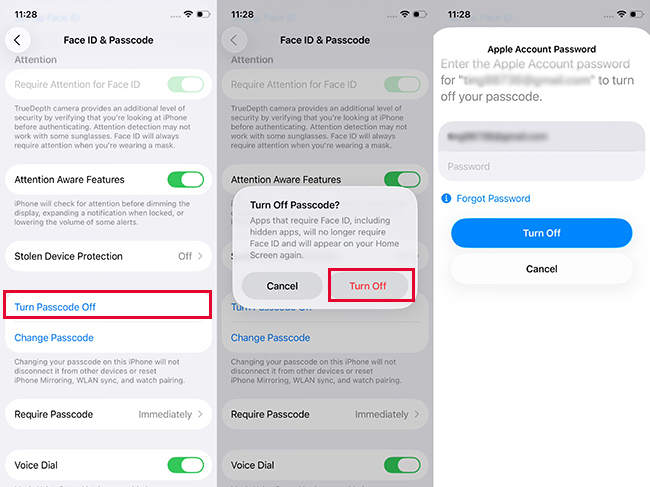
 Warning: Before you turn passcode off, you should make sure the Stolen Device Protection feature is turned off. Because if the feature is on, the Turn Passcode Off option will be greyed and cannot be turned off.
If You Forgot the Screen Lock Passcode
When you have no passcode of your iPhone, the following method would help you reaccess your iPhone with ease. Now, let's begin with the buit-in feature on iPhone to unlock your locked iPhone.
Way 1. Remove Screen Lock on iPhone via iOS Feature (iOS 15.2 or Later)
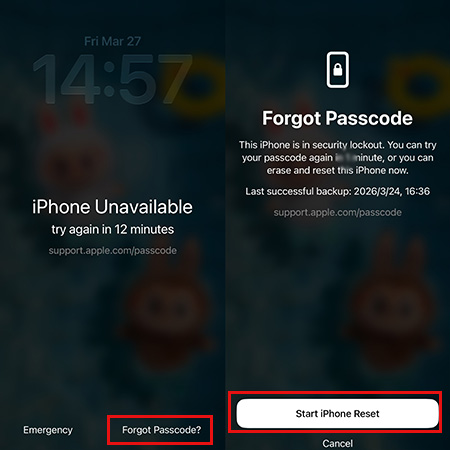
For users running modern iOS versions, Apple provides a "hidden" bypass directly on the lockout screen. This is ideal if you don't have access to a computer but have your Apple Account credentials ready. If your iOS version is iOS 15.2~16, the feature is shown as "Erase iPhone"; if your iOS version is iOS 17 or later, it is shown as "Forgot Passcode?".
- Step 1. Keep entering the wrong passcode until your iPhone turns to iPhone Unavailable.
- Step 2. Tap on the Erase iPhone button or Forgot Passcode? button at the bottom right corner.If you cannot find the button, you should check if your iPhone is connected to a stable network.
- Step 3. Tap on the Start iPhone Reset option. You will be asked to enter your Apple Account password to reset your iPhone.
Way 2. Get Past Screen Lock on iPhone via iTunes/Finder
If your iPhone doesn't show the "Erase" option, you can use a computer to force a restoration. This method is the official Apple-recommended path for forgotten passcodes.
- Step 1. Power off your iPhone. Connect it to your computer via a USB cable.
- Step 2. Put your iPhone into Recovery Mode.
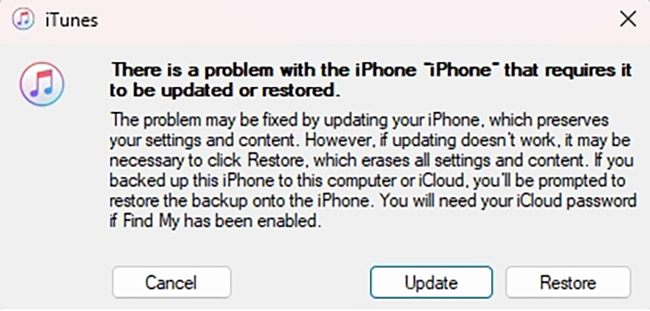
- Step 3. Open Finder (on Mac) or iTunes (on Windows). A pop-up will appear stating there is a problem with the iPhone.
- Step 4. Select Restore. This will download the latest iOS version and replace the locked system file with a clean installation.
Way 3. Bypass iPhone Lock Screen with iCloud
If you're unable to connect your iPhone to iTunes, another effective option is to use iCloud to unlock your device. It requires "Find My iPhone" to be enabled. Follow these steps to delete lock screen on iPhone using iCloud:
- Step 1. Use another iOS device or a computer to proceed.
- Step 2. Open a web browser and go to icloud.com. Log in to your iCloud account using your Apple Account and password.
- Step 3. Once logged in, select the "Find My iPhone" option. Click on "All Devices" at the top of the screen and choose your iPhone from the list of devices associated with your account.
- Step 4. Select the "Erase This Device" option to remove all data and settings from your device. It will take some time to completely wipe the device.

Way 4. Remove Lock Screen on iPhone Without Apple Account Password
What if you forget the Apple Account password? In this case, we recommend a professional unlocking tool for your reference, which is TunesKit iPhone Unlocker. It is available on Windows and Mac, allowing you to remove screen lock on iPhone without a password, even the Face ID or touch ID.
Also, it makes it easy to unlock various passcode restrictions on iPhones, iPads, iPods, and other iOS devices, such as bypassing screen time passcode, Apple Account locked security, etc. But one thing you should know is that the unlocking process with cause data loss, so you have to back up your iPhone in advance.
Why Choose TunesKit iPhone Unlocker?
Remove lock screen on iPhone without passcode and Apple Account password. Support iPhone, iPad, iPod, and other iOS devices. Support unlocking Apple Account, screen time passcode, and MDM.
 600,000+ Downloads
Learn more on how to remove lock screen on iPhone without knowing the passcode via TunesKit iPhone Unlocker.
Step 1Connect the iPhone to the Computer
First, make sure you have backed up your iPhone in advanced. Download and install TunesKit iPhone Unlocker on your computer. Launch the program and connect your iPhone to the computer via a lightning to USB cable. In the mian interface, click on Unlock iOS Screen and tap the Start button.

Step 2Put iPhone into Recovery Mode
Then follow the prompts to put your iPhone into DFU mode or Recovery mode and go to the next step. When your iPhone is in Recovery Mode or DFU mode, click on the Next button.

Step 3Download Firmware Package
You need to confirm your iPhone information as shown. Then click on the Download button to download a firmware package on the sceen. If there is anything wrong, you can correct it manually.

Step 4Remove Screen Lock on iPhone
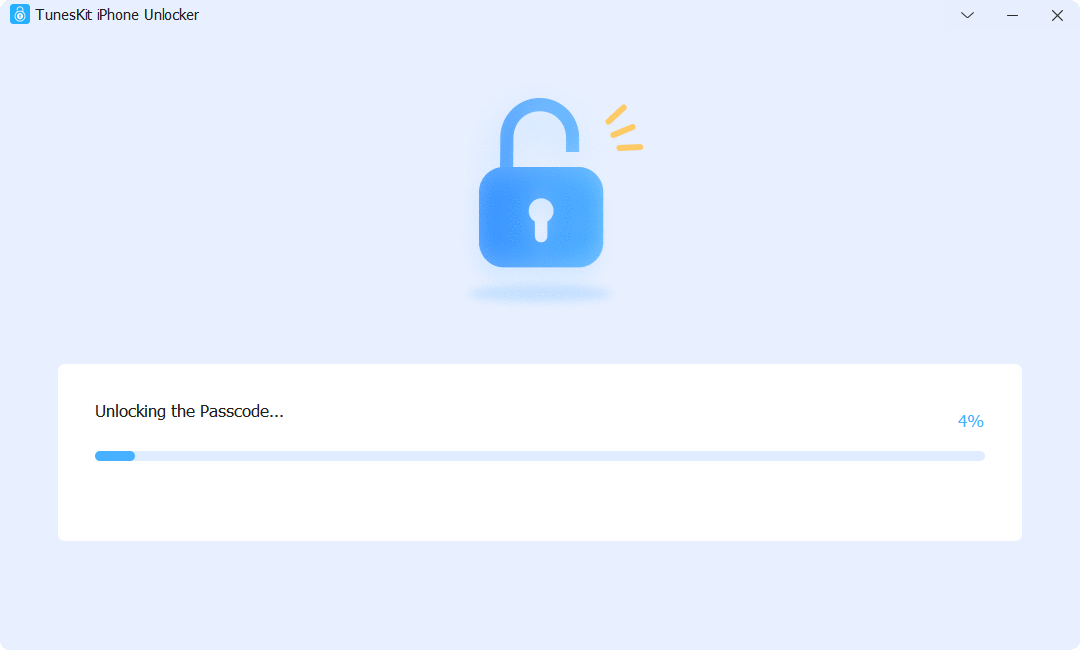
Once the firmware package has been downloaded, you should tap the Unlock button to start to remove iPhone lock screen. After that, your phone can access successfully without a screen lock.
FAQs About iPhone Screen Lock Removal
-
Can I remove the lock screen without losing my photos?
Unless you have a backup in iCloud or on a computer, removing a forgotten passcode will always result in data loss. Apple's encryption binds the data to the passcode.
-
What if my computer doesn't recognize the locked iPhone?
This usually happens because the phone cannot "Trust" the computer while locked. Putting the device into Recovery Mode is the only way to force the computer to see the device.
The Bottom Line
As you see, the easiest way to remove lock screen on iPhone enter the lock screen passcode and turn it off in Settings. If you, unfortunately, forget the passcode, you can also resort to the other methods above. But here we still recommend TunesKit iPhone Unlocker, as it has the ability to unlock any limit on your iPhone without a passcode. Anyway, simply try the method you preferred and remove the screen lock on your iPhone to use it again.


