


How to Make Your iPhone More Secure: 15 Settings and Tips
Your iPhone already includes many built-in security features, but the default settings may not provide the highest level of protection for every situation. Whether you want to prevent unauthorized access, protect your personal information, secure your Apple Account, or reduce privacy risks, adjusting a few key settings can significantly improve your iPhone security.
From enabling Stolen Device Protection to reviewing app permissions and avoiding phishing scams, this guide explains how to make your iPhone more secure with practical steps that anyone can follow.
Why You Should Make Your iPhone More Secure?
iPhones are designed with strong security protections, including hardware encryption, and privacy controls. However, many security risks come from everyday situations rather than technical vulnerabilities. Common threats include:
- Losing your iPhone and someone accessing it with your passcode
- Fake Apple Account messages trying to steal your login information
- Apps collecting unnecessary personal data
- Weak passwords reused across multiple accounts
- Delayed software updates leaving security issues unresolved
- Connecting to unsafe networks
Improving your iPhone security does not mean changing dozens of complicated settings. The most effective approach is enabling the right protections and building safer habits.
How to Make Your iPhone More Secure (15 Settings & Tips)
In this part, we'll walk you through 15 practical iPhone security settings and tips to improve the security of your iPhone. You can choose some of them that you need.
- 1. Enable Stolen Device Protection on Your iPhone
- 2. Use a Strong iPhone Passcode and Face ID
- 3. Turn On Find My iPhone and Activation Lock
- 4. Secure Your Apple Account With Two-Factor Authentication
- 5. Keep Your iPhone Updated With the Latest iOS Version
- 6. Review iPhone App Permissions Regularly
- 7. Use iPhone Privacy Features to Protect Personal Data
- 8. Protect iCloud Data With Advanced Data Protection
- 9. Use Lockdown Mode Only If You Need Extra Protection
- 10. Avoid Common iPhone Security Mistakes
- 11. Use Safer Browsing and Network Habits
- 12. Remove Apps You No Longer Use
- 13. Use a Password Manager for Stronger Account Security
- 14. Enable Security Features for Messages and Mail
- 15. Regularly Check Your iPhone Security Settings
1. Enable Stolen Device Protection on Your iPhone
Stolen Device Protection is one of the most important security features Apple has introduced for protecting iPhones against theft. It is specifically designed for situations where someone steals your iPhone and also knows your passcode.
When enabled, this feature requires Face ID or Touch ID authentication for certain sensitive actions, such as changing your Apple Account password or disabling security settings. It also introduces a security delay for some account changes when your iPhone is away from familiar locations. This makes it much harder for thieves to take control of your device and personal information.
How to Turn On Stolen Device Protection
- Step 1. Open Settings on your iPhone.
- Step 2. Tap Face ID & Passcode. Enter your passcode.
- Step 3. Scroll down and tap Stolen Device Protection.
- Step 4. Tap the switch next to the feature to turn on it.

For maximum protection, consider enabling the option that requires the security delay more broadly instead of only in unfamiliar locations.
2. Use a Strong iPhone Passcode and Face ID
Your passcode is the first layer of protection for your iPhone. Even with Face ID enabled, your passcode is still required in certain situations, such as after restarting the device or when biometric authentication fails.
A simple passcode like "123456" or a birthday-based code can make your iPhone easier to access if someone obtains your device. A longer passcode provides stronger protection against guessing attempts.
How to Create a Stronger iPhone Passcode
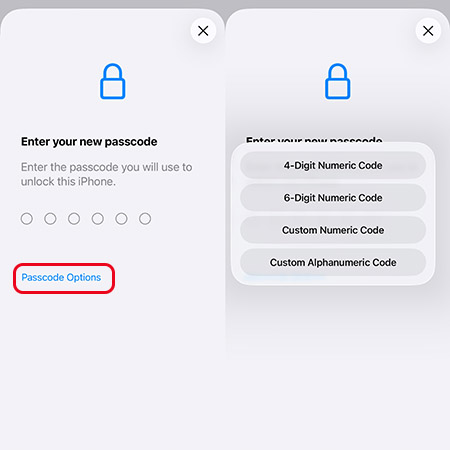
- Step 1. Open Settings. Go to Face ID & Passcode.
- Step 2. Select Change Passcode. Tap Passcode Options.
- Step 3. Choose Custom Alphanumeric Code or Custom Numeric Code.
You should also keep Face ID enabled because biometric authentication protects sensitive actions such as:
- Unlocking your iPhone
- Accessing saved passwords
- Using Apple Pay
- Opening secure apps
3. Turn On Find My iPhone and Activation Lock
If your iPhone is lost or stolen, Find My iPhone can help you locate it, lock it remotely, or erase your data. It also enables Activation Lock, which prevents another person from setting up your iPhone with a different Apple Account. Keeping Find My enabled is one of the simplest ways to protect your device after theft.
How to Enable Find My iPhone
- Step 1. Open Settings. Tap your name at the top.
- Step 2. Select Find My. Tap Find My iPhone.
- Step 3. Enable Find My iPhone, Find My network, and Send Last Location.


4. Secure Your Apple Account With Two-Factor Authentication
Your Apple Account controls access to many important services, including iCloud Photos, iCloud backups, messages, contacts, App Store Purchases, and passwords. If someone gains access to your Apple Account, they may access much more than just your iPhone. Two-factor authentication adds an additional verification step when signing in from a new device.
How to Check Apple Account Two-Factor Authentication
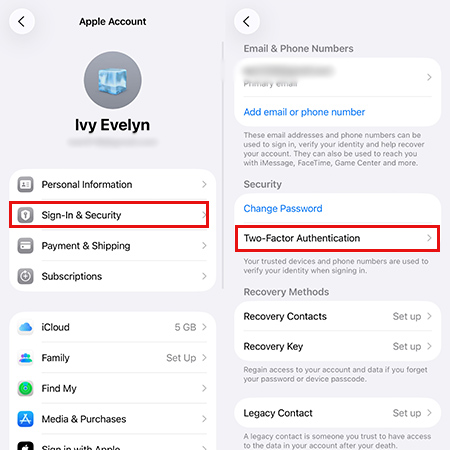
- Step 1. Open Settings. Tap your name.
- Step 2. Tap Sign-In & Security.
- Step 3. Confirm that Two-Factor Authentication is enabled.
You should also never share Apple verification codes, avoid entering Apple Account details through suspicious links, and add recovery options when available.
5. Keep Your iPhone Updated With the Latest iOS Version
Software updates are not only about new features. Apple regularly releases security updates that fix vulnerabilities and improve device protection. Running an outdated iOS version can leave your iPhone exposed to security issues that have already been fixed. Installing updates promptly is one of the easiest ways to maintain strong iPhone security.
How to Enable Automatic Updates
- Step 1. Open Settings. Go to General.
- Step 2. Tap Software Update.
- Step 3. Select Automatic Updates. Enable Security Responses & System Files and iOS Updates.

6. Review iPhone App Permissions Regularly
Apps often request access to personal information such as your location, microphone, camera, contacts, and photos. While many apps need some permissions to function properly, unnecessary access can create privacy risks.
How to Check App Permissions on iPhone
- Step 1. Open Settings and then tap Privacy & Security.
- Step 2. Select a category from Location Services, Camera, Microphone, Photos, and Contacts.
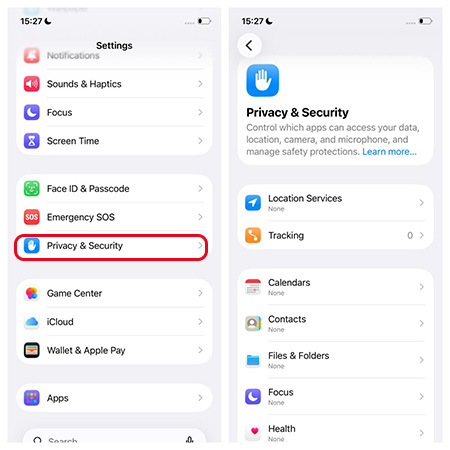
- Step 3. Review which apps have access. Ask yourself :
- Does this app really need this permission?
- Does the app still need access?
- Am I comfortable sharing this information?
7. Use iPhone Privacy Features to Protect Personal Data
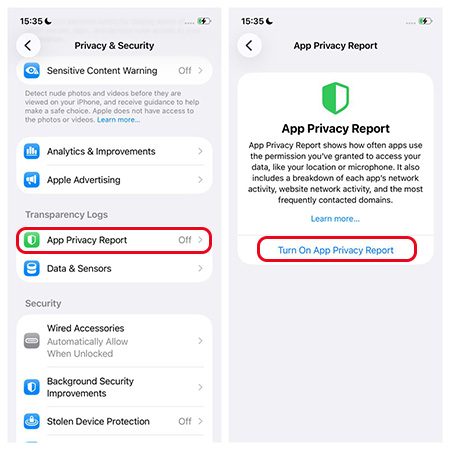
Apple provides several privacy tools that help users understand and control how their data is used. App Privacy Report shows how often apps access sensitive information, which websites apps contact, and network activity details.
How to Enable App Privacy Report
- Step 1. Open Settings.
- Step 2. Tap Privacy & Security.
- Step 3. Select App Privacy Report. Turn it on.
8. Protect iCloud Data With Advanced Data Protection
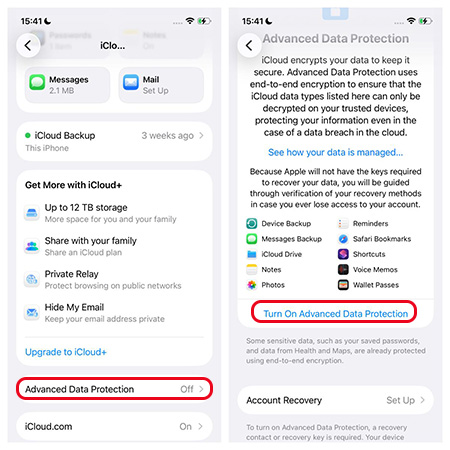
For users who store important files, photos, and documents in iCloud, Advanced Data Protection provides additional encryption protection. When enabled, more iCloud categories use end-to-end encryption, meaning only trusted devices can access the protected data.
This feature is particularly useful for users who store sensitive personal or professional information. Before enabling it, make sure you have recovery options available because Apple cannot recover end-to-end encrypted data if you lose access to your account.
How to Enable Advanced Data Protection
- Step 1. Open Settings on your iPhone. Tap your name at the top of the screen.
- Step 2. Select iCloud.
- Step 3. Scroll down and tap Advanced Data Protection.
- Step 4. Tap Turn On Advanced Data Protection.
- Step 5. Follow the instructions to review your recovery methods. Confirm to enable the feature.
9. Use Lockdown Mode Only If You Need Extra Protection
Lockdown Mode is an advanced security feature designed for users who may face highly targeted cyberattacks. It limits certain device functions to reduce possible attack methods. It may be useful for journalists, activists, public figures, and people targeted by sophisticated attacks.
However, most iPhone users do not need Lockdown Mode for everyday security. For typical users, enabling Stolen Device Protection, strong authentication, and privacy settings provides sufficient protection.
How to Turn On Lockdown Mode
- Step 1. Open Settings.
- Step 2. Tap Privacy & Security.
- Step 3. Scroll down and select Lockdown Mode. Tap Turn On Lockdown Mode.
- Step 4. Review the affected features. Tap Turn On Lockdown Mode again. Restart your iPhone if prompted.

10. Avoid Common iPhone Security Mistakes
Even the strongest security settings cannot protect you from every threat. Many attacks rely on tricking users instead of breaking Apple's security. Avoid these common mistakes:
Do Not Click Suspicious Links
Be cautious with:
- Fake Apple security alerts
- Password reset messages
- Unexpected payment notifications
Apple will never ask you to provide your password or verification code through an unsolicited message.
Avoid Installing Unknown Profiles
Configuration profiles can change device settings. Only install profiles from trusted organizations.
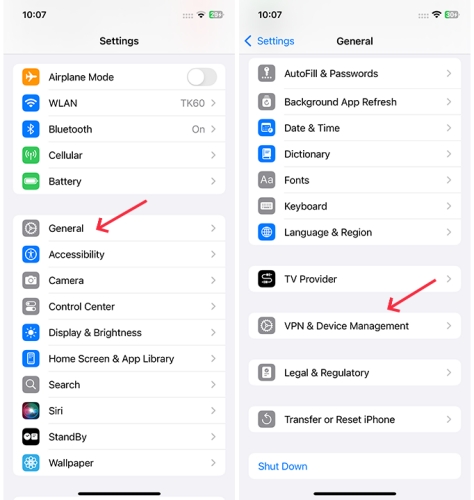
Check installed profiles:
- Step 1. Open Settings. Go to General.
- Step 2. Tap VPN & Device Management.
Avoid Jailbreaking Your iPhone
Jailbreaking removes some built-in security restrictions and may increase exposure to malware or unauthorized access.
11. Use Safer Browsing and Network Habits
Your iPhone can be secure while your online activities remain risky.
Follow these habits:
- Avoid entering sensitive information on suspicious websites.
- Check website addresses carefully.
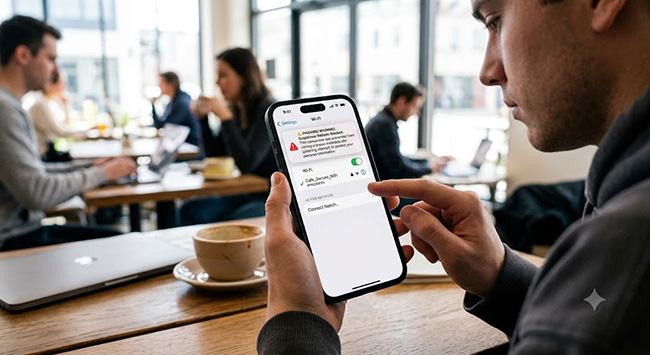
- Avoid unsecured public Wi-Fi for banking or important accounts.
- Use trusted networks whenever possible.
- Keep Safari protections enabled.
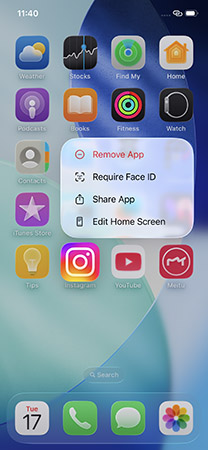
12. Remove Apps You No Longer Use
Unused apps may still have access to your personal information, receive outdated permissions, and increase your digital footprint. Keeping your iPhone clean improves both privacy and device management.
How to Remove Apps from iPhone
- Step 1. Press and hold an app icon.
- Step 2. Select Remove App.
- Step 3. Delete apps you no longer need.
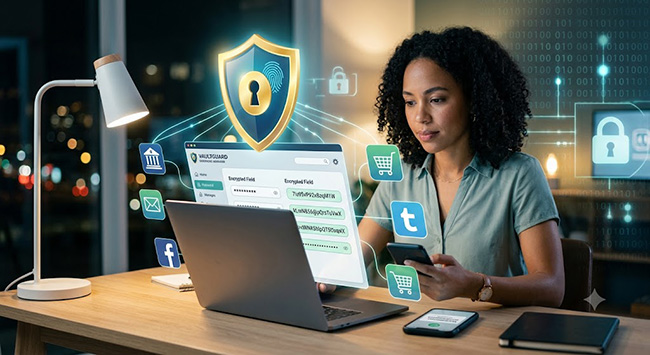
13. Use a Password Manager for Stronger Account Security
Many security problems start with reused passwords. A password manager can help you create unique passwords, store login credentials securely, reduce password reuse, and protect important accounts. Avoid using the same password for your Apple Account, email, banking, and social media accounts.
14. Enable Security Features for Messages and Mail
Many attacks begin through communication apps. Scammers often imitate Apple, banks, or delivery companies to collect personal information. Recommended habits:
- Avoid opening unexpected attachments
- Verify suspicious messages before responding
- Use message filtering features
- Enable Mail Privacy Protection
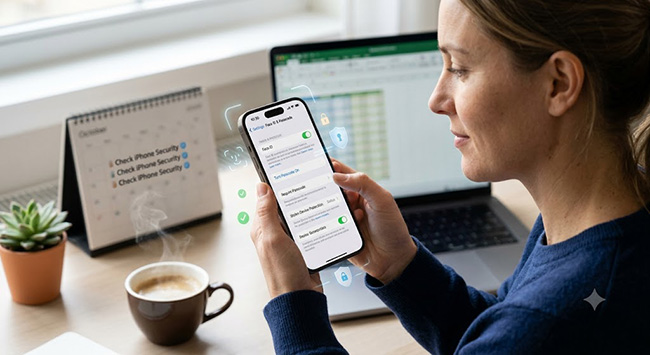
15. Regularly Check Your iPhone Security Settings
Security is not a one-time setup. Your apps, accounts, and privacy needs change over time. A simple monthly security check can help you:
- Review app permissions
- Remove unused apps
- Check Apple Account devices
- Install updates
- Review privacy settings
What to Do If You Are Locked Out of Your iPhone
Even with strong security settings enabled, you may occasionally lose access to your own iPhone. Forgetting your passcode, being locked out after too many failed attempts, or encountering authentication issues can prevent you from accessing your iPhone or iPad.
Key Features of TunesKit iPhone Unlocker
Unlock iPhone when forgot iPhone passcode within several minutes. Factory reset locked iPhone without Apple Account password. Available on the latest iOS version including 26.
 600,000+ Downloads
If you forgot your iPhone passcode or your device has become unavailable after multiple incorrect attempts, TunesKit iPhone Unlocker can help remove the screen lock and restore access to your iPhone. Unlike security settings that protect your device before problems happen, the tool focuses on recovery situations where you can no longer enter your iPhone.
 Pros:
Pros:- Forgot iPhone passcode
- iPhone is disabled or unavailable
- Cannot unlock the device with Face ID or Touch ID
- Bought a second-hand iPhone that is locked
- Need to regain access after being locked out
FAQs About iPhone Security
-
Can someone hack my iPhone?
While no device is completely immune to security risks, iPhones include multiple layers of protection. Most successful attacks rely on phishing, stolen passwords, weak passcodes, or social engineering rather than directly breaking iOS security.
-
Is iPhone secure without changing settings?
iPhones are secure by default, but enabling additional protections such as Stolen Device Protection, two-factor authentication, and privacy controls can significantly improve security.
Conclusion
Making your iPhone more secure does not require complicated tools or advanced technical knowledge. The most effective protections come from using Apple's built-in security features correctly and developing safer digital habits.
Start with the essentials: enable Stolen Device Protection, use strong authentication, keep iOS updated, protect your Apple Account, and regularly review privacy settings. These simple steps can greatly reduce the risk of losing control of your personal information.



