


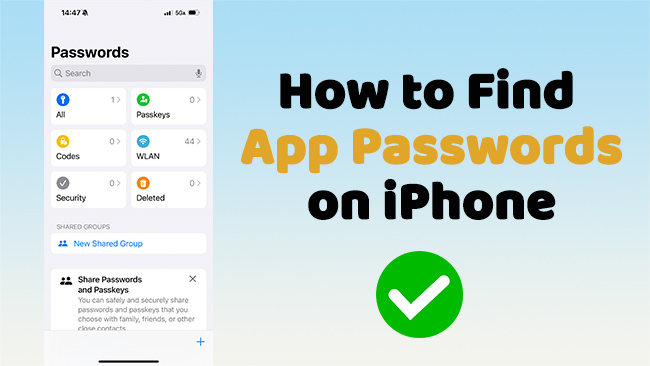
How to Find Saved App Passwords on iPhone [4 Ways]
- iOS 18 or later: Open Passwords > All, and select the app or account.
- iOS 17 or earlier: Open Settings > Passwords, and select the app or website.
- Using Siri: Say, "Show my passwords" or ask for a specific account.
- To scan and export saved multiple passwords: Use the Password Manager in TunesKit iPhone Unlocker.
Forgetting an app password can be frustrating, especially when your iPhone normally fills it in automatically. Fortunately, you may be able to view the password if it was previously saved to Apple Passwords or iCloud Keychain.
In this guide, we'll show you four ways to find saved app passwords on your iPhone. Keep in mind that you can only view passwords that were previously saved on your device or in a supported password service.
- What Are App Passwords on iPhone?
- Method 1. How to Find App Passwords in the Passwords App [iOS 18 or Later]
- Method 2. How to Find App Passwords in Settings [iOS 17 or Earlier]
- Method 3. How to Find App Passwords with Siri
- Method 4. How to Find and Export Saved App Passwords with TunesKit HOT
- Why Can't I Find an App Password on My iPhone?
- What If You Mean an Apple App-Specific Password?
- Conclusion
What Are App Passwords on iPhone?
"App password" can refer to different types of passwords on iPhone. This guide mainly focuses on saved app and website login passwords.
1. Saved App and Website Passwords
These are the usernames and passwords you use to sign in to apps and websites, such as Instagram, Netflix, Amazon, or Gmail. Your iPhone may save these credentials in Apple Passwords or iCloud Keychain. When you return to the app or website, Password AutoFill can enter them for you.
2. Apple Account App-Specific Passwords
These are special passwords generated for third-party apps that need to access information stored in your Apple Account, such as iCloud Mail, Contacts, or Calendars. They are generated on the Apple Account website, not stored in the Passwords app.
3. App Lock or Screen Time Passcodes
An app may also be protected by Face ID, Touch ID, iPhone screen passcode, Screen Time passcodes or an app's own PIN. They are not saved login passwords and usually cannot be viewed in the Passwords app.
 View Also: How to Find Screen Time Passcode on iPhone
Method 1. How to Find App Passwords in the Passwords App [iOS 18 or Later]
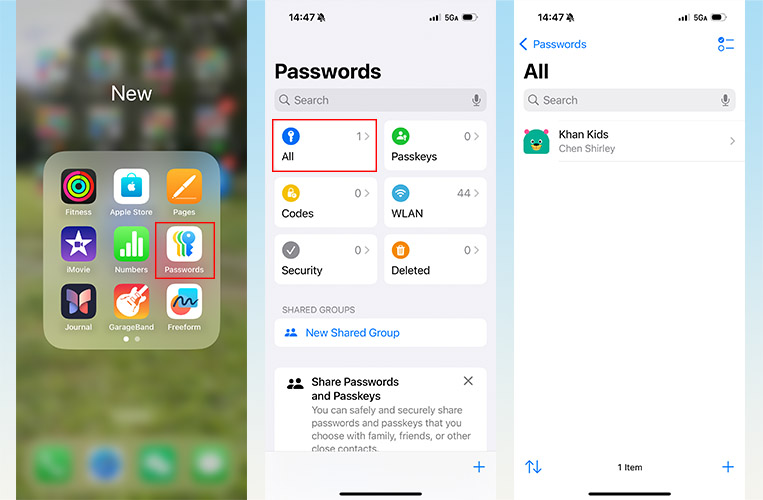
Starting with iOS 18, Apple provides a separate Passwords app for managing passwords, passkeys, verification codes, and Wi-Fi credentials. You can search for an account, view its login details, and copy the password. Only credentials previously saved to Apple Passwords or iCloud Keychain will appear.
- Step 1. Open the Passwords app on your iPhone and unlock it with Face ID, Touch ID, or your device passcode.
- Step 2. Tap All, then search for the app, website, or account name. Select the correct result.
- Step 3. Tap the password field to reveal it. Select Copy Password when you need to paste it elsewhere.
You may also see a passkey instead of a traditional password. A passkey lets you sign in with Face ID, Touch ID, or your device passcode, so there may be no text password to display.
 Note
Note
The Passwords app only shows saved credentials. If you cannot find an account, see the troubleshooting section below.
Method 2. How to Find App Passwords in Settings [iOS 17 or Earlier]
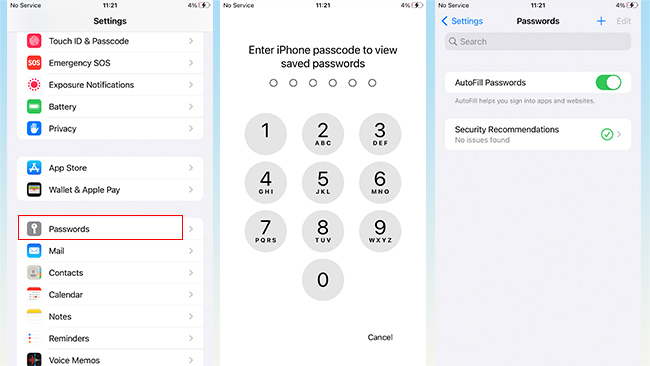
If your iPhone is running iOS 17 or an earlier version, saved passwords remain available through the Settings app. This method lets you view, copy, edit, or delete credentials stored in iCloud Keychain.
- Step 1. Open Settings on your iPhone. Scroll down and tap Passwords.
- Step 2. Unlock the password list with Face ID, Touch ID, or your iPhone passcode.
- Step 3. Search for the app or website, select the matching account, and tap the password field to view or copy it. Tap Edit to update or delete the saved login.
Method 3. How to Find App Passwords with Siri
Siri provides a quick way to locate a saved password without searching through the Passwords app manually. It can open the relevant account entry after verifying your identity, but it will not read the password aloud. This protects your private information from people nearby.
- Step 1. Say "Siri" or press and hold the Side button to activate Siri.
- Step 2. Say "Show my passwords" or ask for a specific account, such as "Show my Amazon password".
- Step 3. Use Face ID, Touch ID, or your device passcode. Siri will open the saved password entry when one is available.

Method 4. How to Find and Export Saved App Passwords with TunesKit
Apple's Passwords app is convenient when you only need to check one or two accounts. However, it may be less convenient when you want to review different types of saved credentials or export password records to a computer.
TunesKit iPhone Unlocker includes a Password Manager that can scan credentials stored on an iPhone or iPad. It categorizes the results so that you can view website and app passwords, Wi-Fi accounts, mail accounts, and other supported password information in one place.
It also allows you to export the scanned records as a CSV file for easier management on a computer. This is useful when you want to review several saved accounts or keep an offline record for personal password management.

Main Benefits of TunesKit Password Manager
- Scans different categories of saved credentials
- Displays passwords in an organized interface
- Lets you preview individual password records
- Exports supported password records as a CSV file
 600,000+ Downloads
600,000+ Downloads
600,000+ Downloads
How to Find App Passwords with TunesKit iPhone Unlocker
Step 1. Connect the iPhone to Your Computer
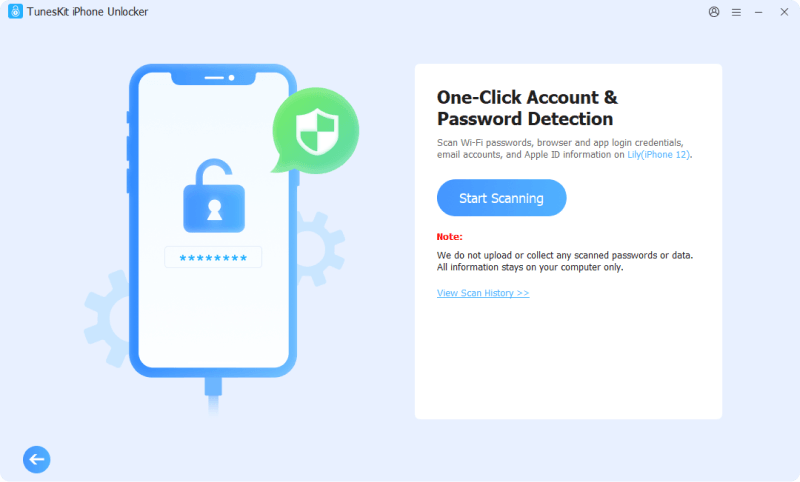
Install and open TunesKit iPhone Unlocker on your Windows or macOS computer. Connect your iPhone using a USB cable. After the software recognizes the device, select Password Manager from the main interface.

Step 2. Start Scanning the Device
Click Start Scanning. Follow the instructions shown on the screen. You may need to unlock the iPhone, trust the computer, and enter the device backup password so that the software has permission to read the encrypted data.
Step 3. View the Saved App Passwords
Wait for the scan to finish. TunesKit will organize the supported results into categories, such as website and app passwords, Wi-Fi accounts, email accounts, etc. Select Website & App Passwords, and click the eye icon to view the password details.
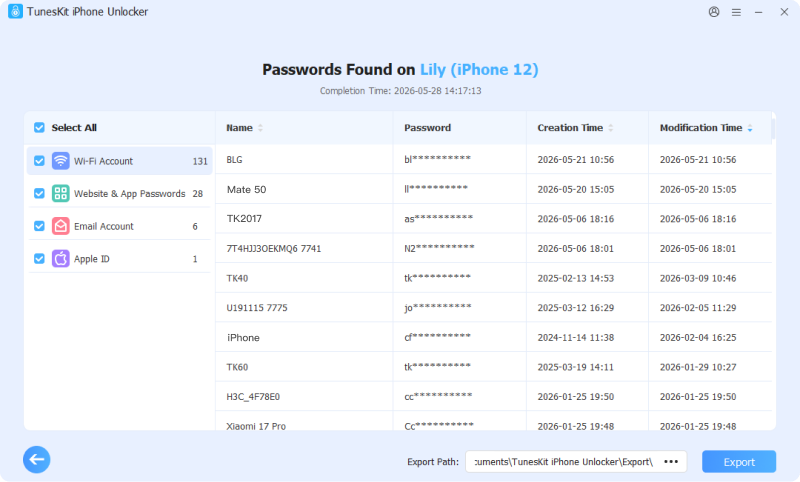
Step 4. Export the Passwords
Click Export to save the supported password records as a CSV file on your computer.
Note
TunesKit Password Manager can only scan supported credentials stored on an authorized device. You need to connect and unlock your iPhone and follow the on-screen instructions to grant the required access.
Why Can't I Find an App Password on My iPhone?
If you cannot find an app password on your iPhone, it may not have been saved in Apple Passwords, or the account may use a different sign-in method. Here are the most common reasons and solutions.
-
Reason 1. The Password Was Never Saved
If you didn't save the password to Apple Passwords or iCloud Keychain, it will not appear in the Passwords app.
Solution: Go to the app or its official website and select Forgot Password to reset the password.
-
Reason 2. The App Uses a Passkey
Some apps and websites use a passkey instead of a traditional password. In this case, you sign in with Face ID, Touch ID, or your device passcode, so there may be no text password to view.
Solution: Check the account in the Passwords app for a saved passkey and use it to sign in instead of looking for a password.
-
Reason 3. You Used Sign in with Apple
If you created the account with Sign in with Apple, you may not have a separate password saved for that app.
Solution: Choose Sign in with Apple again and verify your identity. To check the apps linked to your Apple Account, go to Settings > [your name] > Sign in with Apple.
-
Reason 4. The Password Is Stored in Another Password Manager
The password may be saved in another password manager, such as Google Password Manager, 1Password, or LastPass, instead of Apple Passwords.
Solution: Open the password manager you normally use and search for the app or website. You can also go to Settings > General > AutoFill & Passwords to check your enabled password providers.
-
Reason 5. iCloud Keychain Is Not Syncing
If the password was saved on another Apple device, it may not appear on your iPhone when iCloud Keychain is turned off or not syncing properly.
Solution: Go to Settings > [your name] > iCloud > Passwords. On iOS 17 or earlier, select Passwords and Keychain. Make sure password syncing is turned on.
-
Reason 6. The Password Was Deleted or Moved to a Shared Group
A saved password may be missing because it was recently deleted or moved to a Shared Group. Please make sure you are viewing all saved passwords.
Solution: Open the Passwords app and check All, Deleted, and any Shared Groups. On iOS 17 or earlier, go to Settings > Passwords > Recently Deleted to look for a deleted password.
What If You Mean an Apple App-Specific Password?
An app-specific password lets you sign in to your Apple Account from a third-party app without sharing your main Apple Account password. For supported apps that access iCloud Mail, Contacts, or Calendars, you can authorize access directly with your Apple Account. If an app does not support this method, you may need to use an app-specific password instead. Your Apple Account must have two-factor authentication enabled.
- Step 1. Go to account.apple.com website and sign in to your Apple Account.
- Step 2. Go to Sign-In and Security > App-Specific Passwords.
- Step 3. Select Generate an app-specific password and follow the on-screen instructions. Then enter or paste the generated password into the password field of the third-party app.
You can revoke an app-specific password at any time from your Apple Account. If you change or reset your main Apple Account password, all existing app-specific passwords are automatically revoked, and you will need to generate new ones for the affected apps.
Conclusion
To find app passwords on iPhone, use the Passwords app on iOS 18 or later, or go to Settings > Passwords on iOS 17 or earlier. Siri can also help you quickly locate a saved account.
For viewing multiple saved credentials or exporting them as a CSV file, TunesKit iPhone Unlocker's Password Manager offers another practical option.
Remember that only previously saved passwords can be found. If an account uses a passkey, Sign in with Apple, or another password manager, use that sign-in method instead.



