


Can't Sign Into FaceTime With Apple ID (Apple Account)? Fix It 2026
FaceTime is an essential tool for staying connected, but encountering an Apple ID sign-in error can be incredibly frustrating. This issue often stems from temporary system glitches, incorrect network settings, or outdated software.
Fortunately, most FaceTime authentication problems can be resolved with a few strategic adjustments to your device settings. This guide will walk through why you can't sign into FaceTime with Apple ID (Apple Account) and how to fix it with several effective methods.

Why Can't You Sign Into FaceTime With Apple ID
If you've ever found yourself in the situation where FaceTime Apple ID not signing in, even though you're already signed in, it can be perplexing. There are several reasons why you can't sign into FaceTime with Apple ID:
- Unstable Network: A weak Wi-Fi or cellular connection can stop FaceTime from verifying your Apple ID properly.
- iOS Bugs or Software-based Error: If your iOS or macOS isn't up to date, it might cause compatibility issues with FaceTime. It's also possible that FaceTime updates its features on certain iOS versions.
- Apple ID Verification Issues: Your Apple ID might not be fully verified or linked correctly to FaceTime.
- Incorrect Settings: Something as simple as a misconfigured setting or wrong email can cause sign-in problems.
How to Fix FaceTime Apple ID Not Signing In Issue
Bothered by the FaceTime not verifying your Apple ID issue? Just follow these step-by-step solutions in this part to resolve the issue. Please make sure you're connected to a stable and secure network before you begin.
Fix 1. Verify Apple System Status
Before troubleshooting your hardware, ensure the problem isn't on Apple's end. Sometimes, the servers responsible for Apple ID authentication or FaceTime services undergo maintenance or experience outages.
- Step 1. Open your web browser and visit the official Apple System Status page.
- Step 2. Look for the "Apple Account" and "FaceTime" indicators.
- Step 3. If the dots are green, the services are functional; if not, you must wait for Apple to resolve the issue.

Fix 2. Sign Out and Re-sign Into Your Apple ID
The first step in troubleshooting the Apple ID FaceTime not working issue is to ensure that your Apple ID and password are correct. If you've recently changed your Apple ID password or email, make sure that you update the credentials in your device settings by signing out and re-signing in. This can help refresh your connection to Apple's servers and solve any minor glitches causing the issue.
- Step 1. Open Settings on your iPhone.
- Step 2. Tap on your name at the top (Apple Account banner), then scroll down and tap Sign Out.
- Step 3. After signing out, sign back in using your current Apple ID and password.

Fix 3. Update Your iOS Version and FaceTime App
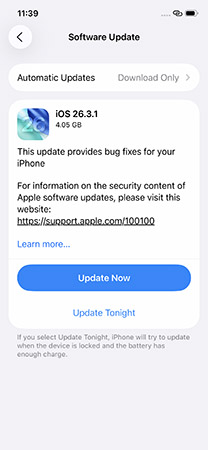
Running an outdated version of iOS or FaceTime could be behind the problem. Some iOS versions, like iOS 17.4.1, are known to have bugs that trigger the Sign in to FaceTime with Apple ID error.
- Step 1. Go to Settings > General > Software Update.
- Step 2. If an update is available, tap Update Now.
- Step 3. After the update, check if FaceTime works properly. If not, uninstall and reinstall FaceTime app from App Store.
Fix 4. Check Your FaceTime Caller ID
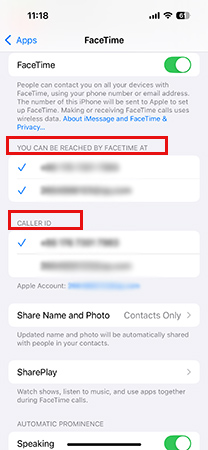
Sometimes, the problem is hiding in your FaceTime settings, specifically how you show up to others (your Caller ID).
If your Apple ID email or phone number isn't properly linked under FaceTime settings to make and receive calls, it could trigger the Apple ID verification issue, which will keep prompting the Sign into FaceTime with Apple ID error.
To ensure your FaceTime account is set up correctly:
- Step 1. Open Settings, scroll down and tap Apps > FaceTime.
- Step 2. Under YOU CAN BE REACHED BY FACETIME AT, make sure your correct phone number and Apple ID email are selected and have checkmarks next to them.
- Step 3. In the CALLER ID section, ensure the main phone number or email you use for FaceTime is correct.
- Step 4. If needed, toggle the selections off and on to refresh the settings.
Fix 5. Remove Multiple Apple IDs on Your iPhone With/Without Password
If multiple Apple IDs are linked to your iPhone for different things (like iCloud, Mail), it might cause FaceTime to get confused and keep asking for your Apple ID. Simplifying things by removing unneeded Apple IDs might clear things up.
Here's how to address this issue:
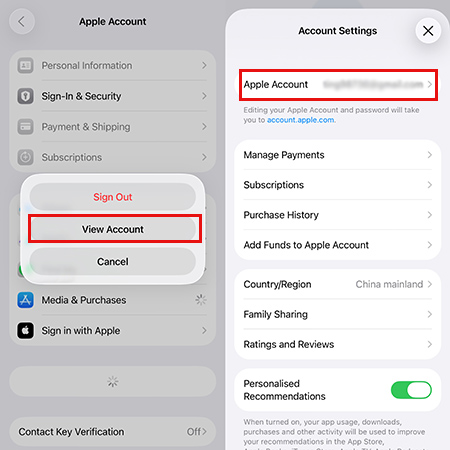
- Step 1. Go to Settings > [Your Name] to view your primary Apple ID.
- Step 2. Then go to Settings > Media & Purchases > View Account - is it the same ID? If not, tap Sign Out to remove this account with password.
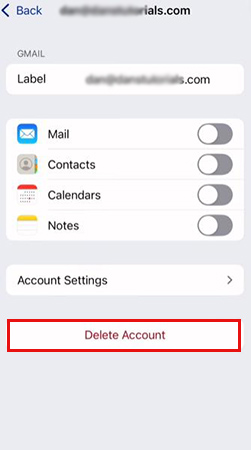
- Step 3. Also check Settings > Apps > Mail > Mail Accounts for any other Apple IDs.
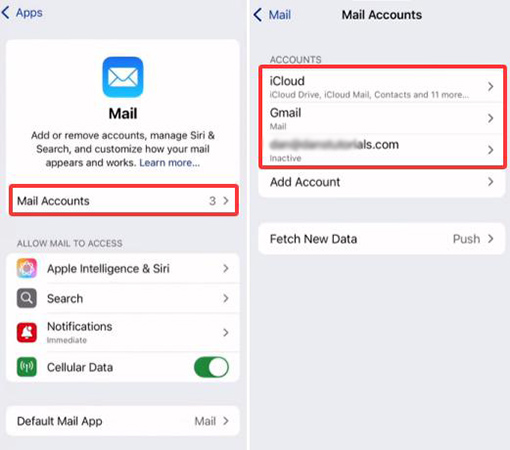
- Step 4. For unnecessary or outdated Apple ID, tap it and select Delete Account.
But, what to do if you don't remember the Apple ID password?
While Apple's iForgot website is the first place to reset Apple ID password, sometimes you might be unable to recover due to insufficient proof of account ownership. This is where a dedicated tool like TunesKit iPhone Unlocker can be incredibly helpful. It's designed to securely remove an Apple ID from your device even if you don't have the password, simplifying your setup and potentially fixing FaceTime login issues caused by account conflicts.
Why Choose TunesKit iPhone Unlocker?
With the help of TunesKit iPhone Unlocker, you can remove Apple ID without password on iPhone/iPad/iPod within several clicks.
 600,000+ Downloads
Here's how to remove multiple Apple IDs from iPhone without password using TunesKit iPhone Unlocker:
Step 1 Install and Launch TunesKit iPhone Unlocker
First, get TunesKit iPhone Unlocker downloaded and install it on your computer (Mac or Windows). Open it and choose the "Unlock Apple ID" option. Connect your iPhone to the computer using a USB cable and make sure to tap "Trust" on your iPhone if prompted.

Step 2 Follow Instructions to Check iPhone Status
- Find My Disabled: The unlocking process supports all iOS versions and will not affect your data.
- Find My Enabled: This feature is only supported on devices running iOS 11.4 or later, and requires both a screen passcode and two-factor authentication to be enabled.

Step 3Remove Apple ID without Password from iPhone
Once everything is set, click the "Download" button within the TunesKit interface to get compatible firmware package. Then, click Unlock and the software will begin the process of removing the Apple ID from your device.
Keep your iPhone connected throughout the process and the Apple ID will be removed within a few minutes.

Fix 6. Disable and Re-enable FaceTime on Your iPhone
Here's another simple reset that often works to fix FaceTime Apple ID not signing in issue: just turn FaceTime service off and then back on again. This forces the service to restart on your iPhone and can shake loose any temporary glitches that are stopping you from signing in. Here's how:
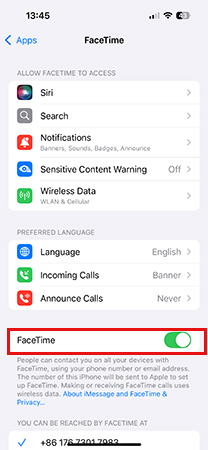
- Step 1. Open Settings, scroll down and tap on Apps > FaceTime.
- Step 2. Toggle the switch off, wait about 30 seconds or restart your iPhone, and then toggle it back on.
- Step 3. You might see a "Waiting for Activation..." message for a bit. Once it's activated, open FaceTime and see if that pesky FaceTime Apple ID not signing in problem is finally fixed.
More FaceTime Apple ID Not Working Issue & Quick Fixes
Aside from the Sign into FaceTime with Apple ID error we've already covered above, there are a few other situation FaceTime might not work with your Apple ID. Let's look at these problems and their solutions.
Issue: Apple ID Not Eligible for FaceTime
In rare cases, your Apple ID might simply not be eligible for FaceTime. This typically happens if your Apple ID was created in a country or region where FaceTime is restricted or unavailable due to local regulations.
How to Fix:
- Step 1. Open Settings > [Your Name] > Media & Purchases > View Account.
- Step 2. Tap Country/Region and check which region your Apple ID is set to.
- Step 3. If FaceTime isn't available in that region, you may need to switch to one where it is supported or create a new Apple ID linked to a different country. Make sure you back up your data before making any changes to region settings, as it may affect your app store content and subscriptions.

 View Also: How to Fix FaceTime Not Working
Conclusion
In conclusion, if you can't sign into your FaceTime with Apple ID, it is fixable with a few simple steps. Whether it's updating your software, signing out and back in, or adjusting your settings, or using tools like TunesKit iPhone Unlocker for more complex Apple ID issues, most of the above solutions can resolve the issues.


