


[2026] Why Is My Background Black on My iPhone | 10 Fixes
"The post-login Home screen wallpaper keeps disappearing into a jet black background even though all the app icons still show up as they were. Any workaround?"
If you are wondering "Why is my iPhone background black?", you're not alone. This issue can be frustrating, but thankfully, there are several effective solutions to get your wallpaper back to normal. This guide will walk you through common reasons why your iPhone wallpaper turns black and provide step-by-step instructions on how to fix it.

- Why Is My Background Black on My iPhone?
- How to Get Rid of Black Background on iPhone
- Fix 1. Turn Off Dark Mode
- Fix 2. Change Your Wallpaper
- Fix 3. Check App-Specific Settings
- Fix 4. Turn Off Low Power Mode
- Fix 5. Disable Dim Lock Screen in Focus Settings
- Fix 6. Adjust the Settings of Photos
- Fix 7. Restart Your iPhone
- Fix 8. Update iOS to The Latest Version
- Fix 9. Fix iPhone Wallpaper Turns Black with One Click HOT
- Fix 10. Reset All Settings
- How to Make Your iPhone Background Black (Intentionally)
- FAQs about iPhone Background
- Conclusion
Why Is My Background Black on My iPhone?
Understanding the potential causes can help you troubleshoot and resolve the issue effectively, ensuring your iPhone displays your chosen wallpapers correctly.
- Dark Mode Enabled: iOS has a feature called Dark Mode, which changes the system background and app interfaces to darker tones. If you're seeing a black background, this could be why.
- Software Glitches: Temporary bugs or glitches in iOS can cause the wallpaper to display incorrectly.
- Settings Conflict: Incorrect settings related to Focus modes or wallpaper preferences may change the background. Sometimes, settings within the Photos app like iCloud sync can also impact wallpaper appearance.
- Low Power Mode Enabled: Activating Low Power Mode on iPhone dims the screen to save battery, which can make the background black.
- Hardware Issues: In rare cases, hardware issues with the iPhone's display or GPU might result in display anomalies.
How to Get Rid of Black Background on iPhone
Here are actionable steps to fix the problem, restoring your preferred wallpaper or lock screen image seamlessly.
Fix 1. Turn Off Dark Mode
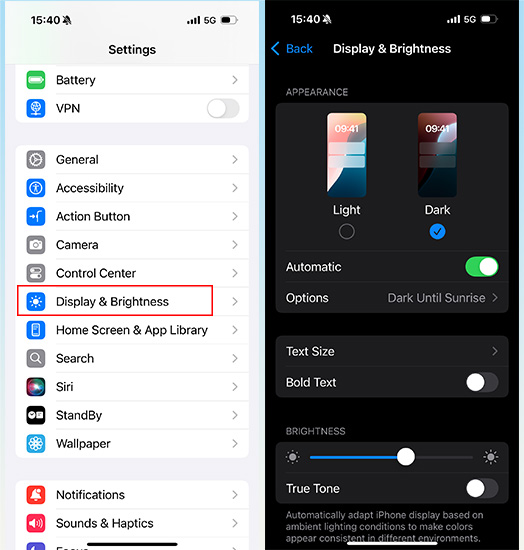
Dark Mode can make your iPhone appear with black or dark backgrounds across many apps and the system interface. If your interface looks black everywhere, Dark Mode may be enabled. You can follow the quick steps to disable Dark Mode.
- Step 1. Open Settings app on your iPhone.
- Step 2. Tap Display & Brightness.
- Step 3. Under Appearance, select Light. This will change the overall system theme to light and should remove any black backgrounds in the system interface.

Fix 2. Change Your Wallpaper
If the wallpaper disappeared, setting a new one can fix the issue. Setting your wallpaper directly from the Wallpaper settings helps ensure it displays correctly without encountering a black background. This straightforward step often resolves minor display issues.
- Step 1. Tap Settings, choose Wallpaper from the menu, then tap Add New Wallpaper.
- Step 2. Pick from options like "Photos", "Live Photo" etc. Then select your desired photo.
- Step 3. You can add widgets or pinch to crop if needed.
- Step 4. Tap Add and decide whether it applies to your lock screen, home screen, or both.

 View Also: How to Get 4K Labubu Wallpapers for iPhone?
Fix 3. Check App-Specific Settings
If the black background only appears in certain apps, check the individual app settings for a dark mode or theme option. Many apps (e.g., Instagram, YouTube) offer a dark/light mode that you can toggle separately from your system settings.
For most apps, go into the app's settings and look for the theme or appearance options to switch it to light.
Fix 4. Turn Off Low Power Mode
Disabling Low Power Mode can prevent excessive screen dimming, which might inadvertently cause your background to appear blacker than intended.
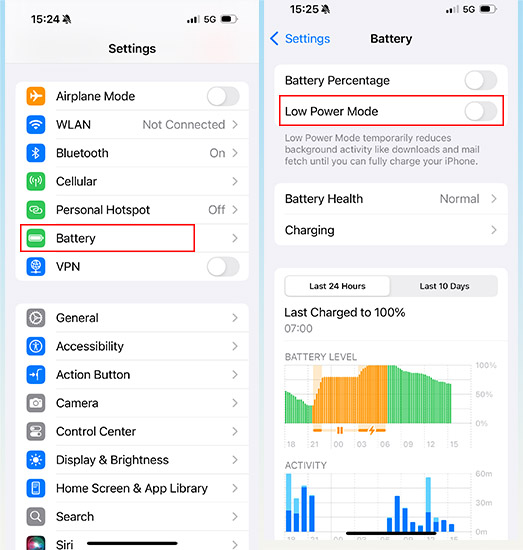
- Step 1. Open Settings, scroll down and select Battery.
- Step 2. Find the Low Power Mode option, and toggle it off by tapping on the switch next to it. The switch will turn from green to white.
Fix 5. Disable Dim Lock Screen in Focus Settings
If your wallpaper changes automatically, a Focus mode might be active. Ensure Focus settings are configured correctly to avoid unintended changes to your lock screen wallpaper, which could lead to the iPhone lock screen black.
- Step 1. Tap on Settings, scroll down and select Focus from the list.
- Step 2. Choose the specific Focus mode where you want to adjust the settings.
- Step 3. Tap on Options, then ensure the Dim Lock Screen is disabled.

Fix 6. Adjust the Settings of Photos
If you select "Optimize iPhone Storage", full-resolution photos are automatically replaced with smaller versions suitable for your device's storage capacity. Sometimes, the black wallpaper issue occurs due to this reason. If you have enough storage space, we suggest the following steps:
- Step 1. Go to Settings, and scroll down to find Photos.
- Step 2. Tap on Download and Keep Originals.

Fix 7. Restart Your iPhone
Restarting your iPhone can resolve various minor issues by refreshing its software. It's an effective step in troubleshooting display-related issues.
- Step 1. Press and hold the Side button and either Volume button until the "slide to power off" slider appears.
- Step 2. Drag the slider from left to right to power off your iPhone.
- Step 3. Wait a few seconds until the screen goes completely black.
- Step 4. Press and hold the Side button again until the Apple logo appears.

 Pro Tip:
The steps above apply to iPhone X, 11, 12, 13, or later. For other older iPhone models, please go to Apple Support for more details.
Fix 8. Update iOS to The Latest Version
Updating iOS on your iPhone ensures you have the latest features, bug fixes, and security patches, which may address issues like iPhone background black. Remember to ensure your iPhone is connected to a stable Wi-Fi network.
- Step 1. Tap on the Settings app, then scroll down and select General.
- Step 2. Tap on Software Update. Your iPhone will check for available updates.
- Step 3. If an update is available, tap Update Now.

Fix 9. Fix iPhone Wallpaper Turns Black with One Click
If your iPhone wallpaper keeps going black, there may be potential issues with your iOS system. In this case, TunesKit iOS System Recovery, a more advanced iOS system repair tool can help you tackle this problem efficiently.
This powerful software can fix more than 150 iOS system issues, including screen-display errors like the iPhone green screen. The whole process only takes a few clicks, so you don't have to worry about technical difficulties.
Why Choose TunesKit iOS System Recovery?
Fix iPhone background black without data loss. The software is easy to use, and success rate is up to 99%. It can also repair 150+ iOS issues in a few clicks.
 600,000+ Downloads
Step 1. Connect your iPhone to your computer using a USB cable. Launch TunesKit iOS System Recovery after installing. To fix the iPhone black background issue, select iOS System Repair and click on the Start button.

Step 2. To resolve iOS issues without losing data, select the Standard Repair mode. If your connected iPhone isn't detected directly, the program will guide you to enter DFU or recovery mode manually.

Step 3. The tool will display related device information such as name, firmware version, and model. You can download an available firmware package by clicking the Download button.

Step 4. Once you click the Repair button, the repair process will initiate. Your iPhone will be restored to normal status. After the device restarts, verify if the background displays correctly.

Fix 10. Reset All Settings
If other methods fail, resetting all settings on your iPhone can revert system configurations that may be causing the black background issue, without affecting your data.
- Step 1. Open the Settings app, tap General and scroll to Transfer or Reset iPhone. Tap the Reset option.
- Step 2. Choose Reset All Settings, enter your passcode if prompted and confirm.

How to Make Your iPhone Background Black (Intentionally)
Many iPhone users intentionally choose a black background for aesthetic and practical reasons. A dark interface can create a cleaner visual experience, reduce glare in low-light environments, and may even help conserve battery life on devices with OLED displays.
Below are several effective ways to intentionally set your iPhone background to black.
1. Enable Dark Mode
The easiest way to make most of your iPhone interface dark is to enable Dark Mode. This feature switches the system UI from light colors to darker tones, including menus, widgets, and many apps.
- 1. Open Settings app on your iPhone > Tap Display & Brightness.
- 2. Select Dark. Once enabled, the interface background across many system apps will appear darker or black.
2. Set a Pure Black Wallpaper
Even with Dark Mode enabled, your wallpaper will remain whatever image you previously selected. To create a completely black background, you can set a solid black wallpaper.
- 1. Open Settings > Tap Wallpaper > Tap Add New Wallpaper.
- 2. Select a black image from Photos or download one > Tap Add and then finish the setting. A pure black wallpaper creates a seamless dark appearance across both the lock screen and home screen.
3. Customize Your Lock Screen Theme
Since recent iOS versions allow extensive lock screen customization, you can also design a dark-themed lock screen.
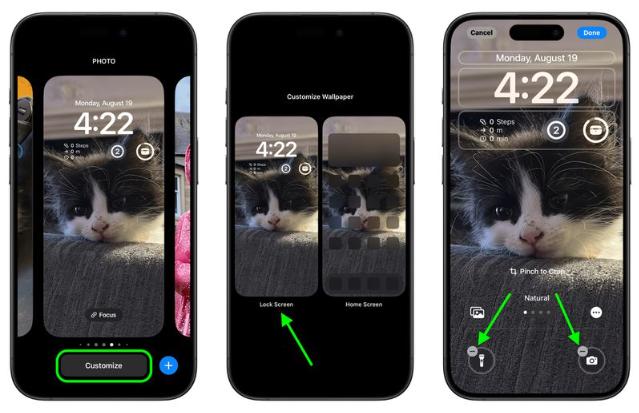
- 1. Press and hold your lock screen > Tap Customize.
- 2. Adjust the wallpaper color or photo > Select darker fonts and widgets.
FAQs About iPhone Background Black
-
1. How to change background/wallpaper on iPhone?
There are two ways to change the wallpaper on your iPhone, one is from the Wallpaper Settings as we mentioned above, and another is directly from the Photos app:
Step 1. Launch the Photos app, then choose the photo you want to set as your wallpaper.
Step 2. Tap the "share" icon, scroll down and choose Use as Wallpaper.
Step 3. Zoom in or out if needed, then tap Add.
Step 4. Choose Set as Wallpaper Pair or Customize Home Screen according to your needs.

-
2. How to delete wallpaper on iPhone?
Deleting a wallpaper on your iPhone is straightforward. Here's how you can do it most easily:
Step 1. On your lock screen, Long press the middle of the screen with your finger.
Step 2. You will see all the wallpaper you have set before, swipe to find the one you want to delete.
Step 3. Swipe up and then you will see a red trash can icon, tap on it and the wallpaper is deleted successfully.

-
3. Why is my lock screen wallpaper blurry iPhone?
If your lock screen wallpaper on iPhone appears blurry, it's likely due to these two factors:
1. Low-Resolution Image: Using a low-resolution image can cause wallpaper to appear blurry when it is stretched to fit the screen.
2. Zooming or Cropping: Zooming in or cropping the image excessively can reduce wallpaper's quality and make it look blurry.
To fix this issue, choose a higher-resolution image and avoid zooming or cropping it too much.
-
4. Why does my iPhone wallpaper keep changing?
If your iPhone wallpaper keeps changing unexpectedly, it could be due to dynamic wallpaper settings, third-party apps with wallpaper-changing capabilities, or occasional iOS glitches. Adjusting these settings or disabling dynamic wallpapers can help maintain your preferred wallpaper choice.
Conclusion
If your iPhone background is black, the most common causes are Dark Mode, wallpaper glitches, or temporary iOS bugs. Following the fixes above should restore your normal wallpaper in just a few minutes. If you'd like to use an one-stop solution to get rid of the black background issue, TunesKit iOS System Recovery is highly recommended here. It can help you fix it in a few clicks without causing any data loss.


