


iPhone Messages Black Screen? Here's How to Fix It
If you open the Messages app on your iPhone to text a friend and only see a black screen, it can be incredibly frustrating. Many iOS users encounter the iPhone messages black screen bug, especially after recent software updates or when device storage is running low.
Don't panic! Your text messages are almost certainly safe. In this guide, you'll learn why the iPhone Messages app shows a black screen, and 10 proven solutions to fix it quickly.
- Why Is My Message Screen Black on My iPhone?
- 10 Ways to Fix iPhone Messages Black Screen
- 1. Force Close the Messages App
- 2. Force Restart Your iPhone
- 3. Check Your Internet Connection
- 4. Toggle iMessage Sync Settings
- 5. Free Up iPhone Storage Space
- 6. Switch Between Light and Dark Mode
- 7. Delete Problematic Message Threads
- 8. Reset All iPhone Settings
- 9. Update Your iOS Software
- 10. Repair iOS System with TunesKit iOS System Recovery [One-Stop Solution]
- FAQs Related to iPhone Messages Black Screen
- Final Thoughts
Why Is My Message Screen Black on My iPhone?
When the iPhone Messages app displays a black screen, it typically means the app cannot properly load message data or render its interface. You may notice symptoms such as:
- The Messages app opens but shows only a blank or black screen
- Conversations fail to load
- The app freezes when you tap a message thread
- Messages appear blank even though notifications arrive
- The screen becomes black after an iOS update
In most situations, this is related to software or system processes, not hardware damage. Here are three primary culprits:
- 01 Temporary iOS Glitches: Minor software bugs or memory leaks, especially right after a recent iOS update, can cause the app's visual interface to crash and go dark.
- 02 Insufficient Storage Space: Your iPhone needs free memory to load message caches, photos, and GIFs. If your storage is entirely full, the app simply cannot render the screen.
- 03 iCloud Syncing Errors: If your device is indexing thousands of texts after a recent backup or update, the app can get stuck in a loading loop that results in a blank display.
Try TunesKit iOS System Recovery
One-stop solution to fix iPhone messages black screen issue without causing data loss. Provides Standard and Deep Repair, and 100% working. Easy to use, and no techical skills required.
 600,000+ Downloads
10 Ways to Fix iPhone Messages Black Screen
If you're experiencing the iPhone Messages black screen issue, try the troubleshooting steps below. Start with the simplest fixes before moving to more advanced solutions.
1. Force Close the Messages App
When an application's background processes freeze, the visual interface can fail to load properly. Force closing the Messages app clears it from your iPhone's active memory, allowing it to start fresh upon relaunch. This is the fastest way to resolve a temporary UI crash without altering any device settings.
- Step 1. Swipe up from the very bottom edge of your iPhone screen and pause in the middle to open the app switcher.
- Step 2. Swipe left or right to locate the Messages app preview card.
- Step 3. Swipe up swiftly on the Messages card to forcefully close the application.

2. Force Restart Your iPhone
If force closing the app doesn't work, the bug might be rooted deeper in the iOS system memory. A hard reboot forces the device to shut down completely and clears the temporary cache, which often resolves stubborn display glitches.
- Step 1. Press and quickly release the Volume Up button on the side of your device.
- Step 2. Immediately press and quickly release the Volume Down button.
- Step 3. Press and hold the Side power button until the screen goes completely black and the Apple logo appears.

3. Check Your Internet Connection
Unlike standard SMS, iMessage relies on an active internet connection to sync data and load media. If your signal drops unexpectedly, the app can freeze mid-load and result in a black screen on iPhone messages. Re-establishing a fresh connection to your carrier or Wi-Fi network is often the quickest way to get your conversations to render properly.
- Step 1. Swipe down from the top-right corner of your screen to open the Control Center, then tap the Airplane Mode icon to turn it on.
- Step 2. Wait approximately 15 seconds, then tap the icon again to turn Airplane Mode off and let your device reconnect.
- Step 3. If the network is still struggling, open your Settings app and try switching completely from Wi-Fi to cellular data, or vice versa.
- Step 4. Once your connection stabilizes, reopen the Messages app to see if the display works normally.

4. Toggle iMessage Sync Settings
Sometimes the application gets stuck in an infinite loading loop while trying to securely ping Apple's servers. By temporarily disabling and re-enabling iMessage, you force the device to re-establish a fresh connection to your iCloud account. This can effectively kickstart the app and restore visibility to your message threads.
- Step 1. Navigate to the main Settings app and scroll down to tap on Messages.
- Step 2. Tap the green toggle next to iMessage to turn it off.
- Step 3. Wait approximately 30 seconds, then tap the toggle again to turn iMessage back on and allow it to re-activate.

5. Free Up iPhone Storage Space
Smartphones require a certain amount of free space to load application cache files and process incoming data. If your iPhone storage is completely full, the Messages app cannot load its graphical assets, which frequently results in a black screen or blank message bubbles. Keeping at least 5GB to 10GB of free space is highly recommended for optimal performance.
- Step 1. Open the Settings app on your iPhone and tap on General.
- Step 2. Select iPhone Storage and wait a moment for the device to calculate your usage.
- Step 3. Review your available space and delete large video files, unused apps, or old message attachments if your storage is nearly full.

6. Switch Between Light and Dark Mode
If the iPhone text message black screen only happens under certain conditions, it could be a simple rendering bug tied to iOS Dark Mode. Toggling your display appearance forces the operating system to redraw the graphical user interface. This is particularly helpful if your screen goes dark only when opening the keyboard or the in-app camera.
- Step 1. Open your iPhone's Control Center by swiping down from the top-right corner of the screen.
- Step 2. Long-press on the brightness slider to reveal additional display options.
- Step 3. Tap the Dark Mode icon to switch your current appearance state, then check the Messages app.

7. Delete Problematic Message Threads
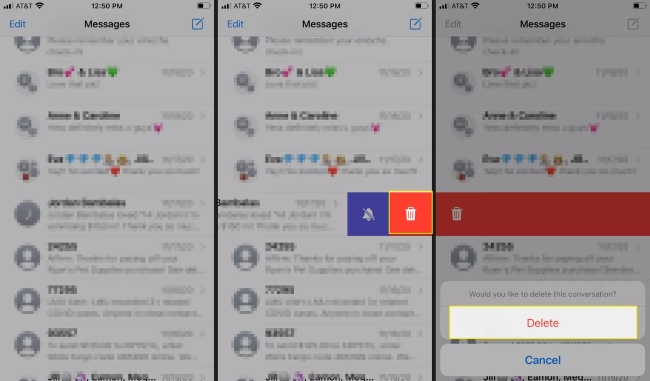
Sometimes, the text messages black screen is isolated to a single, corrupted conversation. If your screen only goes dark when opening a specific thread, a massive media attachment or a glitched indexing error within that chat is likely crashing the application. Deleting the problematic thread removes the damaged data and allows the app to function normally again.
- Step 1. Open Messages app and locate the problematic conversation from your main chat list without tapping to open it.
- Step 2. Swipe left across the corrupted message thread to reveal the hidden menu options.
- Step 3. Tap the red Delete icon (often represented by a trash can) to permanently remove the damaged message data.
8. Reset All iPhone Settings
If you are still facing a black screen, a conflicting background setting or corrupted network configuration might be to blame. Resetting all settings will revert your Wi-Fi networks, Bluetooth connections, and display preferences back to their factory defaults. Crucially, this process will not delete your personal data, photos, or text messages.
- Step 1. Go to Settings, tap General, and scroll down to select Transfer or Reset iPhone.
- Step 2. Tap the Reset button at the bottom of the screen.
- Step 3. Choose Reset All Settings from the pop-up menu and enter your device passcode to confirm the action.

9. Update Your iOS Software
Apple frequently releases software patches to address known bugs, and an unresponsive Messages app has been heavily documented in early builds of recent iOS versions. Running outdated software leaves your device vulnerable to these unpatched glitches. Ensuring you are on the latest stable public release is crucial for app stability.
- Step 1. Go to your iPhone Settings, tap on General, and select Software Update.
- Step 2. Allow the device to check Apple's servers for an available update.
- Step 3. If an update is present, tap Download and Install, then follow the on-screen prompts.

10. Repair iOS System with TunesKit iOS System Recovery
When all basic and intermediate troubleshooting fails, the core iOS firmware might be deeply corrupted. In these severe cases, utilizing a dedicated system repair tool is often the safest and most efficient path forward.
TunesKit iOS System Recovery is highly effective for this specific scenario because it is designed to fix a wide array of iOS issues, including the black screen bug, without causing data loss. Its Standard Repair mode patches the operating system while keeping your text messages, photos, and apps completely intact.
- Step 1. Connect your iPhone to your computer using a certified USB cable and launch TunesKit iOS System Recovery.
- Step 2. Select the "iOS System Repair" module and choose "Standard Repair" to ensure your device data is preserved.
- Step 3. Follow the on-screen prompts to download the appropriate firmware package and initiate the repair process.

FAQs Related to iPhone Messages Black Screen
-
Will I lose my text messages if my screen goes black?
No, your messages are almost certainly safe. The black screen is typically just a display glitch. Your actual data remains preserved in your iPhone's storage or safely synced to iCloud.
-
Is my iPhone camera broken if the viewfinder is black in Messages?
No, this is likely a software bug related to camera permissions within the app. You can verify this by opening your main iPhone Camera app. If the camera works there, your hardware is perfectly fine.
-
Why does my Messages app go black only when typing?
This usually happens when the iOS keyboard memory cache runs low on active RAM, causing the interface to fail to load. Quickly toggling between Light and Dark mode or resetting your keyboard dictionary usually clears this glitch.
-
How do I know if this is a hardware failure instead of a software bug?
Software glitches are localized strictly to the Messages app, meaning you can still open other apps and use your phone normally. If your entire device is completely black, totally unresponsive, and won't turn on when plugged in, it may be a hardware failure requiring Apple Support.
Final Thoughts
The iPhone Messages black screen issue can make it difficult to access conversations or send texts, but in most cases, it's caused by temporary software problems rather than hardware damage.
By trying the troubleshooting steps in this guide—such as restarting your device, updating iOS, clearing storage, and refreshing iMessage—you can usually resolve the issue quickly. If the problem persists, using TunesKit iOS System Recovery may be necessary. It can help you solve 150+ iOS-related issues instantly without causing any data loss. With it, the Messages app should continue working smoothly on your iPhone.


