


iPad Stuck on Apple Logo? 6 Solutions!
If your iPad is stuck on the Apple logo and won't finish starting up, the problem may appear after an iPadOS update, restore, software crash, or other system error. In some cases, the Apple logo stays on the screen for a long time or the iPad keeps restarting without reaching the Home Screen. Fortunately, this issue is usually fixable. Below, we'll explain why your iPad gets stuck on the Apple logo and walk you through 6 practical solutions.

Why Is My iPad Stuck on the Apple Logo
An iPad stuck on the Apple logo usually means the device cannot complete the startup process. This may happen because of a temporary software glitch, an interrupted iPadOS update, insufficient storage, corrupted system files, or, in less common cases, a hardware problem.
Common causes include:
- 01 Failed or interrupted iPadOS update: Losing power, disconnecting from a computer, or encountering an update error can prevent the iPad from booting normally.
- 02 Software or system glitches: Corrupted iPadOS files or temporary system errors may leave the device frozen on the Apple logo.
- 03 Not enough storage space: Extremely low storage can interfere with system updates and normal startup.
- 04 Problems after restoring or transferring data: An unsuccessful restore, backup recovery, or data transfer may cause the iPad to remain on the startup screen.
- 05 Jailbreak or incompatible software: System modifications can sometimes damage important startup files.
- 06 Hardware issues: A damaged battery, logic board, storage component, or other internal hardware can also cause the problem, especially if the iPad was recently dropped or exposed to liquid.
 Further Reading: [Top 8] iPhone Stuck on Apple Logo After iOS 27 Update
How to Fix iPad Stuck on Apple Logo
If your iPad is stuck on the Apple logo, start with the simplest troubleshooting method before moving on to more advanced repairs. In most cases, the problem is software-related and can be fixed without replacing the device.
 Before you begin
If you see an Apple logo with a progress bar after an iPadOS update or restore, give the process some time to finish. If the progress bar has not moved for more than an hour, you can move on to the methods below.
Solution 1: Force Restart Your iPad
A force restart is the quickest thing to try when your iPad freezes on the Apple logo. It refreshes the device without deleting your apps, photos, or other personal data. Apple also recommends restarting an unresponsive iPad before trying more advanced recovery options.
For an iPad without a Home button:
- Step 1. Press and quickly release the volume button closest to the Top button.
- Step 2. Press and quickly release the other volume button.
- Step 3. Press and hold the Top button.
- Step 4. Keep holding it until the iPad restarts and the Apple logo appears.

For an iPad with a Home button:
Press and hold the Home button and Top button at the same time. Keep holding them until the Apple logo appears.

If the iPad still freezes on the Apple logo after restarting, continue with the next solution.
Solution 2: Fix iPad Stuck on Apple Logo Without Data Loss Using TunesKit
Employing iOS system recovery tools such as TunesKit iOS System Recovery is the effective way, which is also the best way to fix iPad stuck on the Apple logo issue. Why? Its Standard Repair mode is designed to repair common iOS and iPadOS system problems while keeping personal data intact. It can also handle problems such as boot loops, recovery mode loops, black screens, and other system-related failures.
Fix iPad Stuck on Apple Logo
Repair iPad system issues safely with TunesKit iOS System Recovery—get your iPad past the Apple logo while keeping your data intact with Standard Repair.
 600,000+ Downloads
With highest success rate and fastest speed, TunesKit iOS System Recovery can resolve Apple logo problem on iPad and doesn't take your much time. Here we go.
Step 1. Connect Your iPad
Install and launch TunesKit iOS System Recovery on your Windows PC or Mac. Connect the affected iPad to the computer using a USB cable. Choose iOS System Repair, click Start, and wait for TunesKit to recognize your device.

Step 2. Choose Standard Repair
Select Standard Repair. This mode is the better first choice when you want to repair the iPad system without erasing your existing data. If necessary, follow the on-screen instructions to place the iPad into Recovery Mode or DFU Mode.

Step 3. Download the Firmware Package
Check the detected device information carefully. Make sure the iPad model and firmware version are correct, and then click Download. TunesKit will download and verify the appropriate firmware package for your device.

Step 4. Repair the iPad
After the firmware is ready, click Start Standard Repair. Keep your iPad connected to the computer during the repair process. When the repair is complete, the iPad should restart automatically.

Solution 3: Update Your iPad in Recovery Mode
If a force restart does not work, try putting the iPad into Recovery Mode and reinstalling iPadOS. This is particularly useful when damaged or incomplete system files are preventing the iPad from starting normally. You will need a Mac or Windows PC. On a Mac, use Finder. On Windows, you can use the Apple Devices app or iTunes where applicable.
- Step 1. Connect your iPad to the computer with a USB cable.
- Step 2. Put the iPad into Recovery Mode using TunesKit iOS System Recovery with 1-click.
- Step 3. When your computer gives you the option to Update or Restore, choose Update first.
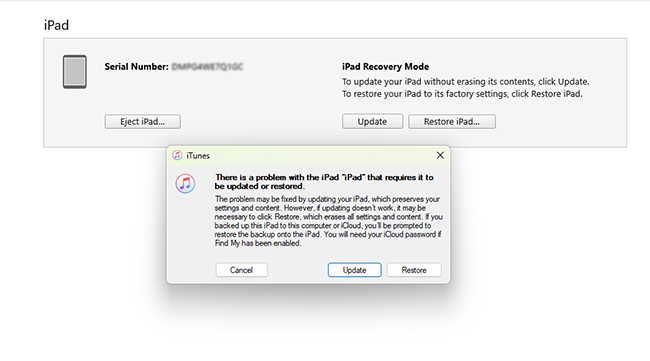
The computer will attempt to reinstall iPadOS without erasing your personal data. If the update succeeds, your iPad should restart normally.
Solution 4: Restore Your iPad in Recovery Mode
If choosing Update in Recovery Mode fails, you can return to Recovery Mode and choose Restore instead. Be aware that Restore erases the iPad's information and settings and installs the latest compatible version of iPadOS. You should therefore use this option only after trying the non-data-loss methods above.
- Step 1. Connect the iPad to your computer.
- Step 2. Enter iPad Recovery Mode. Open Finder, Apple Devices, or iTunes and locate your iPad.
- Step 3. Choose Restore when prompted. Wait for the restore process to finish, and then set up the iPad again.
If you previously created an iCloud or computer backup, you can restore your data from that backup afterward.
Solution 5: Restore the iPad in DFU Mode
Restoring an iPad in DFU (Device Firmware Update) Mode is a deeper recovery option you can try when Recovery Mode fails to fix an iPad stuck on the Apple logo. A DFU restore erases all data and settings on the iPad, so use it only after trying non-data-loss methods first. The steps differ depending on whether your iPad has a Home button.
For iPad Without a Home Button
- Step 1. Simply connect your iPad to a Mac or Windows PC with a USB cable. Open Finder on Mac or Apple Devices/iTunes on Windows.
- Step 2. Quickly press and release the Volume Up button, and then quickly press and release the Volume Down button.
- Step 3. Press and hold the Top button until the screen turns black.
- Step 4. Once the screen is black, keep holding the Top button and press and hold the Volume Down button for 5 seconds.
- Step 5. Release the Top button, but continue holding the Volume Down button for about 10 seconds.

If the iPad screen remains completely black and your computer detects an iPad that needs to be restored, the device has successfully entered DFU Mode. If you see the Apple logo or Recovery Mode screen, repeat the steps.
For iPad With a Home Button
- Step 1. Connect the iPad to your computer and open Finder, Apple Devices, or iTunes.
- Step 2. Press and hold the Top/Power button and Home button together for about 8 seconds.
- Step 3. Release the Top/Power button while continuing to hold the Home button.
- Step 4. Keep holding the Home button until your computer detects the iPad. The iPad screen should remain black.

Restore the iPad
Once DFU Mode is detected, select your iPad in Finder, Apple Devices, or iTunes and choose Restore iPad. Follow the on-screen instructions to download and reinstall iPadOS.
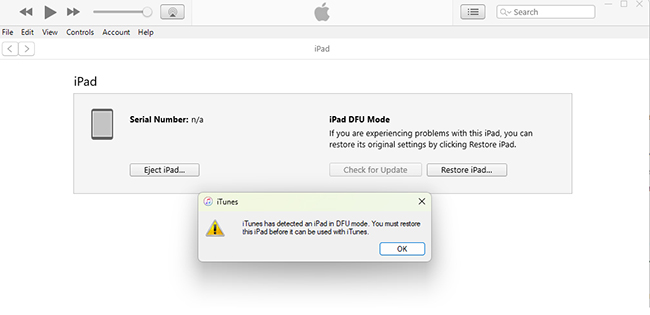
Keep the iPad connected until the restore is complete. Afterward, you can set it up as a new device or restore your data from an available backup.
Tip
A black screen is normal in DFU Mode. If you see a cable/computer icon on the iPad, you have entered Recovery Mode rather than DFU Mode.
Further Reading: Full Guide - How to Put iPad in DFU Mode
Solution 6: Contact Apple Support
If your iPad remains stuck on the Apple logo after a force restart, system update, software repair, and restore, the problem may not be caused by iPadOS alone.
Hardware problems involving the battery, internal storage, logic board, or other components can prevent an iPad from completing the startup process.
In this case, contact Apple Support or visit an Apple Store or Apple Authorized Service Provider for professional diagnostics and repair.
This is especially recommended if the problem started after the iPad was dropped, exposed to liquid, overheated, or experienced other physical damage.

Video Tutorial: How to Fix iPad Stuck on Apple Logo?
Conclusion
In conclusion, when your iPad meets with Apple logo screen issue, above 6 fixes can help you get out of this iPhone stuck on Apple logo trouble effectively. But if you don't have much time and hope the problem can be solved as soon as possible, then you are highly suggested to send it to the Apple store or try using TunesKit iOS System Recovery.



