


How to Fix "Software Update Failed" on iPhone (iOS 27)
If your iPhone displays "Software Update Failed," reconnect to a reliable Wi-Fi network, check available storage, and restart the device. If the alert returns, delete and redownload the update or try updating with Finder or Apple Devices.
Seeing "Software Update Failed" while trying to install iOS 27 can be frustrating, especially when your iPhone doesn't explain why the update stopped. The message simply means the update couldn't finish successfully, and in many cases, the problem can be resolved without restoring the device.
This guide walks you through the fixes in order, from basic checks to computer-based updating and iOS system repair. If you're dealing with a different update issue, see our iOS 27 update guide for more targeted solutions.

- What Does "Software Update Failed" Mean?
- Why Does iPhone Software Update Fail?
-
How to Fix iPhone Software Update Failed
- Solution 1: Check Your Internet Connection
- Solution 2: Free Up iPhone Storage
- Solution 3: Restart Your iPhone
- Solution 4: Delete and Redownload the Update
- Solution 5: Check for Apple Service Disruptions
- Solution 6: Reset Network Settings
- Solution 7: Update via Finder or Apple Devices
- Solution 8: Use TunesKit iOS System Recovery for Persistent iOS Issues HOT
- Solution 9: Use Recovery Mode as a Last Resort
- FAQs About iPhone Software Update Failed
- Conclusion
What Does "Software Update Failed" Mean?
Software Update Failed means the iOS update process ended before it could complete successfully. You may see a failure alert after your iPhone tries to download, prepare, verify, or install the update.
This is different from Unable to Install Update, which specifically means the installation itself could not finish.
Related iOS Update Errors
| Status / Error | What It Means | Related Guide |
|---|---|---|
| Unable to Check for Update | Your iPhone cannot properly check for an available update | Fix Unable to Check for Update |
| Unable to Install Update | The installation itself could not complete | Fix Unable to Install Update |
| Software Update Failed | The update process ended with a failure alert | You are here |
| Install Now Stuck | The update is ready, but installation does not begin | Fix iPhone Stuck on Install Now |
| Update Bar Stuck | Installation has started, but progress is not moving | Fix iPhone Stuck on Update Bar |
Why Does iPhone Software Update Fail?
An iPhone may show Software Update Failed because of network problems, insufficient storage, an incomplete update file, an interrupted update, or a temporary iOS glitch.
- Network Problems: A weak or unstable internet connection may interrupt communication during the update process.
- Insufficient Storage: Your iPhone needs enough free space to download, prepare, and install the update. If storage is almost full, the process may fail.
- Incomplete or Corrupted Update File: An interrupted download may leave an update package that cannot complete normally.
- Update Interruption: A loss of power, unexpected restart, or interrupted connection may stop the update before it finishes.
- Temporary iOS Glitch: A temporary system issue can occasionally prevent the update from progressing correctly.
How to Fix iPhone Software Update Failed
Try the following solutions to fix the Software Update Failed error and get the iOS 27 update working again.
Solution 1: Check Your Internet Connection
A stable connection helps your iPhone communicate reliably with Apple's update services. If the connection drops during the update, the process may fail.
- Step 1. Go to Settings > Wi-Fi and reconnect to your network.

- Step 2. If possible, switch to another reliable Wi-Fi network.
- Step 3. Temporarily disable any VPN or proxy.
- Step 4. Return to Settings > General > Software Update and try again.
If you are using supported 5G cellular data, update availability may depend on your iPhone, carrier, region, and Data Mode settings.
Solution 2: Free Up iPhone Storage
Not having enough free space can stop an iOS update from completing. The amount required varies by device and update size, so make sure your iPhone has enough available storage before retrying.
- Step 1. Go to Settings > General > iPhone Storage.
- Step 2. Check which apps, photos, videos, or files are using the most space.
- Step 3. Delete or offload unnecessary content.

- Step 4. Return to Settings > General > Software Update and try again.
 Note
Note
In our test on an iPhone 11 running iOS 27.0.1, we needed around 15 GB of free space to complete the installation. This is a test result, not a universal minimum, as the storage required can vary by device and update.
Solution 3: Restart Your iPhone
Restarting your iPhone can clear temporary system activity that may be interfering with the update. It's a quick step to try before downloading the update again.
- Step 1. Press and hold the Side button and either the Volume Up or Down button until you see the power-off slider.
- Step 2. Then drag the slider, and wait 30 seconds for your iPhone to turn off.
- Step 3. Finally, press and hold the Side button until the Apple logo appears to turn it back on.
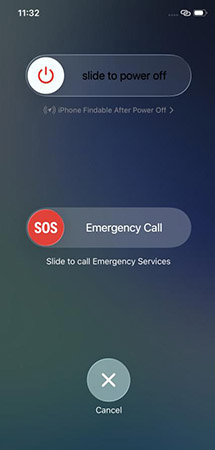
After the iPhone restarts, return to Settings > General > Software Update and retry the update.
Solution 4: Delete and Redownload the Update
If the error returns after a restart, the downloaded update file itself may be incomplete. Delete the current package and let your iPhone download a fresh copy before trying again.
- Step 1. Open the Settings app on your iPhone. Then tap General > iPhone Storage.
- Step 2. Scroll down to find and tap the iOS update file if it appears in the list.
- Step 3. Tap Delete Update and follow the on-screen prompt to remove this iOS update file.
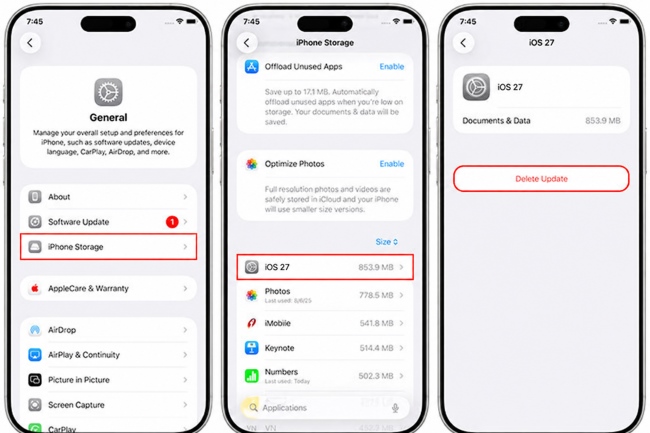
- Step 4. Return to Settings > General > Software Update to download iOS 27 again and retry the update.
Solution 5: Check for Apple Service Disruptions
Temporary problems with Apple's update services may prevent your iPhone from checking for or downloading an update. Before changing more settings, check Apple's System Status page for any reported service disruptions.
- Step 1. Open Apple's System Status page.
- Step 2. Look for a reported issue affecting the relevant services.
- Step 3. If a disruption is reported, wait for service to recover before trying again.

Solution 6: Reset Network Settings
If your iPhone still fails to update after you've checked your Wi-Fi connection and tried another network, resetting network settings may help resolve persistent connection issues. Keep in mind that this will remove saved Wi-Fi passwords and reset cellular, VPN, and APN settings, so you'll need to reconnect to your Wi-Fi network afterward.
- Step 1. Open Settings on your iPhone and tap General.
- Step 2. Tap Transfer or Reset iPhone > Reset.
- Step 3. Select Reset Network Settings and enter your passcode if prompted.
- Step 4. Once your iPhone restarts, reconnect to Wi-Fi and try updating iOS again.

Solution 7: Update via Finder or Apple Devices
If the update keeps failing on your iPhone, try completing it on a computer with Finder or Apple Devices. This can help when the on-device update process does not work properly.
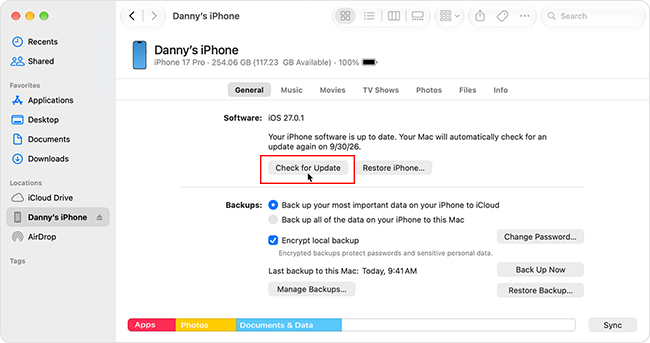
- Step 1. Use a USB cable to connect your iPhone to the computer and wait for it to be recognized.
- Step 2. Open Finder on Mac or Apple Devices on Windows. If you're using an older system, open iTunes instead.
- Step 3. Choose your iPhone from the sidebar or device list, then go to General or Summary.
- Step 4. Select Check for Update, then click Download and Update to install the latest iOS version.
Solution 8: Use TunesKit iOS System Recovery for Persistent iOS Issues
If the standard update methods continue to fail, the issue may involve the iOS system rather than the downloaded update alone.
TunesKit iOS System Recovery offers a Standard Repair mode designed to address common iOS system issues without erasing personal data. It may be worth considering when Apple's built-in update options have not resolved the problem. Back up your iPhone whenever possible before attempting system repair.
Fix Software Update Failed with TunesKit
Repair iOS update errors and get the update process working again with Standard Repair.
 600,000+ Downloads
- Step 1. Open TunesKit iOS System Recovery, connect your iPhone, and enter iOS System Repair. Choose Standard Repair to continue.

- Step 2. Check the device details shown on the screen, then download the recommended firmware package for your iPhone.
- Step 3. When the firmware is ready, start the repair and keep the iPhone connected until the process is complete. Afterward, return to Software Update and try installing iOS 27 again.
Solution 9: Use Recovery Mode as a Last Resort
If your iPhone still cannot update through Finder or Apple Devices, or it becomes stuck and cannot start normally, Recovery Mode can be used as a final troubleshooting option. Restoring erases the iPhone, so use Restore only when updating fails and you have a backup.
- Step 1. Connect the iPhone to a Mac or Windows computer.
- Step 2. Put the iPhone into Recovery Mode manually.
- Step 3. When Finder or Apple Devices gives you the choice, try Update first.
- Step 4. Click Restore if updating does not work and you have a backup.

FAQs About iPhone Software Update Failed
-
Does Software Update Failed mean my iPhone is damaged?
No. In most cases, the "Software Update Failed" message does not mean your iPhone is damaged. It usually means the update could not finish because of a temporary network, storage, or software issue.
-
Why does Software Update Failed keep appearing?
If the error keeps returning, the underlying problem may still be unresolved, such as an unstable connection, low storage, or an incomplete update file. Fix the likely cause first, then try the update again.
-
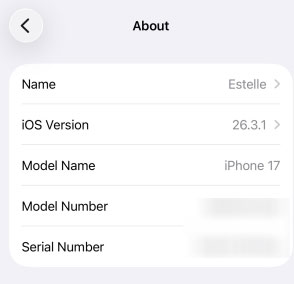
How can I tell if the iOS update failed to install?
Go to Settings > General > About and check your iOS version. If your iPhone is still running the previous version, the update may not have completed. You can retry the update after troubleshooting the error.
-
Will a failed software update erase my data?
A failed update does not normally erase personal data. However, back up your iPhone before using advanced recovery or restore methods.
Conclusion
A failed iOS update doesn't always mean your iPhone has a serious problem. Most update failures are temporary, but repeated errors may point to an issue beyond the update file itself. If Apple's built-in options can't resolve it, TunesKit iOS System Recovery provides an alternative for addressing persistent iOS issues without immediately resorting to a full restore.
If you encounter a different update error or your iPhone gets stuck at another stage, explore our iOS update troubleshooting center for more targeted guidance.



