


10 Ways to Fix iPhone Volume Button Stuck
You press the volume up button, and... nothing. No click, no volume bar on the screen, just silence. Or worse, the volume slider is stuck on screen, moving up and down by itself like a ghost is controlling your phone.
A broken iPhone volume button is incredibly frustrating. But here is the good news: 90% of volume button issues are not permanent hardware failures. They are usually caused by "gunk" jamming the mechanism or a simple software glitch.
This guide will walk you through 10 proven fixes, starting with the ones that cost $0. Plus, we'll show you how to control your volume right now, even if the buttons are dead.

- Part 1: Common Causes of iPhone Volume Button Stuck Issues
- Part 2: Basic Fixes for iPhone Volume Button Not Working [4 Ways]
- Part 3: Advanced Ways to Solve Volume Button Stuck on iPhone [6 Ways]
- Part 4: How to Live Without Buttons (Emergency Workarounds)
- Part 5: FAQs Related to iPhone Volume Buttons
- Part 6: Conclusion
Part 1: Common Causes of iPhone Volume Button Stuck Issues
Wondering why are the volume buttons on my iPhone not working? Well, here are some common reasons. Knowing the cause helps you choose the right fix.
- Software glitches: iOS bugs or temporary system errors can disable button functionality.
- Settings misconfiguration: Features like "Change with Buttons" or Focus mode may interfere.
- Physical obstructions: A tight case or debris around the buttons can block movement.
- Hardware damage: Wear and tear, water exposure, or accidental drops can break the button mechanism.
Part 2: Basic Fixes for iPhone Volume Button Not Working
Before we get to the real fixes for the volume button stuck on iPhone, there are 4 simple things you could do to avoid the iPhone volume button is superficially stuck.
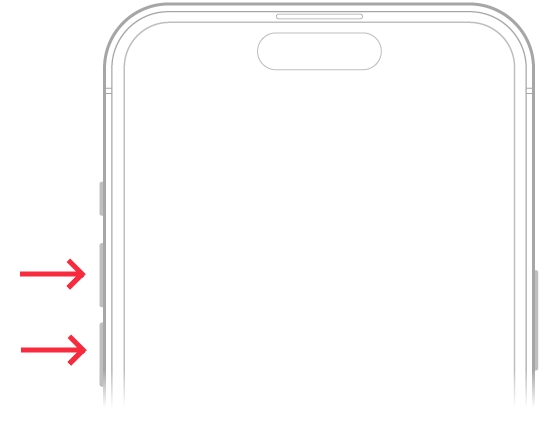
Method 1: Several Squeeze the Volume Button
First and foremost, once your iPhone Volume button turns stuck, the possible situation could be it stuck inside. In this way, what you can do is to easily and continually press the button for several times until it becomes functioning.
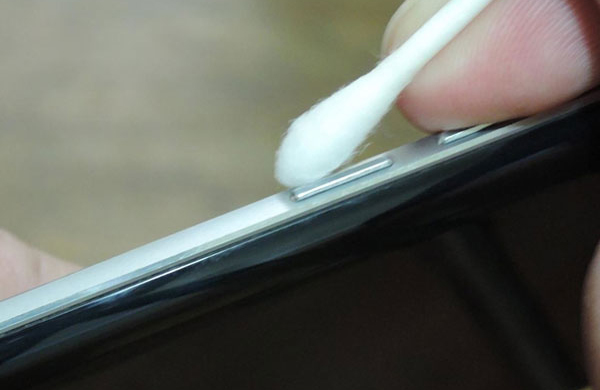
Method 2: Clean the Volume Button
Besides, to make sure the normal performance of your iPhone volume button for a long time, it's also necessary for you to timely remove the dirt and debris in the port by cleaning and rubbing it with a cotton dipped with few water.
Method 3: Check Charge Port and Headphone Jack
Similarly, checking the charge port and headphone jack of iPhone is significant, too. Because any wrong with them will lead to iPhone volume button stuck. So please clean your iPhone charging port and headphone jack apart from the volume button.

 See More:
 Method 4: Remove or Adjust Protective Case
A protective case that fits too tightly or is misaligned can press against your iPhone's volume buttons and stop them from working properly. Simply remove the case or adjust its position to see if the buttons respond again. This quick check often resolves the issue without further troubleshooting.

Part 3: Advanced Ways to Solve Volume Button Stuck on iPhone
If the above quick ways failed to fix iPhone volume button stuck, then you can start to try the following 6 more advanced solutions to get out of the trouble.
Method 5: Force Restart iPhone
As is widely know that force rebooting an iPhone can deal with numerous iPhone problems. It often clears temporary glitches. Likewise, you could force restart your device to resolve the volume button stuck on iPhone.
For iPhone X and later: Simultaneously press down the Side and the Volume buttons until the slider appears. Then drag on the slider to turn off the iPhone. Finally, hold the Side button to turn on it.
For iPhone SE (2nd)/8/7/6: Hold down the Side button until the slider appears and drag on the slider to power off your iPhone. Finally press the Side button to power it on.
For iPhone SE (1st)/5 and former: Press down the Top until the slider appears. Then pull on the slider to switch off the iPhone. Finally hold the Top button to switch it on again.

Method 6: Update iOS on iPhone
To avoid any software bugs causing your iPhone volume button stuck, you need to update your iPhone to the latest version. Make sure your iPhone has enough battery and is connected to a stable Wi-Fi network. Then go to Settings > General > Software Update. Finally, click Download and Install option to wait for the process completed.

Method 7: Fix iPhone Volume Button Stuck with TunesKit
When it comes to the fastest and the most workable solution to fix a stuck volume button on an iPhone, then it should be professional iPhone repair software like TunesKit iOS System Recovery. This is a powerful tool to fix 150+ different kinds of iOS issues including the iPhone volume button stuck without any data loss. Moreover, it is fully compatible with all iOS versions and almost all iOS devices.
Why Choose TunesKit iOS System Recovery?
Quickly resolve iPhone volume button not working issues without data loss. Easy to use with a simple interface. 100% working!
 600,000+ Downloads
Next, let's have a look at how TunesKit iOS System Repair troubleshoots the volume button stuck on your iPhone with only a few clicks.
Step 1Connect iPhone to computer
Open the program and use a USB cable to connect your device to your computer. Choose the iOS System Repair mode on the main interface. Click on the Start button, and then set the repair mode as Standard Mode and click the Next button. After that follow the prompts from the window.

Step 2Download firmware package
You need to confirm your iPhone info. Correct it manually if any information is wrong. Then press the Download button to get matched firmware package downloaded and verified.

Step 3Fix iPhone volume button stuck
When the downloading finishes, just press the Repair option to allow the software fix the stuck volume button on your iPhone. Keep your iPhone connected to the computer until the program completes fixing.

Method 8: Reset All Settings
If your iPhone's volume buttons still don't respond, a settings conflict may be the cause. Resetting all settings restores default preferences without erasing your data. It clears Wi‑Fi networks, Bluetooth pairings, and sound settings, giving your device a fresh start that often resolves button glitches.
To reset all settings on your iPhone, you can go to Settings > General > Transfer or Reset iPhone > Reset > Reset All Settings. This won't erase your data but will reset preferences.

Method 9: Restore iPhone through iTunes
You may also favor the application of iTunes to restore your iPhone to factory settings. You can understand from the implied meaning that this fix will delete all data and settings on your iPhone. Therefore, it is recommended that you have a backup before proceeding with the steps outlined here.
Step 1: Run the latest iTunes app on your computer and connect your iPhone to the computer.
Step 2: When your device is detected, click Summary tab.
Step 3: Choose Restore iPhone option, and wait for the process to end.

Method 10: Contact Apple Support
In the end, if it is the case of your iPhone volume button is broken or has other physical damage, then you might have to visit a repair store or directly head to a nearby Apple Center to ask for advice. In most situations, they may replace your broken volume button on your iPhone with a new one.

Part 4: How to Live Without Buttons (Emergency Workarounds)
If you can't fix the buttons right now, you can use these iOS features to control your volume effortlessly.
Option 1: Back Tap (The Hidden Button)
This is the best workaround. You can turn the back of your iPhone into a volume button. Here is how to configure it.
Step 1. Go to Settings > Accessibility > Touch > Back Tap.
Step 2. Select Double Tap and map it to Volume Up.
Step 3. Select Triple Tap and map it to Volume Down. Now, just tap the back of your phone to adjust the sound.

Option 2: AssistiveTouch (The Virtual Button)
This adds a floating button to your screen that acts as a physical replacement.
Step 1. Go to Settings > Accessibility > Touch > AssistiveTouch.
Step 2. Turn it ON. A white dot will appear on your screen.
Step 3. Tap Customize Top Level Menu.
Step 4. Replace two of the icons with Volume Up and Volume Down for instant access.

Option 3: Control Center
Alternatively, you can adjust sound through the Control Center. This built‑in feature gives you instant access to a volume slider, letting you raise or lower audio without touching the physical buttons.
Simply swipe down from the top‑right corner (on iPhone X and newer) or swipe up from the bottom (on older models), then drag the volume bar to your desired level. It's a fast, reliable way to manage sound while you troubleshoot the underlying issue.

Part 5: FAQs Related to iPhone Volume Buttons
-
1. Can I restart my iPhone if the volume buttons don't work?
Yes. You can simply say, "Hey Siri, restart my iPhone". Alternatively, go to Settings > General > Shut Down, slide to power off, and then turn the phone back on using just the side Power button.

-
2. Why does my volume go down by itself?
This is often called "Ghost Touch". It's usually caused by a tight phone case pressing against the button or moisture inside the button mechanism. Remove your case first to see if the issue stops. If it persists, the internal contact switch may be short-circuiting and requires professional repair.
-
3. Does Apple warranty cover broken volume buttons?
Yes, but only if it is a manufacturing defect. If the button is stuck due to "Accidental Damage", such as sticky residue, liquid exposure, or a dented frame, it is not covered under the standard warranty, though AppleCare+ may reduce the repair fee.
-
4. How much does it cost to repair iPhone volume buttons?
Independent repair shops typically charge between $80 and $125 to replace the flex cable. Apple's out-of-warranty fees are often significantly higher (sometimes $200+) because they may classify it as a complex "Other Damage" repair.
Part 6: Conclusion
iPhone volume button is of great importance as a part of the iOS device. Thus, it's quite essential to settle it down as soon as possible whenever there is wrong with it. With these effective methods in this guide, you can easily fix your iPhone volume button not working issue. If the issue persists, a professional repair tool named TunesKit iOS System Recovery is the safest option. Hopefully, your volume button is now solved.


