


How to Fix iPhone Not Charging After Water?
Uh-oh—did your iPhone take an unexpected swim and now it's acting stubborn? If you're dealing with iPhone not charging after water, you're definitely not alone. Don't panic just yet! In this guide, we'll break down why it happens and what you can do to bring your iPhone back to normal (no rice myths required).
- Part 1. Why Your iPhone Won't Charge After Getting Wet?
- Part 2. 9 Tested Ways to Fix iPhone Not Charging After Water
- Fix 1. Disconnect and Power Off Immediately
- Fix 2. Drain Water From the Charging Port
- Fix 3. Air-Dry the iPhone Properly
- Fix 4. Use Wireless Charging Temporarily
- Fix 5. Fix iOS System Glitches Using TunesKit iOS System RecoveryHOT
- Fix 6. Wait for the "Liquid Detected" Warning to Disappear
- Fix 7. Reset All Settings
- Fix 8. Update to the Latest iOS Version
- Fix 9. Ask for Professional Help
- Part 3. FAQs about iPhone Not Charging After Water
- Part 4. Conclusion
Part 1. Why Your iPhone Won't Charge After Getting Wet?
When an iPhone gets wet, it may refuse to charge as a built-in safety feature. Here's what's going on:
1. Liquid Detection Safety System
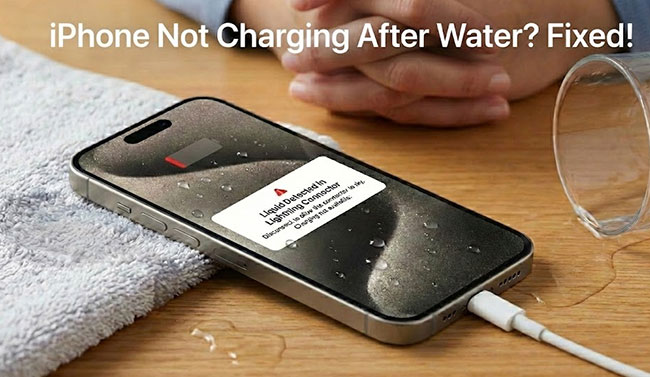
Modern iPhones have liquid contact indicators and software sensors in the charging port. If moisture is detected, iOS blocks charging and shows a warning like: " Liquid Detected in Lightning Connector / USB-C Connector."
2. Water Inside the Charging Port
Even a small amount of water in the port can interrupt the electrical connection, trigger the liquid-detection alert, and cause erratic charging or no charging at all.
3. Corrosion Risk
Water (especially saltwater or soapy water) can leave conductive residue that creates shorts, damages the charging pins, and prevents proper power flow.
4. Cable or Adapter Was Also Wet
If your charging cable or adapter got wet too, the phone may refuse to charge for safety, and the cable itself may be damaged or unsafe to use.
Part 2. 9 Tested Ways to Fix iPhone Not Charging After Water
Now you should know the reasons why your iPhone not charging after water damage, here are 9 tested ways to fix this issue. You can try these methods one by one.
Fix 1. Disconnect and Power Off Immediately
When water enters the charging port or internal components, electricity can cause short circuits and permanent damage. Turning the phone off and disconnecting it from power stops electrical flow and prevents corrosion from accelerating.
Step 1: Unplug the charging cable from your iPhone immediately. If your iPhone is connected to any other accessory, remove it.
Step 2: Press and hold the Power button and either the Volume up or down button at the same time. When the "slide to power off" slider appears, drag it to the right. Wait until the screen turns completely black.

Step 3: Remove your phone case to allow better airflow. If the phone was heavily soaked, carefully remove the SIM tray.

Fix 2. Drain Water From the Charging Port
Water sitting between the metal pins interrupts the connection between your charger and the port. Removing that moisture allows electricity to flow normally again. When electricity meets water, it can cause short circuits and start corroding the charging pins. Draining water early reduces the risk of permanent port damage.
Step 1: Hold your iPhone with the charging port facing downward. Gently tap the bottom edge of the phone against your open palm. Shake the phone lightly for 10–15 seconds.
Step 2: Wipe the outside of the phone with a clean, dry microfiber cloth. Leave the phone standing upright with the port facing down.

 Note
Note
Do not insert cotton swabs, tissues, or metal objects into the port.
Fix 3. Air-Dry the iPhone Properly
Air-drying is the safest and most effective way to remove moisture from your iPhone after water exposure. Since internal components and the charging port are extremely sensitive, using time and natural airflow prevents further damage while allowing trapped moisture to evaporate completely.
Step 1: Place your iPhone on a flat, dry surface. Position it in a well-ventilated area. If available, place a fan nearby to blow cool air toward the phone.
Step 2: Make sure the charging port faces slightly downward, and leave the phone untouched for:
- 30–60 minutes for light splashes
- 12–24 hours for heavy soaking or submersion
Note
Please do not use hair dryers, heat guns, ovens, rice or compressed air to dry your iPhone.
Fix 4. Use Wireless Charging Temporarily
When water is present in the charging port, plugging in a cable can cause short circuits or corrosion. Wireless charging eliminates this risk by keeping electricity away from the wet connector. Using wireless charging gives your iPhone additional time to dry naturally while still staying powered on.
Step 1: Make sure the back of the iPhone is completely dry.
Step 2: Turn the phone on, place it on a MagSafe wireless charger, and confirm the charging symbol appears on the screen.

Step 3: Monitor the phone for overheating. Continue wireless charging until the port is fully dry.
Note
Only use wireless charging if no liquid-detection warning appears.
Fix 5. Fix iOS System Glitches Using TunesKit iOS System Recovery
Sometimes, the "Liquid Detected" alert or charging failure persists even after the device is completely dry. This happens because the initial moisture exposure can cause a software conflict or "freeze" the charging daemon within the iOS system. Using a professional tool like TunesKit iOS System Recovery can help reset these deep-seated system errors without risking your personal data.
This utility is designed to fix over 150 different iOS issues by refreshing the system firmware. It effectively fixes iOS errors like iPad Air not charging, iPhone cellular data not working, iPhone Calendar not syncing, etc. With a simple and intuitive interface, it is suitable for everyone to use.
Fix iPhone Not Charging After Water Within Minutes
TunesKit iOS System Recovery helps resolve charging issues caused by water exposure by repairing iOS system errors safely, without data loss, and restoring your iPhone to normal charging in minutes.
 600,000+ Downloads
Here is how to fix iPhone not charging after water using TunesKit iOS System Recovery.
Step 1 Connect Your iPhone
Launch the recovery tool on your computer and connect your iPhone using a lightning or USB-C cable. Select the "iOS System Repair" option from the main interface to begin the troubleshooting sequence. And click the Start button on the next page.

Step 2Select Standard Repair
Choose the "Standard Repair" to fix your charging issues without losing any of the data stored on your device. This mode is highly effective for resolving software-level blockages caused by safety sensors.

Step 3Download the Firmware Package
Verify your device information and download the matching firmware package provided by the program. The software will automatically detect your iPhone model and suggest the most stable version of iOS for the repair.

Step 4Start to Repair
Click the "Repair" button and wait for the software to finish the restoration process. Once the repair is complete, your iPhone will restart, and the system should once again recognize the power input from your charging cable.

Fix 6. Reset All Settings
After water exposure, hidden software conflicts or corrupted system preferences can interfere with normal charging, even if the phone appears completely dry.
Resetting all settings restores power, port, and accessory configurations to the default state without deleting your personal data. This action also clears system errors and helps re-establish stable connection between your iPhone and the charger.
Step 1: Open Settings on your iPhone. Tap General → Transfer or Reset iPhone → Reset → Reset All Settings.
Step 2: Enter your device passcode or confirm with Face ID. Follow the on-screen instructions and wait for your iPhone to restart normally.

Note
This won't erase apps, photos, or files, but it will reset Wi-Fi passwords, Bluetooth connections, and system preferences.
Fix 7. Update to the Latest iOS Version
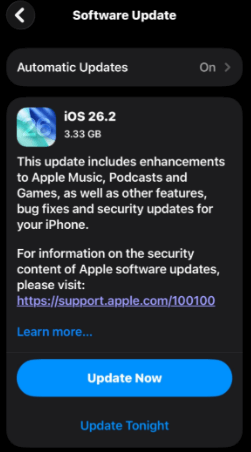
Updating your iPhone to the latest iOS version can help fix charging issues after water exposure. Apple's updates often include improvement. Even after your phone dries, software glitches may trigger false "liquid detected" alerts or block charging. Installing the latest update can correct these errors and restore normal charging performance.
Step 1: Open Settings → General → Software Update.
Step 2: If an update is available, tap Update Now and follow the on-screen instructions.
Fix 8. Wait for the "Liquid Detected" Warning to Disappear
If your iPhone shows a "Liquid Detected in Charging Port" alert, do not try to charge it. This warning means the moisture sensor has detected water in the connector and iOS is blocking charging to prevent short circuits and hardware damage. Charging too soon can corrode the metal pins or even damage the logic board.
The safest approach is to wait until the alert disappears on its own, which indicates the port is completely dry and it's safe to plug in your charger again.

Fix 9. Ask for Professional Help
If all else fails and the iPhone still shows a "liquid detected in charging port" alert, professional repair is the safest option. Authorized technicians can determine whether the issue is hardware- or software-related and prevent permanent damage. Here's how to ask Apple Support for help.
Step 1: Download the Apple Support app from the App Store. Open the app and sign in with your Apple ID.

Step 2: Simply tap your iPhone from the list of devices, select Repairs & Physical Damage, and tap Liquid Damage or Battery & Charging.
Step 3: Tap Bring in for Repair or Chat with Support.
Step 4: Choose a nearby Apple Store or authorized service provider. Book an appointment time.
Part 3. FAQs about iPhone Not Charging After Water
-
Q1. Can I charge my iPhone while it's still wet?
No. Charging a wet iPhone can cause short circuits, corrode the charging pins, and permanently damage internal components. Always let the phone dry completely first.
-
Q2. Does rice really help dry a wet iPhone?
No. Rice is ineffective and can introduce dust into the charging port. Air-drying in a well-ventilated area is much safer and more effective.
-
Q3. What should I do if the "Liquid Detected" warning won't go away?
If the warning persists after 24–48 hours, there may still be moisture or corrosion in the port. Try gentle cleaning, updating iOS, resetting settings or using TunesKit iOS System Recovery to fix software glitches. If it continues, contact Apple Support or visit an authorized repair center.
Part 4. Conclusion
If your iPhone won't charge after water exposure, it's usually due to moisture detection, debris in the port, or minor iOS glitches. While careful drying, cleaning, and safe charging methods often help, persistent charging issues may indicate system-level problems. TunesKit iOS System Recovery offers a reliable solution by repairing iOS system errors that prevent charging, restoring your device to normal functionality quickly and safely—without risking your data.


