


How to Enter/Exit Recovery Mode iPhone FREE [iOS 26 Supported]
Try TunesKit iOS System Recovery
One click to enter or exit iPhone Recovery Mode automatically for free. It's available on Mac/Win and supports all iPhone models and the latest iOS 26.
 600,000+ Downloads
Most Apple users must have heard about the Recovery Mode on iOS devices, especially when there is something wrong with your iOS system. If you have an iPhone stuck on a white Apple logo for minutes or your iPad becomes unresponsive completely, you can use Recovery Mode to restore your iPhone or iPad.
Here in this post, we are going to show you how to get iPhone out of Recovery Mode step by step. As well, we'll share some tips about using Recovery Mode to restore your device with ease.

Watch Now: How to Enter/Exit Recovery Mode iPhone Free
First of all, let's watch a short video below. In this video, you'll get to know how to put your iPhone into Recovery Mode or get out of it manually or automatically. If you want to learn more, you can keep reading the following paragraphs.
How to Get iPhone out of Recovery Mode (Free & No Data Loss)
If you don't need the Recovery Mode anymore or if your device is stuck on Recovery Mode, you can get your iPhone out of Recovery Mode manually or exit the Recovery Mode with the help of a third-party free tool in one click.
Way 1. Use Apple's Way
Let's start with the easiest solution that requires no software, computers, or cables, and most importantly, no data loss. You can force restart your iPhone to exit Recovery Mode with the following steps. Before that, please remember to unplug your device from the USB cable.
- For iPhone 8 or later: Press and quickly release the Volume Up button and then repeat this with the Volume Down button. Press and hold the Side button until you see the Apple logo.
- For iPhone 7 and 7 Plus: Press and hold both the Side button and Volume Down button until you see the Apple logo.
- For iPhone 6 or earlier: Press and hold both the Home button and Side (or Top) button until you see the Apple logo.

Way 2. Use Free Software [1-Click Tool]
Sometimes, a manual hard reset is not enough to break a stubborn software loop. Alternatively, your device might have a broken volume or power button, making the physical method entirely impossible to execute.
In these frustrating cases, utilizing a dedicated desktop repair tool is your best option. TunesKit iOS System Recovery is a professional iOS system repair tool for iPhone, iPad and iPod touch. It also offers a free feature to help you exit the Recovery Mode automatically. You don't need any complicated button combinations.
To exit the mode using TunesKit, you can follow the below steps.
Step 1 Connect iPhone to the Computer
Download and install TunesKit iOS System Recovery on your Mac or Windows computer. Use a USB cable to connect your device to the computer. Choose Enter/Exit Recovery Mode on the main interface.

Step 2 Free Exit iPhone Recovery Mode
If your device is already in the Recovery Mode, TunesKit will detect it in this mode. You can simply click the Exit Recovery Mode button and wait until it exits the Recovery Mode by itself.

 View Also: How to Exit DFU Mode on iPhone [4 Methods]
How to Enter iPhone Recovery Mode Intentionally
To get iPhone into Recovery Mode, there are two available methods. The most recommended way is to take advantage of a third-party professional tool like TunesKit iOS System Recovery, as it's easy and free.
Way 1. Use Apple's Way
Here you can try Apple's way to put your iPhone in Recovery Mode. Just use iTunes on Windows (or Finder on Mac) to do it by pressing some buttons on your device. This is also the official solution from Apple Support. The detailed steps are different depending on the different iPhone models you have.
-
For iPhone 8 or later, including iPhone SE (2nd generation):
Step 1. Use a USB cable to plug your iPhone into the computer and open the latest version of iTunes or Finder.
Step 2. First press and quickly release the Volume Up button and repeat this with the Volume Down button.
Step 3. Then press and hold the Power button and keep holding it until you see the Recovery Mode screen. -
For iPhone 7 and iPhone 7 Plus:
Step 1. Open iTunes or launch Finder and then connect your iPhone to a PC or Mac.
Step 2. Press and hold the Power button and Volume Down button simultaneously.
Step 3. Keep holding them until the Recovery Mode appears on the screen. -
For iPhone 6 or former models, including iPhone SE (1st generation):
Step 1. Connect your iPhone to the computer and then launch iTunes on a PC or Finder on a Mac.
Step 2. Press and hold the Home button and Power button at the same time.
Step 3. Keep holding them until you see the Recovery Mode screen.
Way 2. Use TunesKit iOS System Recovery for Free
If you have tried the method provided by Apple, you may find that it seems complicated. To put your iPhone in Recovery Mode more easily, just use TunesKit iOS System Recovery, an easy-to-use tool to enter Recovery Mode in one click. Or, if you failed to enter the mode manually, you can try TunesKit, which will help you enter it automatically, no matter what device model you have.
First, please download TunesKit iOS System Recovery and install it on your computer. Then follow the quick steps to put an iPhone in Recovery Mode.
- Step 1. Connect your iPhone to a PC or Mac by using a USB cable. Open TunesKit on your computer after completing the installation. When it's successfully detected by TunesKit, choose Enter/Exit Recovery Mode.
- Step 2. Now, click the Enter Recovery Mode on the next interface to put iPhone into Recovery Mode with one click. Wait a few seconds, and your iPhone will enter the Recovery Mode automatically.

More Tips About Recovery Mode
-
What to do when your iPhone stuck is in Recovery Mode?
The fastest and most efficient method is to use a free third-party tool, such as TunesKit iOS System Recovery, to exit it with one click. Another method is to force restart your phone, but the success rate is usually low.
Check More Methods: How to Fix iPhone Stuck in Recovery Mode -
Will leaving this screen delete my photos and files?
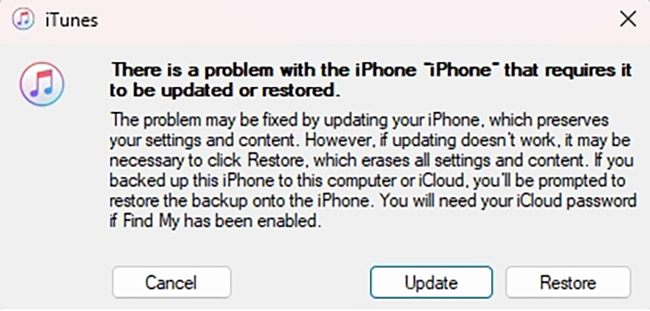
No, simply exiting the screen using a hard reset or the TunesKit tool will not erase your personal data. However, if you connect to iTunes and click "Restore", your device will be wiped clean. Always choose the "Update" option first if you are using a computer to fix the issue.
-
How long does it take to get out of recovery mode?
If you are performing a manual force restart or using a one-click tool like TunesKit, the entire process takes less than two minutes.
However, if your system is severely corrupted and requires you to reinstall the iOS firmware via a computer, it can take much longer. Downloading the software update and waiting for the installation to finish usually takes between 15 and 30 minutes, depending on your internet speed. -
What does Recovery Mode mean on iPhone?
Recovery Mode refers to a built-in failsafe within your device's iBoot system. It is specially designed to help you reinstall the iOS firmware when your current operating system sustains sudden damage.
-
When to use iPhone Recovery Mode?
You should use Recovery Mode when your iPhone becomes completely unresponsive and standard troubleshooting fails. This built-in failsafe allows your computer to bypass software barriers and directly access the core system. Triggering this state gives you a clean slate to force an iOS update or system restore.
-
Is it harmful to put my iPhone in Recovery Mode?
Nope. You may be able to avoid visiting Apple Support if you use it. As an extra safeguard, be sure to keep a backup on iCloud, an external drive, or a third-party backup service.
The Bottom Line
Now you must know how to get iPhone out of Recovery Mode or put iPhone into Recovery Mode easily. TunesKit iOS System Recovery is highly recommended here since the trial version can be used to achieve your purpose without any cost. You only need to download and install this powerful software on the computer. Don't worry! It won't contain any malware or plug-ins. Let's download it and give it a try!


