


How to Fix iPhone No Cellular Data After iOS 18/26 Update
Losing your mobile connection after a system upgrade is incredibly disruptive. Many users report experiencing no cellular data after iOS 18/26 update, leaving them unable to navigate, stream, or communicate on the go.
Fortunately, this is typically a temporary software glitch rather than a hardware failure. The installation process can occasionally corrupt your network settings, severing the connection to your carrier. Here are the most effective, proven solutions to fix this network error and get your iPhone back online smoothly.

- Why iPhone No Cellular Data After iOS 18/26 Update
- How to Fix iPhone No Cellular Data After 18/26 iOS Update
- Solution 1. Check Cellular Data Settings
- Solution 2. Check for Carrier Settings Update
- Solution 3. Set up Airplane Mode
- Solution 4. Restart Your iPhone
- Solution 5. Reset Network Settings
- Solution 6. Disable Low Power Mode or Focus
- Solution 7. Change DNS Server
- Solution 8. Remove and Reinsert SIM Card
- Solution 9. Contact Your Carrier
- How to Fix iOS 18/26 No Cellular Data without Data LossHOT
Why iPhone No Cellular Data After iOS 18/26 Update
Experiencing no cellular data after an iOS 18/26 update is rarely a permanent hardware failure. Most connection drops happen because the system installation temporarily interrupts how your device communicates with cell towers.
- 01 Corrupted Network and Carrier Configurations: Major system upgrades rewrite core files, which can easily corrupt or reset your custom network settings. Additionally, if your carrier profile fails to update alongside the new iOS, your device cannot authenticate your data plan.
- 02 Underlying Software Bugs: Fresh firmware releases occasionally contain backend bugs that interfere with the iPhone's modem. These glitches can block cellular reception entirely until Apple patches them in a subsequent minor update.
- 03 Hardware Conflicts and External Outages: The new software might struggle to read an older or slightly damaged physical SIM card. Before diving into deep troubleshooting, also verify that a localized carrier outage is not coincidentally causing the disconnect.
How to Fix iPhone No Cellular Data After iOS 18/26 Update
Referring to the above possible reasons, we provide a series of solutions to try to fix your cellular data after iOS 18/26 update on your iPhone.
Solution 1. Verify Your Cellular Data and eSIM Settings
Sometimes, a major system update simply resets your basic connection toggles or defaults to the wrong network profile. Before moving on to complex fixes, you should double-check that your device is actively allowed to connect to the network.
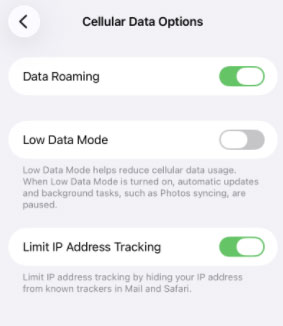
- Step 1. Navigate to Settings > Cellular and confirm that the Cellular Data switch is toggled on. If you utilize dual SIMs or an eSIM, tap into the "Cellular Data" menu to ensure your active, preferred data plan is selected rather than a secondary or expired line.
- Step 2. Check your current roaming status. If you are traveling internationally or find yourself outside your primary carrier's standard coverage area, tap on Cellular Data Options and toggle on Data Roaming.
Solution 2. Check for Carrier Settings Update
A Carrier Settings Update is a small file that contains updates from your cellular provider to enhance network connectivity and performance on your iPhone or iPad. These updates can include changes to network settings, such as APN (Access Point Name), VoLTE (Voice over LTE), Wi-Fi calling, and other features that help your device connect to your carrier's network.
- Step 1. Go to Settings app > General > About .
- Step 2. Stay on this screen for a few seconds. If a carrier settings update is available, you will see a pop-up asking if you want to update.

Solution 3. Set Up Airplane Mode
Toggling Airplane Mode on or off is often the fastest and most effective way to restore cellular data after an iOS 18/26 update. While it seems like a simple button press on the surface, it actually triggers a sequence of deep network resets within your iPhone's hardware.
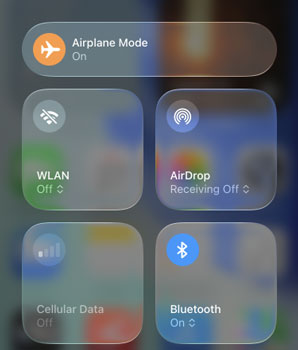
Option 1. Scroll down from the top-right of your iPhone screen to open the Control Center panel and tap on the Airplane Mode icon to turn on it for a few seconds, then turn it off again to reset your iPhone's connection to the cellular network.
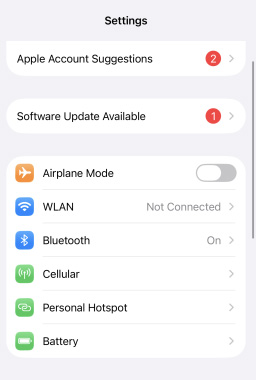
Option 2. Go to Settings > Airplane Mode to turn on and turn off it.
Solution 4. Restart Your iPhone
Restarting your iPhone can often resolve temporary glitches or bugs affecting cellular data.
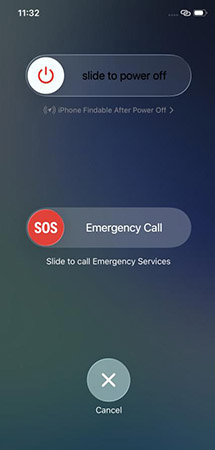
- Step 1. Press and hold on the Volume Up or Volume Down button and also the Side button simultaneously until the power off slider icon appears on the screen.
- Step 2. Slide the icon to power off your iPhone.
- Step 3. Restart your iPhone by pressing and holding the Side button until the Apple logo appears.
Solution 5. Reset Network Settings
The reason for no cellular data may be that the network settings have certain problems. You can try to normalize it by resetting your network settings.
- Step 1. Enter the Settings app on your iPhone.
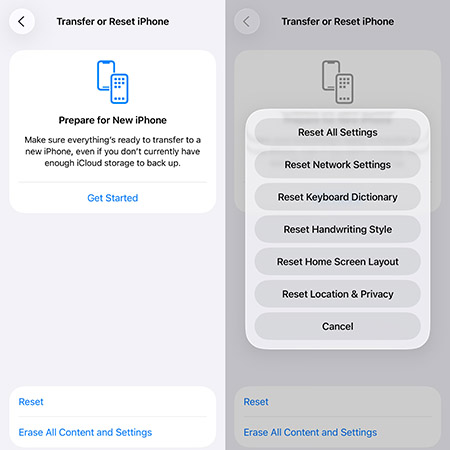
- Step 2. Go to General > Transfer or Reset iPhone > Reset > Reset All Settings to reset all your network settings.
Solution 6. Disable Low Power Mode or Focus
If your iPhone is on Low Power mode or Focus mode, the cellular data may be affected.
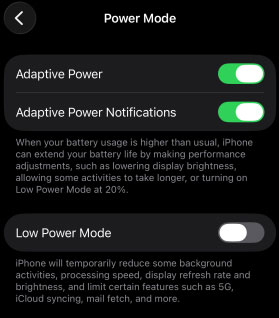
Step 1: Go to Settings > Battery > Power Mode > Low Power Mode to ensure the switch is turned off.
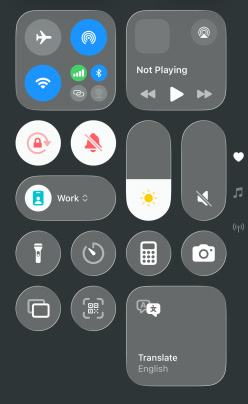
Step 2: Swipe down from the top-right corner of your screen to open the Control Center. Locate the Focus tile, which might be labeled as "Do Not Disturb," "Work," "Sleep," or another custom name. If the tile is highlighted, simply tap the icon once to turn it off and return your device to its standard notification state.
Solution 7. Change DNS Server
Changing your DNS server on your iPhone can help improve internet speed, security, and reliability. By default, your device uses the DNS servers provided by your internet service provider, but you can change them to a different DNS server to potentially get better performance or privacy.
- Step 1. Go to Settings > WiFi to find the WiFi you connected.
- Step 2. Tap on the i icon to choose DNS and remove the original DNS server so that you can enter the new one you wish.

Solution 8. Remove and Reinsert SIM Card
A physical misalignment or a speck of dust on your SIM card can easily sever your connection to the carrier network. Ejecting and reseating the card forces your iPhone to physically redetect the hardware and establish a fresh cellular link.
- Step 1. Power off your iPhone completely to prevent any electrical shorts or system errors during the removal process.
- Step 2. Locate the SIM tray on the side of your device. Insert a SIM ejector tool or a small paperclip into the hole and push gently to pop the tray out.
- Step 3. Inspect the metal contacts on the SIM card for visible damage or debris. Place it securely back into the tray, slide it firmly into your device, and turn the power back on to check for a signal.

Solution 9. Contact Your Carrier
If none of these steps work, there may be an issue with your carrier's network or settings. Contact them to check for network issues or for further assistance.
How to Fix iOS 18/26 No Cellular Data without Data Loss
If you are worried that those methods may make you lose important data on your iPhone, TunesKit iOS System Recovery would be a better choice to solve your problem of iPhone no cellular data after iOS 18/26 update. This tool works for repairing iOS system issues like iPhone/iPad white screen, iPhone/iPad no notifications, and iPhone/iPad stuck. Using this tool, you can fix those issues without any data loss.
Fix iPhone No Cellular Data After iOS Update
Quickly restore cellular data issues after iOS 18/26 updates without data loss using TunesKit iOS System Recovery—safe, efficient, and user-friendly.
 600,000+ Downloads
Here's how to fix iPhone no cellular data after iOS 18/26 update via TunesKit iOS System Recovery
Step 1Connect your iPhone to your PC
Download TunesKit iOS System Recovery on your computer and install it on your computer. Open it and connect your iPhone to your computer via a USB cable. Choose the iOS System Repair option and click the Start button.

Step 2Select repair mode
TunesKit offers two repair modes: Standard Repair mode and Deep Repair mode. If you don't want to clear the data on your device, you should choose Standard Repair. Deep Repair can help you fix problems deeply but it will erase all the device data.

Step 3Get firmware package
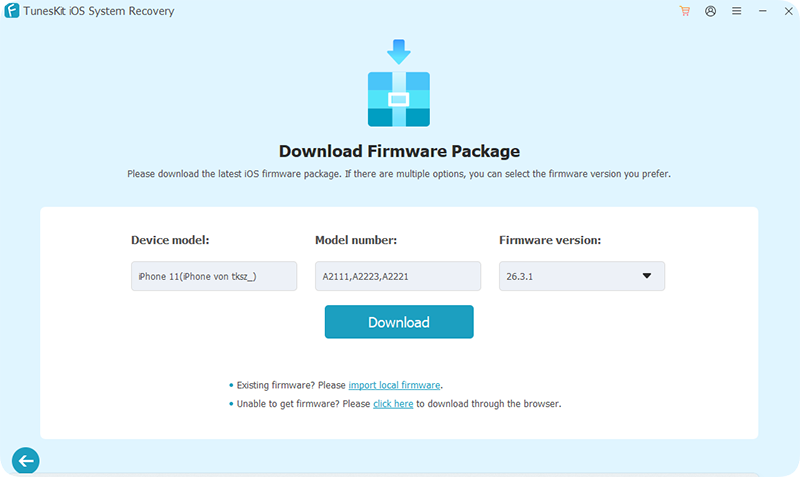
After selecting repair mode, you will be led to download firmware package for your iPhone. Check the information about your iPhone and then click the Download button.
Step 4Fix iPhone no cellular data after iOS 18/26 update
On this new page, you should click the Start Standard Repair button to start your repair process. You can try to use your cellular data on your iPhone to check if the issue is fixed successfully.

Conclusion
There are up to 10 solutions for you to fix iPhone no cellular data after iOS 18/26 update just as the list above. Among them, TunesKit iOS System Recovery is the most recommended solution that allows you to deal with your trouble in one click without any data loss. If you have any other effective methods, you can share them with us by leaving your comments.


