


How to Fix iOS 18/26 Photo Clean Up Not Available
The iOS 18 new feature in the Photos app, Clean Up, is a powerful editing tool available through Apple Intelligence. It allows you to remove unwanted objects or people from your pictures in the Photos app. With this feature, you can optimize your photos conveniently.
However, many users recently said that they cannot find the Clean Up feature or just cannot use the new feature on their iPhone. If you also encounter similar issues, keep reading this tutorial. Here you will get a series of solutions on how to fix iOS 18/26 photo Clean Up not available and some inspirations of the causes of this problem. Now let's start exploring!

Why Does Clean Up Photos Feature Not Available After iOS 18/26 Update?
If the "Clean Up" (object removal) feature is missing after updating to iOS 18 / iOS 26, it's usually not a bug—it's due to strict requirements. Here are the real reasons:
- 01 Your iPhone may NOT support it: The feature is part of Apple Intelligence (AI), so it only works on newer models for iPhone 15 Pro / Pro Max, iPhone 16 series, and iPhone 17 series. Older models (like iPhone 15, 14, etc.) will never get it, even on the latest iOS.
- 02 It's restricted by region: Clean Up is not available everywhere. It's not available in China mainland, limited or delayed in EU regions, and it depends on your Apple Account region + current location. Even if your device supports it, the feature may not appear.
- 03 You may not be on the right iOS version: This feature didn't ship in the first iOS 18 release, it requires iOS 18.1 or later (or newer builds like iOS 26). So if you're on 18.0, you won't see it.
- 04 Apple Intelligence may not be enabled/downloaded: Clean Up depends on AI components that may need to download in the background, require enabling Apple Intelligence settings, and take time after update to appear.
- 05 Temporary bugs or rollout delays: Some users report missing features after the update, features appearing/disappearing, and UI changes that hide them. This can happen due to software glitches or a staged rollout.
How to Use the Clean Up Feature in Photos App
If you don't know where the Clean Up button is and how to use this feature to edit your pictures in the Photos app, look at this part. Here is a detailed tutorial and you will learn it in a short time.
- Step 1. Open a photo in your Photos app and you will see a screen like this.

- Step 2. Tap the Edit icon at the bottom of the screen and you will find 5 different tools at the bottom. Select the Clean Up icon from them. (If it is the first time that you use it, you need to wait a minute until your iPhone downloads the feature.)
- Step 3. The potential distractions will be highlighted in your photo. You can brush what you want to remove.

- Step 4. The Clean Up tool will delete the distraction you selected. If it makes you satisfied, tap Done at the top of the screen to confirm this change.

How to Fix iOS 18/26 Photo Clean Up Not Available
Now that we've covered the possible causes and how the Clean Up feature is supposed to work, the next step is to actually fix the issue. If Photo Clean Up is still not showing up on your device after updating to iOS 18/26, don't worry—there are several practical solutions you can try.
Fix 1. Check for Region Restrictions
Apple sometimes limits the availability of certain features, like the Clean Up Photos tool, based on the user's region. These restrictions can occur due to privacy laws, licensing agreements, or gradual feature rollouts. Here's how to check your current region and know if your region supports this feature.
How to check current region?
- Step 1. Open the Settings app.
- Step 2. Tap [Your Name] > Media & Purchases > View Account. Use your Face ID to access to this feature.
- Step 3. Check your Country/Region and make sure it matches your actual location.

Visit Apple's official photo clean up requirements page to see if the Clean Up Photos tool is listed for your region.
For European Union residents and China residents, this Clean Up feature is not available now.
Fix 2. Ensure Device Compatibility
While iOS 18 supports many devices, advanced features like Clean Up Photos typically require newer hardware with sufficient processing power. The Clean Up feature is available on the following devices.
- iPhone 15 Pro and iPhone 15 Pro Max
- iPhone 16 Series
- iPhone 17 Series
How to check your iPhone models?
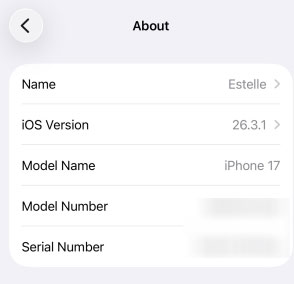
- Step 1. Open the Settings app and then go to General > About.
- Step 2. Check for the Model Name to get your iPhone model.
Fix 3. Update iOS to the Latest Version
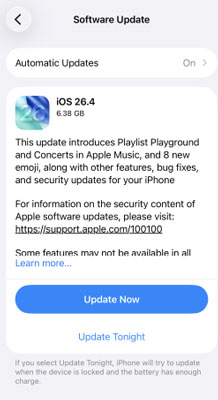
Make sure your device is running the latest version, as the Clean Up feature is available on iOS 18.1 or later.
- Step 1. Open the Settings app and then go to General > About.
- Step 2. If an update is available, tap the Update Now button.
Fix 4. Wait for Clean Up to Be Downloaded
When you first use this feature, you will be prompted to download this Clean Up tool. This downloading process will take a few minutes before you can use it. During this process, please ensure your iPhone is connected to a stable network and has enough battery life.

Fix 5. Fix iOS 18/26 Photo Clean Up Not Available in Minutes
If you check all of the things above but the clean still isn't available, chances are that there is something wrong with your iOS system. In terms of fixing iOS system issues, TunesKit iOS System Recovery has a good performance. TunesKit iOS System Recovery allows you to efficiently fix 150+ iOS system issues without any data loss including fixing the problem of iOS 18/26 Clean Up featue not available.
It also allows you to enter or exit Recovery Mode with just one click, saving time and effort. It also supports the latest iOS versions, including iOS 26, ensuring broad compatibility. With its user-friendly interface, you can repair your device easily without any technical skills.
Fix iOS 18/26 Photo Clean Up Not Available
Quickly resolve system glitches and restore missing features—no data loss, no technical skills required.
 600,000+ Downloads
How to Fix iOS 18/26 Clean Up Photos Feature Not Available via TunesKit iOS System Recovery
Step 1Connect iPhone to PC
Get the TunesKit software from its official. Download and install it on your computer. Once you finish the installation, connect your iPhone to your computer via a USB cable. Ensure the cable is compatible with your devices.
Open the tool and select the iOS System Repair option from the homepage. Click the Start button to continue.

Step 2Select repair mode
This tool offers two effective repair modes: Standard Repair and Deep Repair. When your first fix, the Standard Repair mode is recommended, which will not clear iPhone data. The Deep Repair could solve more complicated issues but will delete data. If you choose it, remember to back up first.

Step 3Download firmware package
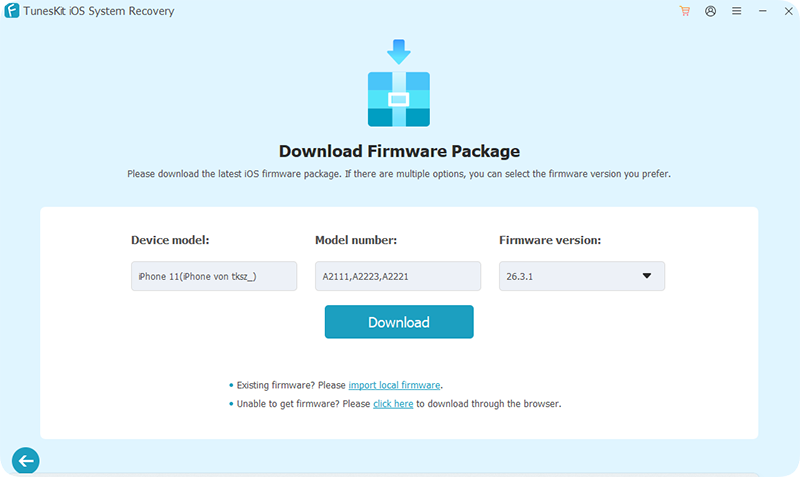
After confirming the information of your iPhone, click the Download button to download package for your iPhone.
Step 4 Start fixing
Click the Start Standard Repair button to finally start fixing the iOS 18/26 Photo Clean Up not available issue. Once the fixing is completed, you can check if the Clean Up feature is available in your Photos app.

Conclusion
To solve the issue of iOS 18/26 Photo Clean Up not available, you should first make sure that your iPhone meets all of the requirements that are mentioned in Fix 1- Fix 3. If all conditions are available but the feature cannot be used, try using TunesKit iOS System Recovery which will fix iOS system issues that may result in the Clean Up feature not available.


