


iOS 26 Laggy? Here's How to Speed It Up!
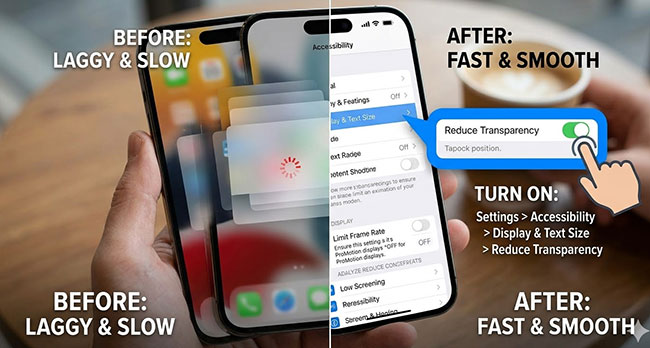
Many iPhone and iPad users have noticed that after updating to iOS 26, their devices feel slower than usual. If you're experiencing freezes, stutters, or laggy apps, you're not alone—iOS 26 laggy performance has been widely reported by users across the globe.
Fortunately, there are several effective, user-tested fixes that can help you restore speed, optimize your device, and enjoy a smoother, more responsive experience. In this guide, we'll walk you through the most practical solutions step by step.
- Why Is iOS 26 So Laggy?
- How to Fix iOS 26 Laggy?
- Fix 1. Tone Down Liquid Glass Effects
- Fix 2. Disable Low Power Mode
- Fix 3. Perform a Force Restart
- Fix 4. Check for iOS Update
- Fix 5. Identify and Update Problematic Apps
- Fix 6. Check and Manage Your iPhone Storage
- Fix 7. Disable Background App Refresh
- Fix 8. One Click to Fix iOS 26 Laggy With Pro Tool [No Data Loss]HOT
- FAQ About iOS 26 Laggy Issues
- Conclusion
Why Is iOS 26 So Laggy?
Dealing with a sluggish iPhone after a major update can be incredibly frustrating. The performance issues you are experiencing with iOS 26 generally boil down to a few specific software behaviors and new system demands.
Main Causes of iOS 26 Lag
- 01 Heavy Graphical Demands: The new "Liquid Glass" interface uses layered, translucent elements that push your device's processor harder, causing dropped frames and UI stuttering on older hardware.
- 02 Intensive Background Indexing: Following an update, the AI-powered Battery Intelligence system temporarily hogs your CPU to rebuild databases and optimize power settings.
- 03 Frame Rate Bugs: Certain versions of iOS 26 inadvertently cap ProMotion displays at 60Hz, which makes scrolling and animations feel noticeably slower.
These background processes usually settle down a few days after updating. However, if the lag persists, tweaking a few settings can make a massive difference.
How to Fix iOS 26 Laggy?
Now that we've covered the main reasons behind iOS 26 lag, the good news is that most performance issues can be improved with a few practical fixes. Whether the slowdown is caused by background processes, system bugs, or device limitations, there are several proven ways to restore smooth performance. Let’s walk through the most effective solutions you can try right now.
Fix 1. Tone Down Liquid Glass Effects
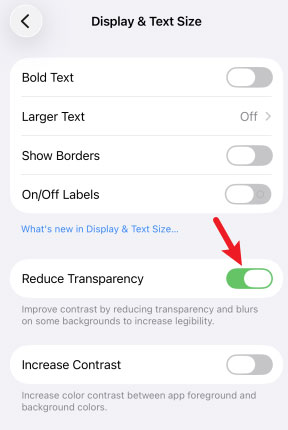
iOS 26 introduced the beautiful but demanding Liquid Glass design language. This heavily layered, translucent interface can push your hardware to its limits. Many users have found that turning off some of these graphical effects instantly makes their iPhone feel much more responsive and snappy.
- Step 1. Open the Settings app and navigate to Accessibility.
- Step 2. Tap on Display & Text Size.
- Step 3. Toggle on the switch next to "Reduce Transparency."
Fix 2. Disable Low Power Mode
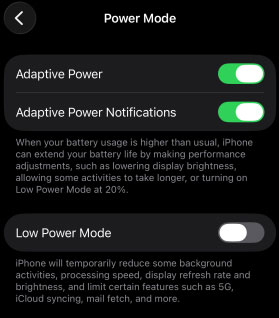
When your battery is running low, it is tempting to keep Low Power Mode enabled all day. However, this feature intentionally throttles your processor and locks ProMotion displays to a maximum of 60Hz to save energy. In iOS 26, this artificial frame rate cap can make scrolling and animations feel incredibly jittery.
- Step 1. Open the Settings app and scroll down to Battery. Tap the Power Mode option.
- Step 2. Toggle off the switch next to "Low Power Mode" to restore full performance.
Fix 3. Perform a Force Restart
Sometimes, a simple reboot is all your iPhone needs to clear out stuck background processes or AI indexing tasks that are hogging the CPU. A force restart flushes the system cache without deleting any of your personal data or settings. It is a highly effective way to smooth out UI stuttering that lingers after an iOS 26 software update.
- Step 1. Quickly press and release the Volume Up button.
- Step 2. Quickly press and release the Volume Down button.
- Step 3. Press and hold the Side power button until the Apple logo appears on the screen, then release.

Fix 4. Check for iOS Update
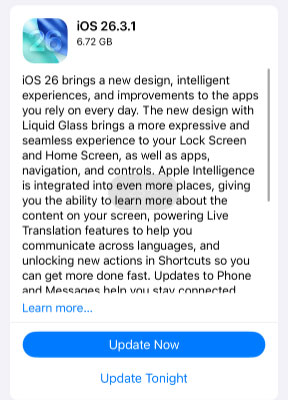
Checking for and installing the latest software update is one of the most effective ways to resolve performance issues. Apple recently released iOS 26.3.1, which specifically addresses several bugs and includes background security improvements that may help smooth out the heavy Liquid Glass interface. If your device is lagging due to an unoptimized background process or a memory leak, this patch could be the exact fix you need.
You can verify your current version and install any pending updates directly through your device settings.
- Step 1. Open the Settings app on your iPhone and scroll down to tap on "General."
- Step 2. Tap on "Software Update" near the top of the screen.
- Step 3. Wait a few seconds for your device to communicate with Apple's servers.
- Step 4. If the update is available, just click the Update Now button to download and install the latest update.
 Note
Note
Before proceeding with the installation, ensure your phone has at least 50% battery or is plugged into a charger, and that you have a stable Wi-Fi connection.
Fix 5. Identify and Update Problematic Apps
Most major apps have pushed out updates to ensure compatibility with iOS 26's new rendering engine and background processes. Staying on top of these updates prevents background system conflicts from slowing down your daily usage.
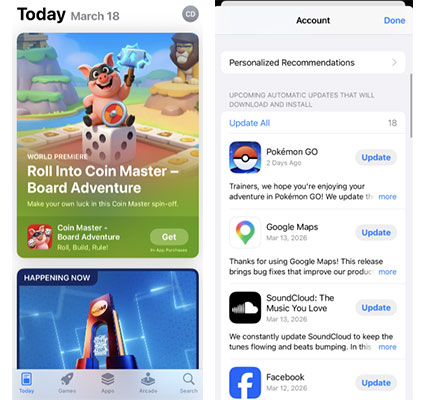
- Step 1. Open the App Store on your iPhone and tap your profile picture located in the top right corner.
- Step 2. Scroll down to the "Available Updates" section to see a list of applications with pending new versions.
- Step 3. Tap the "Update All" button to install the latest patches, or tap "Update" next to individual apps that you suspect are causing the slowdown.
Fix 6. Check and Manage Your iPhone Storage
You can use the built-in storage management tools to quickly identify massive files or bloated applications. Taking a few minutes to clear out this digital clutter often brings immediate performance relief to a sluggish system.
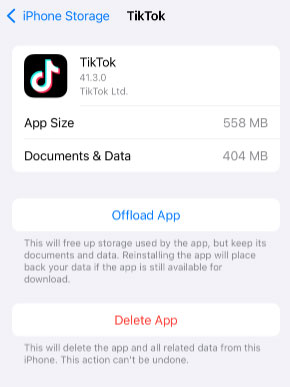
- Step 1. Open the Settings app, tap on "General," and then select "iPhone Storage."
- Step 2. Review the color-coded bar chart at the top of the screen to see a visual breakdown of how your space is being allocated across apps, media, and system files.
- Step 3. Scroll down the list of installed applications and tap on the worst offenders to either delete them entirely or choose the "Offload App" option, which frees up the core application size while keeping your personal data intact.
Fix 7. Disable Background App Refresh
Letting apps constantly update in the background quickly drains your battery and overloads your processor. This hidden activity directly contributes to those frustrating iOS 26 laggy problems. Disabling these automatic updates immediately frees up vital system resources, giving your iPhone the memory it needs to run smoothly again.
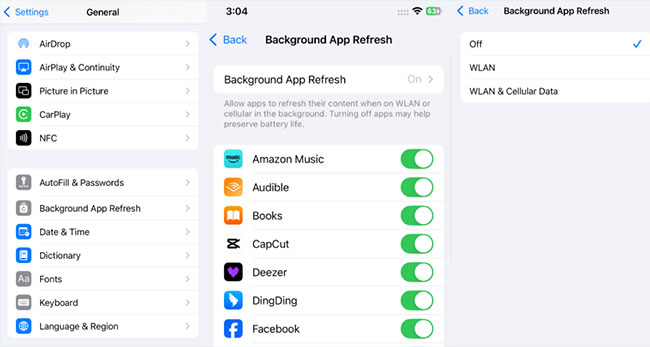
- Step 1. Open the Settings app on your device, navigate to "General," and select "Background App Refresh."
- Step 2. Tap on the "Background App Refresh" option at the top of the screen, then choose "Off" to disable the feature entirely, or select "WLAN" to restrict it.
Fix 8. One Click to Fix iOS 26 Laggy With Pro Tool [No Data Loss]
Dealing with a persistently laggy iPhone after a major update can easily ruin your daily routine. While adjusting settings can help mitigate the heavy graphical demands of the new Liquid Glass design in iOS 26, sometimes the core issue lies deeper within the operating system itself. Corrupted update files or system cache errors can cause relentless stuttering that standard troubleshooting just cannot fix.
When your device refuses to speed up, using a dedicated repair application is often the most effective solution. TunesKit iOS System Recovery is a specialized professional tool designed to bypass these deep-rooted software bugs and restore your iPhone's performance. It works by repairing iOS 26 bugs directly without sacrificing any of your photos, messages, or apps.
Fix iOS 26 Lagging Issues Easily
Use TunesKit iOS System Recovery to quickly eliminate lag on iOS 26 without data loss and restore smooth performance in minutes.
 600,000+ Downloads
Here's how to fix iOS 26 lagging with TunesKit iOS System Recovery.
Step 1Connect Your iPhone
Download and launch TunesKit iOS System Recovery on your Mac or Windows computer, then connect your lagging iPhone using a certified USB cable. Click on the "iOS System Repair" module on the main interface, and click the Start button.

Step 2 Select Standard Repair Mode
Select the "Standard Repair" option to ensure your data remains untouched during the process.

Step 3 Download the Firmware Package
Verify your device model on the screen and click "Download" to fetch the correct, uncorrupted iOS 26 firmware package directly from Apple's servers.

Step 4Start the Repair Process
Once the download completes, click "Repair" to begin the automated system recovery, and keep your phone connected until the software prompts you that the fix is finished. After your iPhone restarts, the background system errors should be cleared out, leaving you with a smooth and responsive experience once again.

FAQs About iOS 26 Laggy Issues
-
Will the iOS 26 lag go away on its own?
In most cases, the initial sluggishness will resolve itself within 48 to 72 hours as the operating system finishes its background optimization. Once the initial indexing phase is complete, your battery life and overall speed should naturally return to normal. If your iPhone remains laggy after a week, you will likely need to intervene and tweak some settings to improve performance.
-
Does low storage cause iOS 26 to lag?
Absolutely, because your iPhone relies on having a healthy amount of free space to manage dynamic caching and virtual memory swapping. When your internal storage is nearly full, the system creates a data bottleneck that forces the processor to work much harder just to perform basic tasks. Freeing up space gives the operating system the breathing room it needs to function smoothly.
You should always aim to keep at least 10% to 15% of your total storage capacity completely empty. -
How to make a laggy iPhone faster?
You can speed up the iPhone with a few simple actions such as update all your installed third-party apps, perform a quick force restart on your device, and free up your internal storage space.
Conclusion
If you are constantly dealing with an iOS 26 laggy iPhone, tweaking your basic settings is a helpful first step, but deep system errors often require a stronger solution. TunesKit iOS System Recovery easily fixes these stubborn performance bugs, restoring your device's optimal speed and responsiveness without deleting any of your personal data.


