


10 Methods to Solve: iPad/iPhone Plays Music by Itself
"Why is my iPhone playing music by itself? Yesterday when I was having a meeting, it did happen. And it occurs today as well. This problem actually drives me crazy that I am not bringing my iPhone to public areas to prevent it from happening again. How can I solve this issue?"
In the recent times, I find a common problem people talk about in the iPhone community, that is the "iPhone starts playing music itself". There could be iPhone playing music automatically when in headphone mode/in car, when it connects with the Bluetooth/ the Airpods are off, or other general scenarios. This issue is really annoying especially when you are in public places. Are you also facing this problem right now? Well, the following solutions will help you to resolve this matter.

- Why Is My iPhone/iPad Automatically Playing Music?
- How to Fix iPad/iPhone Play Music by Itself?
- Method 1: Turn Off Apple Music Autoplay
- Method 2: Check Your Earphone
- Method 3: Close the App in the Background
- Method 4: Manage Siri Suggestions and Lock Screen Pre-loading
- Method 5: Audit the "Back Tap" Shortcut (iPhone Only)
- Method 6: Check the Music App Update
- Method 7: Adjust System Settings to Prevent Ghost Playback
- Method 8: Restart Your iPhone/iPad
- Method 9: Reset All Settings
- Method 10: Use TunesKit iOS System Recovery Program (No Data Loss)HOT
- Conclusion
Why Is My iPhone/iPad Automatically Playing Music?
If your iPhone or iPad starts playing music on its own, it's usually not random—it's being triggered by a setting, app, or accessory. Here are the most common causes.
- 01 Bluetooth Devices Triggering Playback: Your device may auto-connect to things like car systems, earbuds, or speakers that resume playback.
- 02 Headphones or Charging Cable Issues: Faulty or wet headphone ports (on older models) or cables can simulate a "play" button press.
- 03 Siri Activations: Siri may mishear sounds and start playing music.
- 04 App Behavior (Music, Spotify, etc.): Apps like Apple Music or Spotify may auto-play when reopened or after connecting to devices.
- 05 CarPlay or Car Bluetooth: Apple CarPlay often auto-starts music when connected.
- 06 Automation or Shortcuts: You may have an automation set in Shortcuts.
- 07 iOS Glitch or Bug: Software bugs can cause random playback.
How to Fix iPad/iPhone Play Music by Itself?
Now that we've covered the possible causes, let's move on to the fixes. Below are several simple and effective methods to stop your iPhone or iPad from playing music on its own.
Method 1: Turn Off Apple Music Autoplay
Another solution to fix iPhone plays music by itself issue is to check and disable the Autoplay in Apple Music. If you turn the autoplay feature on, it will continue playing songs one after another without ending. Here is how to turn off Autoplay in Apple Music on iPhone, iPad, and iPod touch.
- Step 1. Open the Music app and tap the Now Playing bar at the bottom.
- Step 2. Tap the Up Next icon (three-line list icon) in the bottom-right corner.
- Step 3. Tap the Infinity (∞) icon to turn off Autoplay. When disabled, the music will stop immediately after your current playlist or album ends, rather than continuing to play similar tracks indefinitely.

Method 2: Check Your Earphone
If the music itself randomly playing on iPhone/iPad when your headphone is plugged in, then you have to check your earphone and make sure that there is no damage or other triggers that make the iPad/iPhone starts playing music by itself. If the earphone goes wrong, replace it to make it perform normally.

Method 3: Close the App in the Background
If it is the situation that the music playing automatically on iPhone/iPad when the Bluetooth is connected, then it maybe a running app in the background leads to this issue. In this case, you should close the background apps.
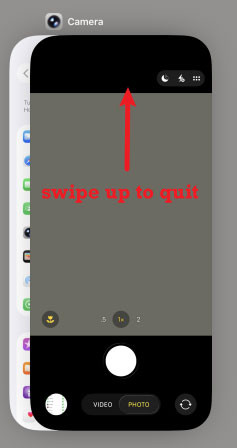
- Step 1. Swipe up from the bottom of the screen and pause in the middle (on devices without a Home button), or double-press the Home button (on devices with one) to open the app switcher.
- Step 2. Find the app you want to close.
- Step 3. Swipe up on the app's preview to force close it.
Method 4: Manage Siri Suggestions and Lock Screen Pre-loading
Siri often predicts your behavior. If you usually listen to music at a certain time, Siri might pre-load the Music widget on your Lock Screen, making it highly susceptible to accidental pocket touches.
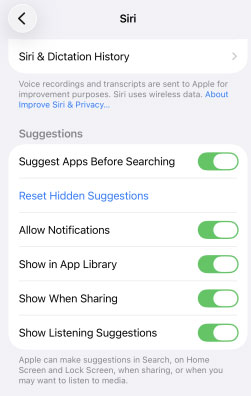
- Step 1. Go to Settings > Siri.
- Step 2. Find the section labeled Suggestions.
- Step 3. Toggle off Allow Notifications and Show in App Library.
 Pro Tip
By disabling these, the system stops predicting when you might want to listen to music based on your routine. This prevents the Media Controller from automatically appearing on your Lock Screen, which is a common source of accidental "ghost" taps.
Method 5: Audit the "Back Tap" Shortcut (iPhone Only)
Back Tap is highly sensitive; even the vibration of placing your phone on a hard surface or putting it in a tight pocket can be misinterpreted by the accelerometer as a command to start the music.
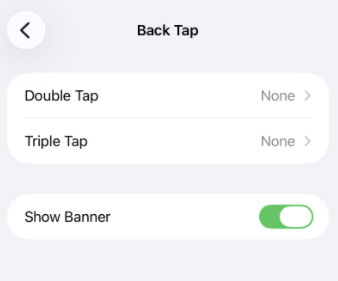
- Step 1. Go to Settings > Accessibility.
- Step 2. Tap on Touch, then scroll to the very bottom and select Back Tap.
- Step 3. Ensure that neither Double Tap nor Triple Tap is set to "Play/Pause." If they are, change the setting to None.
Method 6: Check the Music App Update
Glitches in the music app are able to make iPad/iPhone starts playing music by itself. To remove these bugs, you can check the Music app update or reinstall the Music app.
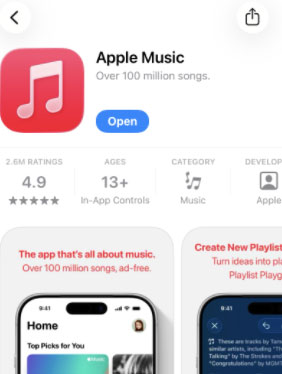
- Step 1. You are suggested to go to the App store, search for the Music app from the search bar, and if there is a updated version of the Music app, update the Music app on your device. If not, it means the current version of Music app is the latest one.
- Step 2. If the updating doesn't work, try to delete and reinstall the app to fix this issue. Press and hold the Music app icon. Tap Remove App → Delete App, then confirm. Open the App Store, search for Apple Music (or just "Music"), and tap the download (cloud) icon or Get to reinstall.
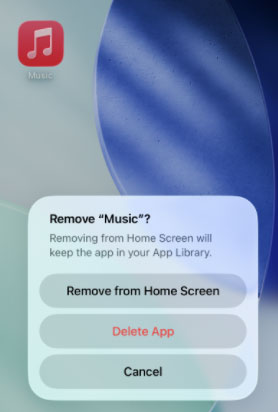
- Step 3. Launch the app and sign in with your Apple ID if needed.
Method 7: Adjust System Settings to Prevent Ghost Playback
If your iPad or iPhone is playing music without your input, it is often triggered by automated handoff features or sensitive touch shortcuts. Adjusting these specific system behaviors can block "invisible" play commands.
- Step 1. Open the Settings app on your device.
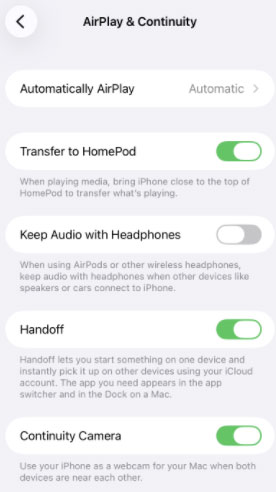
- Step 2. Navigate to General and select AirPlay & Continuity.
- Step 3. Locate the Transfer to HomePod toggle and switch it to Off.
Pro Tip
This feature uses the Ultra Wideband chip to detect nearby speakers. Disabling it prevents your device from automatically "handing off" audio playback just because you set your phone down near a HomePod or compatible smart speaker.
Method 8: Restart Your iPhone/iPad
Then you can also try out restarting your iPhone or iPad, the simple way to solve iPad/iPhone plays music by itself. This is a quick fix to clear out most bugs in the iPhone/iPad that result in the problem mentioned in this article.
- iPhone 5 and older: Press and hold the Top button until the power-off slider appears, then drag the slider to turn off the device. To turn on the iPhone, press the hold the Top button again until you see the Apple logo.
- iPhone 6,7,8, SE: Press the Power button until the slider pops up on the screen, then pull the slider to switch off your device. Finally hold the Power button to turn on the iPhone.
- iPhone X and newer: Hold the Side and Volume buttons at the same time until the slider is shown, then drag on the slider to turn off your iPhone and finally press the Side button to switch on the device.

Method 9: Reset All Settings
To avoid any potential issues that give rise to music automatically played on iPhone/iPad, you could also attempt to reset all of your iPhone/iPad settings. However, this method will delete all data on the device, so make sure you have your data backed up before the procedures as presented here.
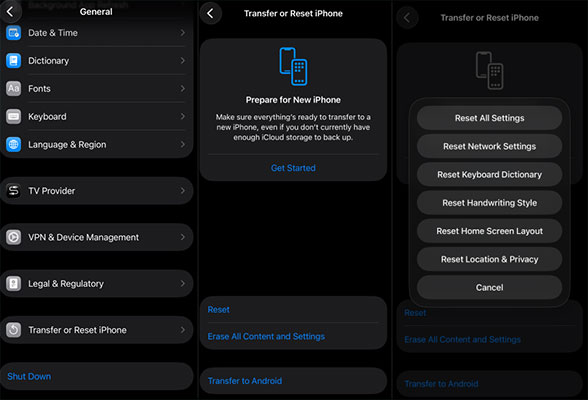
- Step 1. Open Settings of iPhone/iPad.
- Step 2. Tap the Transfer or Reset iPhone button in the General.
- Step 3. Tap the Reset option, and hit Reset All Settings.
Method 10: Use TunesKit iOS System Recovery Program (No Data Loss)
In order not to cause any data loss while working out the iPhone/iPad automatically playing music problem, you are highly recommended to employ professional iOS system recovery applications like TunesKit iOS System Recovery. Besides fixing the music randomly played on the iOS devices, this program can deal with other various issues like restoring iPhone in DFU mode, grey screen, some iPhone errors, etc. Moreover, it supports different iDevices such as iPhone, iPad and iPod. And finally, it is fully compatible with diverse iOS versions including the latest one.
Fix iPhone/iPad Playing Music by Itself
Use TunesKit iOS System Recovery to quickly stop random music playback and restore your device to normal without data loss.
 600,000+ Downloads
To use the easy-operated software to solve the music problem on iPhone/iPad, you just need these simple steps:
Step 1Connect iDevice to computer
Launch TunesKit iOS System Recovery for Windows/Mac on the computer. Then connect your iPhone/iPad with the computer. When the device is detected, click "iOS System Repair" button and choose the "Start".

Step 2Choose a repair mode
There two repair modes available, if you don't want to cause data loss, you can choose the Standard Repair to start.

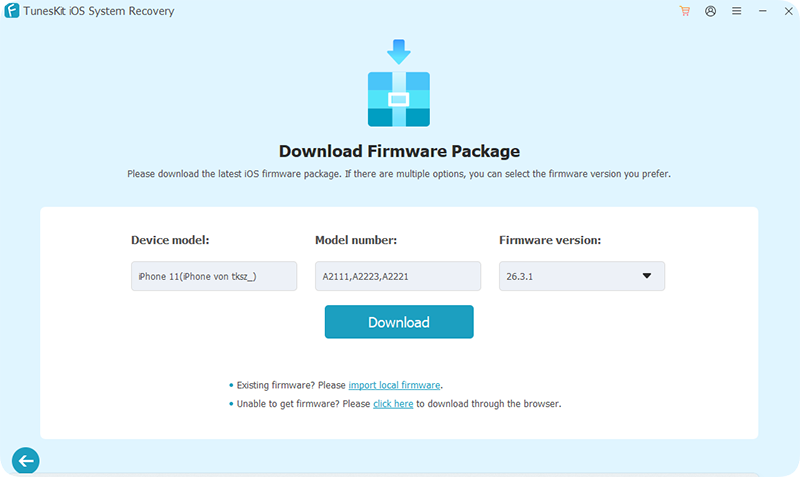
Step 3Download firmware package
Check out your device information including the model and iOS versions, etc. Correct it if there's anything wrong, otherwise hit the "Download" button on the right corner and it will begin downloading and verifying the firmware package.
Step 4Fix iPad/iPhone plays music by itself
When the firmware has been downloaded and verified successfully, tap the "Start Standard Repair" button and the software will automatically start to fix your iPhone/iPad playing music automatically issue. Make sure your device is connected till the process is finished.

Summary
In conclusion, 10 effective ways to fix iPad/iPhone starts playing music by itself issue are introduced in this context. To use these methods, you don't need any technical or computer skills. You just choose the one way you appreciate and follow the corresponding steps. TunesKit iOS System Recovery is a professional iOS system repair tool that can help you fix any problems on iPhone, iPad, and iPod touch. More importantly, it won't cause any data loss while repairing your device. If you have any questions about it, please be free to connect us.


