


Forgot Restrictions Passcode on iPhone? 4 Ways to Reset It
Forgetting your Restrictions passcode can be frustrating, especially if you're locked out of app restrictions, content settings, or parental controls. The good news is that the solution depends on your iPhone's iOS version.
On devices running iOS 11 or earlier, Restrictions was a standalone feature protected by its own passcode. Starting with iOS 12, Apple replaced Restrictions with Screen Time, so the old Restrictions passcode became the Screen Time passcode. In this guide, we'll explain the difference between the two and show you the best ways to reset or remove the forgotten passcode, whether you're using an older iPhone or the latest iOS 27.

Quick Answer
| Situation | Best Solution |
|---|---|
| Forgot Restrictions passcode (iOS 11 or earlier) | Restore iPhone or use professional unlocking software |
| Forgot Screen Time passcode (iOS 12+) | Reset with Apple Account |
| Bought a used iPhone | Remove passcode with unlocking software (if applicable) |
| Forgot Apple Account password too | Restore iPhone in Recovery Mode or use professional unlocking software |
Restrictions Passcode vs. Screen Time Passcode
If you're searching for a forgotten Restrictions passcode, you're likely dealing with one of two scenarios. On older iPhones running iOS 11 or earlier, Restrictions uses a separate passcode. On iOS 12 and later, Apple replaced Restrictions with Screen Time, meaning you'll need to recover your Screen Time passcode instead.
| Feature | Restrictions | Screen Time |
|---|---|---|
| Available on | iOS 11 and earlier | iOS 12–27 |
| Purpose | Restrict apps and settings | Manage screen usage and parental controls |
| Recovery method | Restore device | Reset with Apple Account |
| Still supported | No | Yes |
How to Reset a Forgotten Restrictions Passcode
There isn't a one-size-fits-all solution for a forgotten Restrictions or Screen Time passcode. The best method depends on factors such as your iOS version, whether you know your Apple Account credentials, and if preserving your data is important. Below are the most effective methods, starting with Apple's official solution.
Method 1: Reset Screen Time Passcode with Apple Account (iOS 12–27)
 Requirements:
- Apple Account credentials
- Two-factor authentication enabled
- iOS 12+
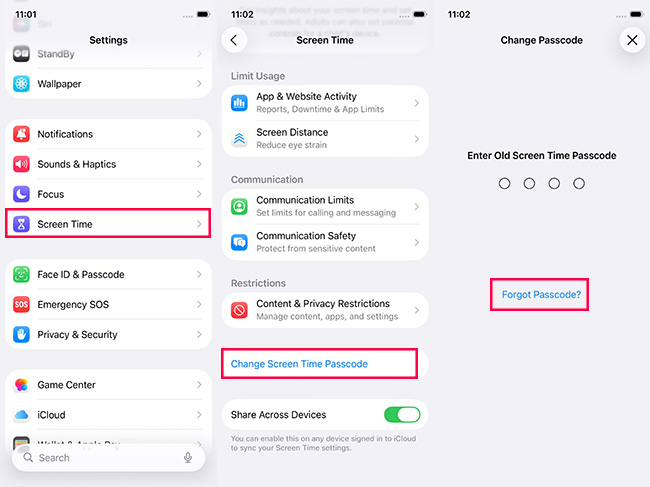
- Step 1. Open Settings > Screen Time. Tap Change Screen Time Passcode.
- Step 2. Tap Forgot Passcode?
- Step 3. Sign in with your Apple Account.
- Step 4. Create a new Screen Time passcode.
 View Also:
 Method 2: Remove the Restrictions or Screen Time Passcode with TunesKit iPhone Unlocker
If the official reset option isn't available or you've forgotten both your Screen Time passcode and Apple Account credentials, a professional unlocking tool may provide an easier solution. TunesKit iPhone Unlocker is designed to remove various iOS locks, including Screen Time restrictions, through a simple guided process. You can use it to remove the restriction passcode without any data loss.
Apart from that, when you encounter problems like forgot parental control passcode, forgot lock screen passcode, etc., TunesKit iPhone Unlocker can be a reliable assistant for users to get out of the trap.
Key Features of TunesKit iPhone Unlocker
Remove Screen Time Passcode without entering passcode. High success Rate. Easy to use. Support iOS 7 to iOS 27.
 600,000+ Downloads
Step 1. Connect Your iPhone to a Computer
Download and install TunesKit iPhone Unlocker on your computer. Then, connect your iPhone to the computer. When your iPhone is detected, click on the Unlock Screen Time Passcode option and then hit on the Start button.

Step 2. Remove Restrictions on iPhone
After clicking the Start button on TunesKit iPhone Unlocker, TunesKit iPhone Unlocker will start to remove the restrictions on iPhone. After removing the restrictions on iPhone, you will need to set up the iPhone again. Just click on the Next button.

Step 3. Set Up iPhone Again
While setting up the iPhone, please choose the Don't Transfer Apps & Data and Set Up Later in Settings options when you set up data and Screen Time.

Method 3: Restore Your iPhone with Finder or iTunes
Restoring your iPhone is another effective way to remove a forgotten Restrictions or Screen Time passcode, especially when other recovery options don't work. However, this method completely erases your device, so it's best suited for users who have a recent backup or don't mind setting up the iPhone again.
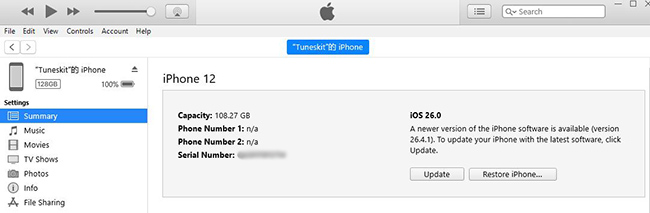
- Step 1. Launch iTunes (Windows) or Finder (macOS) on computer and connect your iPhone to the computer.
- Step 2. When your iPhone is detected by iTunes, click on the little device icon.
- Step 3. Select the Summary option on iPhone.
- Step 4. Hit on the Restore iPhone option to restore iPhone and remove restrictions.
Method 4: Contact Apple Support
If none of the previous methods solve the problem, contacting Apple Support is your final official option. Although Apple can't reveal or recover your forgotten passcode, support representatives can help verify your account, explain available recovery options, and ensure your device isn't affected by other security issues.

Which Method Should You Choose?
| Situation | Recommended Method |
|---|---|
| Remember Apple Account | Reset Screen Time |
| Forgot Apple Account | Software or Restore by iTunes |
| Restrictions on iOS 11 | Restore by iTunes |
| Bought second-hand iPhone | Unlocking software |
| Want fastest solution | Apple reset or software |
FAQ About iPhone Restrictions Passcode
-
Is the Restrictions passcode the same as the Screen Time passcode?
Yes. On iOS 12 and later, Apple replaced Restrictions with Screen Time. If you're using a modern iPhone, you'll be resetting your Screen Time passcode instead.
-
Can Apple tell me my Restrictions passcode?
No. Apple does not store or display your Restrictions or Screen Time passcode. If you've forgotten it, you'll need to reset or remove it using one of the supported recovery methods.
-
Why doesn't "Forgot Passcode?" appear?
The option may be unavailable because your device is running an older iOS version, Screen Time wasn't set up with an Apple Account recovery option, or the feature isn't supported in your current configuration.
-
Can I recover my old Restrictions passcode without erasing my iPhone?
Generally, no. Apple doesn't provide a way to reveal a forgotten Restrictions passcode on iOS 11 or earlier. Depending on your device and iOS version, restoring the device or using a compatible unlocking tool may be the only available options.
Conclusion
Although forgetting your Restrictions passcode can feel like you're locked out of your own device, the solution is often straightforward once you identify your iOS version. If you're using iOS 12 or later, resetting the Screen Time passcode with your Apple Account is the safest and quickest method. If Apple Account is also forgotten, TunesKit iPhone Unlocker will be the alternative to remove Screen Time passcode without data loss.
For older devices running iOS 11 or earlier, restoring the device or using a compatible unlocking tool may be necessary. Before choosing a method, consider whether preserving your data is a priority and ensure you have access to your Apple Account if Activation Lock is enabled.



