


[2026 Updated] How to Factory Reset iPhone with Broken Screen
Factory resetting your iPhone is sometimes necessary, especially when you're dealing with issues such as a broken screen, or when you're preparing to sell or hand over the device to someone else. If your iPhone's screen is damaged, it can be challenging to perform a factory reset, but there are still several ways to do it.
This guide will walk you through different methods to factory reset an iPhone with a broken screen, including using iTunes (or Finder), iCloud, and third-party tools.

Assessing Your Device: Partial vs. Complete Screen Failure
Before attempting any erasure method, you need to evaluate the extent of the hardware damage. Some displays might have cracked glass but retain touch sensitivity in certain areas, while others go completely black or unresponsive. Identifying your exact situation will determine which recovery route is most effective.
- Partial Functionality: If you can still tap parts of the display, you might be able to use Siri or VoiceOver to navigate basic menus on the iPhone.
- Complete Failure: For totally black or unresponsive panels, you must rely on remote wiping or specialized desktop software to factory reset the iPhone.
Overcoming the "Trust This Computer" Hurdle
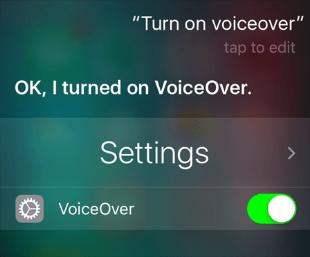
One of the biggest roadblocks when connecting a damaged iOS device to a computer is the security prompt asking you to trust the machine. Since you cannot tap the authorization button, standard computer connections often fail. Fortunately, if your home button or side button works, you can activate Siri to turn on VoiceOver.
Using VoiceOver allows you to navigate the invisible interface using physical buttons and audio cues.
- Step 1. Activate Siri by holding the Side or Home button and say, "Turn on VoiceOver."
- Step 2. Connect your phone to the computer with a USB cable.
- Step 3. Swipe left or right blindly on the screen until VoiceOver reads "Trust," then double-tap anywhere to confirm.
Solutions to Factory Reset iPhone with a Broken Screen
If you have got the autorization to connect the computer, you can use the following 3 solutions to factory reset your iPhone with a broken screen.
Solution 1. Use iTunes/Finder to Factory Reset iPhone
If you can't interact with the broken screen, you can use iTunes (or Finder for macOS Catalina and later) to perform a factory reset. This method allows you to reset your iPhone using your computer. Connect Your iPhone to a Computer: Use a USB cable to connect your iPhone to a computer. If your screen is entirely broken and unresponsive, you might need to rely on voice feedback or touch gestures from memory to unlock the device.
- Step 1. On Windows or macOS Mojave and earlier, open iTunes. On macOS Catalina or later, open Finder.
- Step 2. Put the iPhone into Recovery Mode, which allows iTunes or Finder to connect to the device even if the screen isn't working as normal.
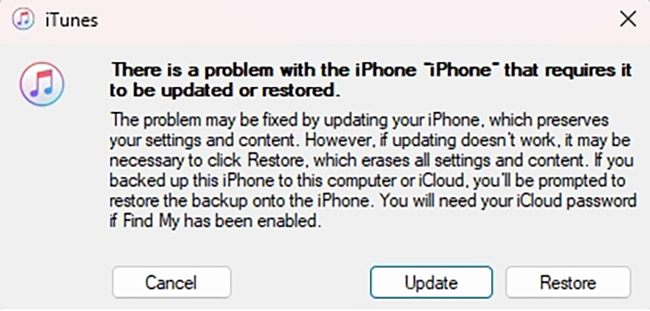
- Step 3. Once the iPhone is in recovery mode, iTunes or Finder will show a message saying that it has detected a device in recovery mode. Click Restore and follow the on-screen prompts to erase your iPhone and install the latest iOS version.
Solution 2. Using iCloud to Factory Reset iPhone
If you have enabled Find My iPhone and the iPhone is connected to Wi-Fi, you can use iCloud's "Find My iPhone" feature to remotely reset your device. The following steps will show you how:
- Step 1. On any computer or mobile device, visit icloud.com/find and sign in using your Apple Account credentials (the Apple Account associated with the iPhone).
- Step 2. Once logged in, click on Find My.
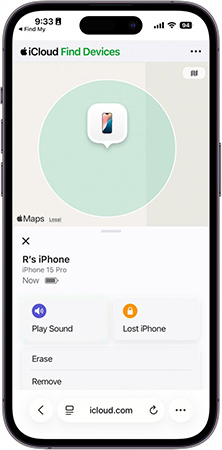
- Step 3. In the All Devices section, select the iPhone you want to reset.
- Step 4. Click on Erase. This option will remotely wipe your device and restore it to factory settings. You'll be asked to confirm the action and, if applicable, enter your Apple Account password.
- Step 5. Once the process is complete, the iPhone will be erased, and you can set it up again and restore it from a backup.
Solution 3. Factory Reset iPhone with Broken iPhone via TunesKit iPhone Unlocker
Sometimes, physical buttons are broken alongside the display, iPhone cannot connect to a network, or the computer refuses to recognize a device that hasn't been trusted. In these complex scenarios, utilizing dedicated third-party software provides a streamlined alternative.
TunesKit iPhone Unlocker is recommended here. TunesKit iPhone Unlocker is a powerful and multifunctional iOS unlocking tool that allows users to unlock iOS screen, remove Apple Account, bypass Screen Time restrictions, and remove MDM restrictions. Even when you are trying to factory reset your iPhone with broken screen, TunesKit iPhone Unlocker can also help you out.
Why Choose TunesKit iPhone Unlocker?
Factory reset iPhone with broken screen. Allows users to unlock iPhone, iPad, and iPod touch. Work efficiently with almost all iOS versions.
 600,000+ Downloads
The following steps will show you how to factory reset iPhone with broken screen by using TunesKit iPhone Unlocker.
Step 1Connect iPhone to Computer
To begin with, download and install TunesKit iPhone Unlocker on your computer. When the program is installed on your computer successfully, select the Unlock iOS Screen feature. When your iPhone is detected, click on the Start button.

Step 2Put iPhone into Recovery Mode
In this phase, you will need to put your iPhone to Recovery mode for the further step. If you don't know how to make it, please follow the onscreen instruction. When your iPhone is in Recovery mode, click on the Next button.

Step 3Download Firmware Package
Then, you will need to download the firmware package to factory reset your iPhone. Before downloading, please check the onscreen instruction. If there is anything wrong, please correct it manually. Click on the Download button to start downloading the firmware package.

Step 4Factory Reset iPhone with Broken Screen
When the firmware package is downloaded successfully, click the Unlock button. TunesKit iPhone Unlocker will start to factory reset your iPhone. All the content and data on your iPhone will be erased.

FAQs About Factory Resetting iPhone with Broken Screen
-
How can I back up my iPhone with a broken screen?
You can back up your iPhone using iTunes or iCloud if you can still interact with the device, even partially. Alternatively, third-party tools can help back up your data without screen interaction.
-
What if I can't use iTunes or iCloud because my screen is broken?
In such cases, you can use third-party software tools like TunesKit iPhone Unlocker to reset your iPhone when your iPhone screen is broken.
-
Will my iPhone be locked after a factory reset?
If Find My iPhone was enabled, the iPhone may be locked after the reset. You'll need to enter the Apple Account and password to unlock it.
Conclusion
Factory resetting an iPhone with a broken screen may seem challenging, but with the right tools and methods, it can be done effectively. Whether you choose to use iTunes, iCloud, TunesKit iPhone Unlocker, or even physical repair options, you can restore your iPhone to its original factory settings. Always ensure that you back up your data, disable Find My iPhone, and have your Apple Account credentials ready to avoid any complications during the process.


