


5 Ways to Factory Reset iPhone 17 (With or Without Passcode)
Whether you are preparing your iPhone 17 for a trade-in or trying to resolve a severe iOS software glitch, performing a factory reset is an essential step. Wiping your device protects your privacy and ensures the next owner starts with a completely clean slate.
Fortunately, restoring your iPhone 17 to its original out-of-the-box state is a straightforward process. Most resets can be handled quickly and safely using Apple's free, built-in tools. However, if your device is permanently disabled or you are locked out due to a forgotten passcode, specialized troubleshooting software can easily step in to help you regain access.
Crucial Prerequisites Before You Erase
Before you trigger the permanent deletion of your files, you must secure your existing data and sever the tie between your hardware and your Apple ID. Skipping this phase will result in a permanent Activation Lock, rendering the iPhone 17 useless to anyone else. It is highly recommended that you perform these actions over a stable Wi-Fi connection.
- 1. Navigate to your iCloud settings and force a manual backup to ensure all your latest photos, contacts, and messages are safe in the cloud.

- 2. Scroll to the bottom of your Apple ID profile and sign out completely, which will prompt you to turn off the "Find My" security feature.


How to Factory Reset iPhone 17/Air/Pro/Pro Max [5 Ways]
To help you decide which path is right for your situation, we'll show you 5 different methods to reset iPhone 17 series to factory settings with or without a passcode or computer.
| Method | Primary Requirement | Computer Needed? | Best Use Case |
|---|---|---|---|
| 1. Standard Reset | Screen Passcode | No | Preparing to sell, trade-in, or give away your phone. |
| 2. Lock Screen Reset | Apple ID & Password | No | You forgot your passcode but are connected to Wi-Fi/Cellular. |
| 3. Recovery Mode | USB-C Cable | Yes (Mac/PC) | iPhone is frozen, stuck on the Apple logo, or unresponsive. |
| 4. Third-Party Bypass | USB-C Cable | Yes (Mac/PC) | Official methods fail, or you've lost both passcode and Apple ID. |
| 5. Remote Wipe | Apple ID & Password | No | Your iPhone 17 is lost, stolen, or the screen is physically broken. |
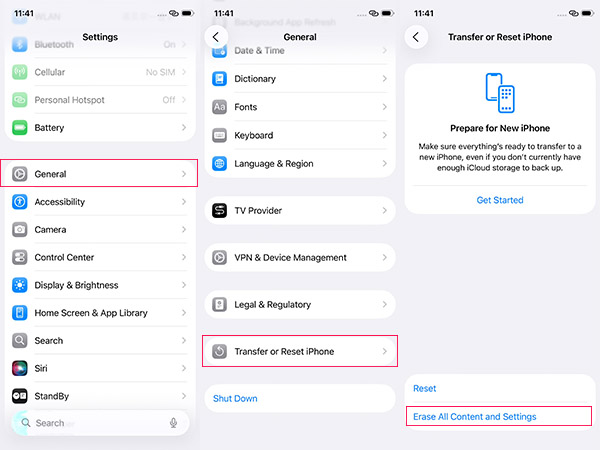
Method 1. The Standard Reset (Using the Settings App)
This is the primary, official route for users who have full access to their device and know their screen passcode. It is the safest and cleanest way to prepare an iPhone 17 for resale. You can do this entirely on the device without plugging it into a computer.
- Step 1. Open the Settings app and tap on the General menu.
- Step 2. Scroll to the very bottom and select Transfer or Reset iPhone.
- Step 3. Tap Erase All Content and Settings and follow the on-screen prompts to input your passcode and confirm the deletion.
Method 2. Reset from the Security Lockout Screen
If you have forgotten your passcode, panic often sets in, but Apple provides a direct escape route right on the lock screen. You do not need a computer for this method, provided your iPhone 17 is connected to a cellular or Wi-Fi network.
This process relies on your Apple ID credentials to prove ownership.
- Step 1. Intentionally enter the wrong passcode several times until the screen displays an iPhone Unavailable or Security Lockout message.
- Step 2. Tap the Forgot Passcode? or Erase iPhone option that appears in the bottom corner of the display.
- Step 3. Enter your Apple ID password to authenticate the wipe and initiate the factory reset.

Method 3. Use Recovery Mode (For Unresponsive Devices)
Sometimes the operating system is entirely frozen, or the phone is stuck in a boot loop displaying only the Apple logo. When the software interface fails, you have to rely on the physical hardware buttons and a computer to force a clean installation of iOS.
This method requires a Mac or a Windows PC with iTunes or the Apple Devices app installed.
- Step 1. Connect your iPhone 17 to your computer using a USB-C cable.
- Step 2. Press and quickly release the Volume Up button, press and quickly release the Volume Down button, and then press and hold the Side power button until the Recovery Mode screen appears.
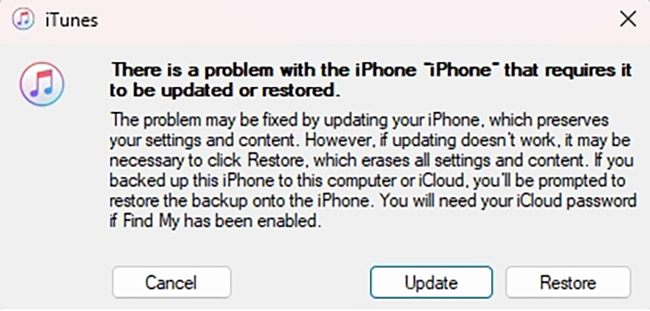
- Step 3. Click Restore on the prompt that automatically pops up on your computer screen to download fresh firmware and wipe the phone.
Method 4. Factory Reset via TunesKit iPhone Unlocker
Occasionally, native methods fall short. If your iPhone 17 is disabled, you cannot remember your Apple ID password to bypass the Security Lockout screen, or iTunes throws an error during Recovery Mode, a dedicated iOS unlocking tool can force the factory reset.
TunesKit iPhone Unlocker is a desktop application designed specifically to bypass various iOS locks. It can wipe a locked screen, remove an Apple ID without a password, and bypass MDM profiles. Because it handles the firmware download and installation automatically, it often succeeds where standard iTunes restorations fail.
- Step 1. Download and open TunesKit iPhone Unlocker on your Mac or PC, select Unlock iOS Screen, and connect your iPhone 17 to the computer via a USB cable.
- Step 2. Follow the on-screen prompts to put your device into DFU or Recovery mode, so the software can detect the exact model.
- Step 3. Click Download to fetch the appropriate iOS firmware package, and then click Unlock to initiate the factory reset and wipe all data and locks from the device.

Method 5. Remote Wipe via iCloud
If your device is lost, stolen, or the screen is too shattered to use, you can trigger a factory reset remotely. This provides peace of mind that your sensitive personal data will not fall into the wrong hands. The device will execute the wipe the moment it connects to the internet.
- Step 1. Log into the iCloud Find Devices portal on a separate computer, tablet, or smartphone.
- Step 2. Select your specific iPhone 17 from the dropdown list of your connected Apple devices.
- Step 3. Choose the Erase This Device option and enter your Apple ID password to finalize the command.

Video Guide: How to Factory Reset Your iPhone | Apple Support
Now, watch the following video and learn how to restore your iPhone to factory settings, either from your iPhone or from your computer.
FAQs Related to Factory Reset iPhone 17
Anticipating user confusion is key to holding their attention. Here are the most common questions people have right before they hit the erase button.
-
Will a factory reset delete my eSIM plan?
It depends on your choice. During a standard reset through the settings menu, iOS will specifically ask if you want to keep or delete your eSIM profile.

-
Does wiping my phone delete my iCloud backups?
No, a factory reset only deletes the local data stored physically on the iPhone 17's internal storage, leaving your cloud backups completely untouched.
-
Can I factory reset my iPhone 17 without a computer?
Yes, you can easily use the Settings app, the Security Lockout screen feature, or a secondary device logged into iCloud to wipe the phone wirelessly.
View Also: How to Restore iPhone Without Computer [iOS 26 Supported] -
Can I factory reset my iPhone 17 without a passcode?
Yes, you can utilize the Security Lockout feature directly on the device with your Apple ID credentials, or use a computer to restore the phone through Recovery Mode or a specialized tool like TunesKit iPhone Unlocker.
-
How to do a soft reset on an iPhone 17?
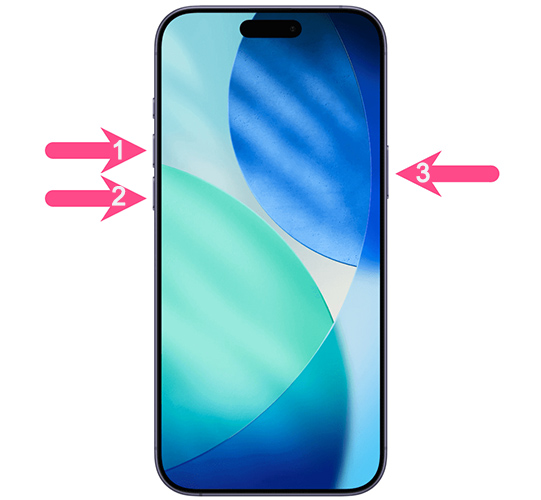
A soft reset (or force restart) is the best initial step to take if your iPhone 17 feels sluggish or a specific app hangs. Unlike a full factory reset (hard reset), this process does not delete any of your photos, messages, or settings. It effectively forces the hardware to reboot, which clears out minor temporary software conflicts within the system.
Step 1. Press and quickly release the Volume Up button.
Step 2. Press and quickly release the Volume Down button.
Step 3. Press and hold the Side power button until the Apple logo appears.
Conclusion
Performing a factory reset on your iPhone 17 is a straightforward process, provided you back up your data and sign out of your Apple ID beforehand. For most situations, Apple's built-in tools like the Settings app or Recovery Mode are all you need to wipe the device clean safely.
However, if you find yourself entirely locked out due to forgotten credentials or persistent software errors, reliable third-party software like TunesKit iPhone Unlocker provides a seamless alternative to force the reset. Once the process is complete, your iPhone will reboot to the initial setup screen, fully erased and ready for its next user.
If you found this guide helpful, share it with a friend who is upgrading their iPhone this year.


