


Apple ID "Your Session Has Timed Out"? 9 Fixes [2026]
Seeing "Your session has timed out" or "This session has timed out for your security" while signing in to your Apple ID? The error may appear after you enter your password or verification code, sometimes sending you straight back to the sign-in page in browser.
Start by clearing Apple-related cookies, trying a private browser window, and temporarily disabling browser extensions. If the problem occurs across multiple browsers or devices, check Apple's service status and your network connection next.
 Note
Note
Apple ID is now called Apple Account, although the same email address or phone number and password are still used to sign in.

- Why Does Your Apple ID Session Keep Timing Out?
-
How to Fix Apple ID "Your Session Has Timed Out"
- Fix 1. Reload the Apple Account Page and Sign In Again
- Fix 2. Clear Apple-Related Cookies and Website Data
- Fix 3. Try Private or Incognito Mode
- Fix 4. Disable Browser Extensions and Content Blockers
- Fix 5. Try Another Browser or Device
- Fix 6. Check Apple System Status
- Fix 7. Check Your Internet Connection and Disable VPN
- Fix 8. Update Your Browser and Apple Device
- Fix 9. Contact Apple Support
- What If "The Connection to iCloud Timed Out"?
- Optional: Remove an Apple Account from iPhone/iPad When You Can't Sign Out Normally
- FAQs About Apple ID Session Timed Out
- Conclusion
Why Does Your Apple ID Session Keep Timing Out?
A session timeout means that the current Apple Account sign-in session can no longer continue. It does not necessarily mean that your account is disabled or that your password is wrong.
Depending on when the error appears, possible causes include expired or corrupted browser cookies, conflicting browser extensions, unstable internet access, VPN interference, an outdated browser or operating system, or a temporary Apple service problem. Use this table to decide where to start:
| What Happens | Possible Cause | Try First |
|---|---|---|
| Timeout appears immediately after verification | Browser session or cookies | Clear Apple-related site data |
| Sign-in works in Incognito/Private mode | Cookies or extensions | Clear cookies and disable extensions |
| Safari works but Chrome does not | Browser-specific issue | Update or reset the affected browser |
| Error occurs on every browser and device | Apple service/account issue | Check Apple System Status |
| "Connection to iCloud timed out" appears | Network or iCloud connection | Change network and disable VPN |
| Error occurs only on one iPhone/iPad | Device or software issue | Restart and update the device |
If the error appears on only one browser, start with Fixes 1–5. If it happens everywhere, focus on Apple services, your network, and your account.
How to Fix Apple ID "Your Session Has Timed Out"
If your Apple ID says "Your session has timed out," the problem is often related to browser data, network issues, or Apple’s sign-in service. Try the following fixes in order to refresh the session and regain normal access to your Apple Account.
Fix 1. Reload the Apple Account Page and Sign In Again
A session can simply expire if the sign-in page has been open for too long. Before changing browser or device settings, close the old sign-in tab and start a fresh session.
- Step 1. Close the Apple Account or iCloud sign-in tab completely.
- Step 2. Reopen your browser and go to the Apple Account sign-in page or iCloud.
- Step 3. Enter your Apple Account email address or phone number and password again.
- Step 4. Complete two-factor authentication promptly if Apple sends a verification code.

Apple's current account-management site is the Apple Account website, while iCloud data can be accessed through iCloud.com. If a fresh session immediately times out again, continue with the browser-related fixes below.
Fix 2. Clear Apple-Related Cookies and Website Data
Cookies store information about your current login session. If old or corrupted Apple website data is still stored in the browser, a new authentication request may fail or send you back to the login screen. Instead of factory resetting your device, clear browser data first.
On Google Chrome
- Step 1. Open Chrome Settings.
- Step 2. Go to Privacy and security.
- Step 3. Open the section for site data or browsing data.
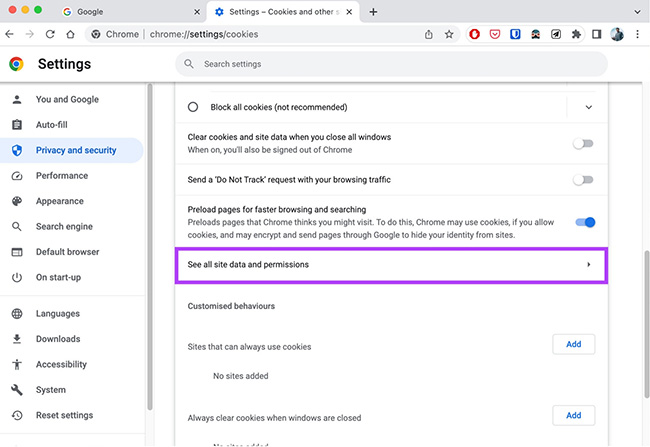
- Step 4. Search for Apple-related website data and remove it. You can also clear cookies and cached files if needed.
- Step 5. Restart Chrome and sign in again.
On Safari for Mac
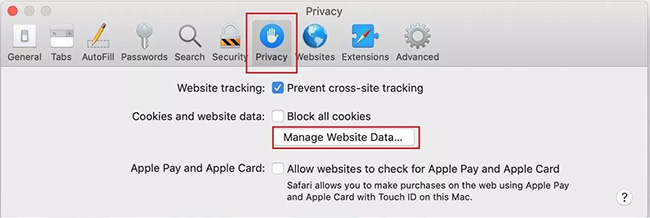
- Step 1. Go to Safari > Preference > Privacy > Manage Website Data.
- Step 2. Search for Apple-related entries, remove them, close Safari, and try signing in again.
On iPhone or iPad Safari
- Step 1. Open Settings > Apps > Safari.
- Step 2. Tap Clear History and Website Data from there. Keep in mind that clearing website data may sign you out of websites you currently use.
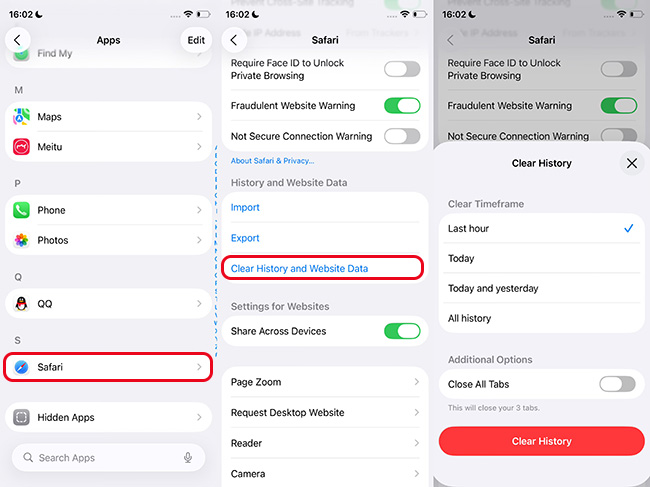
If the error disappears afterward, old browser session data was likely involved.
Fix 3. Try Private or Incognito Mode
A private browsing window gives you an easy way to test the problem without immediately deleting all browser data.
Chrome
- Step 1. Press Ctrl + Shift + N on Windows or Command + Shift + N on Mac.
- Step 2. Then open the Apple Account sign-in page and try again.
Safari
Choose File > New Private Tab.
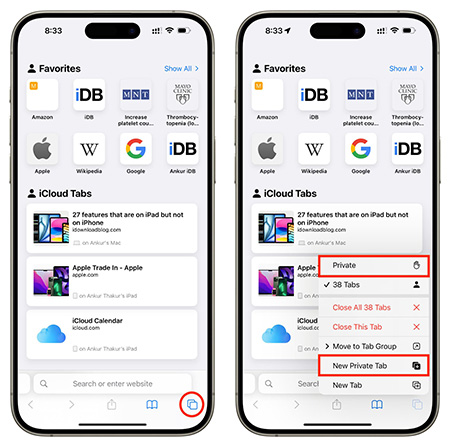
If Apple Account works normally in Private or Incognito mode but keeps timing out in a regular window, the problem is more likely related to saved site data, cache, or a browser extension. In that case, return to Fix 2 and Fix 4 rather than changing settings on your Apple Account itself.
Fix 4. Disable Browser Extensions and Content Blockers
Privacy extensions, ad blockers, script blockers, cookie managers, and security extensions can interfere with websites that rely on several authentication steps. Temporarily disable your browser extensions, especially those that:
- Block cookies or trackers;
- Block scripts;
- Modify web requests;
- Filter website content;
- Redirect traffic through privacy services.
Then close the Apple Account page, open it again, and retry the sign-in. If the error disappears, turn your extensions back on one by one until you identify the conflicting extension.
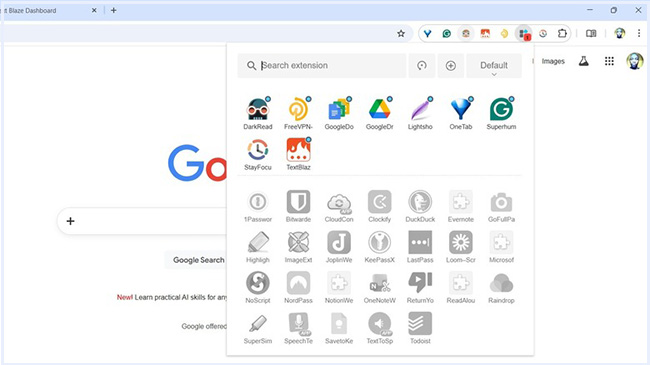
This test is particularly useful when the error appears right after entering a two-factor authentication code.
Fix 5. Try Another Browser or Device
Testing a different browser helps determine whether the timeout is specific to your current browser.
For example:
- Chrome → try Safari or Edge;
- Safari → try Chrome;
- Computer → try iPhone or iPad;
- Mobile device → try a computer.
If you can sign in normally on another browser, you can focus on clearing site data, updating the original browser, or disabling its extensions.
If every browser and every device gives you the same Apple ID session timeout error, continue with the next fixes because the problem may be related to your network, Apple services, or the account itself.
Fix 6. Check Apple System Status
Before making major changes to your device, verify that Apple services are working normally. Apple itself recommends checking its System Status page when you cannot connect to or sign in to iCloud.
Look for problems affecting services such as:
- Apple Account;
- iCloud Account & Sign In;
- iCloud services;
- App Store.

If Apple reports an outage, wait for the affected service to return to normal before attempting additional troubleshooting.
Avoid repeatedly changing your password or resetting your device during an active service outage.
Fix 7. Check Your Internet Connection and Disable VPN
Apple Account authentication needs a stable network connection. A connection that changes or drops during authentication can interrupt the sign-in session. Try these checks:
- Step 1. Open another website to confirm that your current connection works normally.
- Step 2. Switch between Wi-Fi and cellular data when possible.
- Step 3. If you are using a VPN, temporarily disconnect it and retry the Apple Account sign-in.
- Step 4. On a computer, try another Wi-Fi network or a mobile hotspot.
Apple recommends confirming that your device has a working internet connection when troubleshooting iCloud connection and sign-in problems. If switching networks fixes the error, you can focus on the original network, VPN, router, or DNS configuration rather than the Apple Account itself.
Fix 8. Update Your Browser and Apple Device
Outdated browsers or system software can create compatibility problems with authentication pages.
Update Your Browser
- Step 1. Install the latest available version of Safari, Chrome, Edge, or whichever browser you use.
- Step 2. Restart the browser after updating and try signing in again.
Update iPhone or iPad
- Step 1. Go to Settings > General > Software Update.
- Step 2. Install an available iOS or iPadOS update.
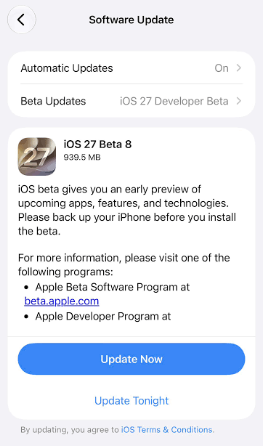
Apple specifically recommends updating iPhone, iPad, or Mac to the latest compatible operating system when iCloud sign-in or connection problems occur.
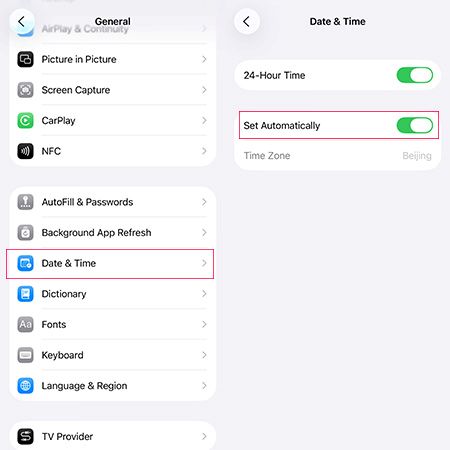
Check Date and Time
Also make sure the device's date and time are correct.
- Step 1. On iPhone or iPad, go to Settings > General > Date & Time > Set Automatically.
- Step 2. Then restart the device and retry the sign-in.
Fix 9. Contact Apple Support
If the Apple ID session continues to time out after you have:
- Tried several browsers;
- Tested another device;
- Used another network;
- Cleared website data;
- Disabled extensions;
- Confirmed that Apple services are online;
the issue may require account-specific assistance.
This is particularly relevant if you also see messages saying that your Apple Account is locked, disabled, or not active. Apple treats locked or disabled accounts separately from normal iCloud connection problems.
Contact Apple Support and describe exactly where the timeout occurs—for example, whether it happens before or immediately after two-factor authentication.

What If "The Connection to iCloud Timed Out"?
If the message specifically says "The connection to iCloud timed out," focus on the network and iCloud service before changing your account, try these steps in order:
- Step 1. Check Apple's System Status for an iCloud outage.
- Step 2. Switch between Wi-Fi and cellular data or try another network.
- Step 3. Temporarily disconnect your VPN.
- Step 4. Restart the device.
- Step 5. Install the latest compatible iOS, iPadOS, or macOS update.
- Step 6. Try signing in to iCloud again.
Apple's current guidance for iCloud connection or sign-in problems starts with checking service status, verifying account access, and updating the device software. If iCloud works on another device but still times out on one iPhone, iPad, or Mac, continue troubleshooting that specific device.
Optional: Remove an Apple Account from iPhone/iPad When You Can't Sign Out Normally
If the "Your session has timed out" error occurs only in a web browser, skip this section—the browser and Apple Account fixes above are more relevant. However, if an Apple Account is already signed in on your own iPhone or iPad and you cannot remove it normally because you no longer have the password, TunesKit iPhone Unlocker provides an Apple Account removal feature for supported devices.

When TunesKit iPhone Unlocker Is Relevant
- You forgot the Apple Account password used on the device;
- You cannot sign out of the Apple Account normally;
- The account cannot be removed through Settings;
- You need to switch to another Apple Account on your own device.
 600,000+ Downloads
600,000+ Downloads
600,000+ Downloads
How to Remove an Apple Account with TunesKit iPhone Unlocker
- Step 1. Connect your iPhone or iPad to the computer, open TunesKit iPhone Unlocker, and select Unlock Apple ID. Click Start to continue.
- Step 2. Follow the onscreen instructions to check the status of Find My, your device passcode, two-factor authentication, and software version. Do not skip this step because the removal process and data impact depend on the device settings.
- Step 3. Confirm the detected device information and download the matching firmware package when prompted.
- Step 4. Click Unlock and keep the device connected until the process finishes. Afterward, follow the onscreen setup instructions and sign in with the Apple Account you want to use.
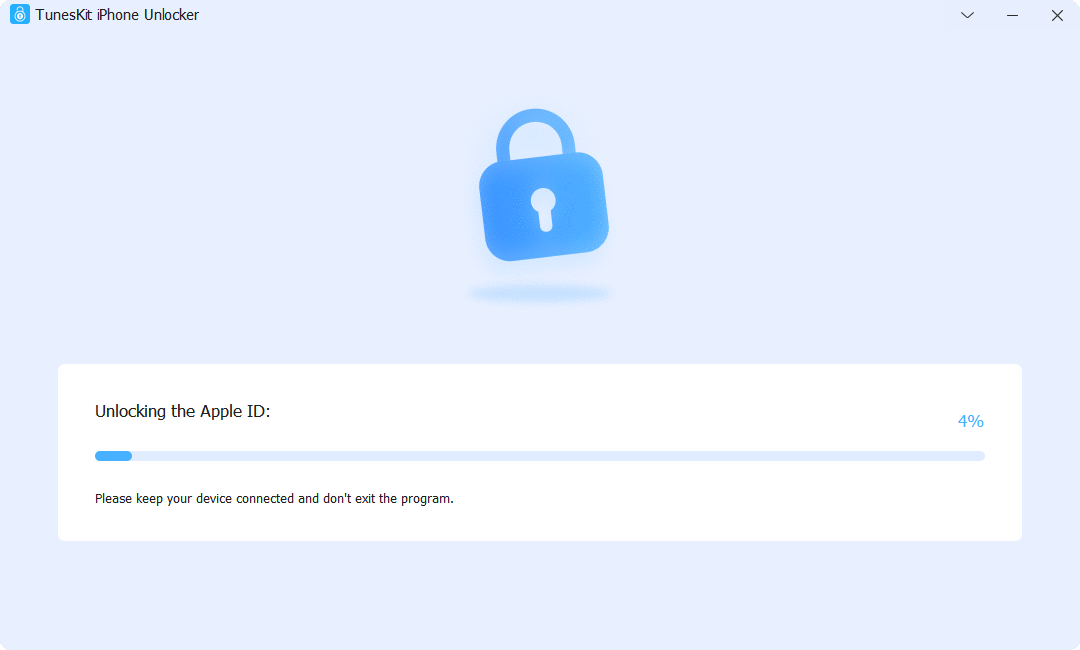
Note
Removing an Apple Account from a device is different from fixing the Apple Account itself. If the account is locked or disabled by Apple, use Apple's account recovery or support process instead.
FAQs About Apple ID Session Timed Out
-
Can a VPN cause an Apple ID session timeout?
It can interfere with the connection in some cases. Temporarily disable the VPN and try signing in again. If the error disappears, reconnect with a different VPN server or review the VPN configuration.
-
Does clearing cookies delete my Apple Account?
No. Clearing browser cookies removes locally stored website session information. It does not delete your Apple Account. However, you may be signed out of Apple and other websites afterward.
Conclusion
If your Apple ID says "Your session has timed out," start with the browser rather than resetting your iPhone. Clear Apple-related website data, test Private or Incognito mode, disable extensions, and try another browser. If the error appears everywhere, check Apple System Status, your network, device software, and account status.
For users who cannot remove an Apple Account already signed in on their own iPhone or iPad, TunesKit iPhone Unlocker can be considered separately. A browser session timeout itself is better handled through the troubleshooting methods mentioned above.



