


How to Fix TikTok Videos Not Playing on iPhone
This guide covers effective ways to fix TikTok videos not playing on iPhone, including:
- Force Close and Restart TikTok
- Check and Reset Your Internet Connection
- Clear the TikTok App Cache
- Fix iOS Bugs Using TunesKit iOS System Recovery
- Additional Troubleshooting
If TikTok videos are not loading or buffering on your device, you are not alone. Many users experience the TikTok videos not playing issue due to network problems, app glitches, or outdated iOS versions. In particular, TikTok videos not playing on iPhone can interrupt your viewing experience and prevent videos from loading properly. Fortunately, there are several simple solutions you can try to fix the issue quickly.
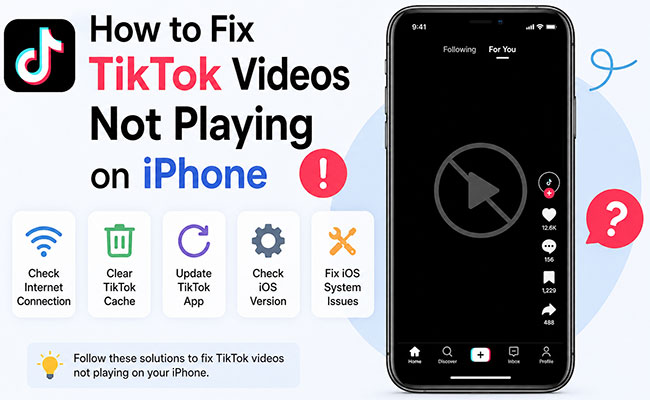
Why Are TikTok Videos Not Playing on iPhone?
When TikTok videos refuse to play or get stuck loading on your iPhone, it usually boils down to one of four culprits: network hiccups, corrupted temporary files (cache), app glitches, or strict device settings.
- 01 Corrupted App Cache: Every time you watch a TikTok, the app saves temporary files (cache) to help videos load faster next time. If this cache grows too large or gets corrupted, it backfires, causing videos to freeze, buffer indefinitely, or show a black screen.
- 02 Network Instability or VPN Interference: TikTok requires a relatively strong, continuous stream of data. A weak Wi-Fi signal or an unstable cellular connection can cause playback to fail. Additionally, active VPNs can cause severe routing issues or make it appear as though you are accessing the app from a restricted region.
- 03 Outdated App Version or System Glitches: If TikTok recently updated its backend servers, an outdated version of the app on your phone might struggle to parse the video data. Alternatively, background processes in iOS can occasionally clash, freezing video rendering across media apps.
- 04 Background App Refresh Restrictions: If you have Low Power Mode enabled or have turned off background data permissions, your iPhone restricts how apps handle data in the background, which can lead to delayed video playback.
How to Fix TikTok Not Playing Videos on iPhone?
Now that we've covered the possible reasons why TikTok videos may not play on your iPhone, let's move on to the solutions. Below are several effective methods you can try to fix the issue and get TikTok working normally again.
Method 1: Force Close and Restart TikTok
Sometimes the app just needs a quick refresh to resolve minor software glitches that interrupt video streaming. A force restart clears the active memory of the app without affecting your personal data. If a background process is frozen, shutting the app down entirely is the quickest way to restore standard functionality.
- Step 1. Swipe up from the bottom edge of your iPhone screen and pause in the middle to open the App Switcher.
- Step 2. Swipe left or right to find the TikTok app card among your recently used applications.
- Step 3. Swipe up on the TikTok preview to force it to close completely.
- Step 4. Reopen the app from your home screen to see if video playback is restored.
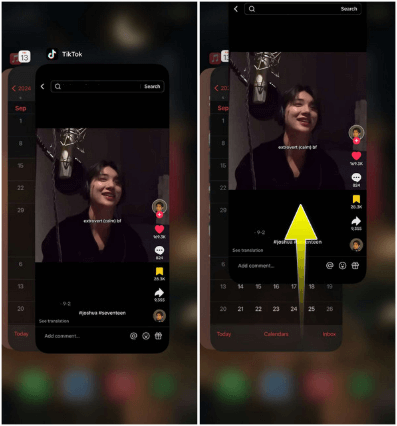
Restarting the app solves the vast majority of temporary playback bugs.
Method 2: Check and Reset Your Internet Connection
TikTok requires a fairly robust and stable internet connection to load and play videos continuously. If your network is dropping packets, videos will simply display a loading circle or a black screen. Toggling your connection forces your device to seek out the strongest available signal in your immediate area.
- Step 1. Open the Control Center by swiping down from the top-right corner of your screen.
- Step 2. Tap the Airplane Mode icon to turn it on, wait about 10 seconds, and then tap it again to turn it off.
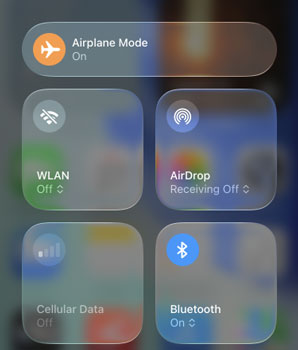
- Step 3. If you are on Wi-Fi, try tapping the Wi-Fi icon to switch to Cellular Data, or vice versa.
This simple network reset often jumpstarts a stalled data connection.
Method 3: Clear the TikTok App Cache
Over time, the temporary files TikTok stores on your phone can become corrupted or take up too much storage space. Clearing your cache provides a clean slate without deleting your drafts, saved videos, or account info. It forces the app to pull fresh video data directly from the servers rather than relying on outdated local files.
- Step 1. Open the TikTok app and tap on your Profile icon in the bottom right corner.
- Step 2. Tap the three-line menu icon in the top right corner and select Settings and privacy.
- Step 3. Scroll down to the "Cache & Cellular" section and tap Clear cache.

- Step 4. Tap the Clear button next to the Cache option to remove those temporary files.
Clearing the cache is one of the most effective ways to fix localized app glitches.
Method 4: Fix iOS Bugs Using TunesKit iOS System Recovery
While network issues or app bugs are common culprits, underlying iOS system problems can also completely freeze video playback. TunesKit iOS System Recovery is a dedicated repair tool designed to fix over 150 different iOS issues, including media playback failures and app crashing glitches. It works by safely downloading and reinstalling the core iOS firmware to wipe out bugs without affecting your personal files.
Apart from that, it can also update or downgrade iOS with one click, enter or exit Recovery Mode for free, repair iTunes error 4010, and let you explore the latest iOS beta version before the official release.
Fix TikTok Videos Not Playing on iPhone
Use TunesKit iOS System Recovery to quickly fix iPhone system glitches causing TikTok videos not to load or play — no data loss required.
 600,000+ Downloads
You can use the software's Standard Repair mode to fix the video playback glitch while keeping all your photos, apps, and messages completely safe.
Step 1Connect iPhone to PC
Download and launch TunesKit iOS System Recovery on your computer, then connect your iPhone using a USB cable. Select iOS System Repair on the main interface and choose the Start button.

Step 2Choose Standard Repair
If you want to keep your data intact, simply choose the Standard Repair to begin.

Step 3Download Firmware Package
Confirm the device information displayed on your screen matches your specific iPhone model, then click the Download button to fetch the correct firmware package.

Step 4Fix TikTok Not Playing Videos
Once the firmware download finishes, click Start Standard Repair to begin fixing the system. Keep your device connected until the software indicates the repair is complete. Your iPhone will automatically restart, providing a fresh, glitch-free system where TikTok videos can play smoothly again.

Method 5: Disable Your VPN
If you use a Virtual Private Network (VPN) on your iPhone, it might be interfering with TikTok's servers. VPNs can cause connection latency or route your traffic through regions where TikTok's streaming is restricted or throttled.
- Step 1. Open your iPhone's Settings app.
- Step 2. Tap on General, then scroll down to VPN & Device Management.
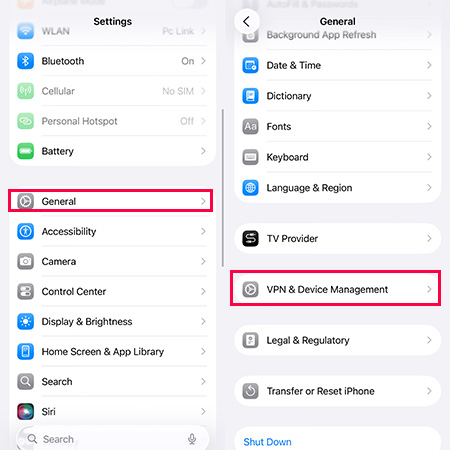
- Step 3. Tap on VPN and toggle the status switch to Not Connected.
- Step 4. Open TikTok and see if the videos start loading on your standard network.
Method 6: Update Your iOS
Sometimes the playback glitch isn't TikTok's fault at all, but rather a bug in Apple's operating system. If Apple is aware of a media rendering glitch, they will release a patch in a software update. Keeping your iPhone on the latest iOS ensures maximum compatibility with high-demand apps like TikTok.
- Step 1. Open Settings and tap on General.
- Step 2. Tap Software Update.
- Step 3. If an update is available, tap Update Now button.
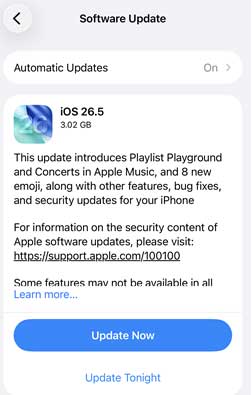
- Step 4. Allow your phone to restart and apply the new system files.
Method 7: Update or Reinstall the App
Running an outdated version can cause compatibility issues with your iPhone's operating system. TikTok frequently pushes updates to patch known bugs that prevent media from loading properly. If a recent iOS update changed how media plays, an app update is usually required to match it.
- Step 1. Open the App Store, search for TikTok, and tap Update if a newer version is available.
- Step 2. If updating doesn't work, press and hold the TikTok icon on your home screen and select Remove App, then Delete App option.

- Step 3. Return to the App Store, search for TikTok, and download a fresh copy.
Reinstalling gives the app a completely fresh start.
Conclusion
While dealing with the issue of TikTok videos not playing on iPhone is frustrating, most playback issues can be resolved with quick fixes like restarting the app or resetting your network. However, if you have exhausted the basic steps and your videos still will not play, TunesKit iOS System Recovery is the ultimate failsafe, efficiently repairing your iPhone's system and resolving complex media rendering bugs without erasing data to get your feed streaming smoothly again.


