


iPhone Games No Sound? 8 Quick Fixes That Work
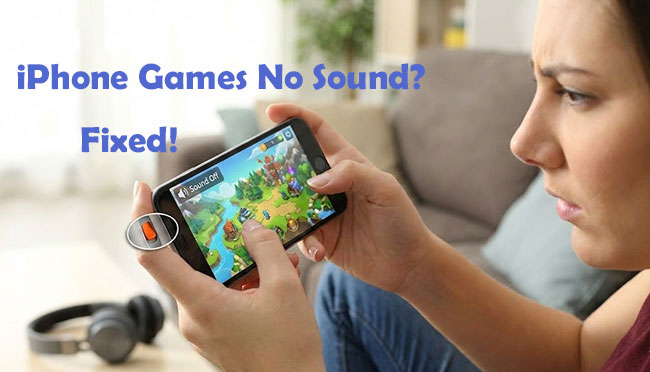
You're settled in for a gaming session, phone volume cranked up, but when the app launches, there's dead silence. It's incredibly frustrating, especially when your music or video apps seem to work just fine.
This confusing discrepancy is a very common problem for iOS users. If you are currently dealing with iPhone games no sound issues, don't panic—your phone isn't broken. In almost every case, the silence is caused by a simple setting quirk that takes only seconds to fix. Here is how to get your in-game audio back right now.
- Part 1. Why Do My Games Have No Sound on iPhone?
- Part 2. How to Fix iPhone Games No Sound?
- Fix 1. Toggle the Silent/Ring Switch
- Fix 2. Adjust "Media" Volume, Not "Ringer" Volume
- Fix 3. Disconnect Hidden Bluetooth Devices
- Fix 4. Check In-Game Audio Settings
- Fix 5. Force Restart Your iPhone
- Fix 6. Adjust the Screen Rotation Lock
- Fix 7. Fix System Glitches with TunesKit iOS System Recovery (No Data Loss)HOT
- Fix 8. Factory Reset Your iPhone
- Part 3. FAQs about iPhone Games No Sound
- Part 4. Conclusion
Part 1. Why Do My Games Have No Sound on iPhone?
This is a very common issue on iPhone. Here are the common reasons why your games have no sound on iPhone:
- Silent Mode is enabled: The Ring/Silent switch on the side of the iPhone may be set to silent, it can mute game audio.
- Game audio is muted in settings: Some games have independent sound or music settings that may be turned off.
- Volume is too low or muted: Media volume may be set very low, even if the ringer volume is normal.
- Bluetooth connection: Your iPhone may be connected to AirPods, headphones, or a speaker, sending sound elsewhere.
- iOS system glitches: Temporary system bugs, often after iOS updates, can cause game sound issues.
- Game-specific bugs: The issue may be limited to a particular game due to app bugs or compatibility problems.
- Audio output conflicts: Background apps or screen recording features can interfere with game audio.
 View Also: How to Fix No Sound on iPad Games in 8 Ways
Part 2. How to Fix iPhone Games No Sound?
Now that you understand the common reasons behind the iPhone games no sound issue, it's time to fix it. Below are practical and effective solutions you can try to restore game audio on your iPhone quickly.
Fix 1. Toggle the Silent/Ring Switch
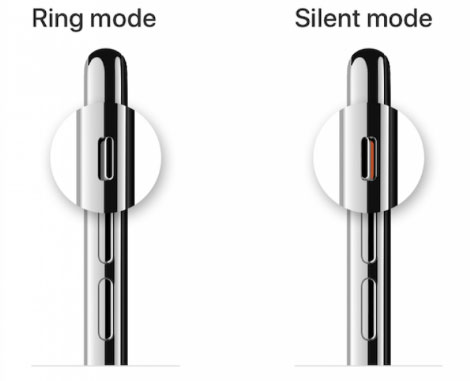
Many users do not realize that the physical Silent/Ring switch on the side of the iPhone mutes game audio, even if it allows YouTube or Spotify to play sound. Apple classifies game audio as "non-essential system sound," so it gets muted along with your ringtone.
Step 1. Locate the switch on the left side of your iPhone (above the volume buttons).
Step 2. If you see an orange strip, your phone is in Silent Mode.
Step 3. Flip the switch towards the screen so the orange is gone. Your game audio should return immediately.
 Note for iPhone 15 Pro/16/17 users
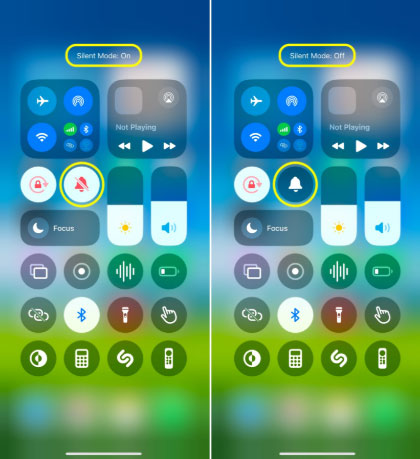
If you have an Action Button instead of a switch, press the button or open the Control Center (swipe down from the top right) and ensure the "Bell" icon is not red/slashed out.
Fix 2. Adjust "Media" Volume, Not "Ringer" Volume
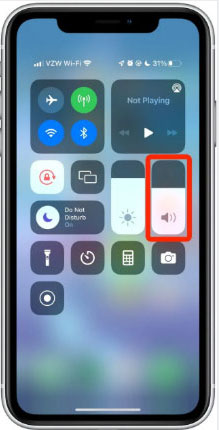
iPhone has two different volume settings that operate independently. Pressing the side buttons while on the home screen often only changes your Ringer volume, leaving your Media (game/video) volume at zero.
Step 1. Open the game you want to play.
Step 2. Swipe down from the top-right corner to open the Control Center.
Step 3. Manually drag the Volume Slider (speaker icon) up. This forces the volume level for apps and games to increase.
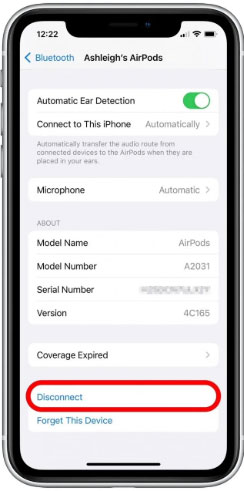
Fix 3. Disconnect Hidden Bluetooth Devices
Your iPhone is aggressive about connecting to known Bluetooth devices. Your game audio might be blasting perfectly clearly—just in the other room on a pair of AirPods or a Bluetooth speaker you forgot to disconnect.
Step 1. Go to Settings > Bluetooth.
Step 2. Look for any device marked "Connected."
Step 3. Tap the "i" icon next to the device and select Disconnect, or simply toggle Bluetooth off entirely while you play.
Fix 4. Check In-Game Audio Settings
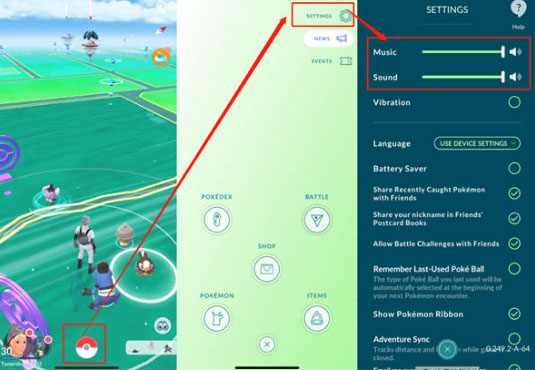
If your phone settings are correct but silence persists, the game itself might be muted. Many games have independent audio toggles that override the system volume.
Step 1. Open the game's main menu and look for a Gear icon (Settings).
Step 2. Locate "Audio," "Sound," or "Music."
Step 3. Ensure the toggles for Music and SFX (Sound Effects) are turned on and the sliders are up.
Fix 5. Force Restart Your iPhone
When a game runs, iOS manages audio through background processes. Sometimes these processes freeze or conflict after an app crash, long usage, or an iOS update. A force restart shuts down all running system services, reloads the audio drivers, and resets temporary system states—without affecting your data. Here's how:
For iPhone X and later: Press and release Volume Up, press and release Volume Down, then hold the side Power button until you see the Apple logo.
iPhone 7 / 7 Plus: Press and hold the Volume Down button and the Power (Side) button at the same time. Keep holding until you see the Apple logo.
iPhone 6s and Earlier: Press and hold the Home button and the Power button together. Release both buttons when the Apple logo appears.

Fix 6. Adjust the Screen Rotation Lock
In some cases, enabling screen rotation lock can cause unexpected sound issues on your iPhone. Resetting it may help restore game audio.
Step 1. Swipe down from the top-right corner of the screen to open Control Center.
Step 2. Tap the Portrait Orientation Lock icon to turn it off.
Step 3. Rotate your iPhone to landscape mode.

Tip
If the screen doesn't rotate, open another app like Safari or Messages that supports landscape mode to check whether rotation is working properly.
Fix 7. Fix System Glitches with TunesKit iOS System Recovery (No Data Loss)
If you have checked your Silent Switch, Bluetooth, and in-game settings but still have no sound, your iPhone may be suffering from a deeper system glitch. Issues like iPhone stuck in headphone mode(where the phone thinks headphones are plugged in) or corrupted audio drivers can silently mute your games while other apps work fine.
In these cases, a simple restart is often not enough. You can use TunesKit iOS System Recovery to repair the core iOS software. This powerful tool enables you to fix over 150 iOS issues like iPhone back tap not working, iPhone stuck on install now, and iPhone speaker not working without losing data. Also, it supports downgrading from iOS beta to stable versions.
Fix iPhone Games No Sound Instantly
TunesKit iOS System Recovery restores game sound by repairing iOS system issues without data loss.
 600,000+ Downloads
Here's the step-by-step guide to fix iPhone games no sound using TunesKit iOS System Recovery.
Step 1 Connect Your iPhone
Download and launch TunesKit iOS System Recovery on your computer (Mac or Windows). Connect your iPhone using a USB cable and wait for the software to detect it. Click the iOS System Repair on the main screen, and hit the Start button.

Step 2Select Standard Repair
Select Standard Repair. This mode is specifically designed to fix common glitches—like audio failure or frozen screens—without erasing your photos, contacts, or apps.

Step 3Download Firmware Package
The software will automatically detect your iPhone model. Confirm the device details and click Download to get the correct firmware package for your specific iOS version.

Step 4Start to Repair
Once the download is complete, click Repair. TunesKit will apply the fresh firmware to your device, patching the corrupted audio files. After the process finishes, your iPhone will restart, and your game audio should be fully restored.

Fix 8. Factory Reset Your iPhone
If iPhone games no sound issue is still not solved, a factory reset restores the device to a clean state. This removes hidden software errors that may be interfering with the audio system. However, since a factory reset erases all data and settings, it's considered a last-resort solution after other methods fail.
Before you start: Back up your iPhone using iCloud or a computer to avoid data loss.
Step 1. Open Settings on your iPhone. Go to General. Tap Transfer or Reset iPhone.
Step 2. Select Erase All Content and Settings. Confirm and enter your passcode.
Step 3. Wait for the reset process to complete and set up your iPhone again. After the reset, install your games and test the sound before restoring all apps and settings. This helps confirm whether the issue was system-related.

Important Note
While effective, factory reset is time-consuming and risky if backups fail. Many users prefer trying a iOS system repair solution that fixes iOS issues without data loss before choosing this method.
Part 3. FAQs about iPhone Games No Sound
-
1. Could my iPhone speakers be broken?
If you can hear sound in any other app (like Music, Phone calls, or TikTok), your hardware is likely fine. Speaker failure is rare and usually affects all audio, not just specific apps. If your sound is gone everywhere, try recording a Voice Memo and playing it back to test the hardware.
-
2. How do I separate the Ringer volume from the Game volume?
You can prevent your physical volume buttons from changing your Ringtone volume. Go to Settings > Sounds & Haptics. Toggle OFF the switch labeled "Change with Buttons."
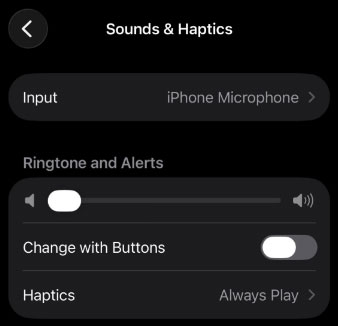
Now, your physical volume buttons will only control the System/Media volume (games, music, videos), ensuring you don't accidentally mute your ringer while turning down a game. -
3. Why does my game sound disappear after watching an ad?
This is a common software glitch. When a game serves a video advertisement, the ad takes over the iPhone's "Audio Session." Occasionally, once the ad finishes, the game fails to reclaim that session, resulting in silence.
You usually need to force-close the app (swipe up from the bottom of the screen and pause, then swipe the app card away) and relaunch it to reset the audio.
Part 4. Conclusion
If none of the quick fixes work and a factory reset feels too extreme, TunesKit iOS System Recovery offers a safer alternative. It repairs iOS system issues that cause iPhone games no sound without erasing data, supports iOS downgrade, and fixes audio glitches efficiently—helping you get game sound back with less risk and effort.


