


How to Fix Apple Pencil Double Tap Not Working
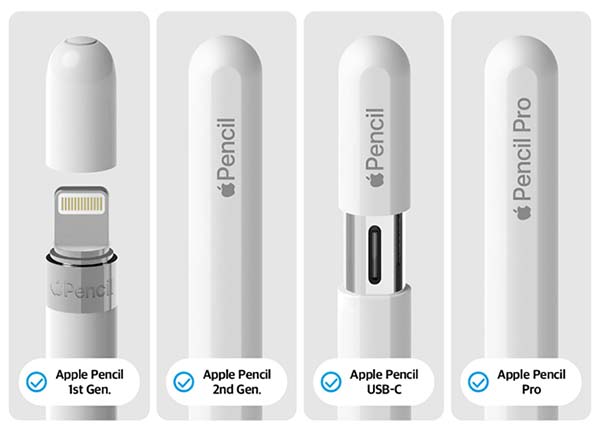
Is your Apple Pencil double tap not working when switching between tools? Double Tap is supported on Apple Pencil (2nd generation) and Apple Pencil Pro, but not on Apple Pencil (USB-C) or Apple Pencil (1st generation). If the gesture suddenly stops responding, the cause may be related to settings, Bluetooth connection, pairing, app compatibility, or an iPadOS glitch.
In this guide, you'll learn why Apple Pencil Double Tap stops working and how to fix it with practical troubleshooting steps.

- Why Is My Apple Pencil Double Tap Not Working?
-
How to Fix Apple Pencil Double Tap Not Working [Common Fixes]
- Fix 1. Check Apple Pencil and iPad Compatibility
- Fix 2. Enable Double Tap in Settings
- Fix 3. Adjust the Double Tap Speed
- Fix 4. Test Double Tap in a Supported App
- Fix 5. Check the Apple Pencil Battery and Connection
- Fix 6. Restart Your iPad
- Fix 7. Forget and Reconnect Apple Pencil
- Fix 8. Update iPadOS
- Fix 9. Remove Interfering Cases or Accessories
- How to Fix Apple Pencil Double Tap Not Working in Minutes [Advanced Fix] HOT
- FAQs About Apple Pencil Double Tap Not Working
- Conclusion
Why Is My Apple Pencil Double Tap Not Working?
If your Apple Pencil Double Tap is not working, the issue is usually related to settings, compatibility, connection, or software.
- 01 Double Tap is disabled or not properly configured: The gesture will not work if Double Tap is turned off. An unsuitable Double Tap speed setting may also make the gesture harder to trigger.
- 02 Your Apple Pencil or iPad is not compatible: Double Tap is supported on Apple Pencil (2nd generation) and Apple Pencil Pro with compatible iPad models. Apple Pencil (USB-C) and Apple Pencil (1st generation) do not support it.
- 03 The app does not support Double Tap: Some third-party apps may not support the gesture, so Double Tap can work in one app but fail in another.
- 04 The Apple Pencil has a connection or battery issue: Bluetooth pairing problems, disconnection, or a very low battery can stop Double Tap and other Pencil features from responding.
- 05 An iPadOS or app glitch is affecting the gesture: Temporary system bugs or app errors may cause Double Tap to stop working unexpectedly.
- 06 The touch area is obstructed or damaged: A case, cover, dirt, or hardware damage around the Pencil’s touch-sensitive area may prevent Double Tap from being detected correctly.
How to Fix Apple Pencil Double Tap Not Working [Common Fixes]
If your Apple Pencil Double Tap is not working, start by checking compatibility and settings before moving on to connection and software troubleshooting. The following fixes apply to Apple Pencil (2nd generation) and Apple Pencil Pro, the two models that support Double Tap.
Fix 1. Check Apple Pencil and iPad Compatibility
First, make sure both your Apple Pencil and iPad support Double Tap. This feature is available on Apple Pencil (2nd generation) and Apple Pencil Pro, but each Pencil works with a different group of iPads.
Apple Pencil (2nd generation) works with:
- iPad Pro 12.9-inch (3rd–6th generation)
- iPad Pro 11-inch (1st–4th generation)
- iPad Air (4th and 5th generation)
- iPad mini (6th generation)
Apple Pencil Pro works with:
- iPad Pro 11-inch and 13-inch (M4 and M5)
- iPad Air 11-inch and 13-inch (M2, M3, and M4)
- iPad mini (A17 Pro)
Apple Pencil (USB-C) and Apple Pencil (1st generation) do not support Double Tap.
Fix 2. Enable Double Tap in Settings
If the double tap feature is disabled, it won't function regardless of the app or environment. So if the devices are compatible, you need to enable the double tap feature on your iPad.
- Step 1. Open the Settings app on your iPad.
- Step 2. Go to Apple Pencil to check that the Double-Tap option is enabled.
- Step 3. Select the action you want Double Tap to perform, such as switching between the current tool and eraser or switching to the last used tool.
Then open Notes and test the gesture again.

Fix 3. Adjust the Double Tap Speed
If Double Tap works inconsistently or you find it difficult to trigger, adjust how quickly the two taps need to be performed.
Go to Settings > Accessibility > Apple Pencil. Make sure Double Tap is enabled, and then choose a slower Double Tap duration if needed.
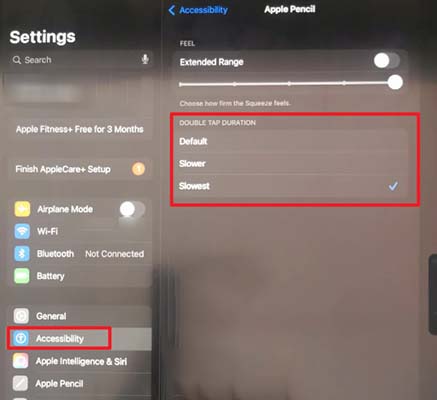
This gives you more time between the two taps and can make the gesture easier to activate.
Fix 4. Test Double Tap in a Supported App
Double Tap only works in apps that support the feature, so an app-specific issue can make it appear that your Apple Pencil is malfunctioning.
Open Apple Notes, select a drawing tool, and double-tap the lower part of the Apple Pencil barrel. If the gesture works in Notes but not in another app, check that app's Apple Pencil settings or support documentation.

Fix 5. Check the Apple Pencil Battery and Connection
A disconnected or uncharged Apple Pencil may stop responding to gestures.
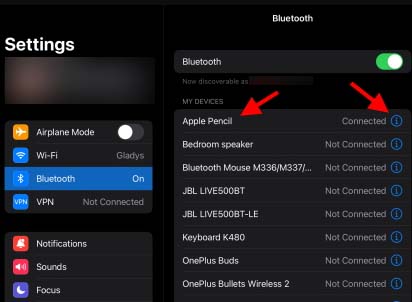
Attach Apple Pencil (2nd generation) or Apple Pencil Pro to the magnetic connector on the side of your compatible iPad. Then check its battery level from the Batteries widget or Settings > Apple Pencil.

Make sure Bluetooth is also turned on under Settings > Bluetooth.
Fix 6. Restart Your iPad
Occasionally, software bugs in iOS can cause features like double tap to stop working. Restarting the iPad can often resolve temporary glitches.
- Step 1. Press and hold the Power button and either Volume button simultaneously until the shutdown slider appears.
- Step 2. Slide to power off the iPad.
- Step 3. Wait a few seconds, then press and hold the Power button again to turn it back on.
- Step 4. Reconnect the Apple Pencil and test the double tap function.

Fix 7. Forget and Reconnect Apple Pencil
Reconnecting the Apple Pencil can resolve connection-related issues that may impact double tap functionality.
- Step 1. Go to Settings > Bluetooth on your iPad.
- Step 2. Find your Apple Pencil in the list of devices and tap the i icon next to it.
- Step 3. Select Forget This Device and confirm.
- Step 4. Reattach the Apple Pencil magnetically to the iPad to pair it again.
- Step 5. Test the double tap feature to see if it works.

Fix 8. Update iPadOS
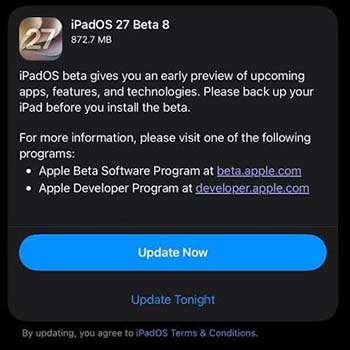
If Double Tap still does not work, go to Settings > General > Software Update, if there is a new iPadOS version, tap the Update Now button to download and install any available iPadOS update. Software updates can resolve bugs affecting Apple Pencil features and Bluetooth connections.
Fix 9. Remove Interfering Cases or Accessories
Certain iPad cases or sleeves can interfere with the double tap gesture on the Apple Pencil. Removing such accessories helps identify if they're the cause.
- Step 1. Remove the iPad case or any sleeve covering the Apple Pencil.
- Step 2. Test the double tap function without the case or accessory.
- Step 3. If it works, consider using a different case that doesn't obstruct the Pencil.

How to Fix Apple Pencil Double Tap Not Working in Minutes [Advanced Fix]
If none if the above solution work, there may be a deep iOS system issues with your iPad. TunesKit iOS System Recovery will help you solve those possible issues resulting in double tap not working on Apple Pencil.
TunesKit iOS System Recovery works for more that 150 iOS system issues like iPhone white screen, iPad stuck on apple logo, and iPad connected issues. The fix process will not delete any data from your device.
Fix Apple Pencil Double Tap Issues with TunesKit
TunesKit iOS System Recovery can repair iOS/iPadOS system glitches that may cause Apple Pencil double tap to stop working, without erasing your data.
 600,000+ Downloads
Step 1. Connect iPad to PC
Download and install this repair tool on your computer. After open the tool, choose the iOS System Repair option and then click the Start button to enter the repair process.

Step 2. Choose A Mode
All two repair mode can be selected but the Standard Repair mode is recommended because it will protect your iPhone data from deleting.

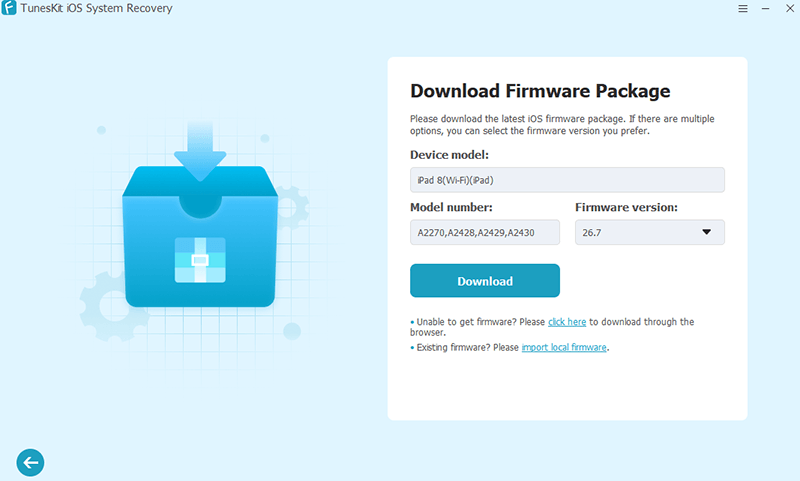
Step 3. Download Firmware Package
After the repair mode selection, you will enter the firmware download page. Check if the information if correct. Click the Download button to download a firmware package for your iPad.
Step 4. Start to Repair
Click the Start Standard Repair button to start repairing your iPad. After that, reconnect your Apple Pencil to your iPad to check if the issue is fixed.

FAQs About Apple Pencil Double Tap Not Working
-
Does replacing the Apple Pencil tip fix Double Tap?
Usually, no. Double Tap is detected through the Pencil barrel rather than the tip. Replacing the tip may help with writing or drawing issues, but it is unlikely to fix a Double Tap problem.
-
Why does Double Tap work in Notes but not in other apps?
Some apps do not support Apple Pencil Double Tap or may handle the gesture differently. If it works in Apple Notes, the Apple Pencil itself is likely functioning normally, and the problem may be app-specific.
-
Why is Apple Pencil Double Tap not showing in Settings?
If the Double Tap option is missing, first check whether your Apple Pencil model and iPad are compatible. Also make sure the Pencil is properly paired and connected to the iPad via Bluetooth.
Conclusion
When you encounter the issue of Apple Pencil double tap not working, you should first ensure that your iPad and Apple Pencil are supported the double tap feature. If the devices are right, follow the solutions above to try to make the feature available, especially TunesKit iOS System Recovery which can fix iPad system issues in easy steps.



