


[iOS 27] Fix iPhone Stuck on Update Bar with Ease
"So I was updating my iPhone to iOS 27 Beta, and the update progress bar appears on the screen. The problem is that it has been stuck there for hours without moving an inch. What should I do?"
An iPhone stuck on the update bar is one of the most annoying software glitches you can encounter. While routine iOS updates are meant to improve your device, a frozen screen can quickly turn into a headache. If you are struggling with this exact problem, there is no need to panic. This guide breaks down the top 8 simple and effective ways to quickly resolve this problem and get your iPhone back to normal.

Why Is iPhone Stuck on Update Progress Bar?
When your phone gets stuck in the Apple logo screen and displays an updated progress bar, you'll feel like there is no change, no matter how long you wait. This update progress bar actually shows the installation process. Here are some reasons why this issue happens to you.
- There are a large number of files for your iPhone to update and it requires a long time to get finished.
- No enough space for the device to install files.
- Your iPhone runs out of power.
- The network connection is unstable and weak.
- Software glitches like corrupted apps, malware, etc.

How to Fix iPhone Update Stuck on Apple Logo Progress Bar?
Now you've know the reasons why this issue happen, let's follow these step-by-step guide to quickly fix iPhone stuck on Apple logo with loading bar. You can try these methods one by one.
Fix 1. Plug iPhone into Wall Outlet
A nearly depleted battery is a surprisingly common culprit for a stalled iOS installation. The operating system will intentionally pause the update process if the power drops too low, preventing the device from shutting down mid-installation and causing severe data corruption.
- Step 1. Connect your frozen iPhone directly to a wall outlet using a reliable USB cable and power adapter.
- Step 2. Leave the device charging undisturbed for at least 15 to 30 minutes.
- Step 3. Check the display to see if the progress bar has finally resumed its movement.

If a lack of power was the only thing holding up the installation, this simple step will safely get your update back on track.
Fix 2. Hard Reboot iPhone
A hard reboot can get your iPhone out of the update screen fast, and it can serve as a prerequisite to other solutions below. Though it seems easy, a hard reboot is an effective solution to many a stuck issue, and it can cure the update stuck caused by app crashes easily. Different models of iPhone need different operations to be hard rebooted, so we have enclosed a guide on hard reboot below.
iPhone 8 and later models: Quickly press and release the Volume Up button. Then the same operation for Volume Down button. Hold the Side button until the Apple logo shows up.
iPhone 7/7 Plus: Press and hold Side and Volume Down buttons simultaneously. Release them until Apple logo appears.
iPhone 6 and older models: Press and hold both Home and Side buttons at the same time until the Apple logo appears.

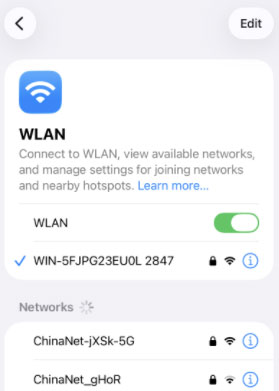
Fix 3. Ensure a Stable Wi-Fi Connection
A strong, consistent internet connection is absolutely critical for a successful iOS installation. The update package must communicate securely with Apple's servers to verify the firmware before finalizing the process. If your network drops or heavily fluctuates during this crucial phase, the installation will abruptly halt.
A weak signal is one of the most common, yet easily overlooked, reasons for a frozen update.
- Step 1. Force restart your iPhone to safely exit the frozen progress screen.
- Step 2. Navigate to "Settings" and tap on "Wi-Fi" (or "WLAN") to inspect your current network status.
- Step 3. Connect to a faster, more reliable network before attempting to trigger the update process again.
Fix 4. Update via iTunes or Finder
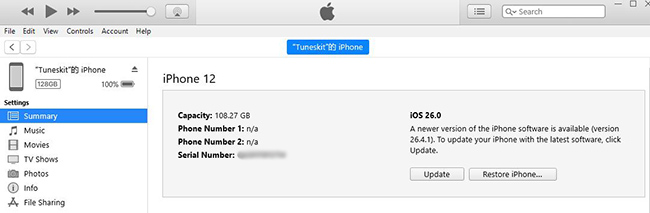
If your device refuses to complete an over-the-air installation, switching to a computer can often bypass the blockage. Handling the process through a direct wired connection eliminates many of the network and delta transfer issues that cause on-device updates to fail.
This method downloads the complete firmware file rather than just the incremental changes, providing a much cleaner and more stable installation path.
Using a Windows PC
- Step 1. Download and install the most recent version of iTunes onto your computer.
- Step 2. Connect your frozen device using a USB cable, select the iPhone icon in the application, and navigate to the "Summary" section to click "Update".
- Step 3. Select "Download and Update" and allow iTunes to safely complete the software installation for you.
Using a Mac
- Step 1. Plug your iPhone into the Mac using a reliable cable and launch Finder.
- Step 2. Locate and click on your specific device name listed under "Locations" in the left-hand sidebar.
- Step 3. Navigate to the "General" tab, click the "Update" button, and confirm by selecting "Download and Update".

Fix 5. Check for Sufficient Storage
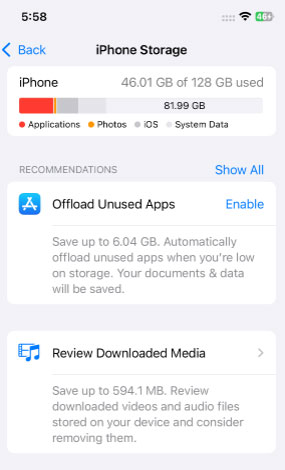
Having adequate room on your iPhone is absolutely vital for downloading and unpacking new system files. When an iPhone runs dangerously low on storage, the operating system simply cannot process the incoming data, causing the installation to freeze indefinitely. Freeing up capacity is often the quickest way to get things moving again.
- Step 1. Navigate to "Settings" app on your iPhone, tap on "General", and select "iPhone Storage" to view what is taking up room on your device.
- Step 2. Review the list of installed applications and either offload or completely delete those you rarely use.
- Step 3. Once you have reclaimed a few gigabytes of free space, restart the update process from the beginning.
Fix 6. Reset All Settings
Encountering repeated freezes during software installations often points to a deep-seated configuration error hidden within your device. By reverting your system-level preferences back to their original factory defaults, you can effectively wipe out invisible conflicts that are obstructing the update.
Rest assured that this procedure is entirely safe for your personal data, meaning it will not erase your photos, downloaded applications, or text messages.
- Step 1. Open the "Settings" app, scroll down, and tap on "General".
- Step 2. Select "Transfer or Reset iPhone" located near the bottom of the menu.
- Step 3. Tap on "Reset", choose "Reset All Settings" from the pop-up list, and enter your passcode to confirm the decision.

 Note
Note
Keep in mind that you will need to reconfigure a few things afterward, as this action will clear your saved Wi-Fi networks, Bluetooth pairings, and Apple Pay cards.
Fix 7. Use the Top-Notch Repair Tool – TunesKit iOS System Recovery [Easy & Effective]
We should not ignore that the problem might be caused by system errors or app bugs. In that case, the easiest and safest solution would be TunesKit iOS System Recovery. This powerful iOS repair tool can fix more than 150 iOS-related problems, including iPhone stuck on update bar and iPhone stuck on verifying update. Unlike iTunes, the repairing process will not cause any damage to your data. Besides, it's able to put your iPhone into Recovery mode with one click for free.
Fix iPhone Stuck on Apple Logo and Loading Bar
TunesKit iOS System Recovery restores your device to normal in minutes, all while keeping your data completely intact.
 600,000+ Downloads
How to Fix iPhone Stuck on Update Bar with TunesKit iOS System Recovery
Step 1Launch Program and Connect iPhone
Get TunesKit iOS System Recovery from official website and connect iPhone to the computer. When your iPhone is recognized by the program, click on the iOS System Repair button and then hit the Start button to proceed.

Step 2Set Repair Mode
In this interface, click on the Standard Repair box, so that your iPhone can be repaired without data loss. The Deep Repair mode here is designed to fix more severe problems.

Step 3Download and Verify the Firmware Package
The software will identify your iPhone device info and show it on the screen. Confirm it and continue to download and verify the firmware package by pressing the Download button.

Step 4 Repair iPhone Stuck on Update Bar
In order to confirm the operation, click on the Start Standard Repair button. The iPhone will then go back to normal a few minutes later.

Fix 8. Apple Support
iPhone update can only be successfully installed when the hardware on the device is normally functioning. Therefore, if the previous solutions don't work out, there is a high possibility that your iPhone is experiencing some problems that you cannot fix on your own, e.g., malware. The last and most secure help you can find is Apple Support. Don't hesitate to go to the nearby outlets to find help.

More Tips to Avoid iPhone Frozen During Update
- You should keep a minimum of 1 GB of space on your device and monitor its memory.
- Avoid exposing your iOS device to extreme temperatures. When it's hot outside, don't leave your iOS device in your car.
- Keeping your data safe requires regular backups of your device.
- Finally, ensure your device's software is always up to date.
FAQs: iPhone Stuck on Update Progress Bar
-
How long should an iOS update take?
Most updates take 10–30 minutes. Major updates can take up to an hour. If the bar hasn't moved in more than 1 hour, it may be stuck.
-
Is it normal for the progress bar to move slowly?
Yes. During big updates, your iPhone optimizes files in the background, which can make the progress bar appear frozen.
-
Why is the progress bar stuck at the end?
This usually means the iPhone is verifying the update or optimizing apps, which can take longer than expected.
-
Does overheating stop the update?
Yes. If your iPhone gets too hot, it can slow or pause the update to protect the hardware.
Summary
This post must have cleared all your doubts about what to do when your iPhone stuck on update bar. Compared to other methods of repairing iPhones, TunesKit iOS System Recovery offers greater chances of success and safety. After following this guide, you should have been able to restore normal use of your iPhone once again after this minor issue with iOS updates. Let us know if you have any questions or concerns in the comments section.


