


How to Fix iPhone Notifications Delayed on iOS 18/26
Many iPhone users have reported that iPhone notifications are delayed since the iOS 18/26 update. These notification lags can interfere with timely alerts for messages, emails, and app notifications, leading to missed or delayed information. Fortunately, there are several effective solutions to resolve notifications delayed on iOS 18/26.
You can adjust some settings to update apps or ask third-party tools for help. Read on for a comprehensive guide to fix iPhone notifications delayedand get your alerts back on track.

Why Are My iPhone Notifications Delayed?
Delayed notifications on an iPhone are pretty common—and usually fixable. Here are the most likely causes:
- 01 Apple Intelligence and Summarize Previews issues: If you have Apple Intelligence on your iPhone, you should let Apple Intelligence work with the Summarize Previews feature to get instant notifications on iOS 18/26.
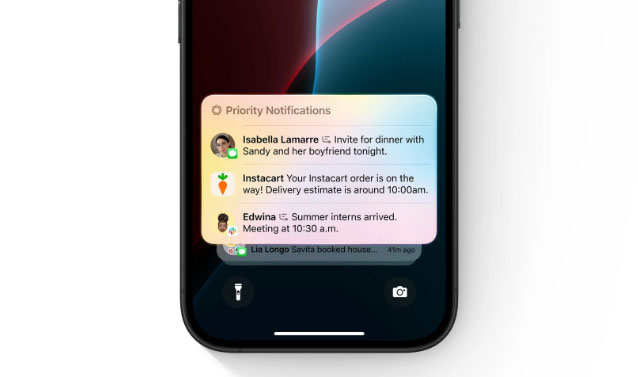
- 02 Network Issues: Updates can occasionally disrupt saved network preferences, potentially affecting apps that rely on network connections to deliver notifications. Resetting network settings or reconnecting to Wi-Fi can sometimes resolve this.
- 03 Focus Mode and Notification Settings: iOS updates can sometimes reset Focus Mode or notification preferences. This can result in notifications being paused or delayed if certain apps aren't allowed under Focus settings.
- 04 Software Bugs: New iOS versions can come with bugs that impact system processes, including notifications. Apple typically releases updates to address these issues, so keep an eye out for further updates.
- 05 Low Power Mode: Low Power Mode limits background processes to save battery, which may delay notifications.
How to Fix Notifications Delayed on iOS 18/26
Although it is tough to find the accurate causes, it is possible to solve it by trying possible solutions like the following list. Keep patient and get your instant notification now!
Fix 1. Turn Off Apple Intelligence or Turn On Summarize Preview
According to the feedback of iOS 18/26 users who encountered similar problems, you can stop the delayed notification by turning off your Apple Intelligence or turning on the Summarize Preview feature.
How to turn on/off Apple Intelligence?
- Step 1. Go to the Settings app on your iPhone.
- Step 2. Tap Apple Intelligence & Siri. If the toggle is on, toggle the Apple Intelligence button to off.

How to turn on Summarize Preview?
- Step 1. Enter the Settings application.
- Step 2. Select Notifications > Summarize Preview.
- Step 3. Find the app you get delayed notifications from the list and toggle on the button next to it.

Fix 2. Check Network Connection
If the problem is still not solved, try the later methods. Notifications, especially for apps like messaging or email, rely on a strong network connection. Weak or unstable connections may cause delays. You can adjust your network connection.
- Step 1. If you are connected to Wi-Fi, try switching to cellular data, and vice versa, to determine which connection delivers notifications more quickly.
- Step 2. You can toggle Airplane Mode on and off to quickly reset your network connection.
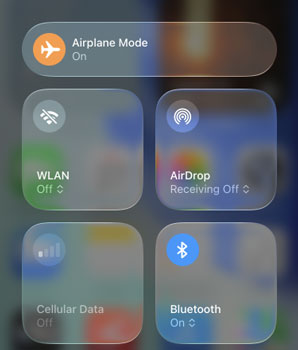
- Step 3. Make sure your Wi-Fi or cellular signal strength is strong, as weak signals can delay notifications.

Fix 3. Check Notification Settings for Each App
Make sure notifications are enabled for each app experiencing delays.
- Step 1. Go to Settings > Notifications and select the app experiencing issues.
- Step 2. Ensure Allow Notifications is on. After that, set Alerts to appear in all locations (Lock Screen, Notification Center, and Banners).
- Step 3. In addition, if you rely on audible alerts or badge icons, you should ensure Sounds and Badges. Look for an Immediate Delivery option if the app has one, as this ensures notifications are delivered without delay.

Fix 4. Restart Your Device
Sometimes, system glitches can impact notifications. A restart can often clear up these issues.
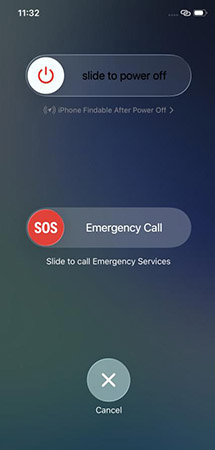
- Step 1. Hold the power button and either the Volume Up or Down button until you see the "slide to power off" slider.
- Step 2. Slide to the right to power off, then wait a few seconds, long-press the Side button to turn your device back on.
Fix 5. Update Apps
Outdated apps may not be fully compatible with the latest iOS version, which can lead to notification delays. To update apps, here's how.
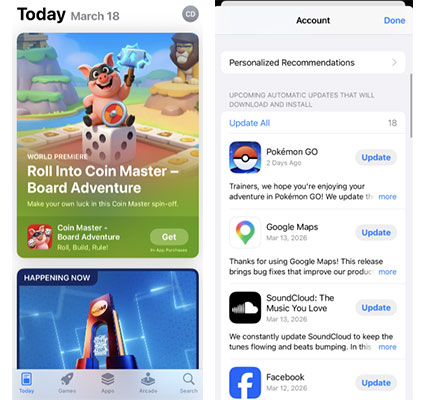
- Step 1. You just need to open the App Store.
- Step 2. Tap on your profile picture in the upper right corner, and scroll down to check for available updates. If there is, tap the Update Now button.
Fix 6. Check and Adjust Focus Mode
Focus Modes, including Do Not Disturb, can affect notifications, potentially delaying or blocking them.
- Step 1. Open Settings > Focus, and check each Focus Mode that might be active.
- Step 2. Make sure that the apps you want notifications from are included in the Allowed Notifications list within each Focus mode.
- Step 3. Temporarily disable Focus Modes to see if this improves notification timing.

Fix 7. Reinstall the Affected Apps
Logging out and back in or reinstalling an app can reset its connection to notification servers.
- Step 1. Open the app, log out, and close the app completely (swipe up in the app switcher).
- Step 2. Restart the app and log back in.
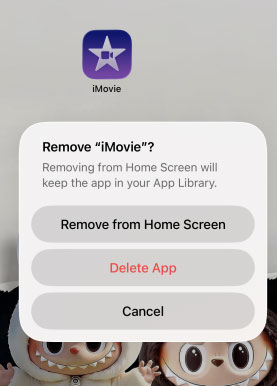
- Step 3. If this doesn't resolve the issue, delete and reinstall the app from the App Store.
How to Fix iOS 18/26 Notifications Delayed in Minutes
To solve the system issues on iOS devices, TunesKit iOS System Recovery is recommended due to its powerful fixing feature for 150+ iOS system issues. This tool may help you fix your problem directly and you don't have to try possible solutions.
Beyond its powerful repair features, this software lets you easily enter or exit recovery mode for free, upgrade or downgrade iOS without iTunes, fix iTunes errors at no cost, and even download and install the latest iOS beta without a developer account. It's a true all-in-one solution for Apple users.
Fix iOS 18/26 Notification Delays in Minutes
Use TunesKit iOS System Recovery to instantly resolve delayed notifications without data loss.
 600,000+ Downloads
How to fix iPhone Notification delayed on iOS 18/26 via TunesKit iOS System Recovery? Here are the steps.
Step 1Connect your iPhone to your PC
As a desktop software, TunesKit iOS System Recovery should be downloaded and installed on your computer before you use it to fix your iPhone. Mac and Windows PC are compatible with it. When you enter the software, click the iOS System Repair part followed by the Start button.

Step 2Choose repair mode
You have two options in this window: Standard Repair and Deep Repair. At the beginning, you can choose the Standard Repair to fix your iPhone issue without data loss. If the mode doesn’t solve the problem, you can continue to choose the Deep Repair mode which will clear all your iPhone data after the repair process.

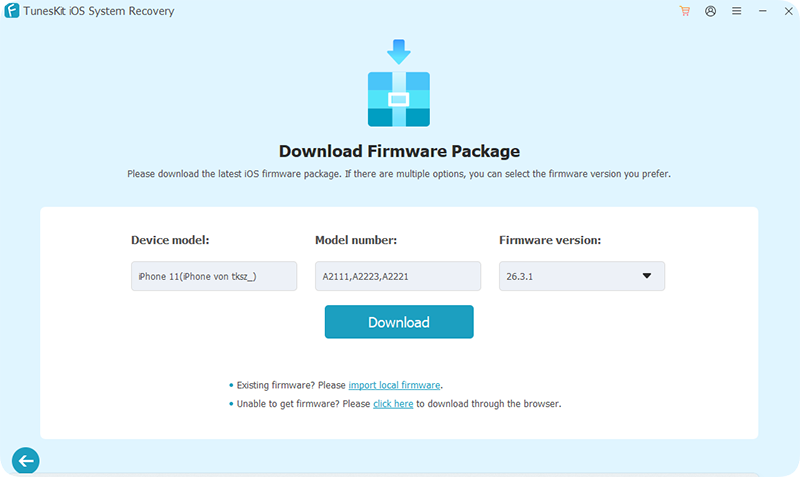
Step 3Download firmware package
In this window, you can see the related information about your iPhone. After confirming, click the Download button to enter the next step.
Step 4Start repairing the iOS 18/26 notifications delayed issue
Click the Start Standard Repair button to enter the last step. This process will take a few minutes. When the screen of your PC shows the complete prompt, you can check if your issue is solved or not.

FAQs About iPhone Notifications Delayed
-
Why do alerts only show up when I unlock my phone?
This is typically caused by Low Power Mode or Focus Modes. These settings restrict background data fetching to save battery or reduce distractions, forcing apps to wait until you wake the device to "check" for new updates.
-
Can a VPN slow down notifications?
Yes. A VPN adds an extra layer of routing for your data. If the VPN server is slow or unstable, it can bottleneck the communication between your phone and Apple’s notification servers, causing alerts to arrive in batches.
-
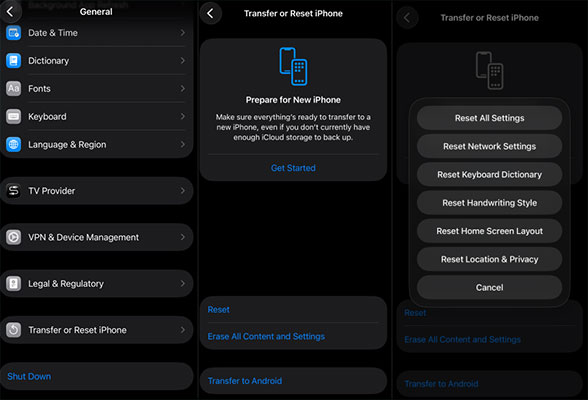
Will "Reset All Settings" help?
Yes. Performing a Reset All Settings clears system-level conflicts (like network or permission bugs) that interfere with push services. This does not delete your photos or messages, but it does reset your preferences to factory defaults.
You can go to Settings > General > Transfer or Reset iPhone > Reset > Reset All Settings. Enter your iPhone passcode to confirm the reset action.
Conclusion
The notifications delayed issue would influence the time we get our important notifications. But don't worry. The methods in this post will help you fix your iPhone including the third-party method, TunesKit iOS System Recovery. If you try all the solutions but the issues is still on, remember to contact Apple Support and wait for its fixing on the next iOS version.


