


How to Fix iOS 18/26 Notes App Not Working
Experiencing issues with the Notes app on iOS 18/26 can be frustrating, especially if it's essential for managing your daily tasks or ideas. Whether the app crashes, won't sync, or simply refuses to open, these glitches can disrupt productivity. In this guide, we explore the most effective ways to fix iOS 18/26 Notes app not working.
You can perform simple troubleshooting, from restarting your iPhone or checking iCloud syncing to more advanced solutions like resetting network settings or reinstalling the app. Learn how to get your Notes app back on track and ensure it runs smoothly with these proven tips.

- Why My Notes App Not Working After iOS 18/26 Update?
- How to Fix iOS 18/26 Notes App Not Working [10 Methods]
- Fix 1. Restart Your iPhone
- Fix 2. Update iOS
- Fix 3. Force Close and Reopen the Notes App
- Fix 4. Check iCloud Syncing
- Fix 5. Free Up Storage
- Fix 6. Fix iOS 18/26 Notes App Not Working in One ClickHOT
- Fix 7. Reset Network Settings
- Fix 8. Delete and Reinstall the Notes App
- Fix 9. Check for App Restrictions
- Fix 10. Restore iPhone as Last Resort
Why My Notes App Not Working After iOS 18/26 Update?
The Notes app on iOS 18/26 may not be working due to a variety of reasons, including bugs, syncing issues, or device-specific problems. Here are some common causes.
- 01 iOS 18/26 Software Bugs: iOS 18/26 may have bugs or glitches, particularly if you are using an early version or beta. These can affect the functionality of built-in apps like Notes. Updates may fix such issues, so it's important to check for the latest iOS updates.
- 02 iCloud Syncing Problems: If your Notes are synced with iCloud, there could be syncing issues. Problems connecting to iCloud or syncing notes between devices can cause the Notes app to freeze, crash, or fail to display data properly.
- 03 Low Device Storage: If your iPhone is running low on storage, it may affect the performance of apps, including Notes. Low storage can lead to app crashes, slowdowns, or failure to open.
- 04 App or System Settings Conflict: Conflicting settings or restrictions, such as those related to iCloud, email account syncing, or Screen Time restrictions, can interfere with Notes.
- 05 Network or Connectivity Issues: If Notes relies on cloud-based services (like iCloud or email syncing), any network issues can prevent the app from functioning correctly. Poor Wi-Fi or cellular connections may lead to incomplete syncing or inaccessible notes.
How to Fix iOS 18/26 Notes App Not Working [10 Methods]
When you encounter the Notes app not working on iOS 18/26, this issue can be solved quickly if you can identify the root cause. However, most of the time, it is difficult to know the specific causes. At this time, you can fix it by trying those possible methods one by one. Maybe it is a little bit tedious, but each method can be done easily. Now let's begin.
Fix 1. Restart Your iPhone
Restarting your iPhone is a simple yet effective way to fix temporary glitches or app issues. A reboot clears out any minor software bugs or memory issues that might be preventing the Notes app from functioning properly.
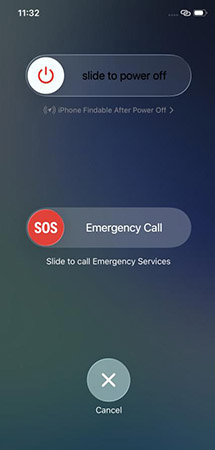
- Simple Restart: Hold down the Power button and one of the Volume buttons at the same time. Release them when you see the power off slider on your screen. Slide the slider to turn off your iPhone and then hold down the Power button to restart it.
- Force Restart: Quickly press and release the Volume Up button, then the Volume Down button, and hold the Power button until the Apple logo appears.

Fix 2. Update iOS
Keeping your iOS updated ensures that your device is running the latest software with bug fixes and improvements. If the Notes app is malfunctioning due to a known bug, an iOS update can often resolve it. This method is particularly helpful if the issue is widespread and acknowledged by Apple. To do so:
- Step 1. Open the Settings app on your iPhone.
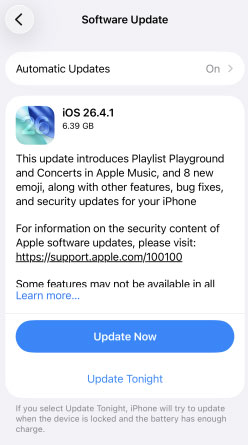
- Step 2. Tap General > Software Update.
- Step 3. Your iPhone will automatically check for any available updates. If there is, tap the Update Now button.
Fix 3. Force Close and Reopen the Notes App
Force closing the app helps clear any issues with app memory or cache. If the Notes app is frozen or unresponsive, force closing it and reopening it can refresh the app and resolve temporary problems.
- Step 1. Swipe up from the bottom to open the Apple Switcher.
- Step 2. Swipe up on the Notes app to force it to close.
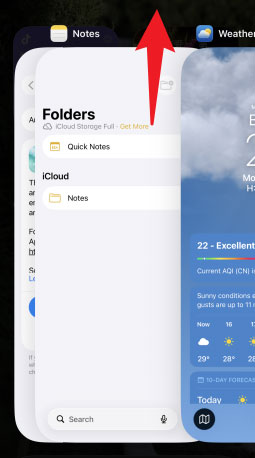
- Step 3. Reopen the app to see if it resolves the issue.
Fix 4. Check iCloud Syncing
If your Notes are stored in iCloud, any syncing interruption—such as a poor internet connection, incorrect settings, or temporary iCloud glitches—can prevent notes from appearing or cause the app to lag or freeze. Ensuring that iCloud syncing is enabled and refreshing the connection can often resolve these issues and bring your notes back to normal.
- Step 1. Open Settings on your iPhone. Tap Your Name (Apple Account) at the top.
- Step 2. Go to iCloud and select Notes.
- Step 3. Make sure the Sync this iPhone toggle is turned on.
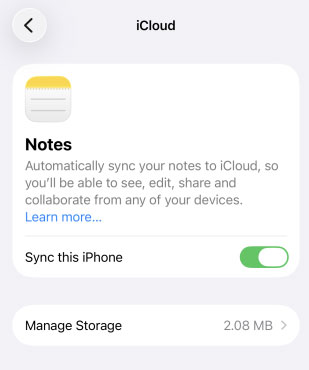
- Step 4. If it's already enabled, turn it off, wait a few seconds, then turn it back on to refresh the sync connection.
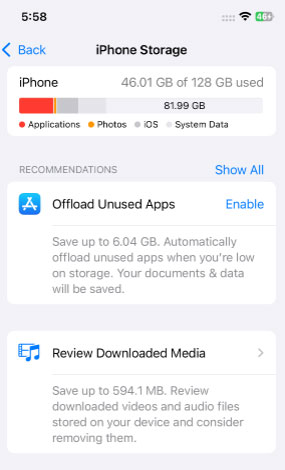
Fix 5. Free Up Storage
When your iPhone is running low on storage, apps like Notes may become slow, unresponsive, or fail to load properly. This is because the app needs enough space to store notes, attachments, and temporary data. By checking your storage usage and freeing up space, you can improve performance and ensure the Notes app runs smoothly.
- Step 1. Open Settings on your iPhone.
- Step 2. Tap General option.
- Step 3. Select iPhone Storage.
- Step 4. Review how much available space you have. Delete unused apps, photos, or large files to free up storage.
Fix 6. Fix iOS 18/26 Notes App Not Working in One Click
If the basic solutions above are not helpful for your Notes app problem, TunesKit iOS System Recovery will be recommended here to try to solve this issue in a quick way. It is a professional and effective iOS system repair tool that allows users to fix 150+ iOS issues including the Notes app not working issue.
For instance, it can fix other iOS issues like iPhone won't go into recovery mode, iPhone stuck on backing up , and iPhone unable to check for update. It supports the latest iOS versions and is compatible with most iPhone and iPad models. Meanwhile, it features a simple and intuitive interface, making it easy for anyone to use.
Fix iOS 18/26 Notes App Not Working
Repair system issues causing Notes app crashes or freezes quickly and safely—no data loss required.
 600,000+ Downloads
Here's how to fix Notes app not working on iOS 18/26 via TunesKit iOS System Recovery.
Step 1Connect iPhone to TunesKit
Get TunesKit iOS System Recovery downloaded first and then install it on your computer. To let your iPhone connect to this software, you need to use a USB cable to connect your iPhone to your PC.
Select iOS System Repair option on the homepage and then click the Start button to continue.

Step 2Select repair mode
For fixing Notes app issues, Standard Repair mode is recommended because this mode will not delete any data of your iPhone. Deep Repair is also helpful and has more powerful repair ability but it will clear all your iPhone data.

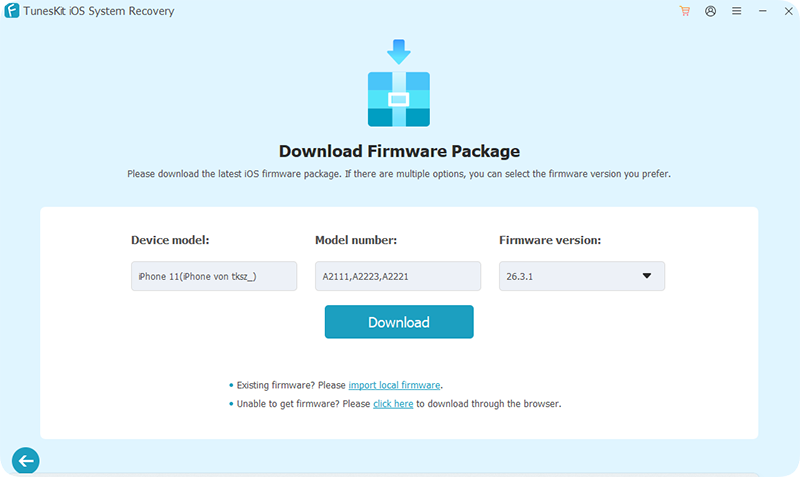
Step 3Download firmware package
Once you ensure the iPhone information is correct, you can click the Download button to download a firmware package for your iPhone.
Step 4Start fixing
Finally, click the Start Standard Repair button to start fixing iPhone issues and wait a minute until it completes.

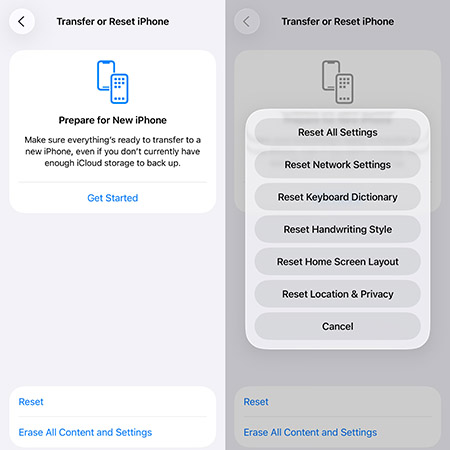
Fix 7. Reset Network Settings
If your Notes app depends on cloud services like iCloud or email syncing, unstable or misconfigured network settings can cause syncing failures, missing notes, or app performance issues. Resetting your network settings can clear these problems by restoring all network configurations to default, which often helps re-establish a stable connection.
- Step 1. Open Settings on your iPhone.
- Step 2. Tap General. Select Transfer or Reset iPhone.
- Step 3. Tap Reset. Choose Reset Network Settings and confirm your action.
 Note
Note
This will remove saved Wi-Fi networks and passwords, so you'll need to reconnect afterward.
Fix 8. Delete and Reinstall the Notes App
If the Notes app is not working properly due to corrupted app data or temporary glitches, reinstalling it can provide a fresh start. This process removes faulty files while keeping your notes safe, especially if they are synced with iCloud.
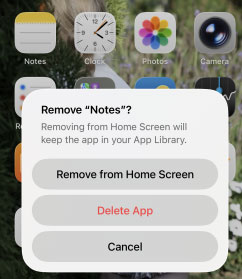
- Step 1. Press and hold the Notes app icon on your Home Screen.
- Step 2. Tap Remove App, then select Delete App to uninstall it.
- Step 3. Open the App Store.
- Step 4. Search for Notes and reinstall the app. Open the app and sign in to iCloud if needed to restore your notes.
Fix 9. Check for App Restrictions
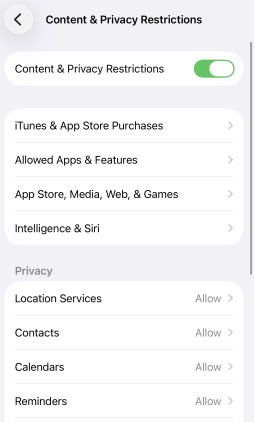
Sometimes, Screen Time or Content & Privacy Restrictions may limit or hide certain apps, including Notes. Checking these settings ensures that the Notes app is allowed to run normally on your device.
- Step 1. Open Settings on your iPhone.
- Step 2. Tap Screen Time.
- Step 3. Select Content & Privacy Restrictions.
- Step 4. Make sure this toggle is turned off.
Fix 10. Restore iPhone as Last Resort
If all previous troubleshooting methods fail, restoring your iPhone can help resolve serious system-level issues affecting the Notes app. This process reinstalls iOS and removes any corrupted system files or deep software glitches, giving your device a fresh start. However, it should only be used as a last resort because it will erase your data if no backup is available.
- Step 1. Back up your iPhone using iCloud or a computer (iTunes/Finder).
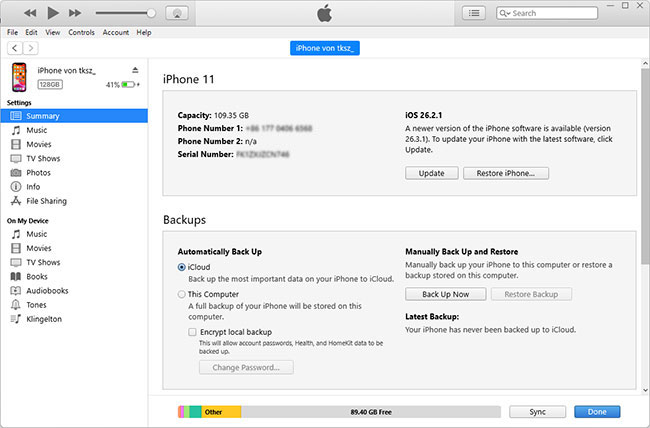
- Step 2. Connect your iPhone to a computer, trust your PC by entering the passcode, and open iTunes (Windows or macOS Mojave and earlier) or Finder (macOS Catalina or later).
- Step 3. Select your iPhone when it appears on the screen.
- Step 4. Click Restore iPhone. Confirm your choice and wait for the process to complete. Set up your iPhone and restore your data from the backup if needed.
Conclusion
Although it seems tedious to fix the Notes app issues on your iPhone, up to 10 methods could be your saver that allows you to get a normal and healthy Notes app. Using TunesKit iOS System Recovery will help you solve the iOS 18/26 Notes app not working issue quickly without data loss. If the issue still exists, remember to contact Apple Support for help.


