


How to Free Download iOS 26 Spatial Wallpapers
Elevate your iPhone's aesthetic with the stunning iOS 26 spatial wallpaper feature, a centerpiece of the new "Liquid Glass" redesign that brings immersive 3D depth to your Lock Screen. These dynamic backgrounds use advanced generative AI to transform standard images into tilting, shifting scenes that respond to your every movement.
Finding a high-quality free download iOS 26 spatial wallpaper is the best way to showcase this technology, and you can easily enable it by selecting a compatible image in your Lock Screen settings and tapping the "Spatial" toggle to activate the depth effect.
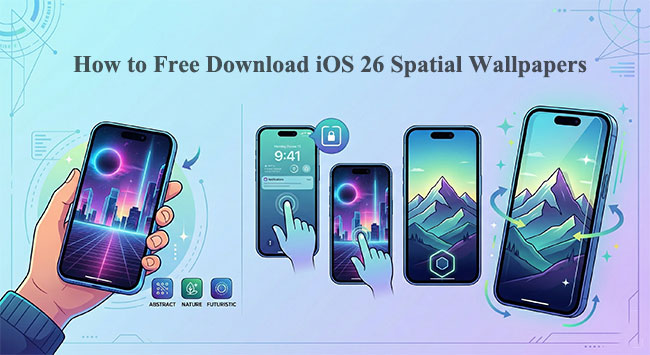
What Is Spatial Scene in iOS 26?
Spatial Scene in iOS 26 is a new visual feature that uses on‑device machine learning to turn ordinary 2D photos into dynamic, depth‑aware scenes that appear almost three‑dimensional when you view them on your iPhone.
Spatial Scene analyzes a photo and separates the foreground (like a person or object) from the background to create a depth map. When you tilt or move your iPhone, the background and foreground shift relative to each other, creating a subtle parallax effect — like looking into a miniature 3D scene.
You don't need special hardware or to have taken the picture in a "3D" mode — it works with many existing images in your Photos library.
While iOS 26 runs on many iPhones, Spatial Scenes itself typically requires iPhone 12 or later to work.

How to Free Download iOS 26 Spatial Wallpapers?
The new iOS 26 "Spatial Scene" engine is impressively versatile because it can actually turn almost any high-quality 2D photo into a 3D environment. However, the effect looks best when the image has a distinct subject and a clear background.
Here are a few specific themes and sources that currently look the best on iPhone:
1. Minimalist Architectural & Geometric
Abstract shapes with sharp edges allow the iOS 26 AI to easily define "layers." When you tilt your phone, the shadows and edges shift realistically.
- The Look: Look for "Brutalist architecture" or "3D glass orbs."
- Source: Wallpapers Central has a dedicated "Dark Orbs" and "Glass" collection specifically tagged for 3D Spatial Scenes.
2. Deep Landscape & Nature
Wide-angle shots of nature create a "window" effect on your Lock Screen. Mountains and trees work particularly well for the parallax tilt.
- The Look: "Mount Fuji," "Bora Bora," or "Forest Fog."
- Source: Unsplash (Search: 4K Landscape) is a goldmine. Look for images where a mountain peak or a tree is in the center—these are perfect for the "Depth Effect" where the subject overlaps the clock.
3. Macro Photography
Close-up shots of flowers, insects, or raindrops create the most dramatic depth. Because the background is already blurred (bokeh), the Spatial engine can make the subject "pop" significantly.
- The Look: "Cherry Blossom Branch" or "Dew on Leaf."
- Source: Zedge or the "Spatial Wallpapers 3D" app on the App Store.
Recommended Free Sources for 2026
If you want to browse curated collections instead of searching manually, these are the most reliable hubs:
| Source | Best For... | Link/Access |
|---|---|---|
| Wallpapers Central | Official-style Apple aesthetics | Website |
| r/iOSsetups | Creative community-made scenes | Reddit Community |
| Vellum | High-art and abstract spatial sets | App Store |
| WallpapersCraft | Massive 4K library for manual 3D conversion | 4K Collection |
 Pro Tips for the Best 3D Results
Not every image works perfectly as a spatial background. For the most dramatic effect, look for photos with a clear distinction between the subject and the background, such as a lone mountain peak or a city skyline.
Avoid images that are too cluttered, as the AI might struggle to separate the layers, which can disable the spatial movement feature. Consistent updates to your device are also recommended, as new patches often improve the rendering speed of these high-performance wallpapers.
How to Set Up Your Spatial Wallpaper on iOS 26?
Setting up a Spatial Wallpaper on iOS 26 is the best way to showcase the new Liquid Glass design. This feature uses AI to separate your photo into layers, creating a 3D parallax effect that shifts as you tilt your iPhone.Here is the most direct method to enable it:
The step-by-step setup
- Step 1. Wake your iPhone and long-press on your current Lock Screen to enter the customization menu.
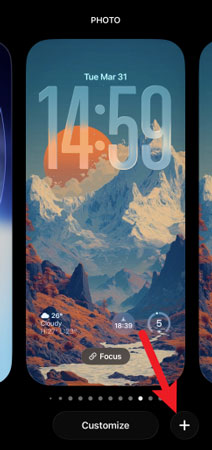
- Step 2. Tap the (+) icon to create a new wallpaper, then select Photos from the top row.
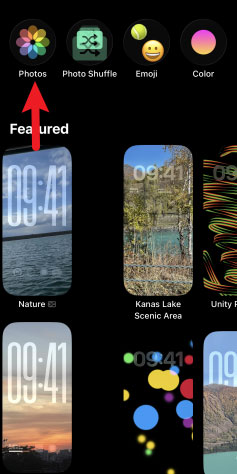
- Step 3. Choose an image with a clear subject (like a person, pet, or mountain). Once the image loads, look for the Hexagon/Cube icon at the bottom of the screen.
- Step 4. Tap it to "Generate Spatial Scene." You will see a brief loading animation as the AI maps the depth of the image.
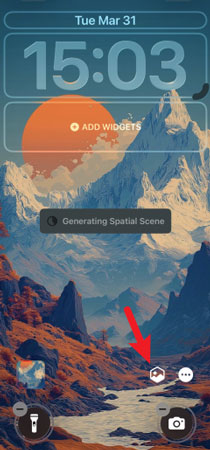
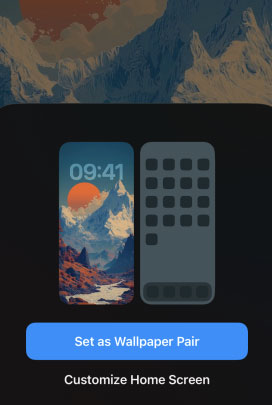
- Step 5. Tilt your phone to test the 3D effect. If you're happy with the movement, tap Add in the top right corner and select Set as Wallpaper Pair or Customize Home Screen.
Troubleshooting: Why can't I see the Spatial option?
If the icon doesn't appear or the wallpaper won't move, it is usually due to one of three specific settings:
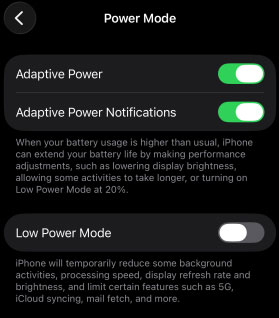
- Low Power Mode: This automatically disables high-performance animations like Spatial Scenes to save battery. Turn it off in Settings > Battery > Power Mode > Low Power Mode.
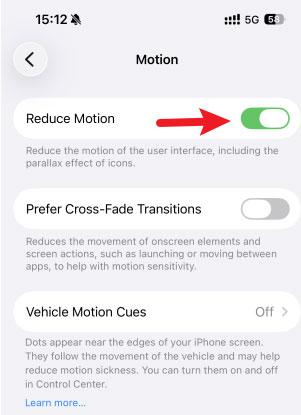
- Reduce Motion: If you have accessibility features turned on, the 3D tilt is disabled. Go to Settings > Accessibility > Motion and ensure Reduce Motion is toggled Off.
- Photo Composition: If the subject is too small or blends into the background, the AI cannot "cut" the layers. Try pinching to zoom out slightly on the photo; sometimes giving the AI more edge data allows the spatial effect to trigger.
Pro Tip for iOS 26
While in the editor, you can also tap the Clock to access the new Liquid Glass fonts. These fonts have a translucent, refractive quality that allows the colors of your new Spatial Wallpaper to "bleed" through the numbers, creating a unified 3D look.
iOS 26 Spatial Wallpaper Not Working? Fix It Here!
The frustration of a frozen Lock Screen or a glitchy iOS 26 spatial wallpaper can quickly dampen the excitement of Apple’s latest "Liquid Glass" update. While this immersive 3D depth effect is a visual marvel, users frequently report that the spatial toggle disappears or the parallax motion simply refuses to trigger. These issues are often rooted in deep-seated system bugs or a corrupted firmware installation that a simple restart cannot reach.
A dedicated repair tool like TunesKit iOS System Recovery becomes the most reliable solution. It is specifically engineered to patch the core system files responsible for rendering advanced UI elements like the iOS 26 spatial wallpaper without data loss. Also, it can fix all kinds of iOS 26 bugs and keep your data intact. By refreshing the iOS architecture, it clears out the "kernel panics" and software conflicts that typically cause high-performance features to fail.
Fix iOS 26 Spatial Wallpaper Not Working
Easily repair iOS 26 system glitches and restore Spatial Scene wallpaper effects without data loss using TunesKit iOS System Recovery.
 600,000+ Downloads
 Here's how to Fix iOS 26 Spatial Wallpaper Bugs with TunesKit iOS System Recovery.
Step 1 Connect Your iPhone
Download and launch TunesKit iOS System Recovery on your computer, then connect your iPhone using an original lightning or USB-C cable. Select the "iOS System Repair" from the main interface; and hit the Start button.

Step 2Choose Standard Repair
Select the "Standard Repair" from the main interface; this allows the software to repair iOS 26 Spatial Wallpaper not working issue, while keeping all your photos and settings perfectly intact.

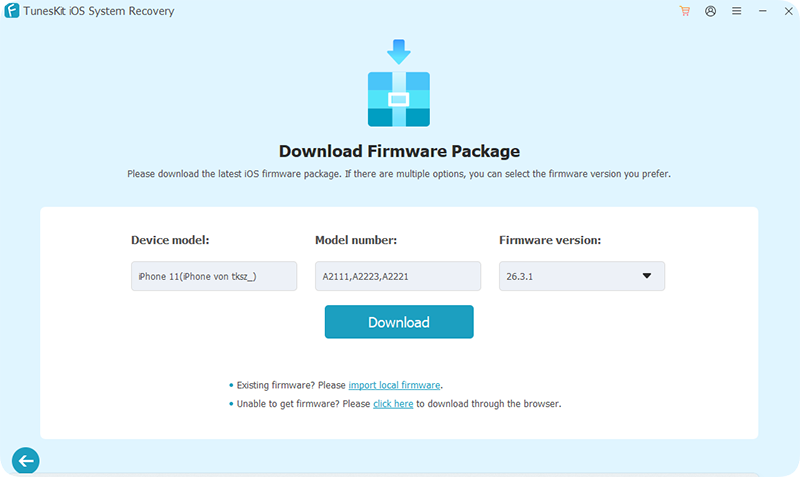
Step 3Download Firmware Package
Review the device information and click "Download" to fetch the matching firmware package from Apple's servers.
Step 4Start to Fix
Once the download is complete, click "Start Standard Repair" and wait for the process to finish. Your iPhone will reboot with a clean, optimized version of iOS 26, and you can go back to your Lock Screen settings to re-enable your favorite 3D backgrounds.

Conclusion
Experience the future of your Lock Screen with iOS 26 spatial wallpapers, the perfect way to add immersive 3D depth to your iPhone. While these dynamic backgrounds are a visual leap forward, system bugs can occasionally cause the "Liquid Glass" effects to lag or disappear. If your 3D tilt stops working, TunesKit iOS System Recovery is the most reliable way to patch these iOS glitches without losing your data, ensuring your spatial scenes stay fluid and responsive.


