


How to Fix iOS 18/26 Not Saving Stickers
Having trouble when you try to add and save a sticker on iOS 18/26? Many iPhone users are facing issues with the exciting sticker feature, from disappearing stickers to the inability to save new creations. These bugs are frustrating, especially when personalizing messages is one of iOS 18/26's highlights.
Thankfully, there are several steps you can take to resolve this issue, from checking for updates and freeing up storage to refreshing your stickers database. Here we will list all possible solutions for you to fix iOS 18/26 not saving stickers so that you can get back to customizing your chats with ease.

Part 1. Why Are My Stickers Not Saving on iPhone?
Stickers may not be saving on an iPhone mainly because of system sync issues, storage limitations, software bugs, or app-related problems. The most common reasons include:
1. Software Glitches and Bugs: iOS systems sometimes have bugs that can prevent stickers from saving correctly, likely due to incomplete database or software issues.
2. Storage and Low Power Mode Restrictions: iOS manages resources to optimize performance. When the device is low on storage or in Low Power Mode, certain background tasks may be restricted, which can interfere with sticker saving and other features.
3. iCloud Sync or Storage Problems: Apple's stickers (like Live Stickers and Memoji stickers) sync through iCloud. If iCloud sync is off or storage is full, stickers may not save.
4. Database Incompatibility: iOS 18/26 may not handle sticker data if they're restoring from backups of older iOS versions.
5. Sticker Creation Didn't Finish: If you exit Photos or Messages too quickly while creating a Live Sticker, it may not save.
Part 2. How to Add and Save Stickers After iOS 18/26 Update on iPhone?
Generally, there are two methods to create a new sticker for your Messages app on iPhone.
2.1 Make a Sticker via Photos App
- Step 1. Open the Photos app and find the image you want to turn into a sticker.
- Step 2. Tap and hold on a subject like a person, pet, or object within the photo until you see a shimmering outline around it.
- Step 3. Once highlighted, a menu will pop up with options.
- Step 4. Choose Add Sticker from the menu to save it directly in your sticker library and you will find it on the Sticker part of Messages app.

2.2 Make a Sticker in Messages App
- Step 1. Open the Messages app and then go to an active conversation.
- Step 2. Tap the + icon next to the text box. From the options, select the Stickers option and then tap on the second icon on the sticker list.
- Step 3. Tap the + icon or the New Sticker text and then select the picture you want to extract a sticker from. The target part of this picture will be selected automatically.
- Step 4. Tap the Add Sticker button to add it to your Messages' sticker list.

2.3 Saving Stickers From Chats
If someone sends you a sticker you like:
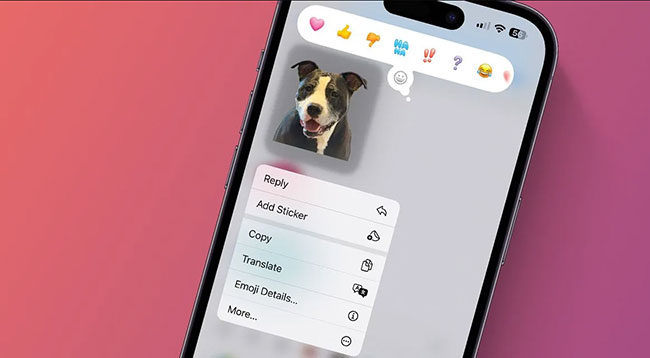
- Step 1. Open the conversation in Messages.
- Step 2. Touch and hold the sticker.
- Step 3. Tap Add Sticker.
 Note
Note
If the sticker was placed on a message bubble, you might need to tap Emoji Details first and then Save.
Saved stickers will appear in your sticker drawer for reuse.
Part 3. How to Fix iOS 18/26 Not Saving Stickers
If you have done the same steps as the above but the sticker still cannot be saved, there would be internal problems that make it fail. To fix the iPhone not saving stickers after iOS 18/26 update, we summarize 6 solutions for you.
Solution 1. Restart Your iPhone
When you restart your device, it refreshes the operating system and clears temporary files, which can help restore normal operations. This method has proven successful for many users facing similar issues.
- Step 1. Press and hold the power button and either of the volume buttons until you see the slide to power off slider.
- Step 2. Slide to power off, wait a few seconds, then press and hold the power button again until the Apple logo appears. Once restarted, check if the stickers work as expected.

Solution 2. Clear App Cache and Restart Apps
Restarting app can clear temporary data and resolve minor software glitches that might be affecting sticker storage.
- Step 1. Open the App Switcher by swiping up from the bottom of the screen or double-pressing the Home Button.
- Step 2. Swipe up on Messages and Photos apps to close them.
- Step 3. Reopen the apps and attempt to create a new sticker.

Solution 3. Free Up Storage Space
Insufficient storage can affect the creation and saving of stickers. When you create a sticker, the app needs to generate and store temporary files to process your request. If your device is low on storage, there may not be enough space to save these files, leading to issues with sticker creation and saving.
- Step 1. Go to Settings > General > iPhone Storage.
- Step 2. Make sure your iPhone has enough available storage space, as Apple generally recommends keeping at least 1–2 GB of free storage to ensure smooth system performance and prevent issues like features not working properly, apps failing to save data, or stickers not being stored correctly.
- Step 3. If your storage space is running low, consider deleting unused apps, old photos or videos, large files, and unnecessary downloads, and clear app caches where possible to free up space.

Solution 4. Disable Low Power Mode
Low Power Mode limits background activities like syncing and data-saving processes. Since creating and saving stickers involves processing and storing image data, the restrictions imposed by Low Power Mode may interfere with these tasks.
- Step 1. Go to Settings > Battery and turn off Low Power Mode if it's on.
- Step 2. Once it's off, try creating and saving stickers again.

Solution 5. Check for Software Updates
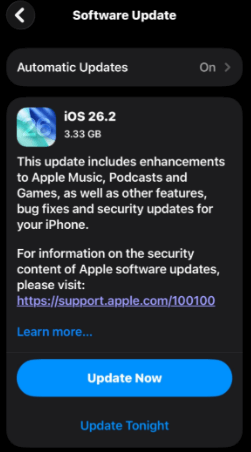
If an update is available, download and install it. Many users have reported this issue on iOS 18.0, so newer updates might address it: Settings > General > Software Update. If there is a new iOS version, simply click the Update Now button to update the iOS to the latest one.
Solution 6. Fix iOS 18/26 Sticker Issues in One Click
To save your time, here we will first introduce the most efficient method, TunesKit iOS System Recovery to fix this annoying issue. TunesKit iOS System Recovery is a professional iOS system repair tool and it provides a direct way to fix most iOS system issues including sticker issues on the latest iOS version.
Key Features of TunesKit iOS System Recovery
Fix the iOS 18/26 "stickers not saving" issue in minutes with TunesKit iOS System Recovery — a safe, one-click solution that repairs system glitches without data loss.
 600,000+ Downloads
How to fix iOS 18/26 not saving sticker via TunesKit iOS System Recovery
Step 1Connect iPhone to this software
Before using this software, you should download and install it first on your computer and use a USB cable to link your iPhone to your computer so that the connection between your iPhone and this software will be built. Click the iOS System Repair button on the main screen, and click the Start button.

Step 2Select repair mode
Standard Repair mode is a better option for the iOS 18/26 not saving sticker issue because this mode will not damage any data on your iPhone. Deep Repair may be also useful but it will clear all your iPhone data so if you choose it, remember to back up data in advance.

Step 3Download firmware package
You will get a firmware package from this step. After checking the related information about your iPhone, you can click the Download button to download it.

Step 4Start repairing iOS 18/26 not saving stickers
Click the Repair button to start the repair process. You will be prompted if the repair is completed.

Part 4. FAQs about iOS 18/26 Not Saving Stickers
-
1. Do Live Stickers require a specific iOS version?
Yes. Live Stickers are supported on iOS 17 and later. If your device is running an early or unstable build of iOS 18/26, sticker-saving features may not work reliably until you update to a newer patch version.
-
2. Why do my stickers disappear after restarting my iPhone?
This usually happens when iCloud Messages sync is disabled or not working properly. If stickers aren't syncing to iCloud, they may be removed after a reboot or system refresh.
-
3. Do stickers sync across my Apple devices?
Yes, if Messages in iCloud is enabled. Stickers should sync across all devices signed in to the same Apple ID, provided iCloud sync is turned on and working properly.
Part 5. Conclusion
Each of these methods addresses potential software or resource limitations that can interfere with saving stickers. If these common methods don't fully resolve the issue, you may consider an iOS repair tool like TunesKit iOS System Recovery to address more persistent glitches and restore normal functionality. If the iOS 18/26 not saving stickers issue remains, try to contact Apple Support and expect a fix in future updates.


