


iPhone Quick Start Not Working? 6 Easy Fixes
Quick Start lets you set up a new iPhone using your current device and transfer apps, settings, and other data easily. However, Quick Start may sometimes fail to appear, get stuck, or stop working during the transfer. If your iPhone Quick Start is not working, don't worry. This guide explains the possible causes and provides 6 practical fixes to help you complete the setup and data transfer successfully.
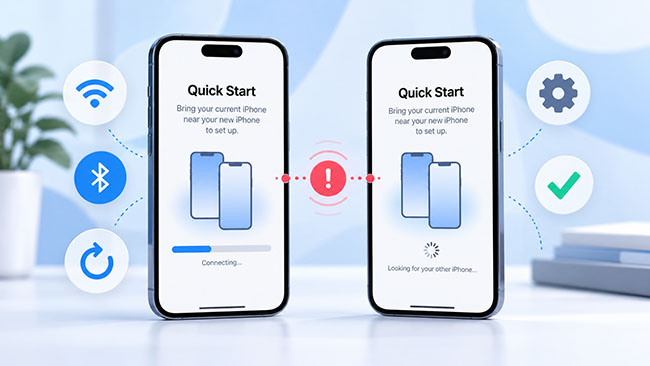
Why Is Quick Start Not Working on iPhone
Quick Start may not work properly for several reasons, including:
- 1. Wi-Fi or Bluetooth is turned off, or the connection is unstable.
- 2. The two iPhones are too far apart or fail to detect each other.
- 3. One of the devices is running an outdated or incompatible iOS version.
- 4. The new iPhone has not been properly activated or set up.
- 5. Temporary system glitches or network issues interrupt the Quick Start process.
6 Effective Ways to Fix iPhone Quick Start Not Working
If Quick Start is not showing up, cannot detect your old iPhone, or gets stuck during data transfer, try the following solutions in order. We recommend starting with the simplest checks before moving on to more advanced troubleshooting methods.
Method 1: Check Wi-Fi and Bluetooth
Quick Start relies on Wi-Fi and Bluetooth to detect nearby devices and start the setup process. If either connection is disabled or unstable, the Quick Start prompt may not appear, or the two iPhones may fail to recognize each other.
- Step 1. Unlock your old iPhone and connect it to a stable Wi-Fi network.
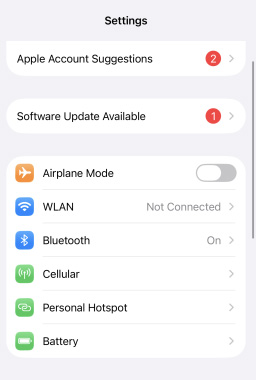
- Step 2. Go to Settings > Bluetooth and make sure Bluetooth is turned on.
- Step 3. Turn on the new iPhone and place it close to your old iPhone.
- Step 4. Keep both devices nearby and follow the on-screen Quick Start instructions.
Method 2: Update Both iPhones
An outdated iOS version may cause compatibility or connection problems during Quick Start. Quick Start requires the current iPhone or iPad to run iOS 11 or later, while direct device-to-device wireless migration requires iOS 12.4 or later. For the best compatibility, update both devices to the latest iOS version available for them.
- Step 1. Open Settings on the old iPhone.
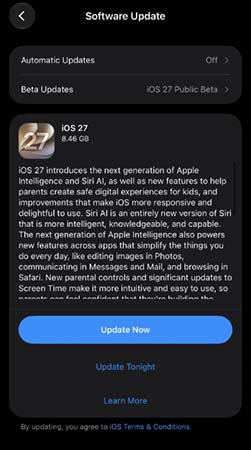
- Step 2. Go to General > Software Update.
- Step 3. If an update is available, tap Update Now button.
- Step 4. Repeat the same steps on the new iPhone if it has already been partially set up.
After updating, place the two devices close together and try Quick Start again.
Method 3: Restart Both iPhones
Temporary iOS bugs can prevent Quick Start from detecting another device or cause the setup prompt to disappear. Restarting both iPhone can refresh Bluetooth, Wi-Fi, and background system processes involved in Quick Start.
The restart method varies depending on your iPhone model.
For iPhone X and later:
- Step 1. Press and hold the Side button and either Volume button until the power-off slider appears.
- Step 2. Drag the slider and wait for the iPhone to turn off completely.
- Step 3. Press and hold the Side button again until the Apple logo appears.

For older iPhones with a Home button:
- Step 1. Press and hold the Side button or Top button, depending on the model, until the power-off slider appears.
- Step 2. Drag the slider to turn off the old iPhone.
- Step 3. Wait about 30 seconds, then press and hold the Side button or Top button until the Apple logo appears.

After restarting both devices, unlock your old iPhone, make sure Wi-Fi and Bluetooth are enabled, and place it next to the new iPhone. Turn on the new iPhone and check whether the Quick Start prompt appears again.
Method 4: Use a Wired Connection
If wireless Quick Start repeatedly fails or the connection is unstable, you can transfer data by connecting the two iPhones directly with a compatible cable. This is an alternative transfer method rather than a requirement for Quick Start. The cable you need depends on your iPhone models. For example, two iPhone 15 or later models can be connected with a USB-C cable, while transferring from an older Lightning-based iPhone to a USB-C iPhone may require a USB-C to Lightning cable.
- Step 1. Connect your old and new iPhones using the appropriate cable.
- Step 2. Turn on both devices.
- Step 3. Follow the setup instructions on your new iPhone.
- Step 4. Connect the new iPhone to Wi-Fi or a cellular network if prompted.
- Step 5. Keep both devices connected until the transfer is complete.

Do not disconnect the cable while data is being transferred.
Method 5: Repair Possible iOS System Issues with TunesKit iOS System Recovery
If Quick Start still does not work after checking your connections, updating iOS, and restarting both devices, the problem may be related to an iOS system error. In this situation, an iOS system repair tool can be another troubleshooting option.
TunesKit iOS System Recovery is designed to repair common iOS and iPadOS problems, including update failures, black screens, boot loops, frozen on lock screens, and devices stuck in Recovery Mode. Its Standard Repair mode is intended to resolve system issues while preserving user data, although backing up important data beforehand is still recommended.
Main Features of TunesKit iOS System Recovery
Repair 150+ types of iOS and iPadOS issues & Offer Standard Repair and more advanced repair options.
 600,000+ Downloads
Follow the step-by-step guide to fix iPhone quick start not working and you only need to click a few buttons.
Step 1. Connect Your iPhone
Download and install TunesKit iOS System Recovery on your computer. Launch the program and connect the affected iPhone using a compatible USB cable. Once your device is detected, choose the iOS System Repair option and hit the Start button to continue.

Step 2. Choose Standard Repair
Select Standard Repair first if you want to troubleshoot the system problem without erasing your iPhone data. Follow the onscreen instructions if the program asks you to place the device into Recovery Mode or DFU Mode.

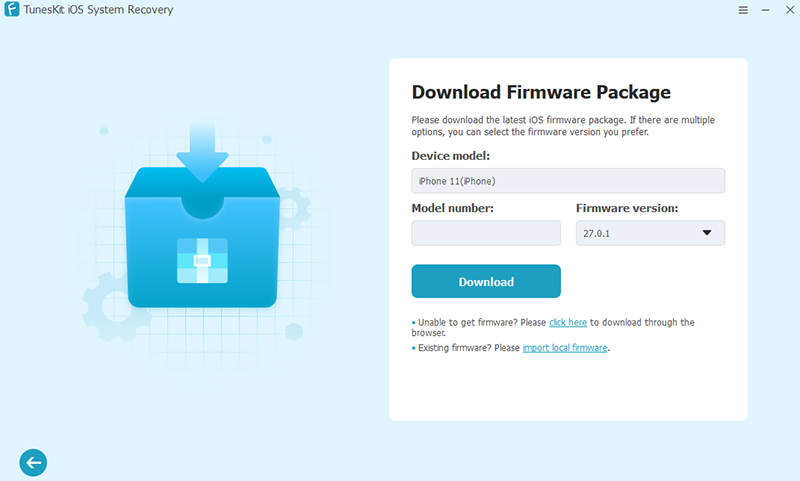
Step 3. Download the Firmware Package
Check the displayed device information carefully and make sure the iPhone model and firmware version are correct. Click Download to obtain the matching firmware package. Keep your computer connected to a stable network during the download process.
Step 4. Start the Repair
After the firmware package has been downloaded and verified, click the Start Standard Repair button to begin fixing the iOS system. Keep the iPhone connected to the computer throughout the process. When the repair is complete, restart the device and try Quick Start again.

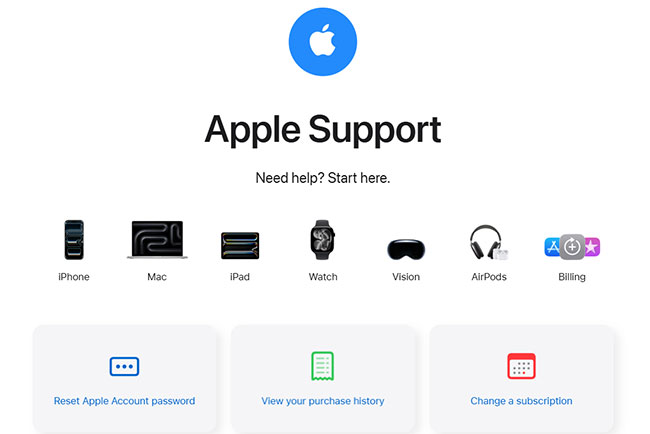
Method 6: Contact Apple Support
If none of the methods above works, there may be a deeper software, activation, network, or hardware problem that cannot be resolved through basic troubleshooting.
Before erasing or restoring your new iPhone, consider contacting Apple Support, especially if Quick Start consistently fails during activation or neither device can detect the other.
You can explain when the issue occurs, what error message appears, and which troubleshooting methods you have already tried. This information can help Apple identify the problem more efficiently.
FAQs About iPhone Quick Start
-
How Do I Use Quick Start on iPhone?
Turn on your new iPhone and place it near your old iPhone. Make sure Wi-Fi and Bluetooth are enabled on the old device, then follow the on-screen instructions to connect the two iPhones and transfer your data.
-
How Long Does Quick Start Take?
There is no fixed transfer time. It depends on the amount of data, network conditions, and the transfer method you use. Keep both iPhones close together and connected to power until the process finishes.
-
Can I Use Quick Start Without Wi-Fi?
Quick Start uses Bluetooth to detect nearby devices, while Wi-Fi is generally required during setup and wireless data transfer. If wireless transfer does not work, you can also use a compatible wired connection.
-
Can I Transfer Data Without Quick Start?
Yes. You can restore your new iPhone from an iCloud backup, a Mac or PC backup, or use a supported wired transfer method.
-
Why Does Quick Start Keep Getting Stuck?
Common causes include unstable Wi-Fi, disabled Bluetooth, outdated iOS versions, temporary system glitches, or problems during device activation. Try the troubleshooting methods above in order.
Conclusion
If iPhone Quick Start is not working, start with simple fixes such as checking Wi-Fi and Bluetooth, updating iOS, and restarting both devices. You can also try a wired transfer or use TunesKit iOS System Recovery if the issue is related to a deeper iOS system error. If none of these methods works, contact Apple Support for further assistance.



