


iPhone Echoing on Calls? [12 Super Easy Solutions]

Echoing on iPhone calls can be frustrating, especially when voices repeat or sound delayed during conversations. Although iPhones are known for their reliable performance, call audio issues like echo can still occur due to software glitches, network problems, or incorrect settings. In this article, we'll explain why your iPhone calls are echoing and walk you through 12 easy solutions to fix the problem.

- How to Fix Echo on iPhone?
- Way 1. Toggle the Speakerphone Function
- Way 2. Inspect Your Headset or Earbuds
- Way 3. Evaluate Your Cellular Reception
- Way 4. Eject and Reseat the SIM Card
- Way 5. Review Your Sound and Focus Settings
- Way 6. Clean the Earpiece Receiver and Speakers
- Way 7. Perform a Force Restart
- Way 8. Check for Carrier Settings Updates
- Way 9. Update to the Latest iOS Version
- Way 10. Reset Your Network Settings
- Way 11. Use an iOS System Recovery SoftwareHOT
- Way 12. Factory Reset Your Phone
- More Tips About iPhone Echo Problem
- Conclusion
How to Fix Echo on iPhone?
If your iPhone was brought recently or without any hardware damage, you can fix this issue by following our instructions below. You can try them one by one until the problem is solved.
Way 1. Toggle the Speakerphone Function
Experiencing an iPhone echoing on calls can often be temporarily resolved by simply cycling your audio output. By switching the audio routing during an active conversation, you force the device to recalibrate its noise-cancellation algorithms. This quick action can immediately stop the echo on your iPhone while you look for a permanent fix.
- Step 1. While on an active phone call, look at your call interface on the screen.
- Step 2. Tap the "Speaker" icon to route the audio through the external loudspeaker.
- Step 3. Wait a few seconds, then tap the icon again to return the audio to the earpiece.

Way 2. Inspect Your Headset or Earbuds
Sometimes the frustrating iPhone echo issue does not originate from the phone itself, but rather from the external audio accessories you are using. Damaged wires, faulty Bluetooth connections, or blocked microphones on your headset can easily feed audio back into the call. Testing alternative equipment will help you isolate the root cause.
- Step 1. Disconnect your current wired or wireless headphones during the call.
- Step 2. Connect a different, verified working headset to your device.
- Step 3. Check with the person on the other end of the line to see if the echoing persists.

Way 3. Evaluate Your Cellular Reception
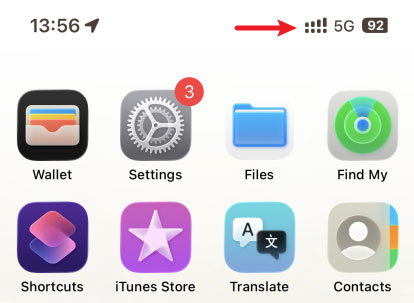
A weak or unstable network connection is a frequent culprit behind audio delays and an iPhone echoing on calls. When your device struggles to maintain a consistent signal with the cellular tower, data packets overlap and create a noticeable feedback loop. Improving your physical location can swiftly resolve these service-related audio disruptions.
Always check your signal strength bars before starting an important conversation.
- Step 1. Look at the top corner of your screen to assess your current cellular signal bars.
- Step 2. Move to a different area, preferably near a window or outdoors, to secure a stronger network connection.
Way 4. Eject and Reseat the SIM Card
Your SIM card acts as the physical bridge to your wireless carrier, and improper seating can cause connection glitches that result in an echo on your iPhone. Taking the card out and placing it back in forces the device to re-register with your provider's network. This acts as a mini-reset for your cellular services.
- Step 1. Locate the SIM card tray on the side of your device and insert an ejector tool or a small paperclip into the pinhole.
- Step 2. Gently push inward to pop the tray out, then remove the SIM card completely.
- Step 3. Place the card securely back into the tray and push it inside until it clicks flush with the frame.

Way 5. Review Your Sound and Focus Settings
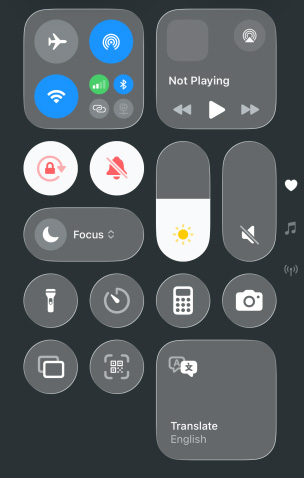
Modern iOS versions include advanced Focus modes and sound profiles that can occasionally interfere with standard call routing, leading to a weird iPhone echo effect. Ensuring your device isn't stuck in a restrictive audio profile or accidentally silenced can clear up unexpected microphone behavior.
- Step 1. Swipe down from the top right of your screen to access the Control Center.
- Step 2. Ensure that your device is not muted and that the volume slider is set to an appropriate level.
- Step 3. Check your Focus settings and temporarily disable them to see if standard call audio is restored.
Way 6. Clean the Earpiece Receiver and Speakers
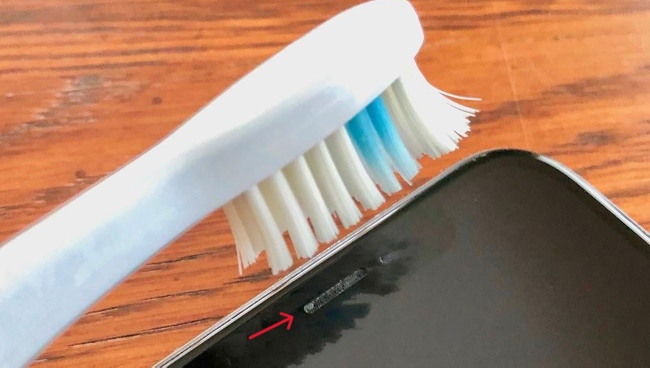
Physical debris is a notorious enemy of clear audio quality. If the receiver mesh or the bottom speaker grills become clogged with lint, dust, or makeup, the sound waves can bounce incorrectly and cause a severe echo on iPhone calls. Keeping these ports pristine ensures the microphones accurately capture only your voice.
Never use liquid or sharp metal objects to clean these delicate components.
- Step 1. Remove any bulky phone cases or screen protectors that might be partially covering the acoustic openings.
- Step 2. Take a clean, soft-bristled brush and gently sweep away any visible dirt from the top receiver and bottom speakers.
Way 7. Perform a Force Restart
A forced reboot is a powerful troubleshooting tool that clears out hidden software bugs causing your iPhone to echo during calls. This process flushes the volatile memory and reloads the operating system completely from scratch. It is highly effective for fixing background audio conflicts.
For iPhone 8 and newer models
- Step 1. Press and immediately release the Volume Up button, followed quickly by the Volume Down button.
- Step 2. Press and hold down the Side power button until the Apple logo appears.
For iPhone 7 and 7 Plus
- Step 1. Press and hold the Volume Down button and the Side power button simultaneously.
- Step 2. Release both buttons when the Apple logo flashes on the screen.
For iPhone 6s and older models
- Step 1. Hold down the Home button and the Power button at the exact same time.
- Step 2. Let go of the buttons once the device restarts and the Apple logo is visible.

Way 8. Check for Carrier Settings Updates
Your cellular provider periodically pushes out background configuration files to optimize how your device communicates with their towers. Running outdated carrier settings can easily lead to poor voice routing and an iPhone echoing on calls. Installing these updates ensures maximum compatibility with local cell networks.
- Step 1. Open the Settings app and navigate to the General menu.
- Step 2. Tap on the About section and wait a few seconds.
- Step 3. If a carrier update is available, a prompt will automatically appear on your screen; simply tap Update to apply it.

Way 9. Update to the Latest iOS Version
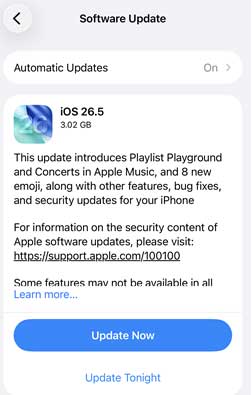
Apple constantly refines its software to patch known audio-processing bugs and communication glitches. If your device is running an outdated iOS version, you are missing out on crucial fixes that prevent the echo on iPhone issues. Staying current is one of the best ways to ensure flawless call quality.
- Step 1. Open Settings, tap on General, and then select Software Update.
- Step 2. Allow the system to check for the latest firmware release.
- Step 3. Tap Update Now button if a new version is available, ensuring your device is plugged into power.
Way 10. Reset Your Network Settings
When standard troubleshooting fails to eliminate the iPhone echoing on calls, deep-seated network configuration errors might be to blame. Resetting your network settings clears all saved Wi-Fi passwords, Bluetooth pairings, and cellular routing data, giving your device a completely fresh start for connectivity. This is often the final software-based fix before seeking hardware repairs.
Be prepared to re-enter your Wi-Fi passwords after completing this step.
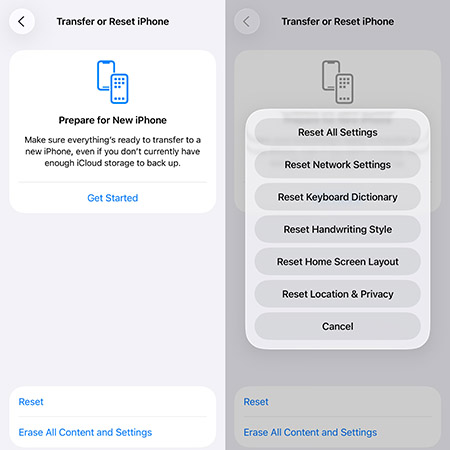
- Step 1. Open the Settings app, go to General, and scroll down to the bottom to select Transfer or Reset iPhone.
- Step 2. Tap on Reset, and then specifically choose Reset Network Settings from the popup menu.
- Step 3. Enter your device passcode when prompted to authorize and complete the reset procedure.
Way 11. Use an iOS System Recovery Software [Loss-Free Repair]
If your iPhone is still echoing during calls after trying the basic fixes, the issue may be caused by deeper iOS system glitches. In this case, using a professional iOS repair tool can be an effective solution. TunesKit iOS System Recovery is designed to fix various iOS system issues without causing data loss or requiring complicated backup procedures. Whether the call echo problem is triggered by software bugs, audio malfunctions, or system crashes, TunesKit iOS System Recovery can help restore your device to normal.
As a powerful repair tool, TunesKit can resolve 150+ iOS issues, including voicemail not working, iPhone stuck on the Apple logo, black screen
iPhone Echoing on Calls? Fix It Fast
 600,000+ Downloads
600,000+ Downloads
600,000+ Downloads
Here are the steps on how to fix iPhone echo problem using TunesKit iOS System Recovery.
Step 1Open TunesKit and Connect You iPhone to PC
First you need to open TunesKit on your computer. Then connect your phone with computer via a USB cable. After the computer has detected your phone, press "iOS System Repair". And click the Start button to continue.

Step 2Select a Repair Mode
To fix the iPhone echo problem, you should choose Standard Repair first. Standard Repair is used to solve the common iOS issues and repair the iOS system without any data loss. And if you are facing more serious issues, you can choose the Deep Repair but it will erase all data on your phone.

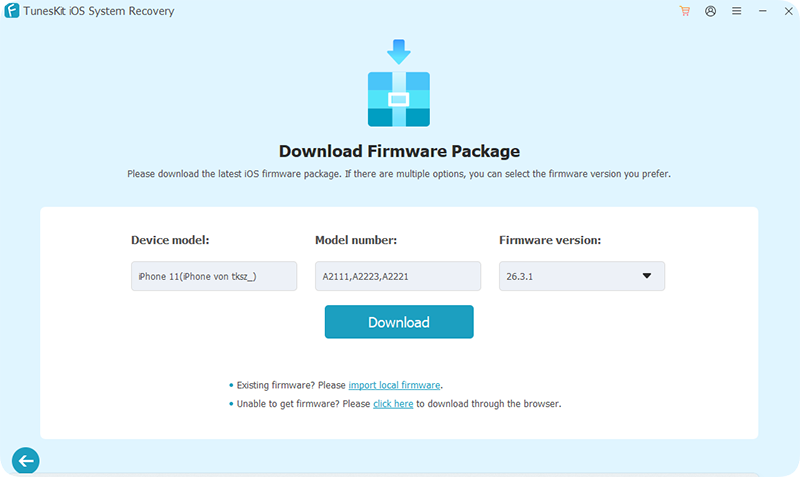
Step 3Download Firmware Package
Now, confirm your device info is correct and press "Download" to download the firmware package.
Step 4Fix iPhone Echoing on Calls
After the firmware package has been downloaded, click the "Start Standard Repair" button and wait for the recovering process finished.

 Note
Note
This software can also help you downgrade iOS and provide the function of 1-click to enter/exit recovery mode. As it is very easy to operate and effective, why not download it and have a try?
Video Tutorial: How to Fix iPhone Echo When Talking?
You can also watch the following short video to learn how to fix iPhone echo problem with the assistance of TunesKit iOS System recovery.
Way 12. Factory Reset Your Phone
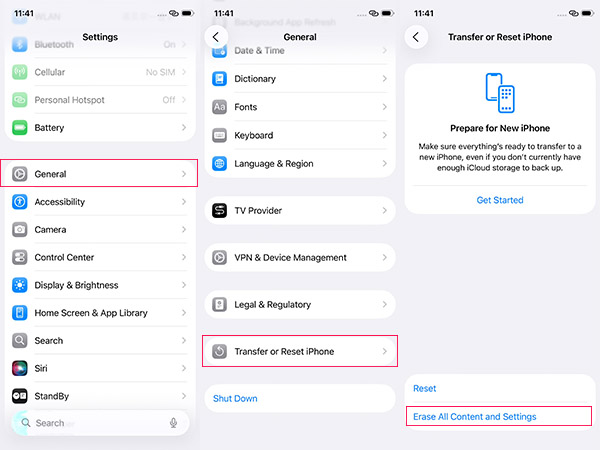
Performing a factory reset is another way to fix echo on iPhone calls. Before you reset your phone you should know that this action will erase all the data in your phone. So, you had better back up your data first.
To reset your phone to back to factory settings, you should do the following steps.
- Step 1. Find "Settings"→ Press "General".
- Step 2. Press "Transfer or Reset iPhone" in the bottom.
- Step 3. Choose "Erase All Content and Settings"
More Tips About iPhone Echo Problem
Tip 1. What Is the iPhone Echo?
In sometimes, iPhone will generate some distorted noise or echoing during the process of people receiving end of the phone calls. When an echo appears, users may encounter the situation that "They can hear themselves in the background.", which will cause the voice call cannot be heard clearly.
Tip 2. Why the Echo on iPhone Will Happen?
Here will help you analyze the major reasons for the appearance of this problem.
- 1. iPhone hardware damage
- 2. Headphone has been damaged
- 3. iOS system has not updated or has been damaged
- 4. External factors like being exposed to water or fire
Conclusion
Here are all the 12 best ways to fix echo on iPhone. Among these methods, TunesKit iOS System Recovery is undoubtedly one of the top-notch iDevice fixing tool equipped with lots of rich features. If you still have any difficulties in fixing this problem, please do not hesitate to leave your comment below.


