


How to Use One WhatsApp Account on Two Phones: The Direct Guide
The days of juggling multiple devices for a single WhatsApp account are finally over. Thanks to the new Companion Mode, the restrictive "one phone, one account" rule no longer applies. You can now seamlessly mirror your primary account to a secondary phone, supporting both iPhone and Android devices simultaneously.
This guide focuses purely on speed and utility, showing you exactly how to use one WhatsApp account on two phones using the official "Linked Devices" feature. We will skip the unnecessary details and demonstrate how to connect your second phone instantly, allowing you to stay connected across devices without complex hacks or third-party tools.
- Part 1. Before You Start: Prerequisites
- Part 2. Step-by-Step: How to Use One WhatsApp Account on Two Phones
- Part 3. Troubleshooting Common Issues
- Part 4. Understanding the Limitations
- Part 5. Security & Privacy Best Practices
- Part 6. Bonus Tip: How to Transfer WhatsApp Messages Between iOS DevicesHOT
- Part 7. Frequently Asked Questions (FAQ)
Part 1. Before You Start: Prerequisites
To ensure the linking process works seamlessly, check these three requirements before attempting the setup. This prevents the most common "connection failed" errors.
- App Version: Ensure both devices are running the latest version of WhatsApp. Go to the Google Play Store or Apple App Store and tap "Update" if available.
- Internet Connection: Both phones must have an active internet connection (Wi-Fi or Mobile Data) during the setup process.
- No SIM Card Needed (Secondary Phone): Your secondary phone does not need an active SIM card to use WhatsApp in Companion Mode. It only needs Wi-Fi.
Part 2. Step-by-Step: How to Use One WhatsApp Account on Two Phones
This section breaks down the process in detail. We will refer to your main phone (with the SIM card and chat history) as the Primary Phone and the new device you want to add as the Secondary Phone.
Phase 1: Prepare the Secondary Phone
Step 1. If WhatsApp is already installed on this phone with a different account, you must either uninstall and reinstall it, or clear the app data (Android) to return to the setup screen.
Step 2. Open the app and choose your preferred language. Tap the arrow to proceed.
Step 3. Tap Agree and Continue on the Welcome to WhatsApp screen.

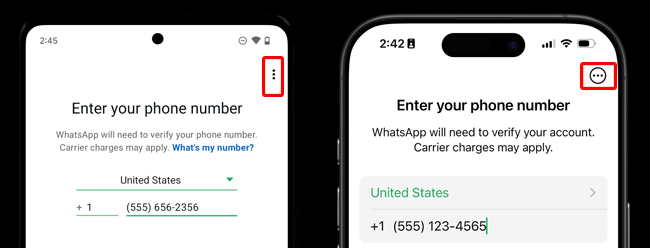
Step 4. You will arrive at a screen asking you to "Enter your phone number." Stop here.
- On Android: Tap the three vertical dots in the top-right corner.
- On iPhone: Look for the options menu (usually three dots or a menu button) in the top-right corner.
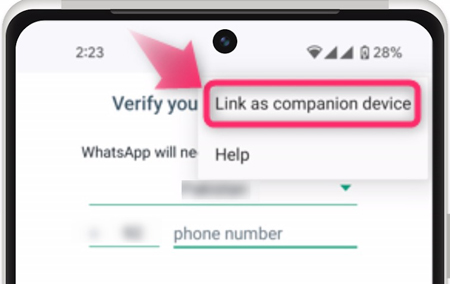
Step 5. From the dropdown menu, select Link as companion device. The screen will change to display a large QR code. This code is the key to linking your account.
Phase 2: Link From the Primary Phone
Now that your secondary phone is displaying the QR code, pick up your Primary Phone (the one that already has your chats).
Step 1. Open Settings:
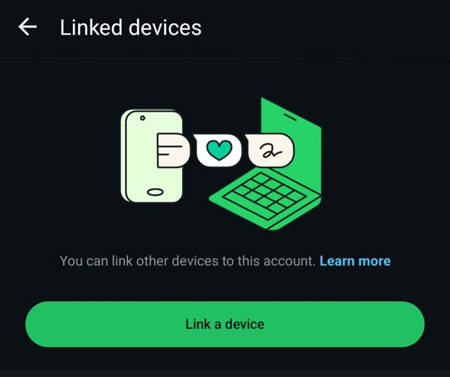
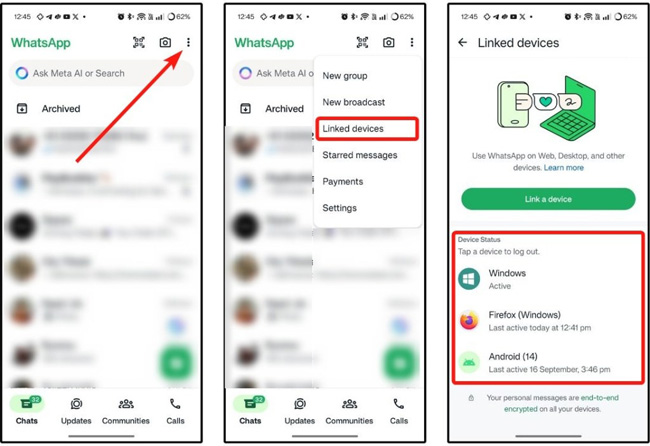
- On Android: Tap the three dots in the top-right corner > select Linked devices.
- On iPhone: Tap the Settings gear icon in the bottom-right corner > select Linked Devices.
Step 2. Tap the big green button that says Link a Device. You may be asked to unlock your phone using FaceID, TouchID, or your PIN for security.
Step 3. Your camera will open. Point your Primary Phone's camera at the QR code displayed on your Secondary Phone.
Step 4. The Secondary Phone will immediately say "Loading your chats..." This may take a minute or two depending on how much message history you have.
Phase 3: Use One WhatsApp Account on Two Phones Successfully
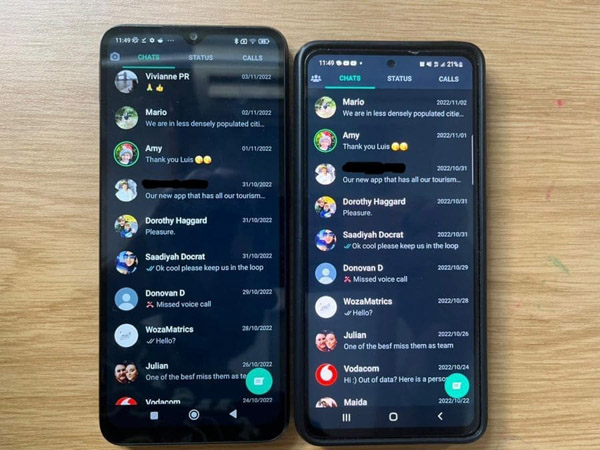
Once the loading bar finishes, your Secondary Phone will display the exact same chat interface as your main phone.
- Synchronization is bi-directional: If you send a message from the Secondary phone, it appears on the Primary phone instantly.
- Independent Operation: You can now turn off your Primary phone's internet, and the Secondary phone will continue to work (for up to 14 days).
Part 3. Troubleshooting Common Issues
Even with the official method, users often encounter specific hurdles. Here is how to fix the most frequent problems when trying to use WhatsApp on two devices.
1. "I don't see the 'Link as companion device' option"
This is the most common complaint.
- Solution A: You might be on an older version of WhatsApp. Update the app.
- Solution B: If you are on an iPhone, the interface sometimes hides this option if the text size is too large. Try reducing your system font size temporarily.
- Solution C: Restart the app. Force close WhatsApp on the secondary device and open it again.
2. "The QR Code won't scan"
- Brightness: Increase the screen brightness on the Secondary Phone displaying the QR code.
- Dark Mode: Sometimes the contrast of Dark Mode confuses the scanner. Switch the Secondary Phone to Light Mode temporarily for the scan.
- Lens Cleanliness: Wipe the camera lens of your Primary Phone.
3. "Logged out automatically"
If your Primary Phone remains inactive (not connected to the internet) for 14 days, WhatsApp will automatically log out all linked companion devices for security reasons. You must open WhatsApp on your main phone at least once every two weeks.
Part 4. Understanding the Limitations
While WhatsApp Companion Mode is powerful, it is not a 100% clone of the primary experience. To maintain credibility and manage your expectations, you need to know what features are missing on the secondary device.
1. Status Updates
Currently, you cannot post a new WhatsApp Status (Story) from the secondary phone. You can view other people's statuses, but to upload your own photos or videos to your Status, you must use the Primary Phone.
 View Also:
 2. Live Location Management
While you can see static locations sent by others, sharing your Live Location is often restricted or buggy on companion devices. For critical tracking, always rely on the main device.
3. Broadcast Lists
Creating and managing broadcast lists is generally restricted to the primary device. You can message existing lists, but modifying them usually requires the main phone.
Part 5. Security & Privacy Best Practices
Using one WhatsApp account on two devices increases your convenience, but it also opens a new vector for privacy risks. If someone gets access to your secondary phone, they have access to your chats.
How to Check for Unauthorized Devices
You should regularly audit which devices are linked to your account.
Step 1. Go to Settings > Linked Devices on your Primary Phone.
Step 2. Review the list. It will show device names (e.g., "Android 13" or "Google Chrome Windows") and the "Last Active" time.
How to Remotely Log Out
If you lose your secondary phone or suspect someone has linked their device to your account without permission:
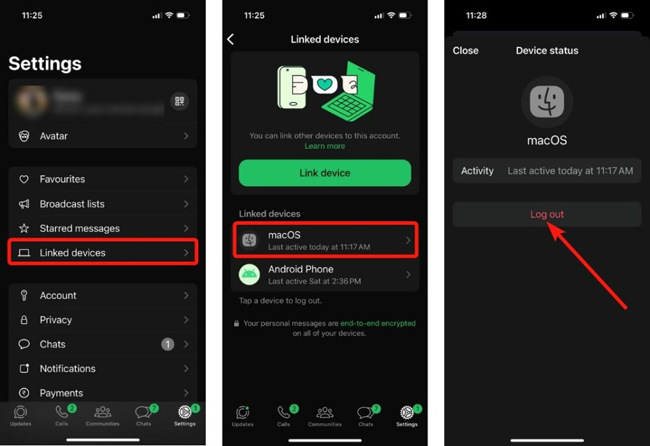
Step 1. Open Linked Devices on your Primary Phone.
Step 2. Tap the device you want to remove.
Step 3. Tap Log Out. This instantly cuts off access on that specific device. The secondary phone will immediately revert to the login screen.
Part 6. Bonus Tip: How to Transfer WhatsApp Messages Between iOS Devices
If you just want to sync WhatsApp messages between different iOS devices, download and try using TunesKit WhatsApp Transfer. TunesKit WhatsApp Transfer is a comprehensive WhatsApp data manage tool that allows users to transfer, back up, restore, and export WhatsApp messages between iOS devices and computers.
Supporting both standard WhatsApp and WhatsApp Business accounts, the program features a user-friendly interface and a high success rate, making it a reliable solution for users switching phones who wish to preserve their data securely without technical complexity.
Key Features of TunesKit WhatsApp Transfer
Transfer WhatsApp from iPhone to iPhone easily. Transfer, restore, and export WhatsApp data between iOS devices without encountering any hassle.
 600,000+ Downloads
To transfer WhatsApp data between iOS devices, the following steps will show you the how-to:
Step 1 Connect both iPhones to the Computer
Download and install TunesKit WhatsApp Transfer on your computer first. Then, you can connect both your two iPhones to the computer and launch TunesKit WhatsApp Transfer. Select WhatsApp feature. You can set the source device and destination device in the main TunesKit WhatsApp Transfer interface.

Step 2 Transfer WhatsApp Data Between iOS Devices
Then, click on the Transfer button to transfer WhatsApp data from your old device to the new device. It is worth noting that all the origin WhatsApp data on your target device will be overwritten.

Part 7. Frequently Asked Questions (FAQ)
-
Can I link an Android phone to an iPhone?
Yes! The operating system does not matter. You can have an iPhone as your primary and an Android as your secondary, or vice versa. This is one of the best features of the new Companion Mode.
-
How many devices can I link in total?
You can link up to four additional devices. This could be a combination of computers (WhatsApp Web), tablets, and other phones.
-
Will my messages still be encrypted?
Yes. WhatsApp maintains End-to-End Encryption on linked devices. Each linked device has its own identity key, but the chat privacy remains intact for personal messages and calls.
-
Does the secondary phone need a SIM card?
No. The secondary phone essentially acts as a remote control for your account. It relies entirely on Wi-Fi or its own data connection, but it does not need a phone number or SIM card to function as a companion device.
-
Can I use WhatsApp Business on two phones?
Yes, Companion Mode works for both personal WhatsApp and WhatsApp Business accounts. This is excellent for small business owners who want multiple employees to answer customer queries from different mobile devices.
Conclusion
The official WhatsApp Companion Mode replaces unreliable third-party apps, offering a secure way to use a single account on two phones. By following the setup steps—specifically tapping the "three dots" menu—you can seamlessly sync your messages. If you just need to simple transfer your WhatsApp messages to a new phone, download and try using TunesKit WhatsApp Transfer.


