


How to Fix WhatsApp Download Failed
If you're seeing a "Download Failed" or "Can't download image/video/document" message in WhatsApp, you're not alone. This issue is extremely common across Android and iPhone users, and it usually appears when WhatsApp can't access your storage, network, or internal settings required to complete the download.
In this guide, we'll walk you through the real reasons behind this problem and show you clear, step-by-step solutions to fix WhatsApp download failed error permanently. Each section includes practical tips, troubleshooting insights, and visual placeholders to help you follow along.

- Part 1. What Causes WhatsApp Download Failed Error?
- Part 2. How to Fix WhatsApp Download Failed Error
- Method 1: Check Your Internet Connection
- Method 2: Correct Your Phone's Date & Time Settings
- Method 3: Ensure You Have Enough Storage Space
- Method 4: Give WhatsApp Storage Permissions (Android)
- Method 5: Check the SD Card (Android Only)
- Method 6: Clear WhatsApp Cache (Android)
- Method 7: Restart Your Phone or Reinstall WhatsApp
- Part 3. Bonus Tip: How to Manage WhatsApp Data on PC [Hot]
- Part 4. FAQs About WhatsApp Download Failed
- Part 5. Conclusion
Part 1. What Causes WhatsApp Download Failed Error?
Before jumping into solutions, it's important to understand why WhatsApp can't download photos, videos, voice notes, or documents. Knowing the root causes helps you choose the correct fix instead of trying random steps. There are several common reasons why this error occurs:
- Poor or unstable network connection
- Incorrect date & time settings
- Insufficient storage space
- WhatsApp lacking storage permissions
- Damaged SD card (Android)
- Server issues
- Corrupted app cache or outdated WhatsApp version
Part 2. How to Fix WhatsApp Download Failed Error
This part provides a comprehensive set of fix methods. Before diving in, note that WhatsApp download issues often come from a mix of settings and device limitations not just one cause. Therefore, going through each method in order gives you a much higher success rate.
Method 1: Check Your Internet Connection
A stable network is the foundation of all WhatsApp downloads. Even if your phone shows 4G/5G or Wi-Fi bars, it doesn't always mean the internet is actually working. WhatsApp requires a live connection to its servers to download messages, media, and documents.
For iPhone:
Step 1. Open Settings > WiFi to toggle WiFi off and on.
Step 2. Try another WiFi network, or connect to mobile data.
Step 3. To reset network quickly, you can swipe down to toggle Airplane Mode on and off.
Step 4. Test your internet by opening Safari to load any website.

For Android:
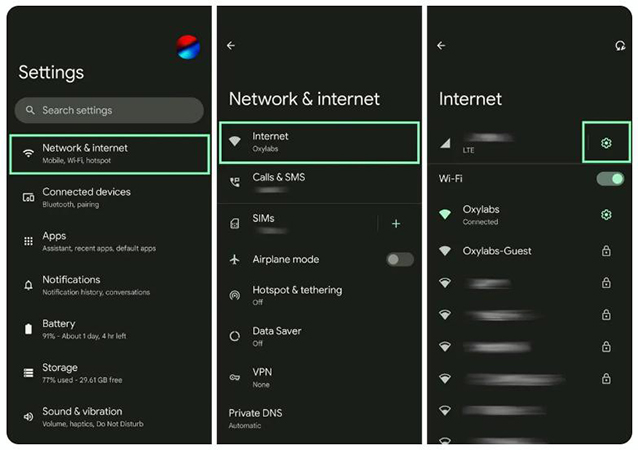
Step 1. Open Settings > Network & Internet to toggle WiFi off and on.
Step 2. Switch to mobile data temporarily.
Step 3. Pull down Quick Settings to enable Airplane Mode and then disable it.
Step 4. Test connection using Chrome.
Method 2: Correct Your Phone's Date & Time Settings
WhatsApp uses your device's date/time to validate secure server connections. If the date or time is even slightly incorrect, downloads may fail. This step is simple but surprisingly effective, and many users overlook it.
For iPhone: Go to Settings > General > Data & Time to enable Set Automatically. Restart WhatsApp after that.

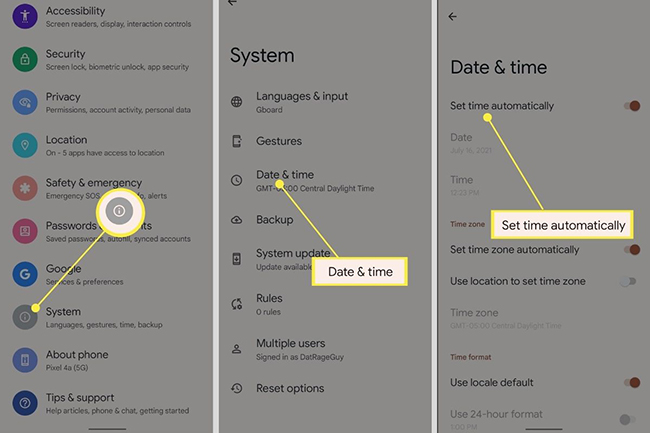
For Android: Go to Settings > System > Data & Time to enable Set time automatically and Set time zone automatically. Restart WhatsApp after it.
Method 3: Ensure You Have Enough Storage Space
Lack of storage is one of the most common reasons for WhatsApp being unable to download files. High-resolution photos, videos, and voice messages accumulate rapidly, especially in busy group chats. Before you can download anything, your device must have enough free space for media files.
How to check phone storage
For iPhone: Go to Settings > General > iPhone Storage.

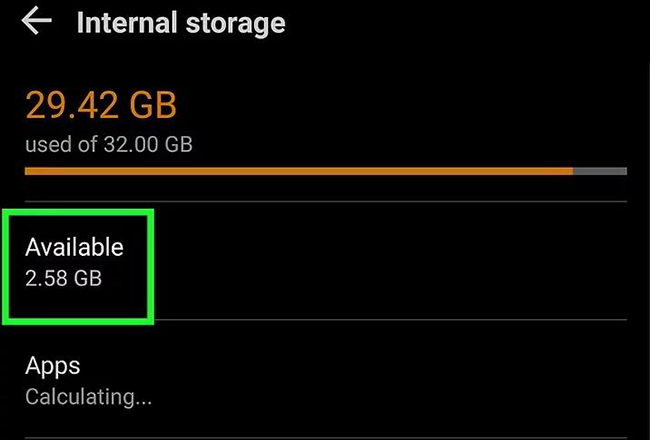
For Android: Go to Settings > Storage.
If you find there is not enough storage on your phone, you can delete unused apps, old photos and videos, etc.
Method 4: Give WhatsApp Storage Permissions (Android)
On Android, WhatsApp needs explicit permission to save media to storage. If this permission is disabled manually or after a system update, downloads will fail instantly. If you've recently updated Android, installed security apps, or changed privacy settings, the permission may have been revoked.
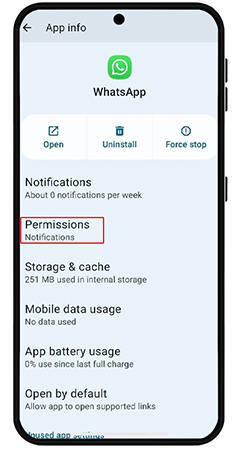
Step 1. Open Settings > Apps > WhatsApp > Permissions.
Step 2. Make sure Storage/Media & Files and Photos & Videos are allowed.
Step 3. Restart WhatsApp.
Method 5: Check the SD Card (Android Only)
If your media storage is set to an SD card, a corrupted or unmounted card can prevent downloads. WhatsApp cannot save anything to a damaged or locked SD card.
What you can do:
- Try removing & reinserting the SD card
- Test the card on another device
- Switch to Internal Storage temporarily
- Back up and format the SD card if necessary

Method 6: Clear WhatsApp Cache (Android)
Cache can become corrupted over time, causing random glitches, especially media download issues. Clearing the cache does not delete chats or media. This method often fixes the problem instantly.
Go to Settings > Apps > WhatsApp > Storage & Cache to press Clear Cache. Then, reopen WhatsApp.

Method 7: Restart Your Phone or Reinstall WhatsApp
A simple restart resets background processes, storage mounts, and internet services. If you haven't rebooted recently, this may be all you need. If WhatsApp files are corrupted, reinstalling the app can fix deeper issues, but always back up your chat history first.
How to reinstall WhatsApp
For iPhone:
Step 1. Go to Settings > General > iPhone Storage > WhatsApp.
Step 2. Tap Offload App (keeps data) or Delete App (removes data).
Step 3. Reinstall from App Storage.

For Android:
Step 1. Long-press WhatsApp > App info > Uninstall.
Step 2. Install again from Google Play.
Step 3. Restore backup.

Part 3. Bonus Tip: How to Manage WhatsApp Data on PC
When storage is running low or when you need to organize large media files, managing your WhatsApp data directly on your phone can become difficult. Using a computer makes it easier to back up, organize, transfer, and clean up WhatsApp files without accidentally deleting important chats.
TunesKit WhatsApp Transfer makes the management process faster, safer, and more reliable. You can use it to back up, restore, export, and manage WhatsApp data on PC.
Key Features of TunesKit WhatsApp Transfer
Transfer, back up, restore, and export WhatsApp messages between iOS devices without encountering any hassle.
 600,000+ Downloads
Part 4. FAQs About WhatsApp Download Failed
-
Q1: How can I prevent WhatsApp download failed in the future?
1. Keep enough storage on your device
2. Keep WhatsApp updated
3. Enable proper storage/photos permissions
4. Avoid using restrictive VPNs or data savers
5. Regularly clean or back up WhatsApp media -
Q2: Does clearing WhatsApp cache delete my chats?
No. Clearing the cache only removes temporary files. Your chats and media remain intact.
-
Q3: Why does WhatsApp say "media not available" instead of "download failed"?
1. The media may have been deleted by the sender
2. The file was not fully uploaded
3. WhatsApp cache may be corrupted
Part 5. Conclusion
Fixing the WhatsApp "Download Failed" error usually requires addressing one of a few common issues: network problems, storage limitations, permission settings, or outdated system configurations. By following the step-by-step methods above, you can quickly restore WhatsApp's ability to download media and ensure smoother messaging going forward.


