


What Is Apple Account Recovery & How to Set It: The Complete 2026 Guide
Losing access to your Apple Account (formerly known as your Apple ID) can feel like being locked out of your digital life. Apple Account Recovery is a security process designed to get you back into your account when you don't have enough information to reset your password. In this guide, you will learn exactly how this process works in 2026 and, more importantly, how to set up preventative measures so you never have to wait weeks to regain access.
- Understanding Apple Account Recovery in 2026
- How to Set Up an Apple Account Recovery Contact
- How to Generate a 28-Character Recovery Key
- Recovery Contact vs. Recovery Key: Which is Right for You?
- Bonus: What If You're Already Locked Out of Your Apple Account?
- Alternative Solutions for Immediate Device AccessHOT
- FAQs About Apple Account Recovery
- Conclusion
Understanding Apple Account Recovery in 2026
With the release of iOS 18 and macOS Sequoia, Apple transitioned the branding of "Apple ID" to Apple Account. While the name has changed, the core security remains the same. Account recovery is a failsafe mechanism used only when you don't have a trusted device nearby or a secondary trusted phone number to receive a verification code.
If you haven't set up a specific recovery method, Apple uses an automated system to verify your identity. This process is intentionally slow to discourage hackers, often taking anywhere from 10 to 26 days. To avoid this "waiting room," Apple provides two primary tools: Recovery Contacts and Recovery Keys.
How to Set Up an Apple Account Recovery Contact
A Recovery Contact is a person you trust who can verify your identity and help you regain access to your account. They cannot access your data; they simply receive a six-digit code that they give to you when you are locked out.
- Step 1. Open the Settings app on your iPhone or iPad (or System Settings on Mac).
- Step 2. Tap your Name at the very top to access your Apple Account settings.
- Step 3. Select Sign-In & Security, then scroll down to find Recovery Contacts.
- Step 4. Tap Recovery Contacts. You will see a summary of how the feature works.
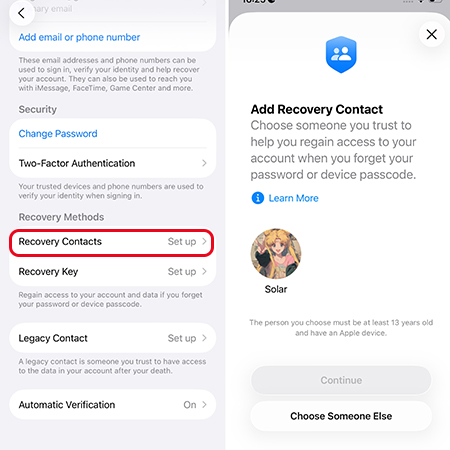
- Step 5. Follow the on-screen prompts to choose a contact. If you are in a Family Sharing group, your family members will be suggested automatically.
How to Generate a 28-Character Recovery Key
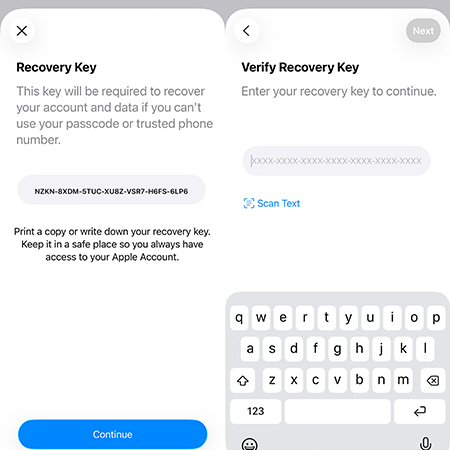
For users who want maximum control and have a high degree of technical confidence, the Recovery Key is the ultimate solution. An Apple Recovery Key is a special 28-character code that helps you regain access to your Apple Account if you forget your password or lose access to your trusted devices.
 Warning: Enabling a Recovery Key disables Apple's standard automated recovery process. If you lose your Recovery Key and your trusted devices, Apple cannot help you get back in. Your account will be permanently gone.
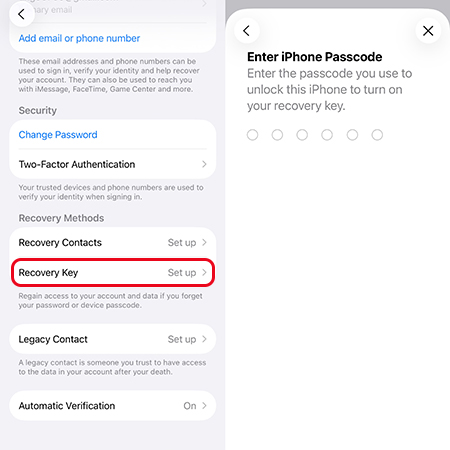
- Step 1. Navigate to Settings > [Your Name] > Sign-In & Security > Account Recovery.
- Step 2. Tap on Recovery Key.
- Step 3. You will be prompted to verify your device passcode.
- Step 4. Write down your Recovery Key exactly as it appears.
- Step 5. Re-enter the key on the next screen to confirm you have saved it.
Recovery Contact vs. Recovery Key: Which is Right for You?
| Feature | Recovery Contact | Recovery Key |
|---|---|---|
| Effort | Easy to set up | High (Requires manual storage) |
| Security | High (Human-verified) | Maximum (Math-verified) |
| Risk | Low (Contact can be changed) | High (Loss of key = Loss of account) |
| Best For | Families and average users | Tech experts and journalists |
Bonus: What If You're Already Locked Out of Your Apple Account?
If you are reading this because you are currently locked out and haven't set up a Recovery Contact or Key, you will need to rely on Apple's automated account recovery process. Here is the exact process to follow if you are currently locked out:
- Step 1. Navigate to iforgot.apple.com using a web browser on any available device.
- Step 2. Enter your Apple Account email or phone number and follow the on-screen prompts to initiate the recovery request.
- Step 3. Check your secondary email or phone for a confirmation message. Apple typically sends an initial evaluation email within 72 hours detailing when you can expect to regain access.
- Step 4. Turn off all other Apple devices that are currently signed in with your locked Apple Account.

This last step is critical. If Apple's system detects your account being actively used or pinged by another device (like an iPad or an Apple Watch) during the waiting period, it assumes you have found a trusted device and will automatically cancel your recovery request.
Once the specified time has elapsed, Apple will send you a text or an automated phone call with instructions on how to reset your password and finally regain access to your account.
Alternative Solutions for Immediate Device Access
While the official Apple Account Recovery process is the most secure way to preserve your data, the "waiting period" is not always feasible—especially if you need your device for work or travel immediately. In scenarios where you are locked out of your device and cannot wait weeks for a server-side reset, third-party specialized tools can provide a faster alternative.
TunesKit iPhone Unlocker is a desktop utility designed for situations where the standard recovery paths are blocked. It is particularly useful if you have forgotten your Apple Account password and need to remove the existing account from your iPhone or iPad to regain control of the hardware.
Use TunesKit iPhone Unlocker to Remove Apple Account
Unlock Apple Account on iPhone/iPad/iPod without password. Easy-to-use feature and user-friendly interface. Fully compatible with the latest iOS device and iOS versions.
 600,000+ Downloads
- Step 1. Download and install TunesKit iPhone Unlocker on your Windows or Mac computer. Launch the program and select the Unlock Apple ID option from the main menu.

- Step 2. Connect your locked iPhone or iPad to the computer using a compatible USB cable, then click the Start button so the software can detect your device model.
- Step 3. Review the on-screen device information to ensure it is correct. Click Download to allow the program to fetch the appropriate firmware package for your specific device.
- Step 4. Once the firmware download is complete, click the Unlock button.
 Detailed Guide: How to Use TunesKit iPhone Unlocker?
The software will begin removing the Apple Account from your device. Keep your device connected for a few minutes until the process finishes. After it restarts, you will be able to set up the iPhone as new and sign in with a different Apple Account.
FAQs About Apple Account Recovery
-
Can Apple support staff unlock my account for me?
No. To protect user privacy, Apple support does not have the ability to bypass the account recovery waiting period or reset your password for you.
-
How many recovery contacts can I have?
You can add up to five recovery contacts to your Apple Account. Having at least two is recommended in case one person is unavailable when you need them.
Conclusion
Securing your Apple Account in 2026 is ultimately about choosing between patience and preparation. By taking a few moments now to set up a Recovery Contact or a 28-character Recovery Key, you effectively bypass the frustrating 26-day automated waiting period that Apple imposes for security.
If you find yourself already locked out and unable to wait for the official channels, utilizing an alternative like TunesKit iPhone Unlocker can provide immediate relief by resetting your device access. Regardless of the path you choose, the key is to act before a lockout occurs, ensuring your digital legacy remains both safe and accessible.


