


Can iBackupBot Remove MDM Well? [Full Guide 2026]
Mobile Device Management (MDM) can severely limit your iPhone's functionality, often restricting access to the App Store, camera, or specific settings. For years, iBackupBot was a popular "hack" to bypass these profiles by editing backup files.
However, as Apple strengthens iOS security, many users find that iBackupBot no longer works or causes system errors. This guide explores whether iBackupBot is still viable in 2026 and provides a more reliable, modern alternative.

What Is iBackupBot?
As its name suggests, iBackupBot is a dedicated tool used for managing backup files. It can help you browse, view, edit, and export data that you previously backed up to iTunes. In iBackupBot, you can see detailed information about your device, check all detected backups, and preview specific data, such as camera roll, call history, messages, notes, calendars, contacts, voice memos, etc.
In the context of MDM, iBackupBot became famous as a workaround tool. By allowing users to modify the internal configuration files of an iPhone backup, it offered a "backdoor" to delete restriction profiles. While it was a powerful tool during the earlier eras of iOS, its lack of recent updates has made it a legacy application in the modern mobile landscape.
Why Does iBackupBot Often Failson Modern iOS (15 to 26)?
While the "backup-editing" trick worked on older firmware, it is increasingly ineffective today. There are three primary reasons for this decline:
- System Integrity Protection: Apple now encrypts and locks system-level configuration files, making them invisible or read-only to outdated tools like iBackupBot.
- DEP (Device Enrollment Program): If a device is registered via DEP, the MDM profile is linked to the serial number on Apple’s servers. Even if you delete local files, the MDM will reappear during activation.
- Software Obsolescence: iBackupBot has not received significant updates for several years, leading to frequent crashes and "Connection Failed" errors on the latest iPhone models.
How to Remove MDM Profile with iBackupBot (For Older iOS Only)?
If you are using a legacy device (iOS 12 or older), you may still attempt the iBackupBot method. Please ensure you have a full backup of your device before proceeding, as this method carries a high risk of data corruption. Then you can get started by following complete steps below.
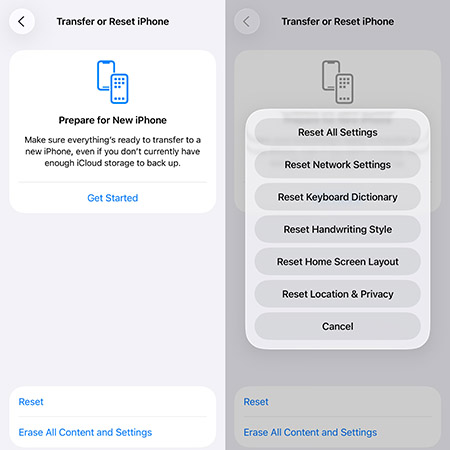
- Step 1. Connect your MDM-locked iOS device to your computer. Next, open your device and go for Settings → General → Transfer or Reset iPhone → Reset → Reset All Settings to reset all your device's settings.
- Step 2. Run iBackupBot on your computer and click on "Backup Now" to back up your data.

- Step 3. After data backup, go to Backups in the left panel, click on System Files and then find SysSharedContainerDomain-systemgroup.com.apple.configurationprofiles folder.

- Step 4. Select MDM.plist in the folder and get it deleted. This can remove MDM together with configured limitations.
- Step 5. Return to the Backups list, find your device's name, and right-click it to choose Restore to device. This can retain all your data.

👀 Shortcomings of iBackupBot MDM Removal:
- iBackupBot is designed with a user-unfriendly interface that is hard for novices to pick up quickly.
- iBackupBot program can sometimes crash, interrupting MDM removal.
- Some technical knowledge is required and a learning curve is necessary.
- Low success rate to remove MDM completely from iPhone or iPad.
- Removing MDM can result in erasing all settings.
Best iBackupBot Alternative for MDM Removal
Since iBackupBot is no longer reliable for modern devices, most users have turned to TunesKit iPhone Unlocker. TunesKit iPhone Unlocker is a perfect option to remove MDM from any iOS devices, including iPhone, iPad, and iPod touch. It requires no technical skills at all. You know exactly where to go and which button to click. You can completely delete MDM profile at home without having to rely on any instructions. The whole removal process is high-efficiency. Remarkably, all of your data is intact and nothing has been lost.
Why Choose TunesKit iPhone Unlocker?
Remove MDM from iPhone, iPad, and iPod touch. Support the latest iPhone model and iOS Version including 26.
 600,000+ Downloads
TunesKit iPhone Unlocker is available to use on both Windows and Mac computer. You can download the program with the newest version and finish installation easily. Then prepare your MDM-locked iOS device and follow the steps below.
Step 1 Connect MDM-embedded iOS Device to Computer
Plug your iPhone or iPad to computer by using a USB cable. Afterward, launch TunesKit iPhone Unlocker and choose Remove MDM among all functionality sections in the main interface.

Step 2 Initiate MDM Removal
If Find My feature is disabled on your connected device, you can directly click on the Start button in TunesKit iPhone Unlocker. The process to remove MDM profile will start immediately. However, if Find My is enabled, you should first turn it off in the Settings app.

iBackupBot VS. iBackupBot Alternative
iBackupBot has the ability to shed MDM profile from iPhone, iPad, or iPod touch. However, its long-term stagnation of updates results in program instability and low success rate. That's why you need to find a replacement. What are the concrete differences between iBackupBot and its alternative? Here you can take a close look.
| iBackupBot | TunesKit iPhone Unlocker | |
|---|---|---|
| Supported OS | Windows XP/Vista/7/8/10; macOS 10.5 – 10.12 |
Windows XP and later; macOS 10.8 and later |
| Supported iOS Devices | iPhone, iPad, iPod | iPhone, iPad, iPod |
| Program Stability | Poor | Strong |
| Operability | Relatively complicated | Very easy |
| Tech Skills | Required | Not required |
| Success Rate | Low (Below 15% on new iOS) | High |
| Data Loss | Yes (Settings Reset) | No |
| Price | Paid but no exact price | $34.95 |
FAQs About iBackupBot
-
Is iBackupBot free to use?
iBackupBot offers a free trial, but the full version is required for most advanced editing features. However, given its lack of updates, investing in a modern unlocker is generally more cost-effective.
-
Can iBackupBot remove "Remote Management" after a factory reset?
No. Once a device is at the "Remote Management" activation screen, iBackupBot cannot help because there is no local backup to edit. You must use a tool like TunesKit to bypass the activation lock.
Conclusion
Having learning all details about iBackupBot MDM removal, you can get clear on what iBackupBot is and how to use it to remove MDM profile without password. While iBackupBot holds a place in the history of iPhone customization, it is no longer a viable solution for modern MDM removal. For users on iOS 15 or higher, TunesKit iPhone Unlocker is the superior choice for regaining control of your device in 2026.


