


How to Remove Remote Management from iPhone After Factory Reset
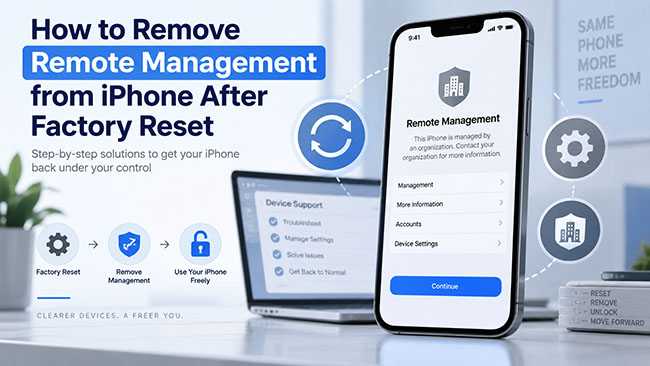
You factory reset your iPhone expecting a clean start, but during setup, the Remote Management screen appears again. This usually happens because the iPhone is still associated with a company, school, or other organization through mobile device management (MDM). So how to remove Remote Management from iPhone after factory reset?
It depends on how the device was enrolled. You may be able to delete a removable MDM profile from Settings, use an MDM removal tool such as TunesKit iPhone Unlocker on a device you own or are authorized to manage, or ask the original organization to release the device from its enrollment system.
- Why Does Remote Management Appear After Factory Reset?
- Local MDM Profile vs. Automated Device Enrollment
- Does Factory Reset Remove MDM from iPhone?
- Before You Remove Remote Management from iPhone
- How to Remove Remote Management from iPhone After Factory Reset
- What to Do If Remote Management Still Appears After Removal
- Conclusion
Why Does Remote Management Appear After Factory Reset?
Remote Management is part of Apple's device-management system. Businesses, schools, and other organizations use MDM services to configure iPhones, distribute apps, apply restrictions, install accounts, and manage organization-owned devices.
There are different ways an iPhone can become managed.
- A standard management or configuration profile can exist locally on the device. If the administrator permits profile removal, you may be able to delete it from Settings > General > VPN & Device Management.
- Automated Device Enrollment (ADE) works differently. It allows an organization to associate eligible devices with its device-management service so that enrollment can take place during Setup Assistant.
This explains why you can completely erase an iPhone and still see the Remote Management screen afterward.
Local MDM Profile vs. Automated Device Enrollment
The difference matters when choosing a solution:
- Removable MDM profile: You may be able to remove it directly through Settings.
- Remote Management during Setup Assistant: You may need the organization to release the device or, on a device you legitimately own or manage, use a compatible MDM removal solution.
- Automated Device Enrollment: The organizational assignment can remain even after the iPhone itself is erased.
- Company- or school-owned iPhone: Management may be intentionally enforced, so you should contact the administrator to remove it.
In short, erasing an iPhone and removing its organizational enrollment are different actions.
Does Factory Reset Remove MDM from iPhone?
A factory reset erases content and configurations stored on the iPhone, but it does not necessarily remove the device from an organization's enrollment records.
If the iPhone remains assigned through Automated Device Enrollment, it can discover its assigned management service again during activation. This is why repeatedly using Erase All Content and Settings may bring you back to the same Remote Management screen.
- Factory reset: Erases the device
- MDM profile removal: Removes device-side management restrictions
- Organization release: Removes the underlying organizational assignment
If Remote Management keeps returning after every reset, addressing the enrollment status is usually more effective than performing another factory reset.
Before You Remove Remote Management from iPhone, Check Your Situation
| Your Situation | What It Usually Means | Recommended Action |
|---|---|---|
| You can access the iPhone Home Screen | The iPhone may have a removable MDM profile installed locally. | Check whether the MDM profile can be removed in Settings. |
| Remote Management appears during iPhone setup | The iPhone may still be enrolled through Automated Device Enrollment (ADE). | Use an appropriate MDM removal method or contact the organization. |
| You bought the iPhone second-hand | The device may still be linked to the previous company, school, or organization. | Contact the seller or previous organization. |
| The iPhone belongs to your company or school | Remote Management is likely intentionally applied by the organization. | Contact the IT administrator. |
How to Remove Remote Management from iPhone After Factory Reset
If Remote Management still appears after a factory reset, the next step is to choose the right removal method based on your situation. Below are several practical ways to remove MDM restrictions and regain access to your iPhone.
Method 1. Remove the MDM Profile from iPhone Settings
If you can already access the Home Screen and the administrator has allowed profile removal, start with Apple's built-in Settings app.
Removing a management profile can also remove settings associated with it, such as corporate accounts, certificates, VPN configurations, or managed apps. Back up any personal information you need before proceeding.
- Step 1. Open Settings on your iPhone.
- Step 2. Tap General.
- Step 3. Scroll down and choose VPN & Device Management.
- Step 4. Select the MDM or configuration profile.
- Step 5. Tap Remove Management. Enter the required passcode or management credentials if prompted.
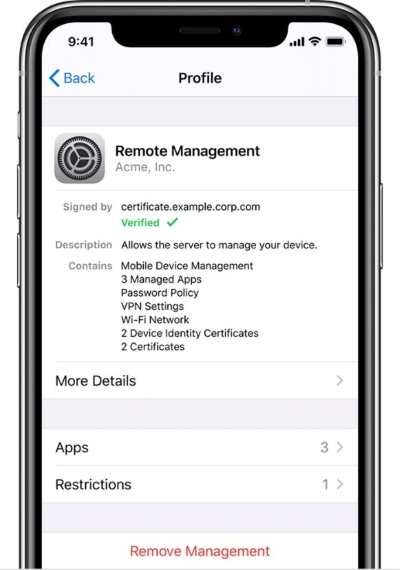
- Step 6. Restart your iPhone.
If you cannot find a removal option, the organization may have configured the profile so users cannot unenroll manually. In that case, consider the following solutions.
Method 2. Remove MDM with TunesKit iPhone Unlocker Without Administrator Credentials
If the iPhone is your own device or one you are authorized to manage, but you cannot remove the MDM profile through Settings or do not have the administrator credentials, TunesKit iPhone Unlocker provides another option.
The program includes a dedicated Remove MDM mode. According to its current product documentation, the feature can remove supported MDM restrictions without requiring the MDM administrator username or password and without erasing existing device data. It is available for Windows and Mac.
Key Features of TunesKit iPhone Unlocker
Easily remove MDM from iPhone without password in 3 simple steps. You won't lose your data after removing the restrictions.
 600,000+ Downloads
- Step 1. Install and launch TunesKit iPhone Unlocker on your Windows PC or Mac.
- Step 2. Connect the affected iPhone to the computer with a USB cable.
- Step 3. Choose Remove MDM from the main interface.
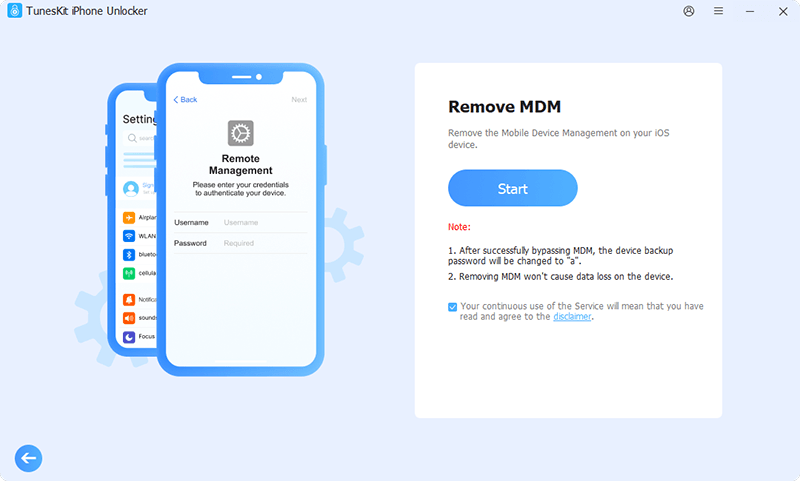
- Step 4. Follow the onscreen instructions and click Start to begin removing the supported MDM restriction. Keep the iPhone connected until the process finishes.
Method 3. Ask the Organization to Release the iPhone
If Remote Management keeps returning after factory reset, the iPhone may still be registered to an organization through Automated Device Enrollment. For a device that has legitimately been sold, retired, or transferred out of an organization, ask an authorized administrator to release it from the organization's Apple device inventory.
The administrator should locate the affected device in Apple Business or, for educational institutions, Apple School Manager, and release the device from the organization.

After the device has been released, erase the iPhone again and complete Setup Assistant. This is different from merely bypassing a Remote Management screen because releasing the iPhone addresses the organization-side enrollment record.
Method 4. Contact the Seller If a Used iPhone Shows Remote Management
Second-hand devices are a common reason people encounter Remote Management unexpectedly.
For example, you may buy an erased iPhone, connect it to Wi-Fi during setup, and then see: "This iPhone is supervised and managed by [Organization Name]." If this happens, follow these steps here.
- Step 1. Contact the seller and send them a photo of the Remote Management screen.
- Step 2. Ask whether the iPhone previously belonged to a company, school, or organization.
- Step 3. Ask the seller to contact that organization and have the iPhone properly released.
- Step 4. Once the device has been released, erase and activate it again.
If the seller cannot arrange a legitimate ownership transfer or organizational release, consider returning the iPhone through the marketplace or seller's refund process.
What to Do If Remote Management Still Appears After Removal
If you have already tried removing MDM but Remote Management appears again, work through these checks.
1. Confirm Whether the Organization Released the Device
Ask the previous organization to verify the iPhone's serial number and confirm that the correct device has actually been released. This avoids confusion between releasing the device and merely removing it from one management server.
2. Erase the iPhone After Organization-Side Release
Once the organization confirms the release, go to Settings > General > Transfer or Reset iPhone > Erase All Content and Settings to erase your iPhone. Then complete Setup Assistant again.
3. Avoid Repeated Factory Resets Before Fixing the Enrollment
If the iPhone is still enrolled through Automated Device Enrollment, another reset may simply cause Remote Management to return. TunesKit's current MDM guidance likewise notes that MDM can appear again after factory reset when the device remains assigned through Automated Device Enrollment.
Resolve the underlying enrollment before spending time on repeated resets.
4. Use a Stable Internet Connection
During Setup Assistant, the iPhone communicates with Apple's activation and enrollment services. Connect to a reliable Wi-Fi network and restart the setup process if activation fails unexpectedly.
5. Check Whether the iPhone Is Still Managed
If you can access the Home Screen, open Settings > General > VPN & Device Management to check whether a management profile is still listed. You may also see a supervision message in Settings if the device remains managed by an organization.
6. Contact the Administrator Again
If the same organization's Remote Management screen continues to appear after you were told the device had been released, provide the administrator with the iPhone's serial number and a screenshot of the message.
They can then check whether the correct device record was updated.
Conclusion
If Remote Management appears after a factory reset, first determine whether you are dealing with a removable MDM profile or an iPhone that remains assigned to an organization.
If the profile can be removed normally, use Settings > General > VPN & Device Management. For a device you own or are authorized to manage when the administrator credentials are unavailable, TunesKit iPhone Unlocker offers a dedicated Remove MDM option that can address supported device-side MDM restrictions without erasing existing data.



