


This iPhone Is Supervised and Managed By: What It Means and How to Remove It
A supervised iPhone gives a company, school, or other organization additional management capabilities. Some management profiles can be removed from Settings > General > VPN & Device Management, while organization-enrolled devices may need to be released by their administrator before supervision can be fully removed.
Seeing "This iPhone is supervised and managed by [organization]" can be confusing, especially if the iPhone is your personal device or you bought it second-hand. In simple terms, the message means an organization has placed the iPhone under supervision and may use device management to control certain settings, apps, and restrictions.
Whether you can remove the supervision yourself depends on how the iPhone was enrolled and who owns it. This guide explains what the message means, what administrators can see or control, and the correct way to remove iPhone supervision in different situations.
- What Does "This iPhone Is Supervised and Managed By" Mean?
- Is a Supervised iPhone the Same as an MDM iPhone?
- Why Is My iPhone Supervised and Managed?
- How to Check Who Is Managing Your iPhone
- What Can an Organization See or Control on a Supervised iPhone?
What Does "This iPhone Is Supervised and Managed By" Mean?
If your iPhone says it is supervised and managed by an organization, the device has been configured to give that organization additional administrative control. Apple describes supervision as a state generally used for organization-owned devices. A supervised iPhone can accept additional restrictions and management commands that aren't available on a regular personal iPhone.
The wording you see may vary by iOS version and management configuration.
On current versions of iOS, Apple says a supervised device may display a message similar to "This iPhone is supervised. [Organization name] can monitor your internet traffic and locate this device."
You may also encounter the commonly searched wording "This iPhone is supervised and managed by [organization]." Both indicate that organizational management is involved.
Is a Supervised iPhone the Same as an MDM iPhone?
Not exactly.
Supervision describes the management status of an iPhone and allows an organization to apply additional controls.
Mobile Device Management (MDM) is the system organizations use to send settings, restrictions, apps, certificates, and commands to enrolled devices.
For example, Apple's current enrollment documentation says Automated Device Enrollment produces a supervised iPhone, while some other enrollment methods can manage an iPhone without supervising it. This distinction becomes important when you try to remove management, because a removable profile and an organization-enrolled supervised iPhone require different solutions.
Why Is My iPhone Supervised and Managed?
An iPhone normally becomes supervised because it was prepared for use by a company, school, government agency, or another organization. However, there are several situations in which you may encounter the message.
1. The iPhone Belongs to Your Company or School
This is the most normal situation. Your employer or school may provide an iPhone and supervise it to apply security policies, install work apps, configure Wi-Fi or VPN settings, and protect organizational information.
In this case, the supervision is intentional. You should generally contact the organization's IT administrator before trying to remove profiles or restrictions.
2. The iPhone Was Enrolled Through Automated Device Enrollment
Organizations can register devices with Apple and configure them through Automated Device Enrollment.
Apple describes Automated Device Enrollment as an enrollment method designed for organization-owned Apple devices. It allows organizations to configure devices during initial setup and can prevent users from removing device management themselves. This is particularly important because management can return after the device is erased if it is still assigned to the organization.
3. The iPhone Was Manually Supervised
An organization can also prepare and supervise compatible Apple devices using Apple Configurator.
Unlike simply installing an ordinary configuration profile, creating supervision on an existing unsupervised iPhone generally requires the device to be erased during the setup process. Apple notes that an administrator needs to erase an unsupervised device to set up supervision.
4. You Bought a Used or Refurbished iPhone
This situation deserves special attention.
If you purchased an iPhone and suddenly see "This iPhone is supervised and managed by…", the device may previously have belonged to a company or school and may not have been properly released from that organization's management system.
Resetting it repeatedly may not solve the problem. If it remains assigned to organizational Automated Device Enrollment, the Remote Management screen can appear again during setup.
How to Check Who Is Managing Your iPhone
Before trying to remove supervision, identify the organization and check how the device is being managed.
Check the Supervision Message in Settings
Open Settings and look near the top of the main Settings screen. Apple says a supervised iPhone displays its supervision notice there. The message may include the organization's name and indicate that it can monitor internet traffic and locate the device under certain circumstances.
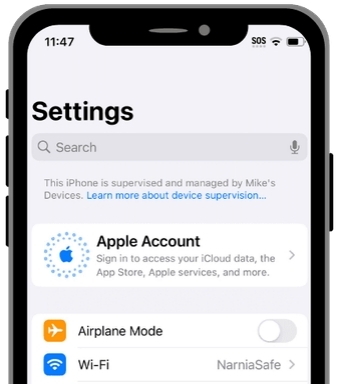
If the company or school name is familiar, contact its administrator if you need the management removed.
If you do not recognize the organization, particularly on a used phone, contact the seller.
Check VPN & Device Management
You can also inspect installed management profiles:
- Step 1. Open Settings. Tap General.
- Step 2. Tap VPN & Device Management.
- Step 3. Select the profile listed under device management to see its details.
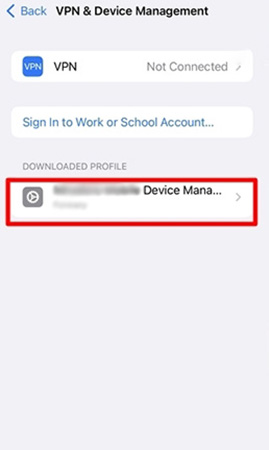
Apple recommends this path for reviewing the configuration and management profiles installed on an iPhone.
What Can an Organization See or Control on a Supervised iPhone?
A supervised iPhone gives an organization more control than an ordinary personally owned device, but supervision does not automatically give administrators unrestricted access to everything stored on the phone.
Apple's enrollment documentation specifically states that device management cannot directly view personal iMessages or SMS messages, personal calendars, contacts, mail, notes, reminders, phone or FaceTime call logs, or Safari browser history through the MDM framework.
Here is a practical overview:
| Action | Can MDM Usually Do It? |
|---|---|
| Install or manage organization apps | Yes |
| Apply device restrictions | Yes |
| Configure Wi-Fi, VPN, certificates, or network settings | Yes |
| Enforce certain security requirements | Yes |
| Remotely lock a managed device | Yes |
| Remotely erase a managed device | Yes |
| Read your iMessages or SMS through MDM | No |
| View your personal Safari browsing history through MDM | No |
| View personal call logs through MDM | No |
| Locate a supervised iPhone through Managed Lost Mode | Yes, under specific conditions |
The exact controls depend on the organization's management configuration.
Can You Remove "This iPhone Is Supervised and Managed By"?
Sometimes. The correct solution depends on whether you installed a removable profile yourself, the phone still belongs to an organization, or it remains registered for organizational enrollment.
Use this table before trying any removal method:
| Your situation | Recommended solution |
|---|---|
| A Delete Profile option is available | Remove the profile from Settings |
| Company or school still owns the iPhone | Ask its IT administrator |
| Organization gave or sold the iPhone to you | Ask it to release the device from organizational management |
| You bought a used iPhone with an unknown organization | Contact the seller and request proper release |
| Management returns after factory reset | The device may still be assigned to Automated Device Enrollment |
| Remote Management appears during setup | Contact the organization or seller before continuing |
Avoid factory resetting the device immediately. A reset may erase your data without solving organization-based enrollment.
Method 1. Remove the Management Profile from Settings
If your iPhone has a removable configuration or management profile, you may be able to delete it directly. Apple provides the following removal path.
- Step 1. Go to Settings > General > VPN & Device Management.
- Step 2. Tap the management or configuration profile you want to remove.
- Step 3. Tap Remove Management if that option is available.

- Step 4. Enter your device passcode if requested and follow the onscreen instructions.
- Step 5. Restart the iPhone.
If Remove Management does not appear or removal requires credentials you do not have, do not repeatedly try to bypass the restriction. Move to the next method.
Method 2. Ask the Administrator to Remove the iPhone from Management
If your company or school owns the device, contacting its administrator is usually the correct solution.
Automated Device Enrollment allows organizations to configure a supervised iPhone so the user cannot unenroll it manually. Apple explicitly provides a "Prevent unenrollment" capability for these deployments.
The administrator can determine whether the device should remain managed or whether it can be removed from the organization's deployment.
Method 3. Have the Organization Release the iPhone
If a company legitimately sold, transferred, or gave you its old iPhone, simply deleting a local profile may not be enough. The organization may also need to release the device from its Apple organizational deployment.
For Apple Business, Apple's current instructions provide a Release from Organization action. After an administrator releases the device, Apple states that it should then be erased and restored.
The process therefore generally follows this order:
- Step 1. Contact the former organization and provide the information it needs to identify the device.
- Step 2. Ask the administrator to remove it from MDM and release it from the organization's Apple deployment system.
- Step 3. Wait until the administrator confirms that the release has been completed.

- Step 4. Back up any personal information you need.
- Step 5. Erase and restore the iPhone.
- Step 6. Set up the iPhone again and confirm that organizational management no longer appears.
Method 4. Remove Supported MDM Restrictions with TunesKit iPhone Unlocker
If the iPhone is your own device or one you are authorized to manage, but you cannot remove a supported MDM profile through Settings, a third-party MDM removal tool can be another option.
TunesKit iPhone Unlocker includes a dedicated Remove MDM mode. According to its current documentation, the feature is designed to remove supported MDM restrictions without requiring the MDM administrator username or password and without erasing existing device data. Its published compatibility currently extends through iOS 27.
Key Features of TunesKit iPhone Unlocker
Easily remove MDM from iPhone without password in 3 simple steps. You won't lose your data after removing the restrictions.
 600,000+ Downloads
How to Remove MDM with TunesKit iPhone Unlocker
- Step 1. Install and open TunesKit iPhone Unlocker on a Windows PC or Mac. Connect the affected iPhone to the computer with a USB cable.
- Step 2. From the main interface, select Remove MDM.
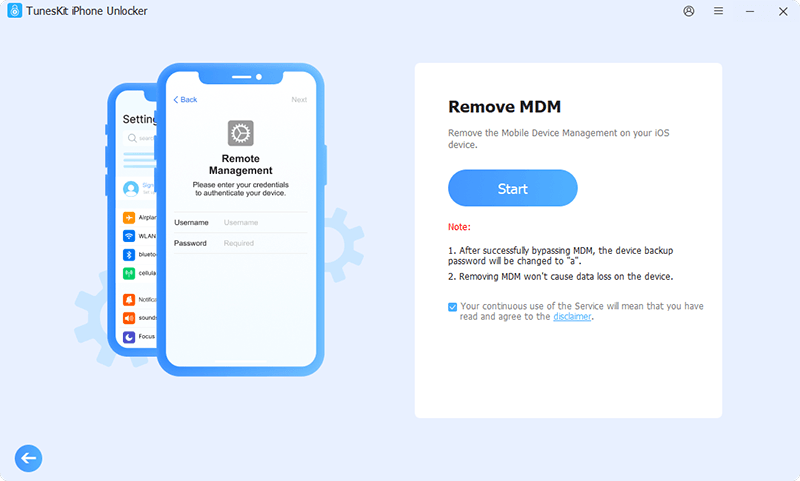
- Step 3. Click Start and follow the onscreen instruction to begin removing the supported MDM restriction.
- Step 4. When the process finishes, check Settings > General > VPN & Device Management and confirm whether the management profile and related restrictions have been removed.
Does Factory Reset Remove Supervision from an iPhone?
A factory reset can remove locally installed profiles, but it does not guarantee that organizational supervision will disappear permanently. This distinction is critical.
If an iPhone only has an ordinary removable profile, erasing the device removes the local profile and its settings.
However, if the iPhone remains assigned to an organization through Automated Device Enrollment, it can contact Apple's deployment services during Setup Assistant and receive its organization's management configuration again.
For that reason, do not assume: factory reset = permanent MDM removal.
Supervision vs MDM vs Activation Lock
Several different iPhone security and management features can produce restrictions, so it is useful to know which problem you actually have.
| Feature | What It Means | Who Controls It |
|---|---|---|
| Supervision | Gives an organization additional control over an iPhone | Company, school, or organization |
| MDM | Technology used to apply settings, apps, restrictions, and management commands | Organization's management service |
| Activation Lock | Anti-theft protection associated with Find My | Apple Account owner or authorized organization in applicable deployments |
| Screen Time | Controls app use, content, and device restrictions | Device user, parent, or family organizer |
FAQs About "This iPhone Is Supervised and Managed By"
-
Can a Supervised iPhone Be Tracked?
A supervised iPhone supports a location feature called Managed Lost Mode, but this should not be confused with silent continuous location tracking.
The feature locks the device, and the user sees a message on the Lock Screen. Managed Lost Mode can also request the current location even if Location Services were turned off.
-
Why Does Remote Management Come Back After Factory Reset?
If the Remote Management screen returns while setting up the iPhone, the device is likely still configured for organizational enrollment.
An erase removes the existing contents of the phone, but it does not by itself tell Apple's organizational deployment system that the company no longer owns the device.
-
Is a supervised iPhone safe to use?
A legitimately supervised company or school iPhone is normal and is designed to operate under organizational policies. If you unexpectedly find supervision on a personal or second-hand iPhone, identify the organization and resolve the management status before relying on the device for personal use.
Conclusion
The message "This iPhone is supervised and managed by…" means the device is under organizational management. Start by checking whether the profile can be removed from Settings > General > VPN & Device Management.
If you own or are authorized to manage the device, TunesKit iPhone Unlocker can help remove supported MDM restrictions. For devices still linked to Apple Business Manager, Apple School Manager, or Automated Device Enrollment, contact the organization or seller to release the iPhone properly and prevent management from returning.



