


How to Export iPhone Passwords to CSV
If you want to export iPhone passwords to CSV, you can do it directly on supported iOS versions through Safari settings. This creates a CSV file containing your saved website and account passwords, which you can then import into another password manager. Because the exported CSV is not encrypted, delete it after you finish the transfer.
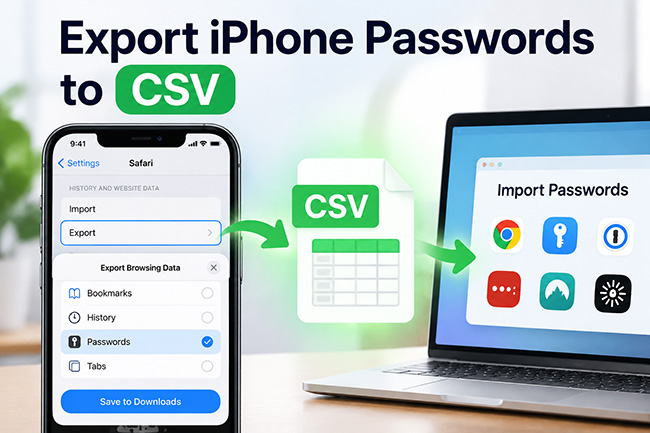
How to Export iPhone Passwords to CSV Directly
Apple's built-in export option is the simplest method if you only need saved website and account passwords.
- Step 1. Open Settings on your iPhone.
- Step 2. Tap Apps, then select Safari.
- Step 3. Scroll to History and Website Data and tap Export.
- Step 4. Select Passwords and deselect other data types if you only need your passwords.
- Step 5. Tap Save to Downloads.
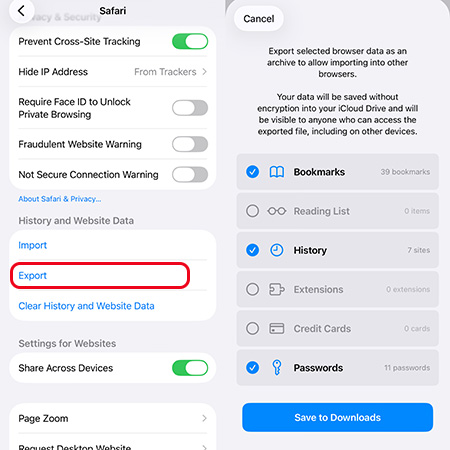
- Step 6. Tap Done.
The exported password data is saved in your Downloads folder and can then be moved to another password manager.
Where to Find the Exported Password File
Open the Files app and go to Browse > Downloads.
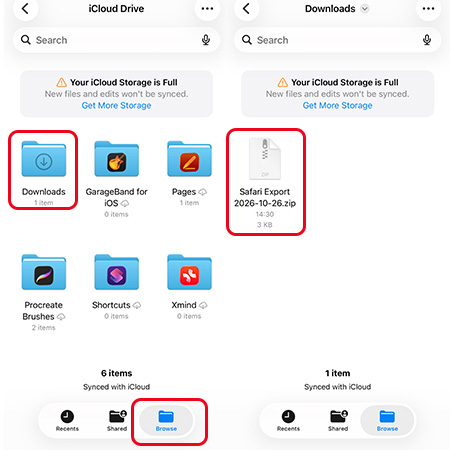
If you export passwords together with other Safari data, such as bookmarks or history, Safari may save the exported data in a ZIP file.
What Does the iPhone Password Export Include?
Apple's native export is designed for saved website and account passwords. However, it does not export every credential stored on your iPhone.
Apple specifically says you cannot export:
- Wi-Fi passwords
- Passwords shared with a group unless you created that group
- Sign in with Apple account passwords
This is important if your goal is to create a complete password backup. If some credentials are missing from the CSV, it may be a limitation of Apple's export rather than an export error.
Alternative: Export iPhone Passwords to CSV With TunesKit iPhone Unlocker
For ordinary website passwords, Apple's built-in export should usually be your first choice because it works directly on the iPhone and does not require extra software.
However, TunesKit iPhone Unlocker can be useful if you want to export additional credential categories that Apple's native CSV does not include, particularly saved Wi-Fi passwords. Its Password Manager feature works from a Windows PC or Mac and can scan password information stored on a connected iPhone.
Key Features of TunesKit iPhone Unlocker
Export iPhone/iPad saved Wi-Fi passwords, website and app logins, email accounts, and more passwords to CSV. Support the latest iOS version and iPhone models.
 600,000+ Downloads
To export passwords with TunesKit:
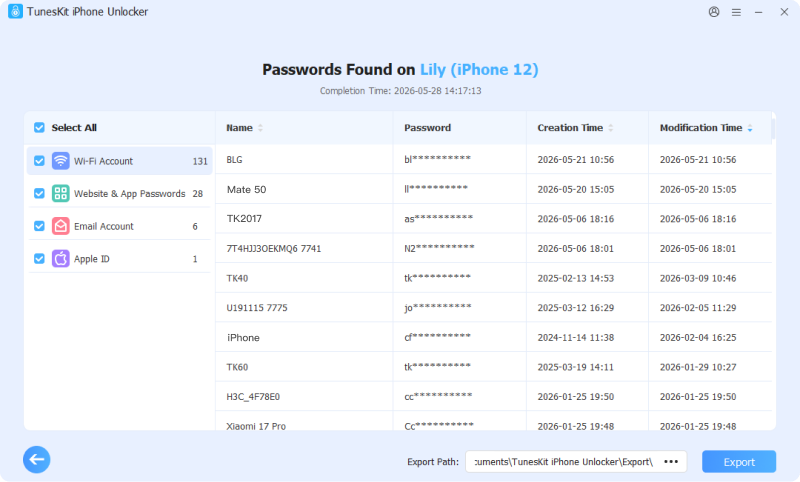
- Step 1. Install and open TunesKit iPhone Unlocker on your computer. Connect your iPhone with a USB cable. Choose Password Manager. Click Start Scanning.
- Step 2. Follow the prompts to unlock your iPhone and provide the required backup password if requested.
- Step 3. Wait for TunesKit to scan the stored credentials. Review the password categories displayed in the results. Click Export to save the password records as a CSV file on your computer.
Apple Export vs. TunesKit: Which Should You Use?
| Method | Best for | Main Limitation |
|---|---|---|
| Apple built-in export | Exporting standard website and account passwords | Does not export Wi-Fi passwords |
| TunesKit Password Manager | Exporting multiple password categories, including Wi-Fi credentials according to the vendor | Requires a Windows PC or Mac and device access |
If Apple's export already contains everything you need, there is little reason to install another tool.
TunesKit becomes more relevant when the native export is incomplete for your particular use case.
How to Import the Exported iPhone Password CSV Into Another Password Manager
After exporting, the next step is usually to import the CSV into a browser or password manager. The exact process varies by service, but the general workflow is like below:
- Step 1. Open the destination password manager.
- Step 2. Find Import, Import Data, or a similar option.
- Step 3. Choose CSV as the import format.
- Step 4. Select the password file you exported.
- Step 5. Complete the import.
- Step 6. Check several important accounts to make sure their usernames and passwords transferred correctly.
- Step 7. Delete the CSV once you confirm the migration worked.
Avoid importing the same file repeatedly without checking the results first, as some password managers may create duplicate entries.
Is an Exported iPhone Password CSV Safe?
The main risk is that the exported file is not encrypted. Apple warns that anyone who can access the exported file can view the passwords inside it. For that reason:
- Do not leave the CSV in Downloads permanently.
- Avoid emailing it to yourself.
- Avoid uploading it to unsecured cloud storage.
- Do not store copies on shared computers.
- Delete the file once the passwords have been successfully imported.
A password CSV is best treated as a temporary migration file, not as a long-term password backup.
Can You Export All iPhone Passwords to CSV?
Not completely.
Apple's native method can export website and account passwords, but certain types of credentials are excluded, including Wi-Fi passwords and some shared credentials. This means the answer depends on what you mean by "all passwords."
- If you only need website logins, Apple's method may be enough.
- If you also need saved Wi-Fi credentials, TunesKit's Password Manager is one possible alternative because the vendor says it supports Wi-Fi account data in addition to website and app passwords.
Troubleshooting iPhone Password Export
1. The Export Option Is Missing
Make sure you are checking Settings > Apps > Safari.
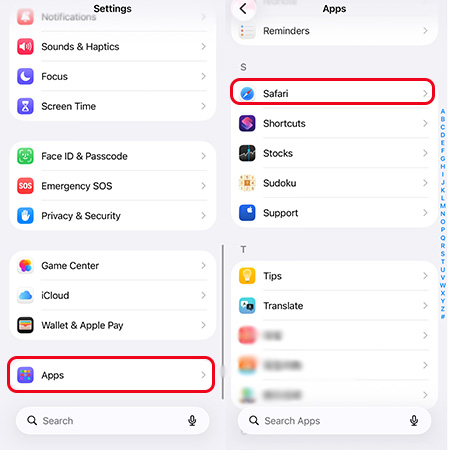
The password export control is located in Safari settings even though passwords themselves can also be viewed through Apple's Passwords app. If the option still does not appear, the interface may differ on older iOS versions.
2. I Exported Passwords but Got a ZIP File
Safari can export passwords together with other browsing data. When multiple categories are exported, the resulting data may be saved as a ZIP file in Downloads.
If you only need passwords, repeat the export and select Passwords while deselecting the other categories.
3.My Password Manager Won't Import the CSV
Check:
- Whether the password manager accepts CSV files.
- Whether it expects specific column names.
- Whether you selected the actual CSV rather than a ZIP file.
- Whether the CSV has been modified or corrupted.
- Whether the destination has an import-size limit.
Do not repeatedly edit and resave the password file unless necessary, as every additional copy increases the chance of exposing sensitive credentials.
FAQs About Exporting iPhone Password to CSV
-
Does iPhone password export include Wi-Fi passwords?
No. Apple's built-in password export does not include Wi-Fi passwords.
If you need Wi-Fi credentials as well, TunesKit's Password Manager is one possible alternative because its documentation states that it can scan Wi-Fi account data and export password records to CSV.
-
Is an exported iPhone password CSV encrypted?
No. Apple warns that its exported password file is not encrypted and can be viewed by anyone who gains access to it. Delete the CSV after the transfer is complete.
Final Thoughts
The easiest way to export iPhone passwords to CSV is Apple's built-in method. For most users, this is all that is needed. The main limitation is that Apple's CSV does not contain every credential type, including saved Wi-Fi passwords.
If those additional credentials matter, TunesKit iPhone Unlocker's Password Manager is a reasonable alternative because it can, according to the vendor, scan Wi-Fi accounts and website/app passwords and export the records to CSV.



