


What To Do If You Forgot Your iPhone or iTunes Backup Password [2026 Guide]
An encrypted backup is a fantastic security feature that ensures your sensitive iOS data remains entirely protected. However, many users suddenly find themselves locked out because they forgot their iPhone or iTunes backup password. This often happens due to infrequent syncing, managing too many credentials, or enabling the encryption feature accidentally.
Today, managing Apple devices has evolved beyond classic iTunes. Whether you use Finder on a modern Mac, the Apple Devices app on Windows, or traditional iTunes, the underlying encryption mechanism remains identical. Feeling stuck without access to your crucial files is completely normal. This comprehensive guide provides step-by-step solutions to help you regain access to your encrypted local backups.

How to Recover or Bypass Your iPhone / iTunes Backup Password
In this part, we'll introduce 4 proven ways for help if you forgot iPhone / iTunes password for backup. You can watch the video below or keep reading the article on your convenience.
Video Guide: How to Remove iPhone / iTunes Backup Encryption If You Forgot Password
Way 1. Try All Possible Password
Apple separates your local backup encryption from your primary Apple ID or device screen lock. Because of this, it is incredibly common for people to draw a blank when prompted for this specific credential. Before moving on to more complex software solutions, take a moment to try your most familiar combinations.
The good news is that, you have unlimited attempts to unlock iTunes backup when you forgot iTunes backup password, unlike your iPhone screen lock, which will be locked forever after 10 failed attempts. Try the following common fallbacks:
- Your Apple Account password
- Commonly used email passwords
- Variations of your device screen passcode
- Credit card passcode or other password of payment
- Any other passwords you use for other apps or accounts
Way 2. Check Keychain Access on Your Mac
If you regularly back up your iOS device using a Mac, there is a strong chance your system saved the credential for you. macOS includes a built-in password manager called Keychain Access that securely stores your passwords. When you initially set up the encryption in Finder or iTunes, you might have checked the box to remember it. This method is exclusively for Mac users. Here is how to extract backup password from iCloud keychain on Mac if you forgot it.
- Step 1. Search for Keychain Access on Spotlight.
- Step 2. Navigate to the search bar located at the top right corner and type "iOS Backup" to filter the results.
- Step 3. Click the result and click Show password in the appeared window.
- Step 4. Enter your Mac login passcode to verify your identification. Then, you'll see or change the backup password.

Way 3. Remove iPhone / iTunes Backup Password [No Data Loss]
When guessing fails and you do not have a Mac with a saved keychain entry, utilizing a dedicated removal tool is your most reliable option. TunesKit iPhone Unlocker provides a highly efficient way to strip away the encryption barrier without compromising your existing files. It supports the latest iPhone models and is fully compatible with modern iOS versions.
1-Click to Factory Reset iPhone without Passcode
Remove iTunes backup encryption without password. No data loss after removing the encryption. Supports almost all iPhone models running iOS 7-26.
 600,000+ Downloads
Now let's dive into how TunesKit iPhone Unlocker helps remove iTunes backup encryption while keeps previous backup data when you forgot iTunes backup password.
Step 1Connect iPhone to Mac/Windows Computer
Install and launch the latest TunesKit iPhone Unlocker on your Mac or Windows computer. In the main interface, choose Remove iTunes Backup Encryption. Then, connect iPhone to your computer via Lighting or USB cable.

Step 2Start to Remove iTunes Backup Encryption
Now you can check whether the Find My feature is enabled on your iPhone. If it's turned on, please disable it first. Then, click the Start button to remove password on your iTunes backup.

Step 3 Check If iTunes Backup Password Is Removed
Wait for a few minutes, and TunesKit iPhone Unlocker will remove encryption when you forgot iTunes backup password. After removing, click Done, open your iTunes, and you will find the "Encrypt local backup" option is turned off.

Way 4. Reset All Settings and Create New iTunes Backup [iOS 11 and Later]
If the data inside your old backup is no longer necessary, Apple provides an official workaround for devices running iOS 11 or newer. You can reset your device's settings to completely clear the forgotten backup password. This allows you to immediately create a fresh, unencrypted backup of your current phone data. Please note that this will overwrite any previous local backups you had.
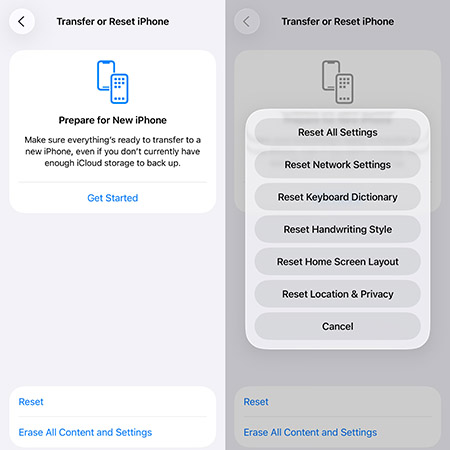
- Step 1. Tap Settings > General on iPhone.
- Step 2. Scroll down and choose Transfer or Reset iPhone.
- Step 3. Tap Reset > Reset All Settings.
- Step 4. Confirm Reset All Settings twice again and wait for iPhone to restart. Then, you can link your iPhone to the backup tool on computer and create new backup now.
 Note
Note
Reset All Settings will not erase current data on your iPhone, but some settings like Sounds, Notifications, Display & Brightness will restore to default, as well as the backup password.
How to Prevent Losing Your Backup Password in the Future
Successfully recovering your backup access is a huge relief, but you definitely want to avoid repeating this stressful experience. Implementing a few simple habits can save you a lot of time later.
Tip 1. Using iCloud Backup As An Alternative without Password
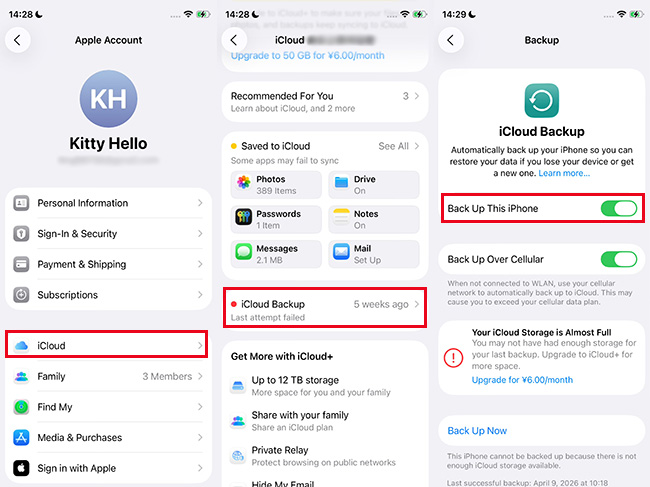
Apart from syncing your iPhone data with iTunes or Finder, iCloud is also a good place for backup. Compared to iTunes backup, iCloud backup is more flexible, as all data and all edits on the data will sync to your devices automatically. If you're the one who always forgot iTunes backup password like me, this method can be a saver - it doesn't use additional password for encryption, all with your Apple Account credentials. Here's how to turn on iCloud backup on iPhone:
- Tap Settings > [Your Profile] > iCloud > iCloud Backup to turn on Back Up This [Your Device].
Tip 2. Store Your Passwords Securely on Notebook or Password Managers
Another way to prevent you forget iTunes backup password in the future is simple but useful, just write it down on your physical or digital notebook. Or collect all your passwords on a reliable password manager. Anyway, keep several copies of your password for insurance, in case you can't find it.
Tip 3. Regular Verify iTunes Backup Password with Reminder
It's hard for us to remember password that we don't enter frequently, which makes sense if you can't remember iTunes backup password due to low backup frequency. To solve this pain point, some Android phones force users to enter passcode every 72 hours. This is very helpful due to my own experience.
Although iPhone doesn't have the same anti-forgot design as Android, we can set a reminder manually and type the password on Memos of Reminder. This way, you can reinforce the password in your mind as well as test the backup password to prevent issues like incorrect password.
FAQs on iOS Backup Encryption
-
Is my local backup password the same as my Apple Account?
No, they are entirely separate security measures. Your Apple Account secures your cloud account, while the local backup password specifically encrypts files saved to your computer.
-
Will Apple Support reset my encrypted backup password for me?
Apple cannot reset this specific password for you. Your only options are recalling it, finding it in Mac Keychain, resetting device settings, or using a third-party unlocking tool.
Conclusion
Forgetting your iPhone, Finder, or iTunes backup password can halt your device management plans, but it is a highly solvable problem. Start by trying familiar passwords or retrieving the credential from your Mac's Keychain. If those methods fail, reliable tools like TunesKit iPhone Unlocker or a simple settings reset can quickly get you back on track. Always store your security credentials safely to maintain hassle-free access to your data.


